

DotEnv File for Secret Management
In Bruno, you can store your secrets (e.g., API keys, JWT tokens) in a.env file located at the root of your collection folder. This approach is inspired by how developers typically manage secrets in their codebase.
Folder Structure Example
Below is an example folder structure for your collection:bruno-collection
api-folder
.env
.gitignore
opencollection.yml
package.json
Creating and Using the .env File
-
Create a
.envfile manually in the root of your collection folder. This file will store your sensitive environment variables. -
Define your secrets in the
.envfile. For example:
showLineNumbers
process.env object.
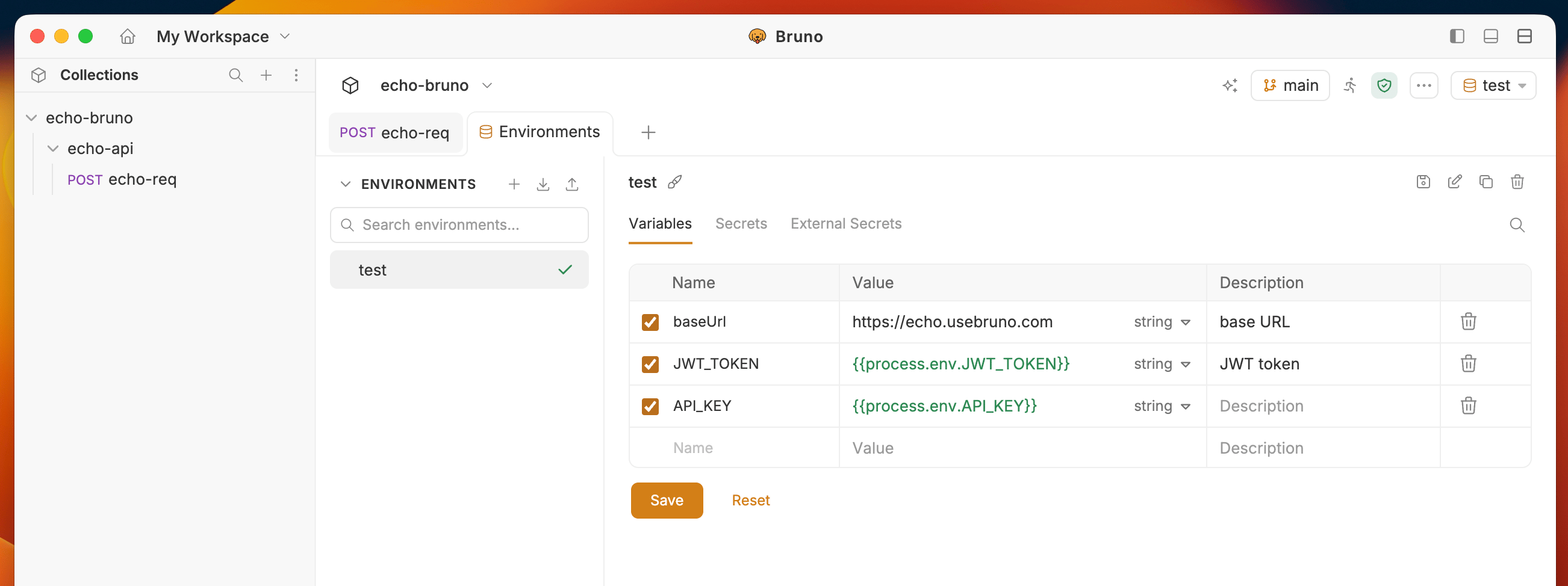
process.env.<secret-name>.
Your environment file would look like this:
JWT_TOKEN secret from the .env file is referenced using process.env.JWT_TOKEN. This will be replaced with the actual value of JWT_TOKEN when the collection is executed.
Managing Secrets
-
Always add the
.envfile to your.gitignorefile to ensure secrets are not accidentally pushed to version control. -
If you need to share the structure of your environment variables with other developers, create a
.env.samplefile without actual secret values.
Handling Special Characters in Values
If you manage.env variables through Bruno’s UI, values containing special characters are automatically quoted when saved. However, If you edit the file manually, wrap values in double quotes when they contain any of the following:
Handling Variables with Dots
When using environment variables that contain dots in their names, use square bracket notation:Manage Environment Credentials
Bruno v3.1.0: You can now create, view, and delete environment variables directly from Bruno at the workspace level without manually editing
.env files.Accessing Environment Variables
- Navigate to Workspace → Global Environment section
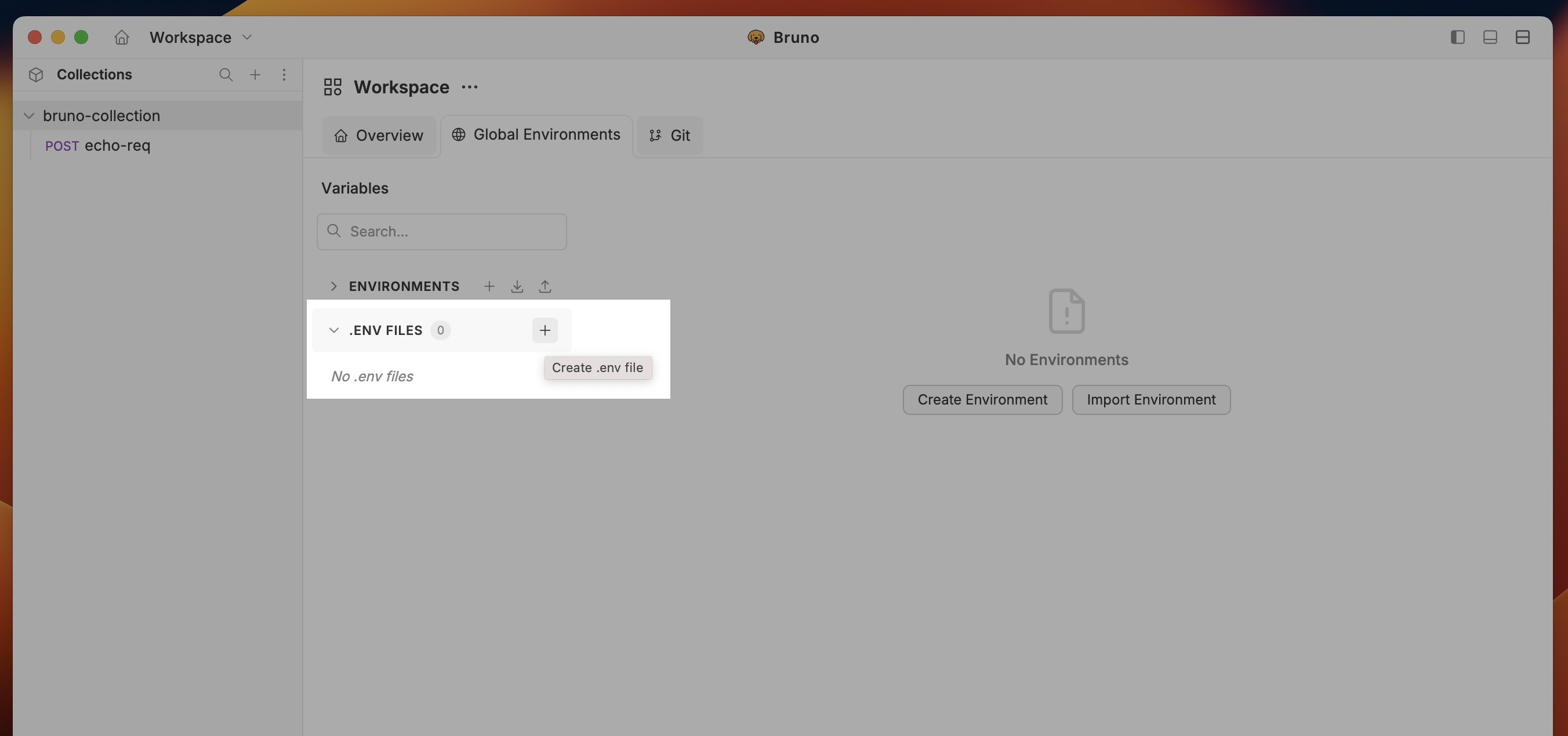
- Create or edit environment variables with your credentials
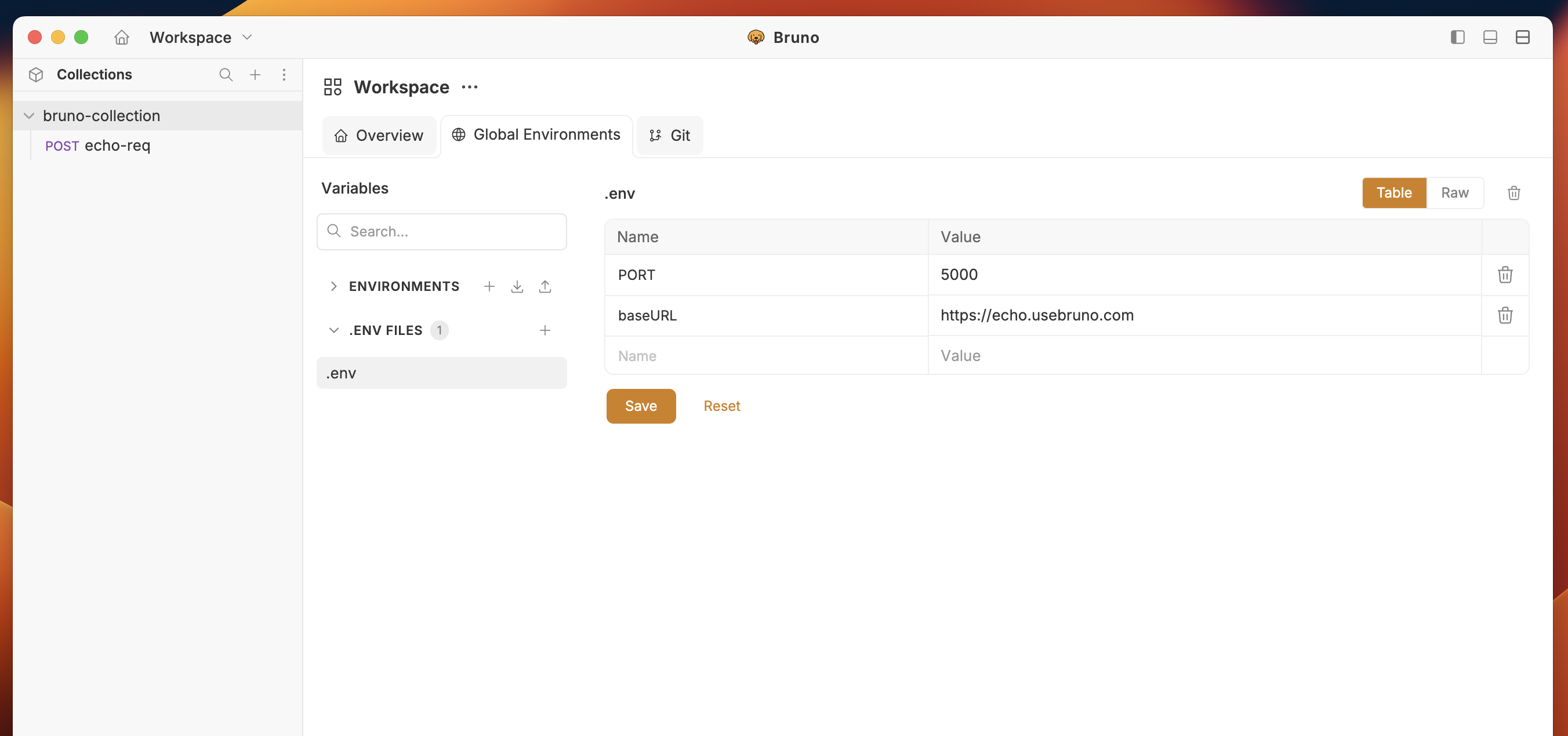
- Use these variables across all collections in your workspace using
{{process.env.<variable-name>}}syntax.
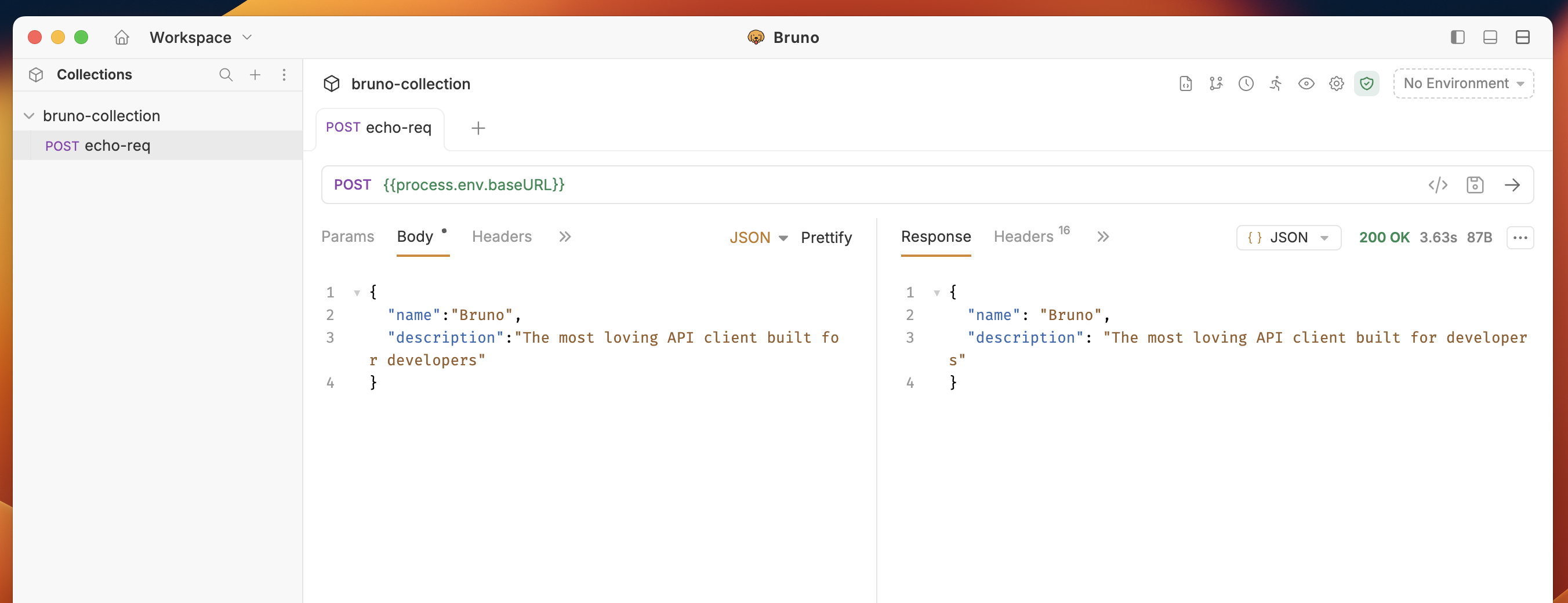
.env files while maintaining the same security and accessibility benefits.