

Overview
Variables in the Bruno allow you to store dynamic values that can be reused across multiple API requests, environments, and workflows. This feature enhances flexibility, maintainability, and efficiency by enabling you to manage frequently changing data points such as tokens, environment-specific URLs, or user-defined values in one place.Types
There are 7 types of variables you can create:- Global Environments Variables
- Environment Variables
- Collection Variables
- Folder Variables
- Request Variables
- Runtime Variables
- Prompt Variables
Variable Precedence and Scope
When a variable is accessed, the following precedence is used to determine which value is used:↑ Higher Precedence
↓ Broader Scope
Runtime Variables
Request Variables
Folder Variables
Environment Variables
Collection Variables
Global Variables
- Runtime variables get the highest precedence.
- Prompt Variables are defined using the
{{?Prompt String}}syntax and hence don’t compete with the above. - Process Environment Variables are accessed using the
{{process.env.VAR_NAME}}syntax and hence don’t compete with the above. - Inside an environment, values can inherit from a parent. The merge is ancestor → parent → active environment, then the usual scope stack above still applies.
Variable Storage
Each variable has its own storage location either within your collection file or within the app’s memory. All storage is local.Variable Data Type
Starting with v4.0.0, variables are no longer limited to strings. You can store any of the following types:
In
.yml files, each variable is an object with a type field and a data field. In .bru files, types are stored using @number, @boolean, or @object annotations placed on the line immediately above the variable. Object values use triple-quote (''') blocks.
bru.setEnvVar(key, value), Bruno infers the type from the value you pass and writes the correct annotation automatically:
timeout resolves as a number and config resolves as an object. It preserves the original type across runs.
Typed values work across all variable scopes: environment, global environment, collection, folder, and request variables.
Type selector in the UI
In the Vars tab you can select the type of each variable using the type dropdown next to the value field.
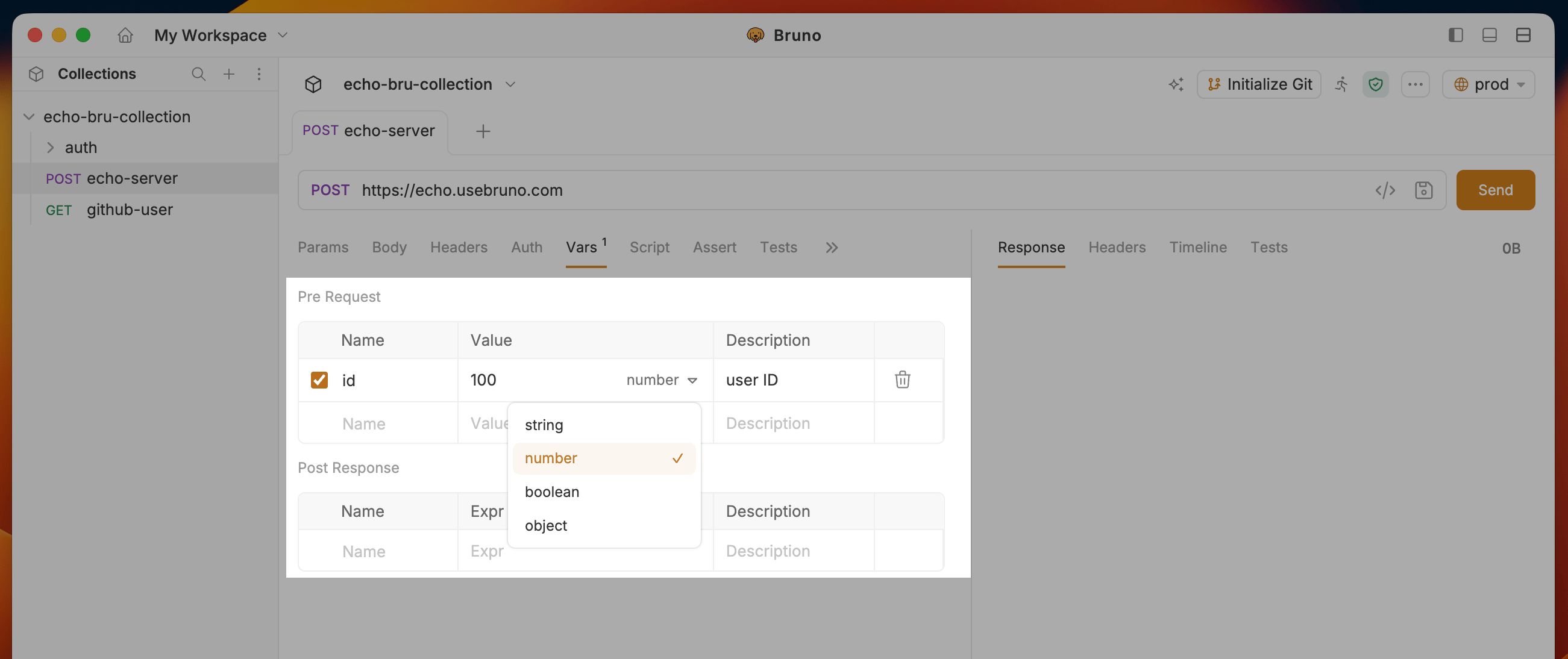
Backward compatibility: Existing
.bru files and environments that use plain string values continue to work without any changes or migration. The @type(...) annotation is only written when a non-string type is used.Environment Color Coding
Environment color coding is now available (v3.1.0+) for Environment Variables and Global Environment Variables, making it easier to visually identify and distinguish between different environments.
Color Customization
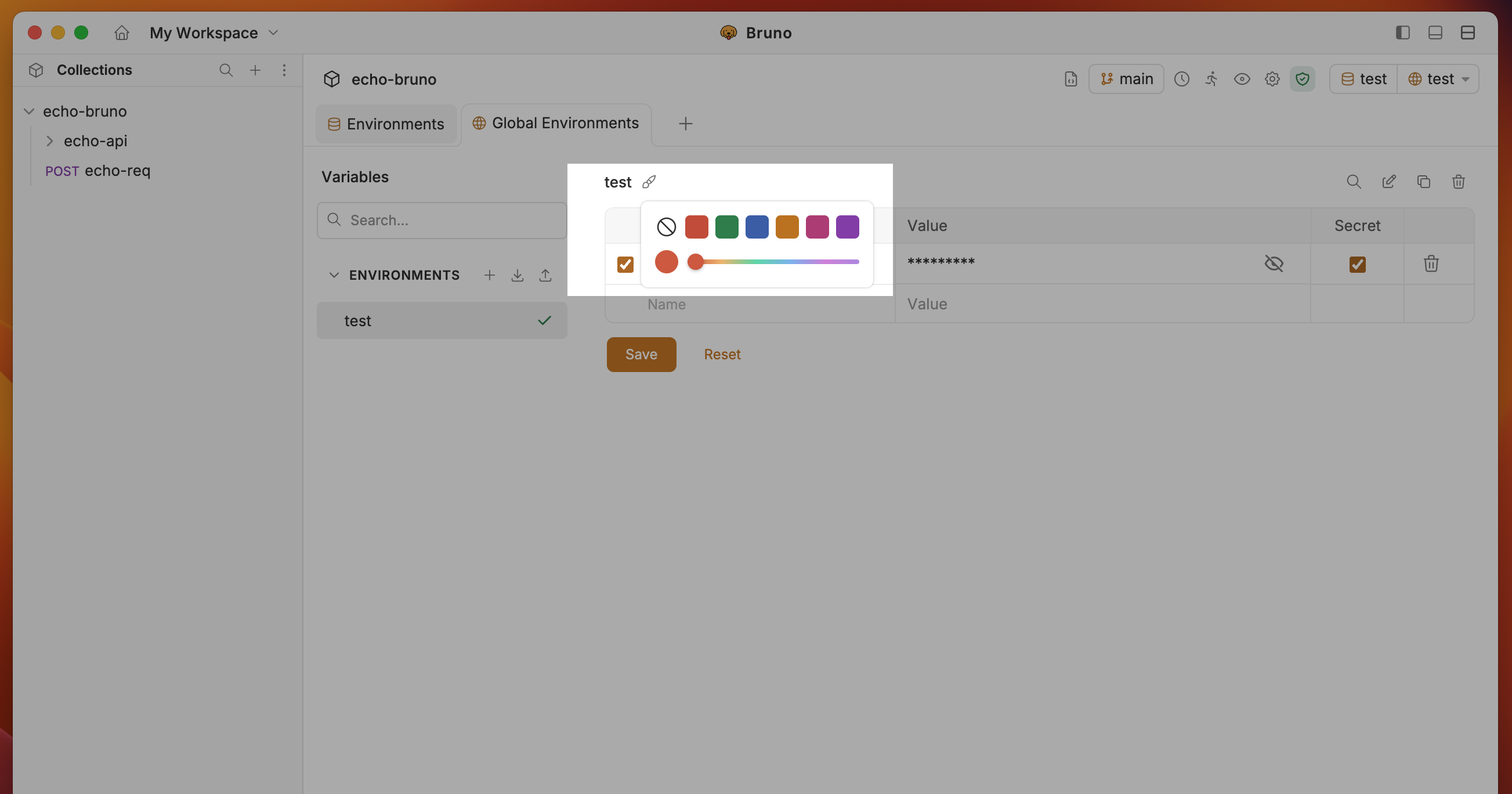
You can assign a custom color to each environment:- Navigate to environment settings (top right corner)
- Click the brush icon next to the environment and select a color from the color picker component
- If no color is selected, a default color will be assigned
Color-Coded Visual Indicators
Once colors are assigned, they appear in multiple places throughout the interface: Environment Selector Dropdown: A small color swatch is displayed next to each environment name, making it easy to distinguish between environments at a glance. Active Environment Indicator: The currently selected environment’s color is prominently displayed in the environment pill in the tabs UI, providing constant visual feedback about which environment you’re working with.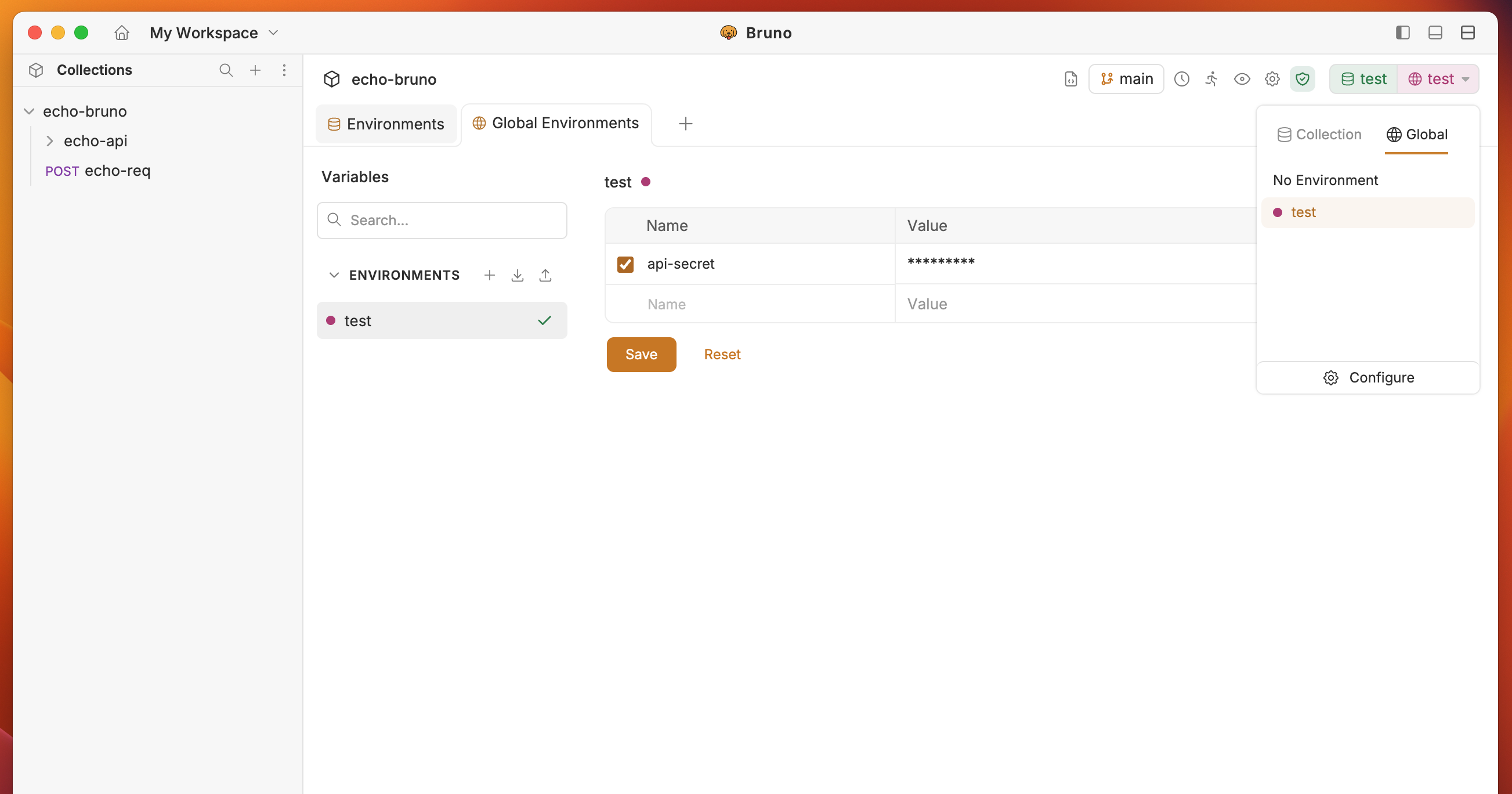
Debugging Variables in Console
You can access and debug variables in the console using the following pattern: The pattern followsbru.get[Type]Var(key) where:
[Type]is the variable type (Runtime, Request, Folder, etc.)keyis the variable name you want to access