

Workspace-level Git
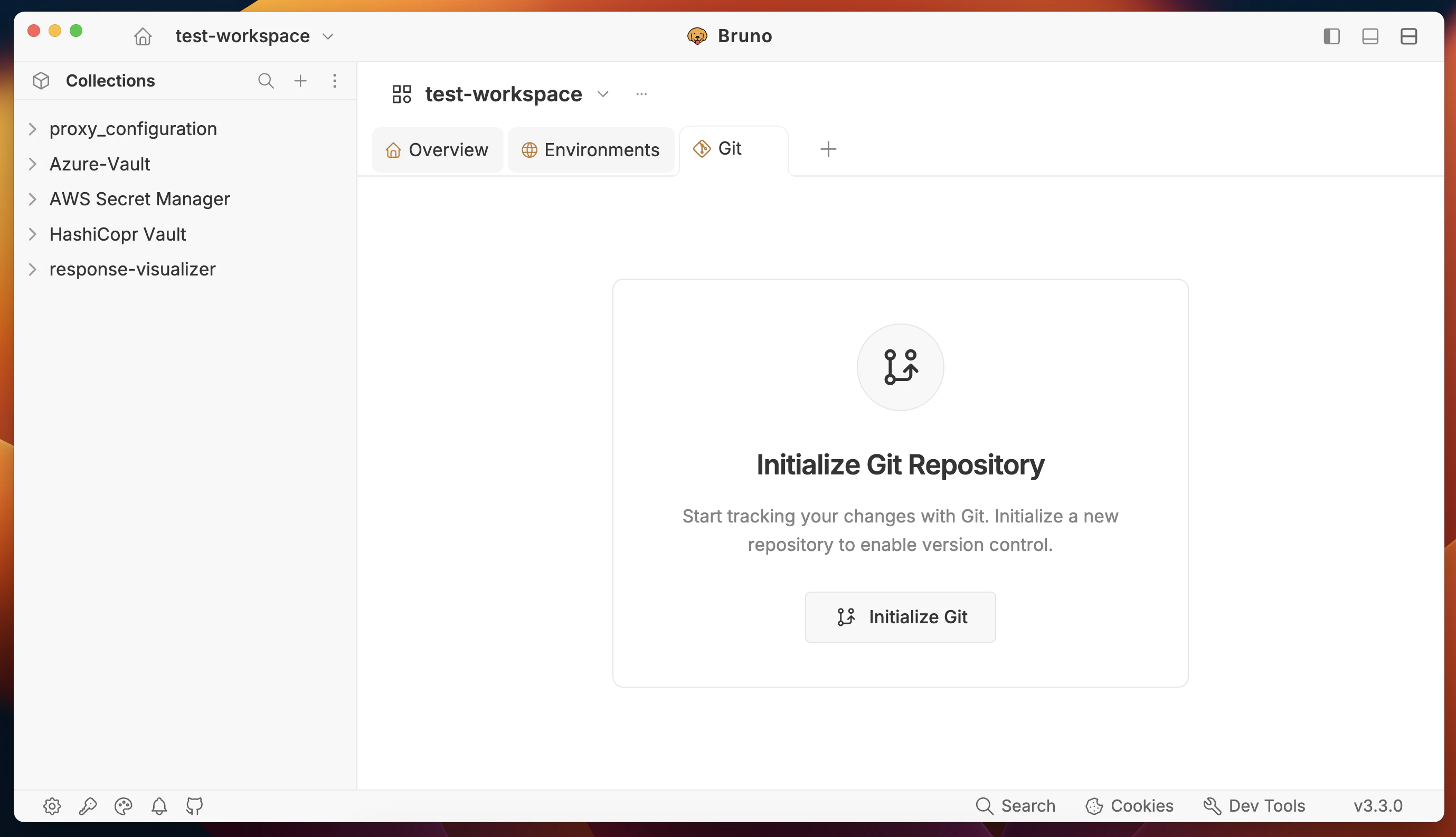
With workspace-level Git, you initialize Git at the workspace root. Every collection inside that workspace is tracked under a single repository — one remote origin, one commit history, one place for your team to collaborate. Best suited for:- Monorepos where API collections live alongside your main source code
- Teams that want a single source of truth for all their API tests
- Projects where all services are tightly coupled and released together
- Open Bruno and go to your workspace.
- Initialize Git at the workspace level (via the Git panel or CLI at the workspace directory).
- All collections under that workspace are tracked automatically.
- Push to GitHub, GitLab, Bitbucket, or any Git provider — your team can clone and immediately open the workspace in Bruno.
Collection-level Git
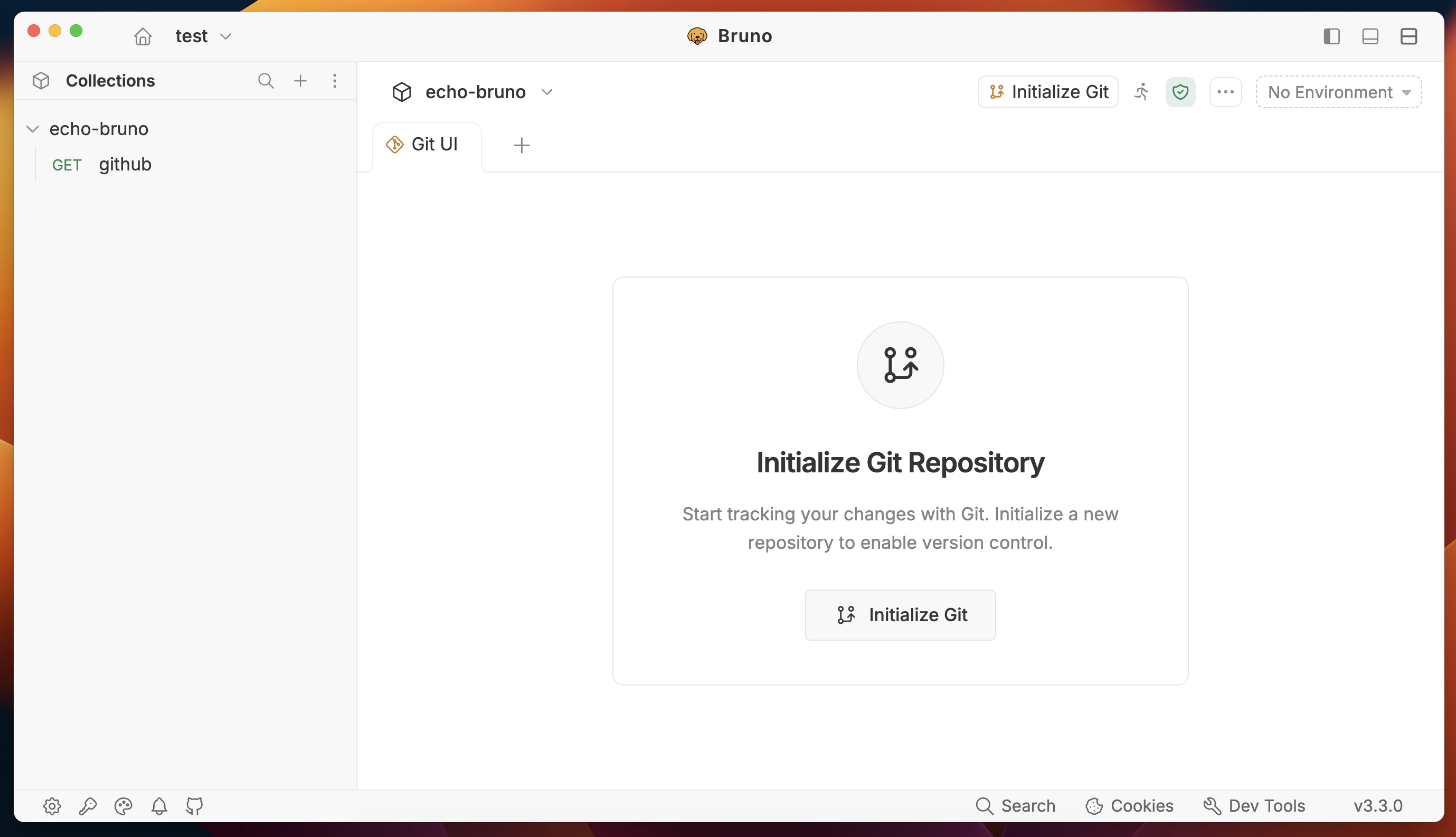
With collection-level Git, you initialize Git inside a specific collection. Each collection has its own remote origin, completely independent of other collections. Best suited for:- Microservices architectures where each service is deployed and versioned independently
- Teams that own separate services (e.g. Auth team, Payments team, OTP team) and want isolated API test repositories
- Connecting a Bruno collection directly to an existing source code repository so it lives alongside that service
- Open a collection in Bruno.
- Initialize Git inside that collection folder (or point it to an existing repo).
- Each collection has its own remote — push, pull, and collaborate independently per service.
Initialize Separate Git Repositories in Workspace
This strategy lets you link separate Git repositories to individual collections within a workspace that is already initialized with Git. You can keep common services tracked under the workspace repository while linking specific collections to their own independent Git remotes. Best suited for:- Teams where most collections belong together but one or two collections need their own repository
- Projects that share a workspace but have a collection tied to a separate service’s source code repository
- Gradually migrating collections from a shared workspace repo into independent repos
- Open Bruno and go to your workspace settings (click on home icon).
- Initialize Git at the workspace level (via the Git panel or CLI at the workspace directory).
- All collections under that workspace are tracked automatically.
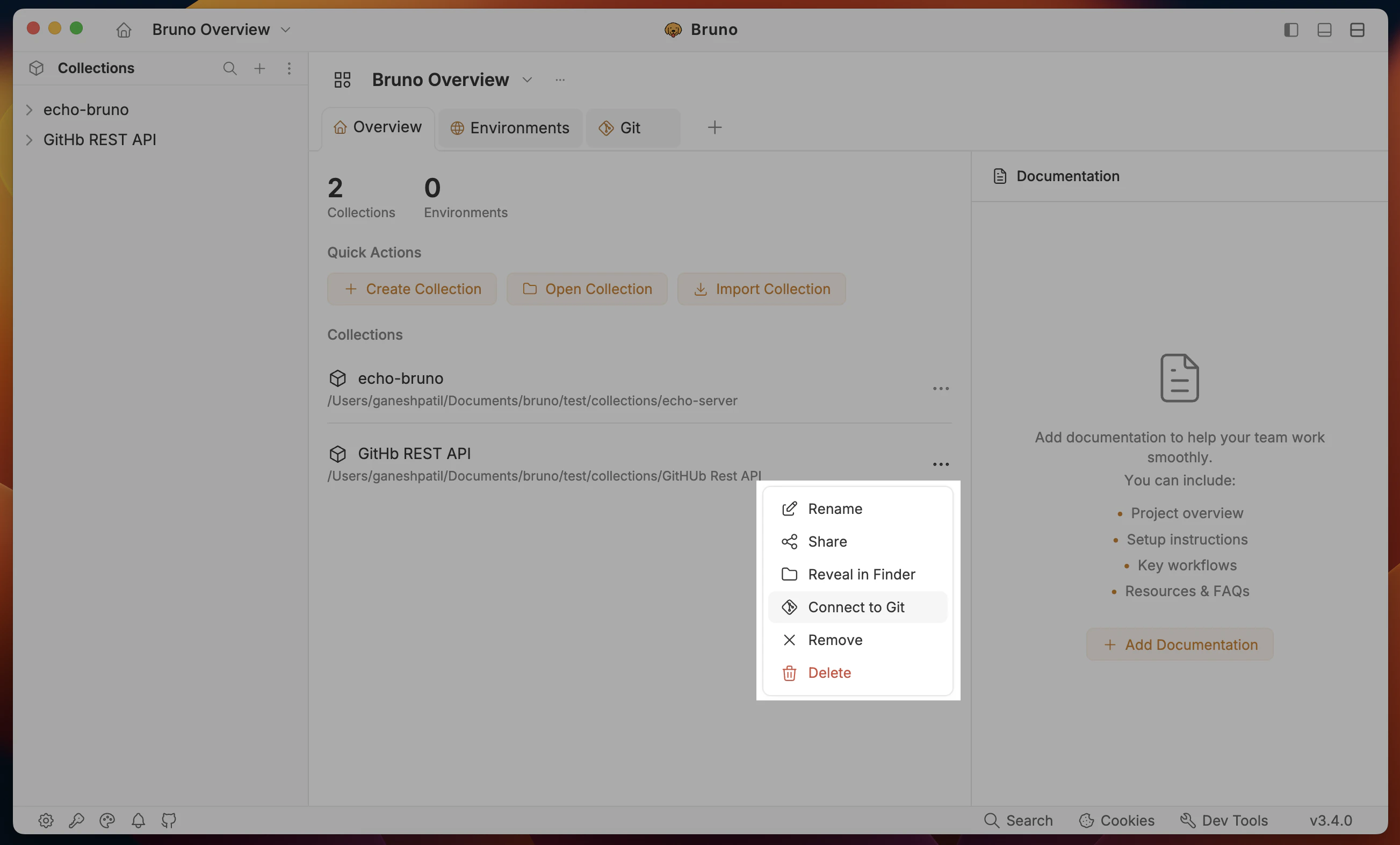
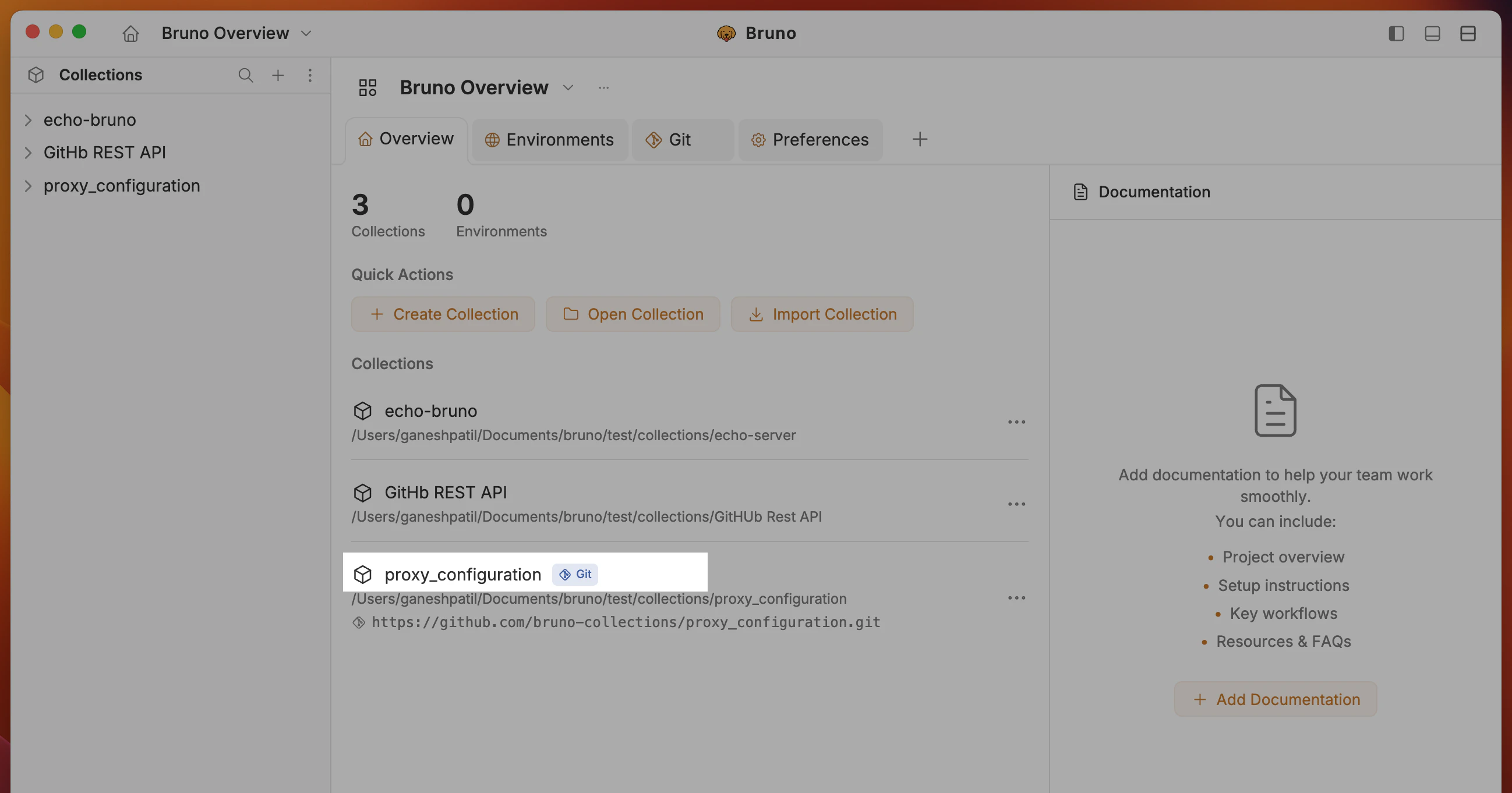
- To link a separate Git repository to a specific collection, go to workspace overview and click on the (
...) menu on the collection you want to initialize separately and select Connect to Git.
- Enter the Git remote URL and click Connect.
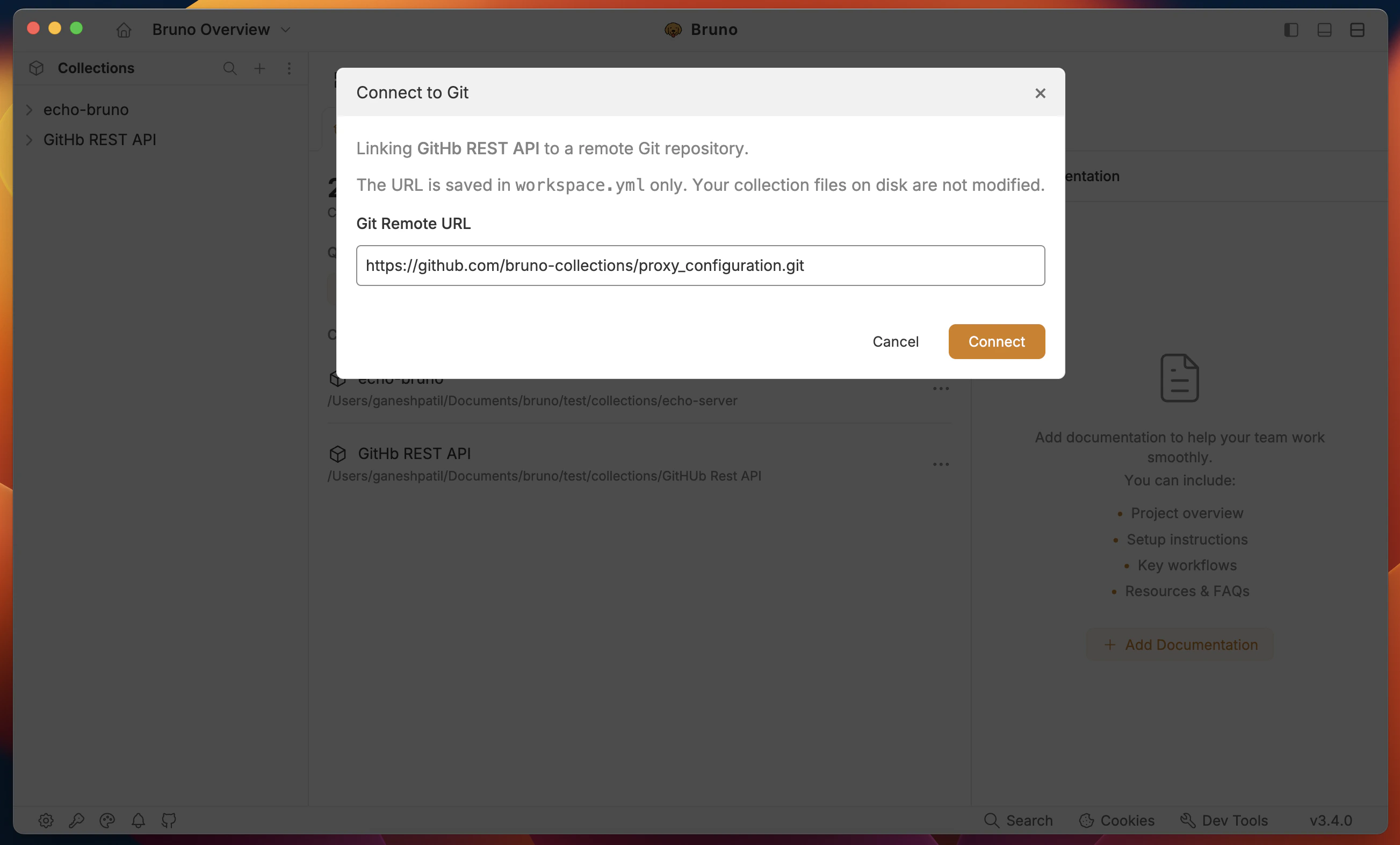
- After connecting, a Git icon will appear next to the collection name in the workspace overview.
- Your
workspace.ymlfile will be updated with the Git remote URL for that collection:
- When you push the workspace to a remote repository, all collections are tracked except the collection that is initialized separately. The separately linked collection will not be part of the workspace’s Git history — it has its own independent remote.
- Git history is managed separately — the workspace Git panel shows history for workspace-tracked collections, and the collection Git panel shows history for the independently linked collection.
- If you add a new collection to a Git-initialized workspace, it will automatically be tracked by the workspace’s Git. To give it its own separate repository, you must use the Connect to Git option from the workspace overview — do not try to manually run
git initinside the collection folder.