Configure Azure DevOps
You need to set up an SSH key with Azure DevOps. While you can also set up personal access tokens (HTTPS), this requires you to enter your token on every operation. SSH is a more convenient and secure way to work with Azure DevOps.Create Repository on Azure DevOps
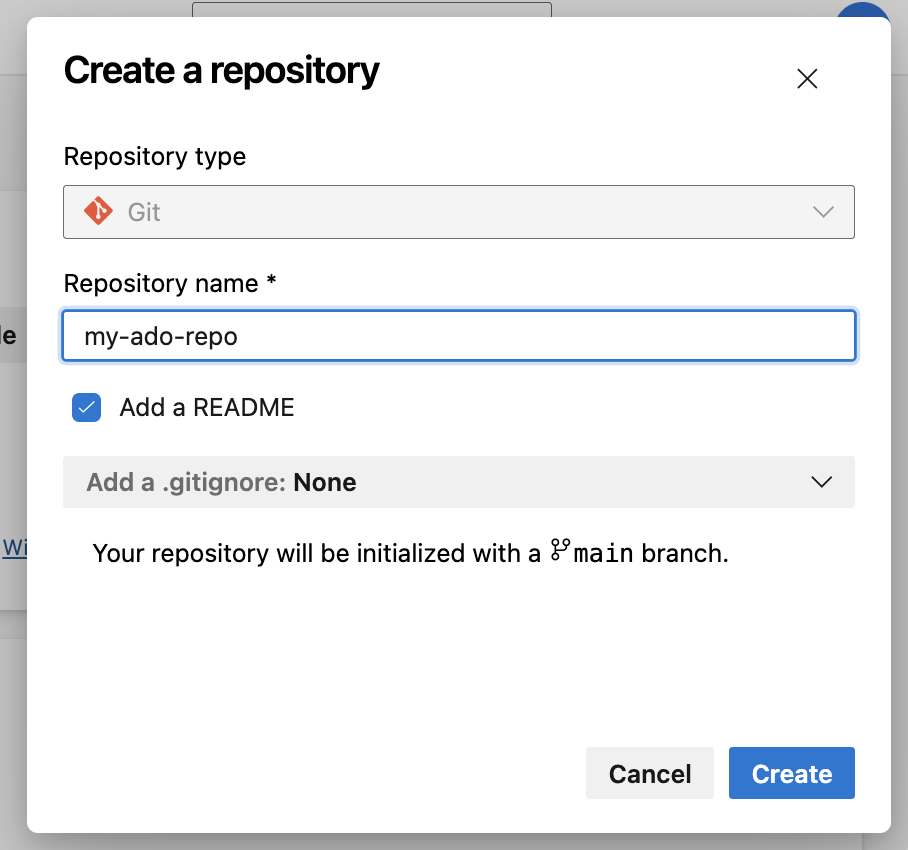
To get started, you have to create a project/repository on Azure DevOps. Follow these steps:- Log into your Azure DevOps account at dev.azure.com (create one if you don’t have one)
- Click on + New project or select an existing project
- If creating a new project, fill in the required fields (Project name, Description, Visibility)
- Click Create
- Navigate to Repos in the left sidebar
- If you need to create a new repository within the project, click + New repository
Configure SSH Key
Follow these steps to configure an SSH key on your local system:1. Generate SSH Key
Open your terminal and execute:2. Add SSH Key to SSH Agent
Add the SSH key to your SSH agent so it can be used for authentication:3. Add the SSH Key to Your Azure DevOps Account
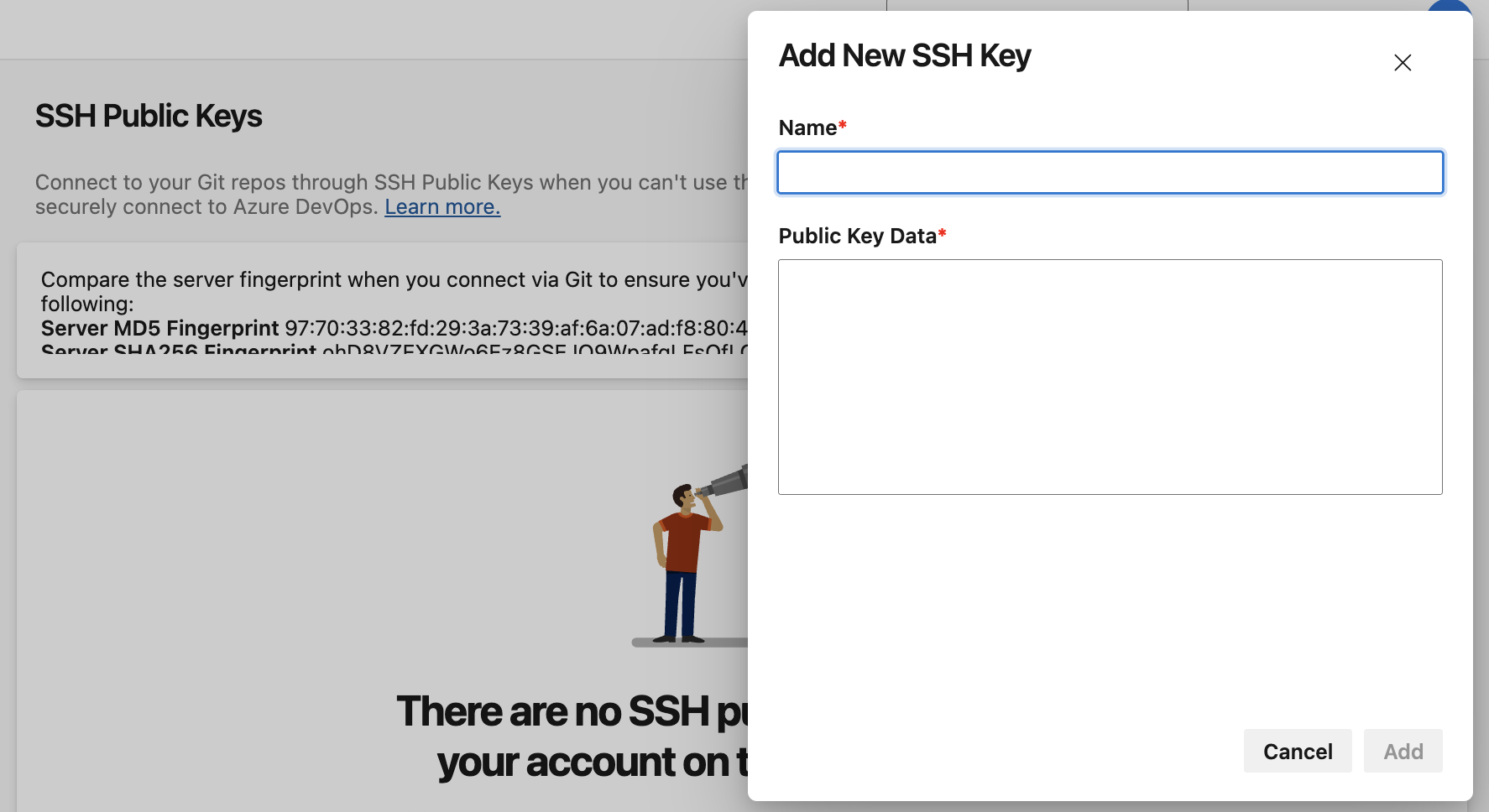
- Go to Azure DevOps > User Settings (click your avatar in the top-right) > SSH public keys
- Click + New Key
- Give your key a name (e.g., “Bruno Development”)
- Paste your
id_ed25519_azuredevops.pubcontent in the Public Key Data field - Click Add
Use Azure DevOps with Bruno
- Create a Collection inside Bruno (if you haven’t already)
- Click on the Git icon (next to Safe Mode) and select Initialize repo
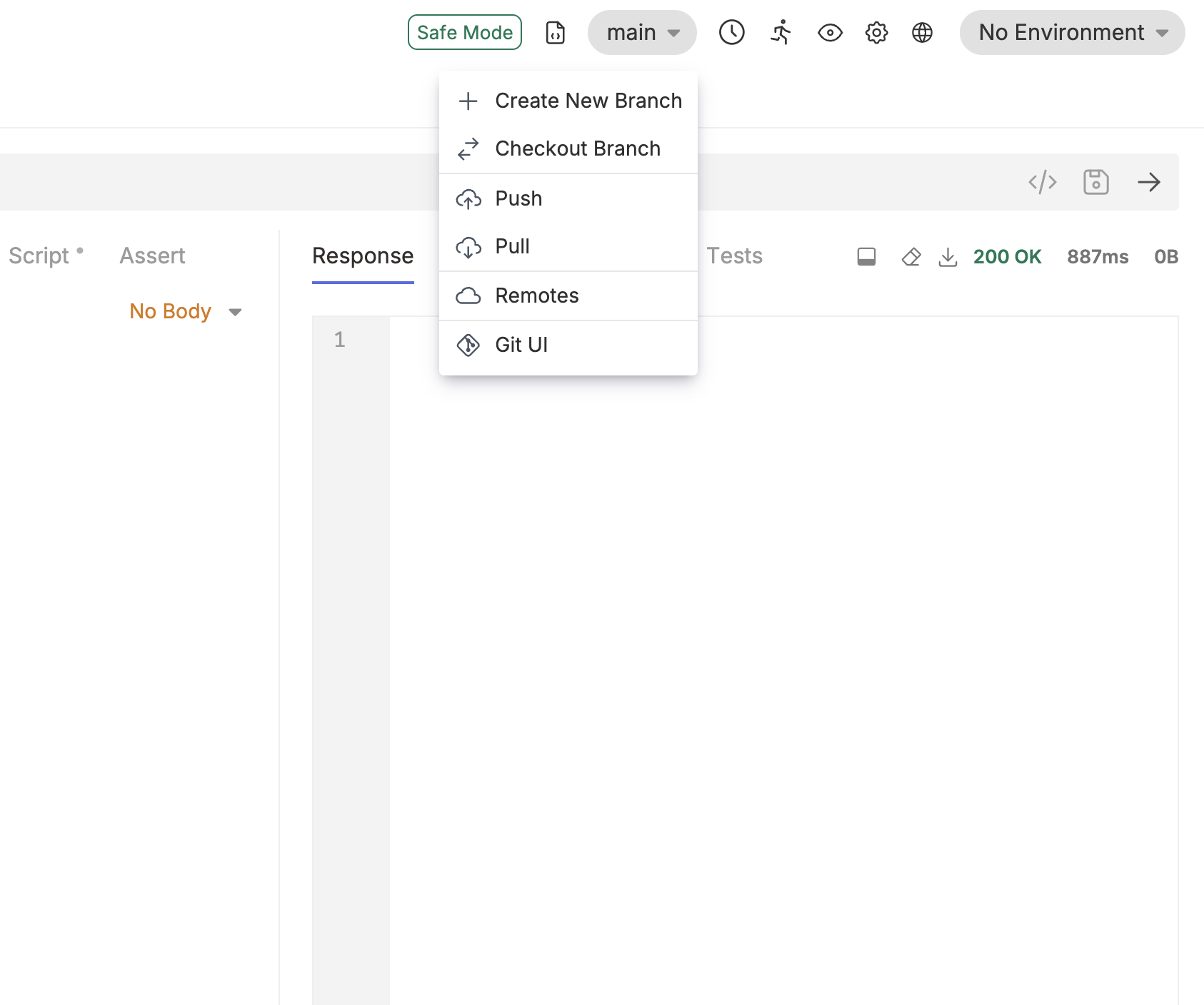
- Click on main and select Remotes from the dropdown
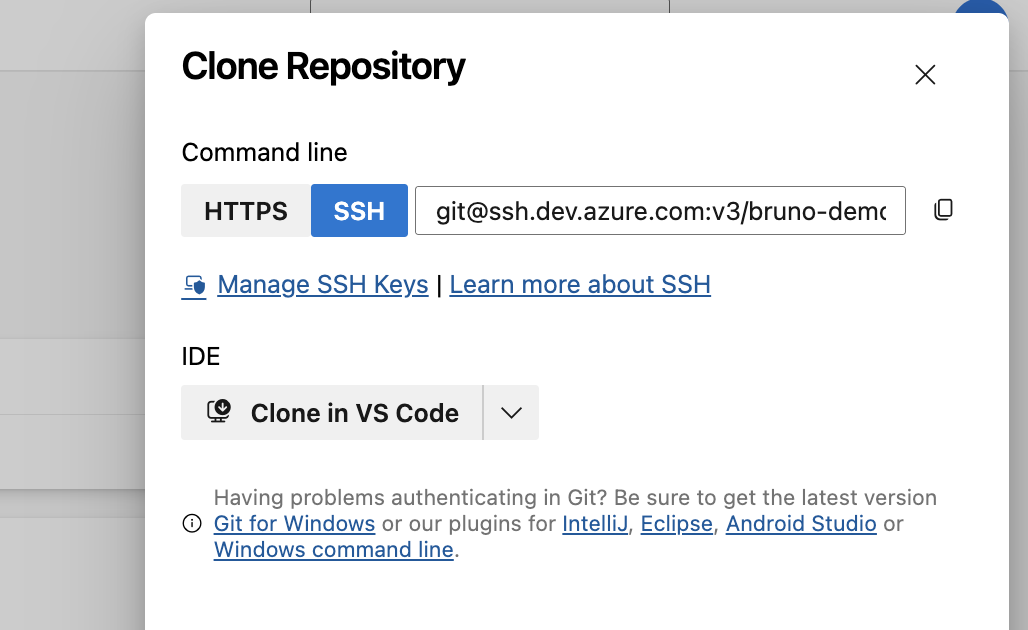
- Add origin as the name of the remote and paste your repository URL (copied previously)