

Try it out
Try the proxy_configuration sample collection to see proxy setups in action:Starting from v3.1.0+, System Proxy is enabled by default for new users and Existing users retain their current preference settings.
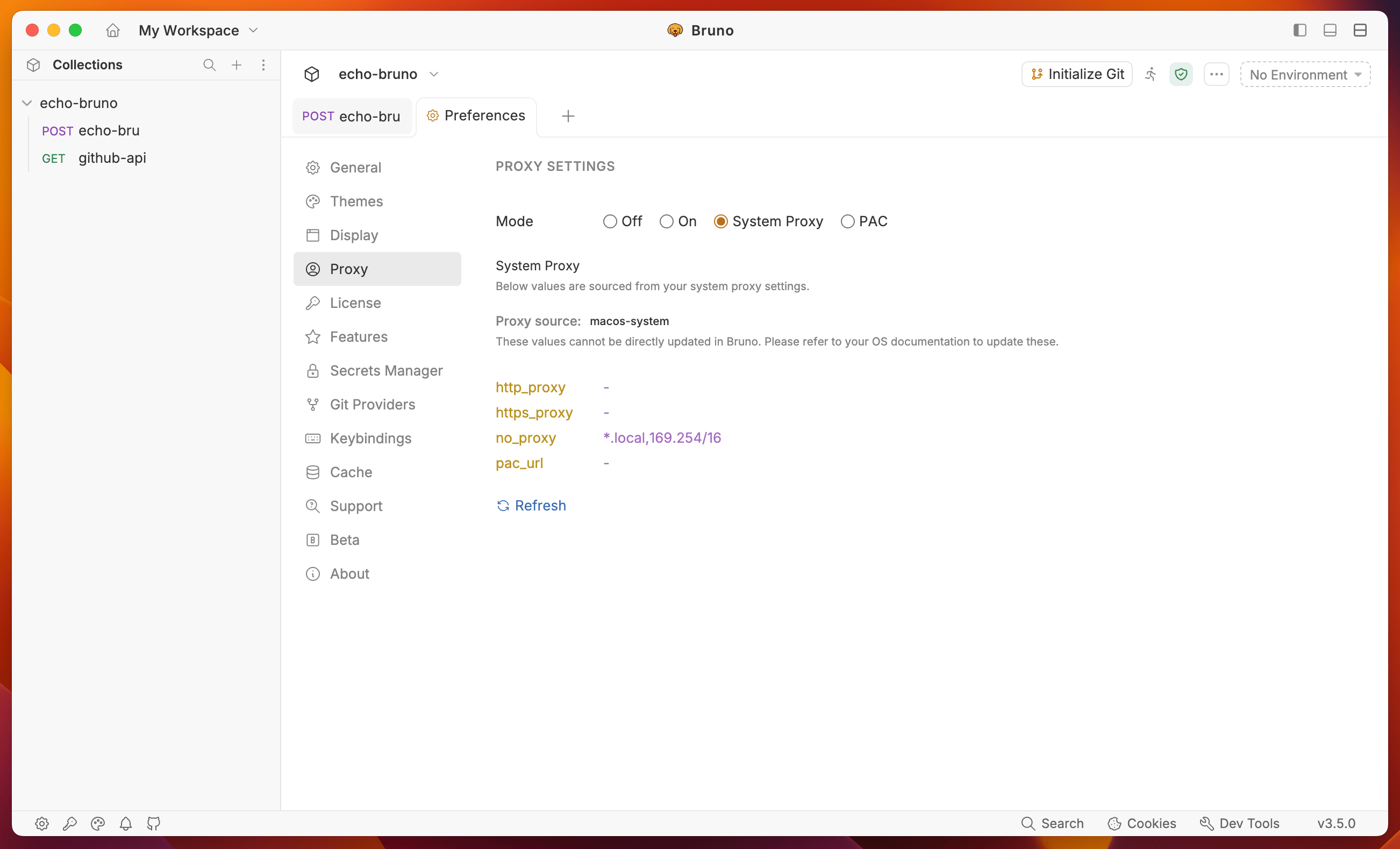
1. Accessing Proxy Settings
- Open Bruno.
- Click on the Preferences section from the bottom left corner.
- Navigate to the Proxy tab in the sidebar.
2. Configuring Proxy Mode
Bruno provides four options for proxy mode:- Off: Disables proxy usage.
- On: Enables proxy and routes requests through a manually configured proxy.
- System Proxy: Uses the system-wide proxy settings.
- PAC: Uses a Proxy Auto-Configuration (PAC) file to determine the proxy for each request.
3. Selecting Proxy Protocol
Bruno supports different proxy protocols. Choose one of the following:- HTTP
- HTTPS
- SOCKS4
- SOCKS5
4. Entering Proxy Details
Fill in the required fields:- Hostname: The proxy server’s domain or IP address (e.g.,
example.com). - Port: The port number for the proxy connection (e.g.,
3000).
5. Enabling Authentication (Optional)
If your proxy requires authentication:- Check the Auth checkbox.
- Enter the Username.
- Enter the Password (Click the eye icon to reveal the password if needed).
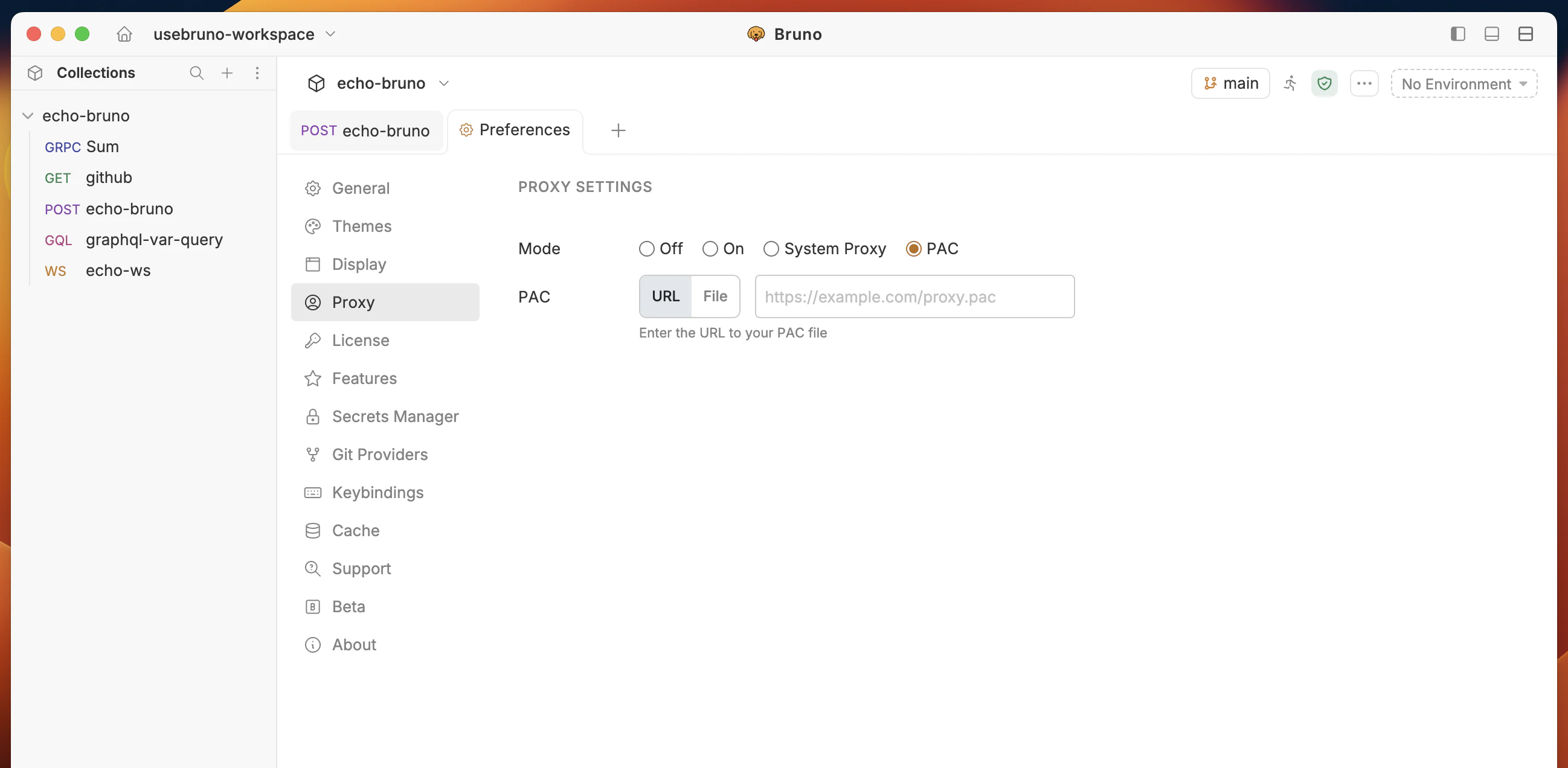
6. Configuring PAC proxy
When you select the PAC proxy mode, Bruno resolves the appropriate proxy for each request using a PAC file. You can provide the PAC file in two ways:- URL: Enter the URL to your PAC file (e.g.,
https://example.com/proxy.pac). The URL must use thehttp://,https://, orfile://protocol. - File: Click Choose file… to select a
.pacfile from your local filesystem.
FindProxyForURL function in the PAC file for each request and routes traffic through the returned proxy.
7. Configuring Proxy at Collection Level
There may be instances in which your collection needs to use a different proxy than what you have configured globally. Configuring proxy settings at the collection level will override any configuration you’ve made in the preferences section. Below are instructions on proxy settings at the collection level:- Open the collection settings.
- Navigate to the Proxy tab.
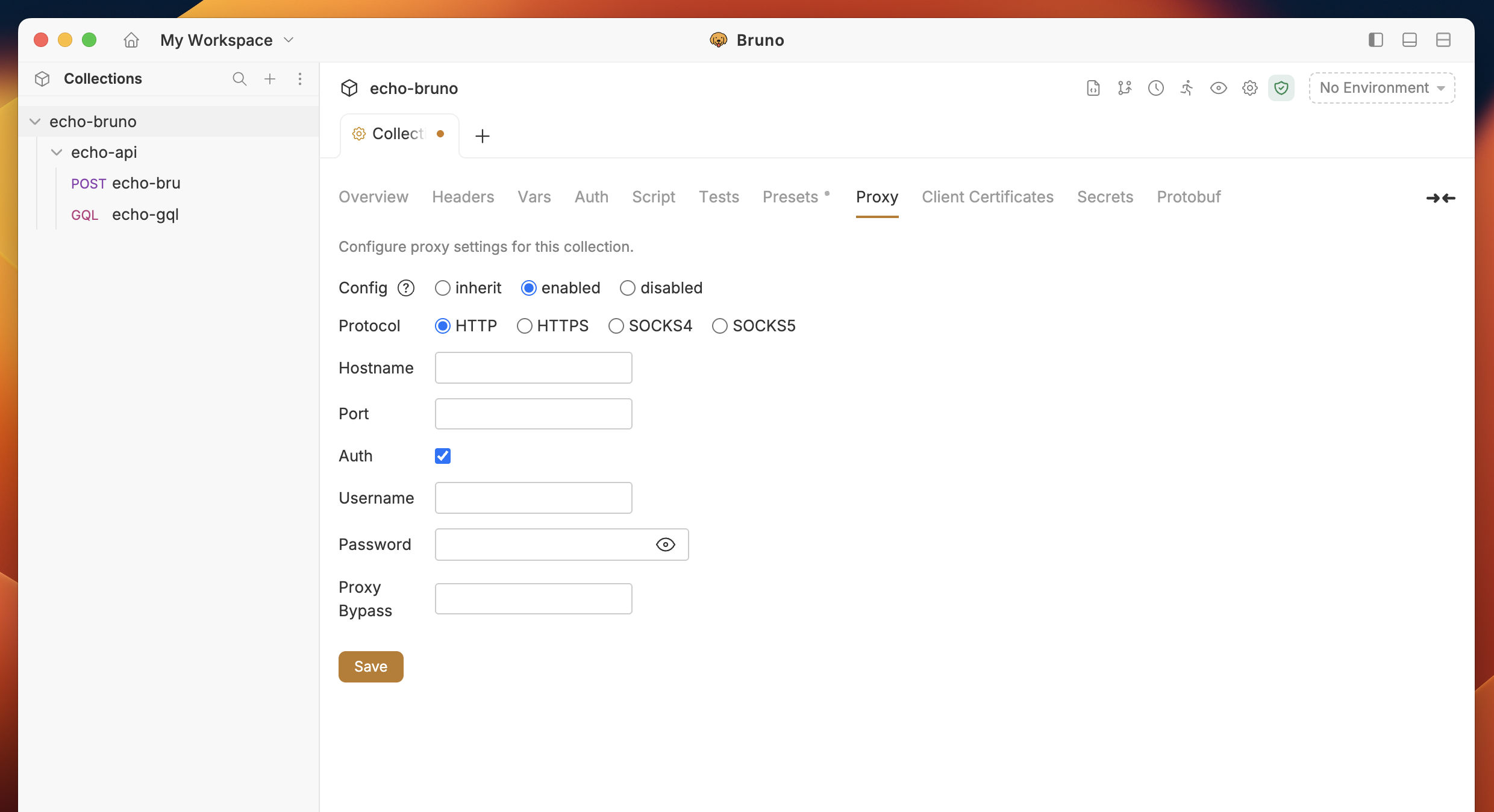
Choose the Configuration Mode:
- inherit: Uses the main proxy settings from Preferences.
- Enabled: Enables a custom proxy for this collection.
- Disabled: Disables the proxy for this collection.
- Choose inherit, enabled, or disabled.
- Enter the Hostname, Port, Protocol, Username, and Password if needed.
- Click Save to apply the settings.
8. Testing an API From Another Country
Some APIs answer differently depending on the country the request comes from. They may redirect to a country-specific site, return content in another language, or show regional prices. To reproduce this from your own machine, send the request through a proxy in that country, then send it again without the proxy and compare the two responses. You need an HTTP proxy with an exit in the country you want to test.Steps
- Open the collection settings and go to the Proxy tab.
- Set the mode to Enabled, choose the HTTP protocol, and enter the proxy’s Hostname and Port. Fill in the username and password if the proxy needs them. Click Save.
- Send the request and note the response: status code, headers, body, and any redirect.
- Go back to the Proxy tab, set the mode to Disabled, and click Save. This turns off the proxy for the collection, including one inherited from Preferences. It does not affect a VPN or proxy configured outside Bruno.
- Send the same request again without changing anything else, and compare the two responses.
Using Shellroute as the proxy
Shellroute is an open-source command-line tool that runs a proxy on your machine and routes its traffic through an IP address in a country you choose. Install it, sign in withshellroute login, then start a proxy in a terminal:
DE with the two-letter code of the country you want. You can also add a city, for example --city Berlin. The command prints the proxy address as proxy_url, for example http://127.0.0.1:41900. In Bruno, enter 127.0.0.1 as the Hostname and 41900 as the Port, or the values your output shows. No username or password is needed.
Keep the terminal open while you test. When you are done, press Ctrl+C to stop the proxy.
Any other HTTP proxy with an exit in the country you want works the same way.