

Bruno AI is available from v4.0.0 and higher. Make sure you have at least one provider configured before using these features. See Configuration.
AI Assistant
The AI Chat Sidebar lets you ask questions and get AI assistance directly from anywhere in your workspace, without needing to open a specific request first.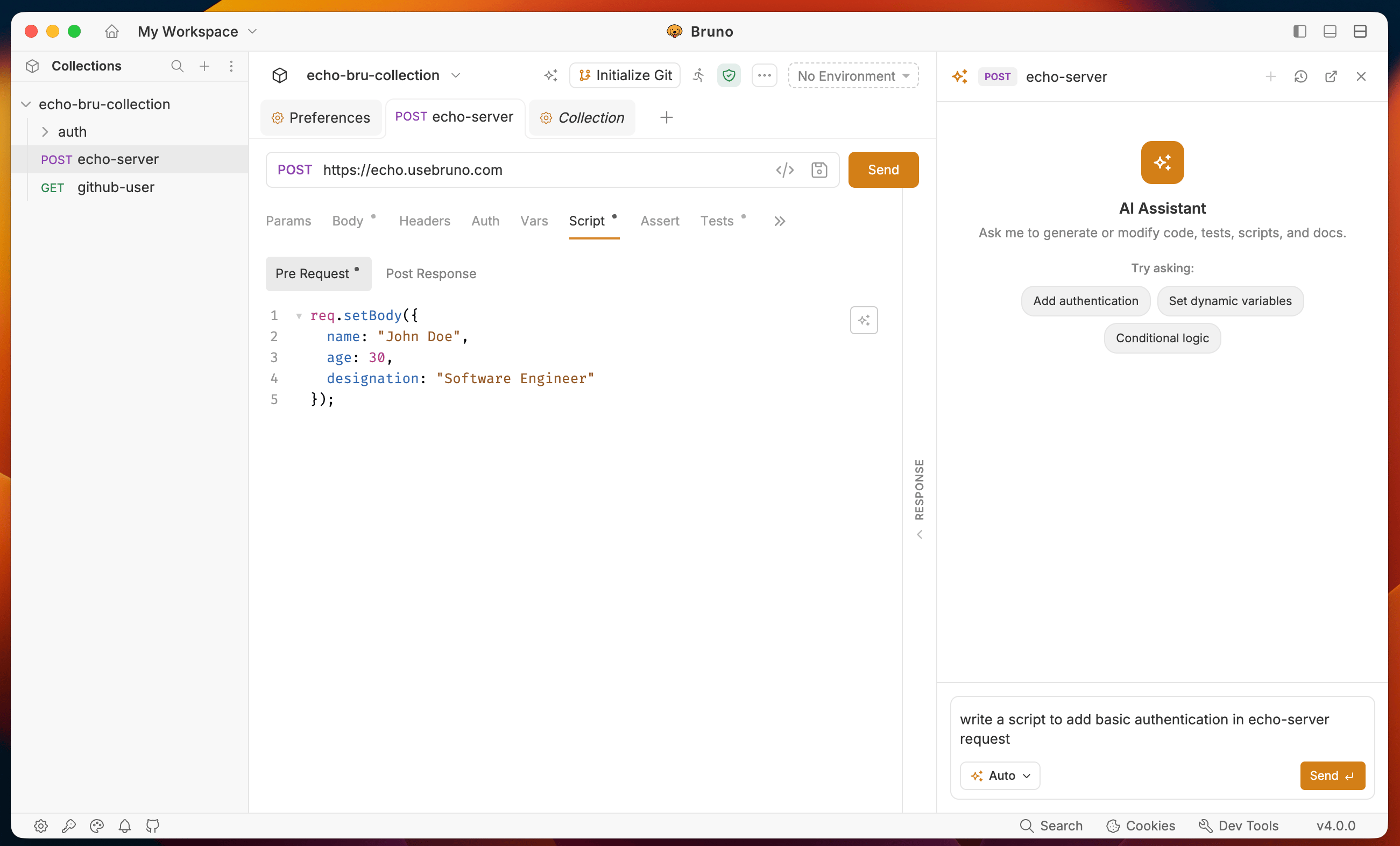
- Open a workspace in Bruno.
- Click the AI icon in the top sidebar.
- The AI Chat panel opens on the right.
- Type your question or describe what you need (for example: “How do I set up OAuth2 for my collection?” or “Write a test that checks the response time is under 500ms.”).
- Click Apply to insert the response.
- History icon: View all your previous chat interactions.
- Popout icon: Open the AI Chat as a separate pop-out window for more flexibility.
Inline Autocomplete
Autocomplete provides ghost-text suggestions as you write in script and test editors. Where it works: Pre-Request scripts, Post-Response scripts, Tests scripts.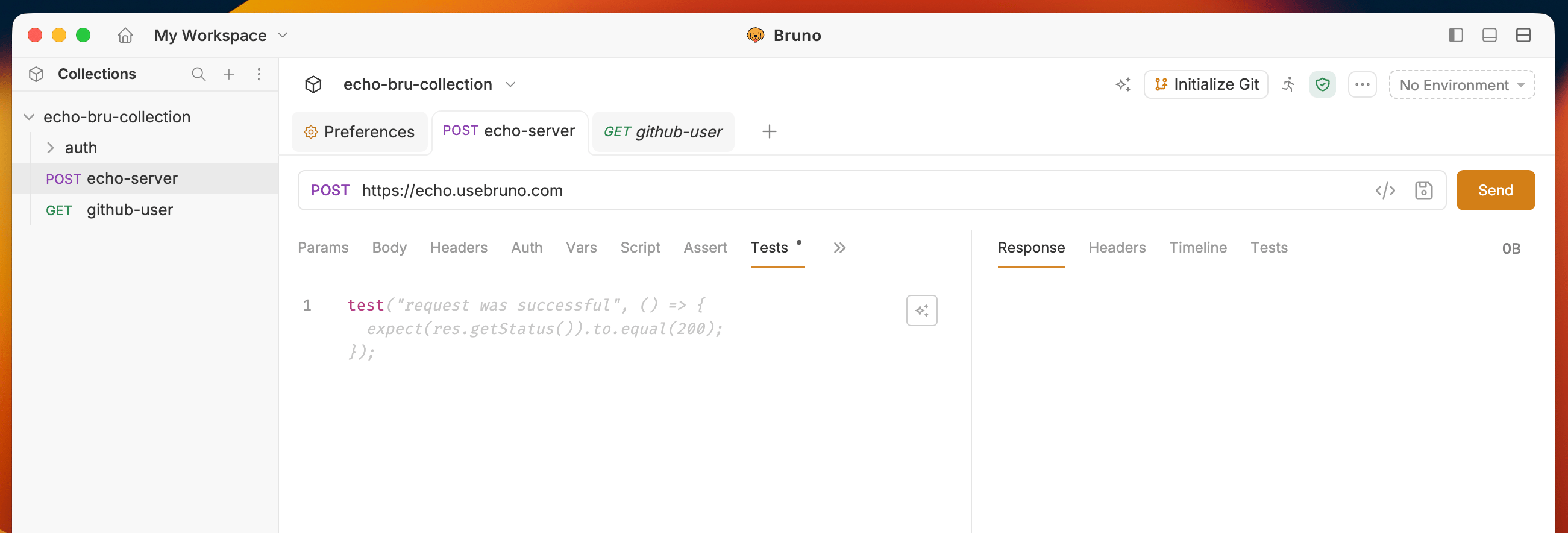
- Start typing in any script or tests editor.
- A ghost-text suggestion appears inline.
- Press
Tabto accept the full suggestion. - Press
⌘ →to accept one word at a time. - Press
Escto dismiss without accepting. - Press
⌘ \to trigger a suggestion manually.
Generate Script
Use AI to generate a full script from a plain-language description. Where it works: Scripts tab on requests, folders, and collections.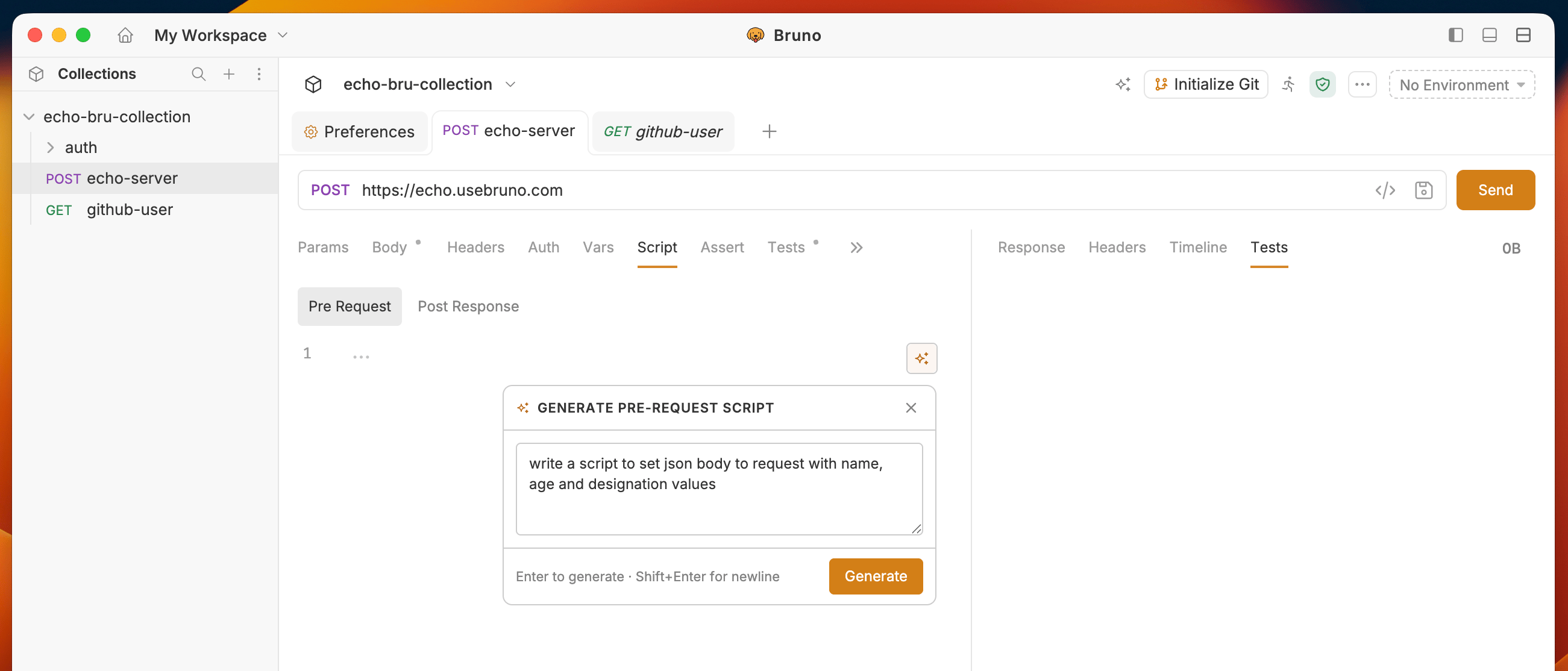
- Open a request, folder, or collection.
- Go to the Script tab.
- Click the AI icon.
- A popover opens - describe the script you want (for example: “Set the Authorization header using the token from the response body”).
- Click Generate to generate the script.
- Review the result and click Apply to insert it, or Back to discard the changes.
Generate Tests
Use AI to generate test assertions from a description. Where it works: Tests tab on requests, folders, and collections.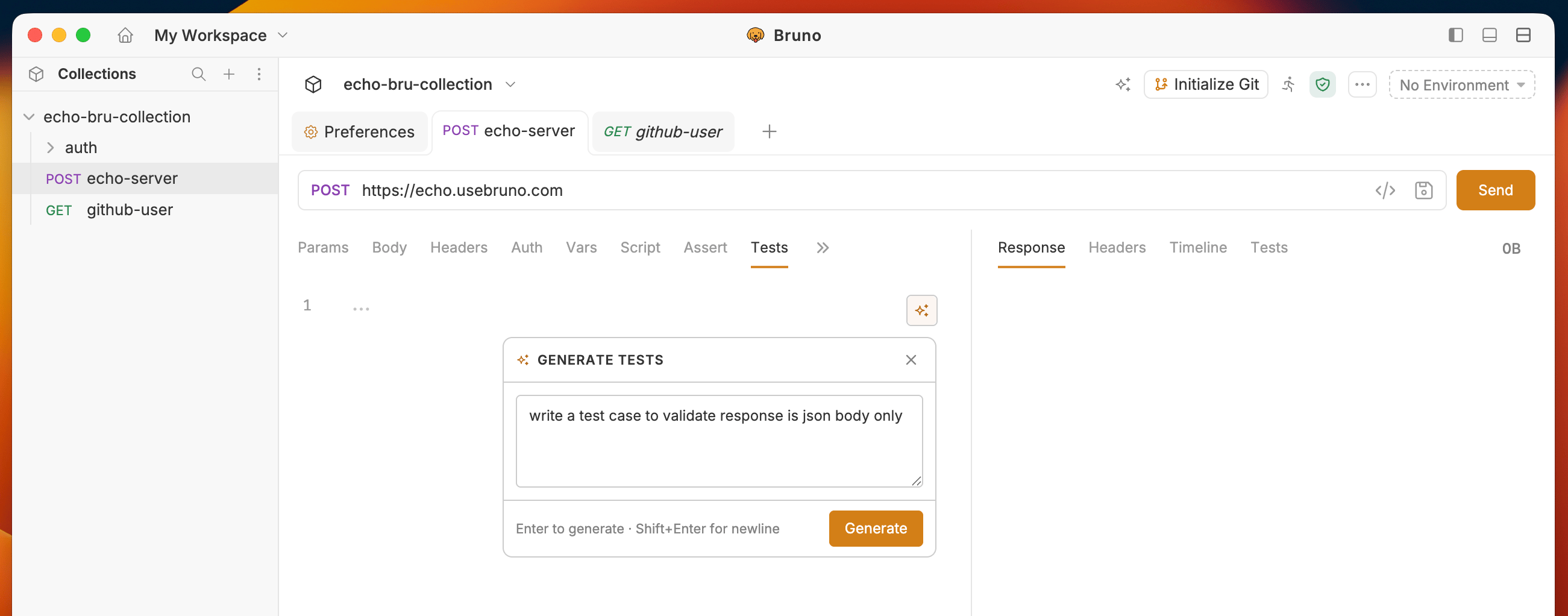
- Open a request, folder, or collection.
- Go to the Tests tab.
- Click the AI icon.
- Describe the tests you need (for example: “Check that the status is 200 and the response contains a user id”).
- Click Generate to generate the test code.
- Review the result and click Apply to insert it, or Back to discard the changes.
Generate Documentation
Use AI to write documentation for a request, folder, or collection. Where it works: Docs tab on requests, folders, and collections.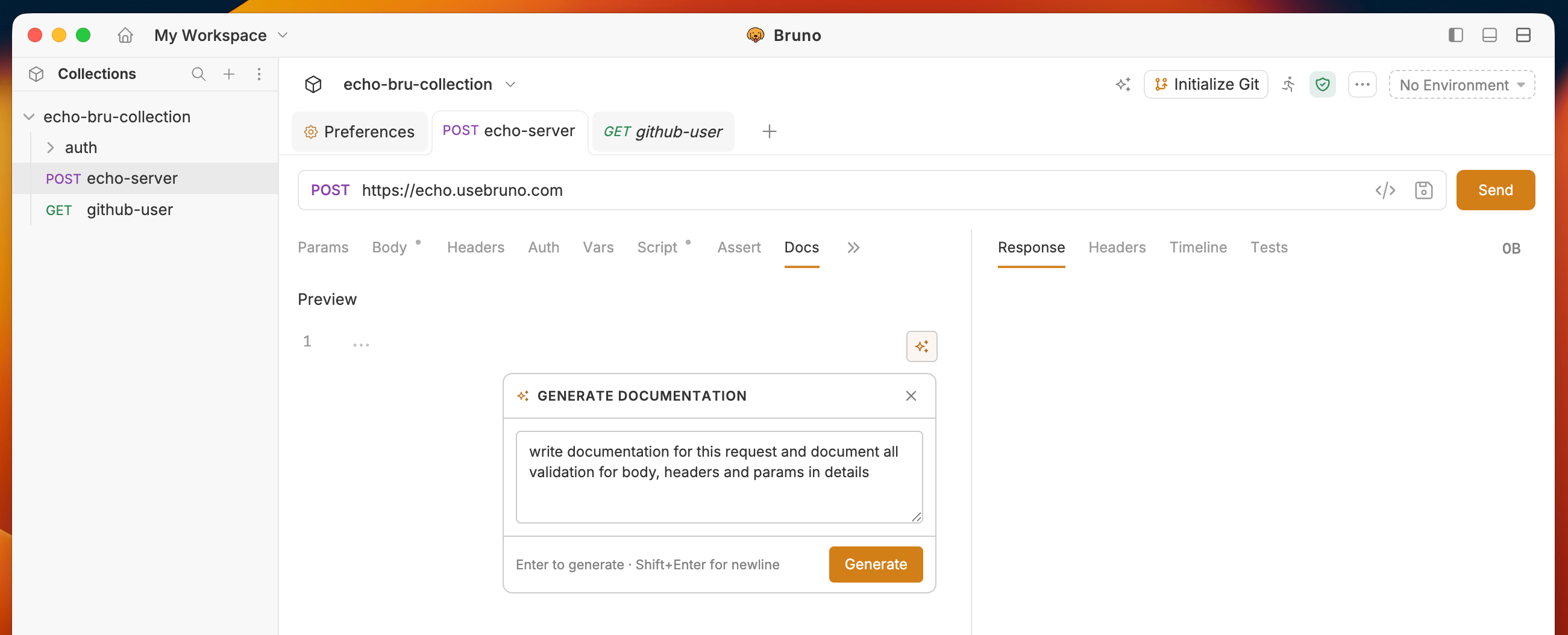
- Open a request, folder, or collection.
- Go to the Docs tab.
- Click the AI icon.
- Describe what this endpoint or workflow does (for example: “Creates a new user and returns the created user object”).
- Click Generate to generate the documentation.
- Review the result and click Apply to insert it, or Back to discard the changes.