

gh) if you prefer the terminal. Both paths are covered below.
Configure GitHub
You need to set up an SSH key with GitHub. While you can also use a personal access token over HTTPS, that usually means entering credentials on every operation. SSH is a more convenient and secure way to work with GitHub.Create a repository on GitHub
To get started, create a repository on GitHub:- Log into your GitHub account (create one if you don’t have one).
- Click the + button in the top-right and select New repository.
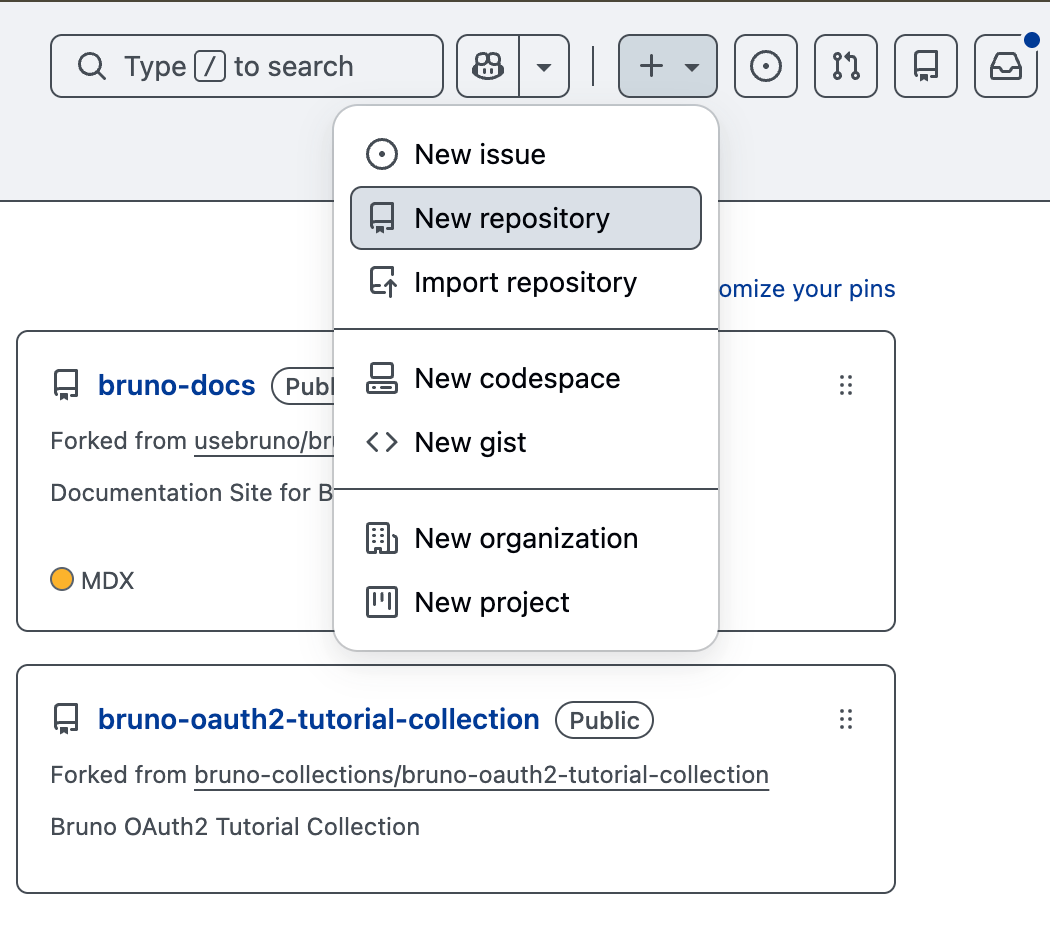
- Fill in the required fields (Repository name, Description, Visibility).
- Click Create repository.
Configure SSH key
Follow these steps to configure an SSH key on your local system:1. Generate SSH key
Open your terminal and execute:2. Add SSH key to SSH agent
Add the SSH key to your SSH agent so it can be used for authentication:3. Add the SSH key to your GitHub account
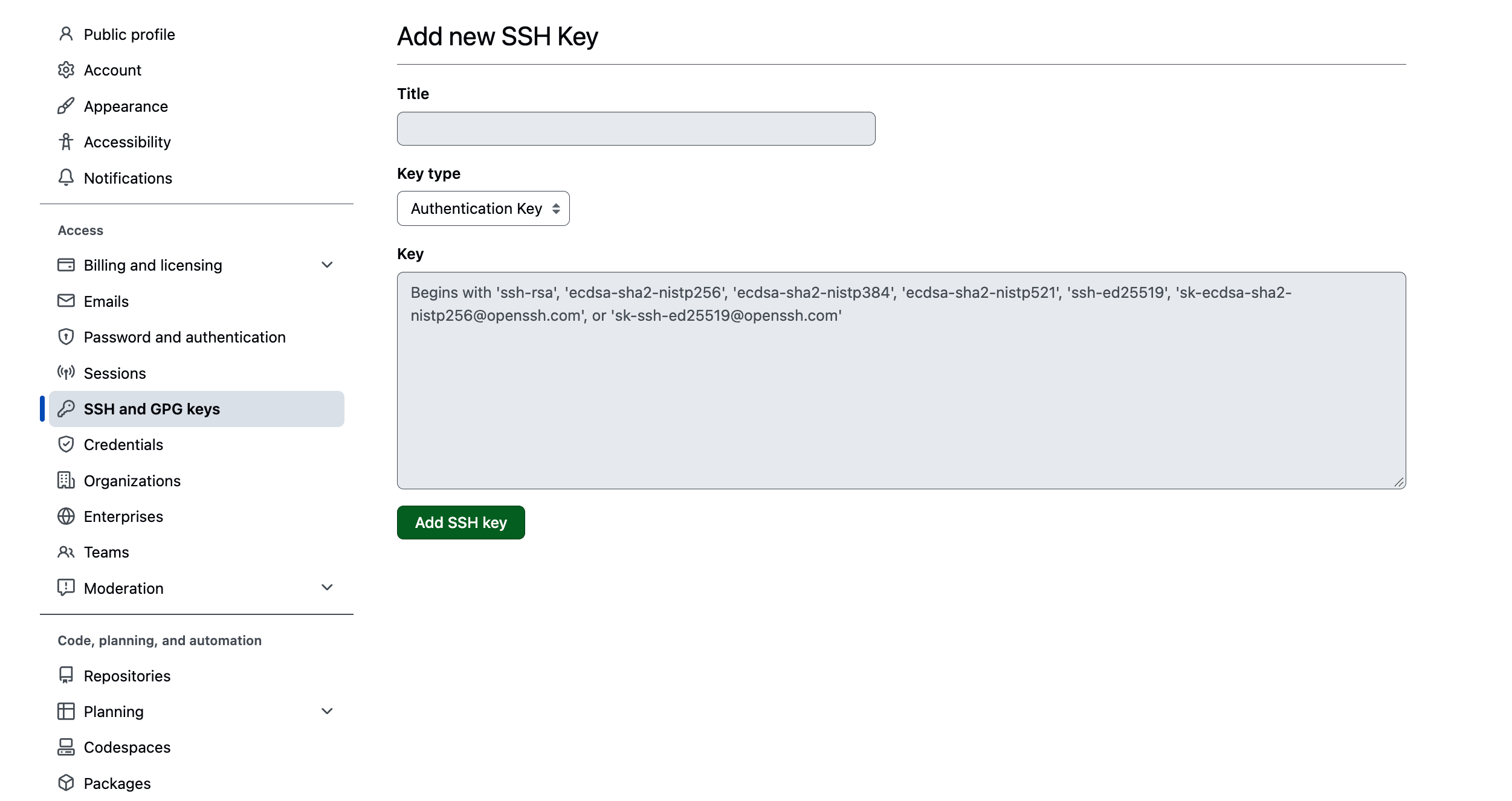
- Go to GitHub → Settings (click your avatar) → SSH and GPG keys.
- Click New SSH key.
- Give your key a title (for example, “Bruno Development”).
- Paste your
id_ed25519_github.pubcontent. - Click Add SSH key.
Use GitHub with Bruno
- Create a Collection inside Bruno (if you haven’t already).
- Click on the Initialize Git button from top-right corner and Initialize collection.
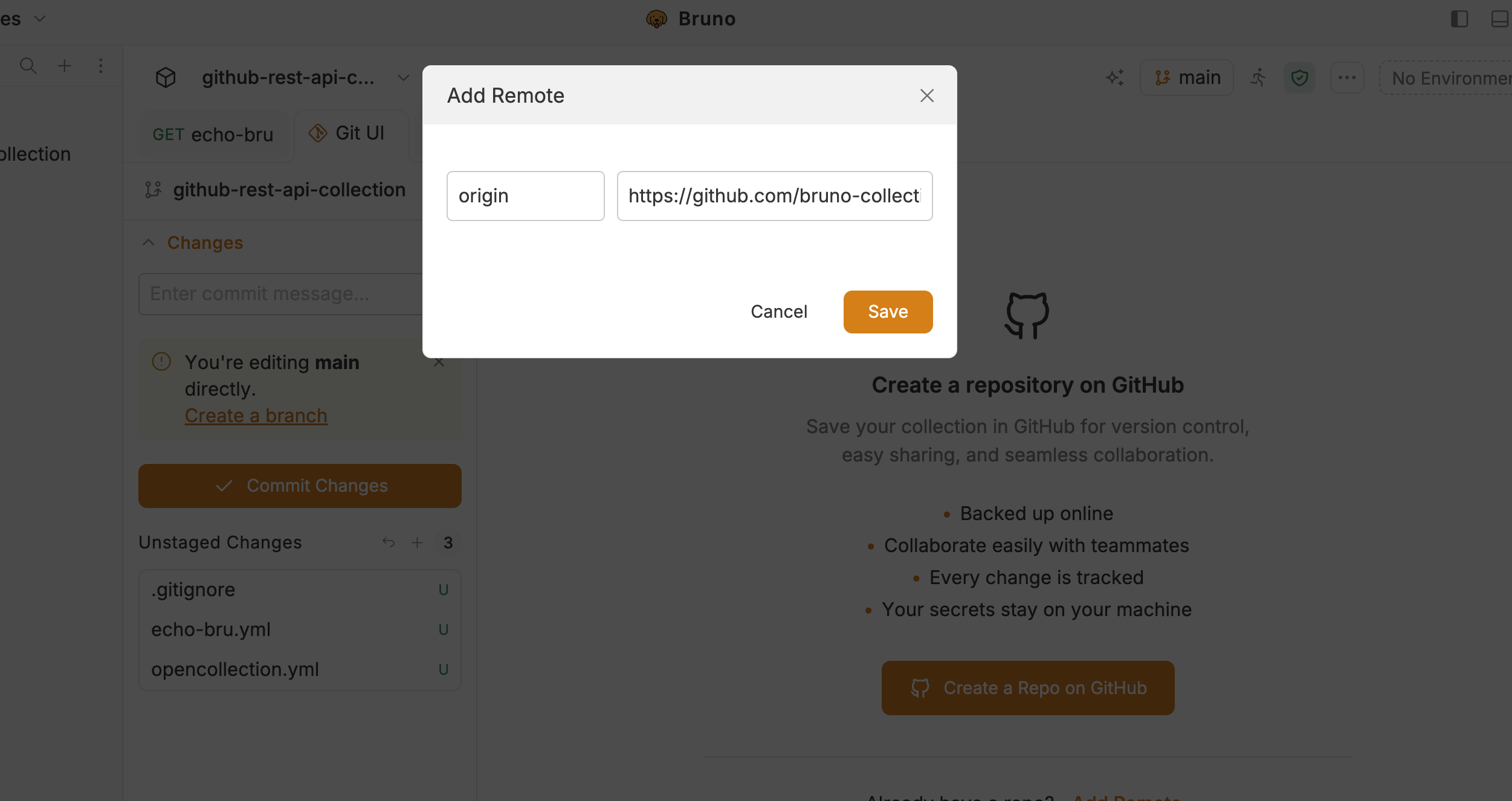
- Click on Add Remote link from the panel that appears.
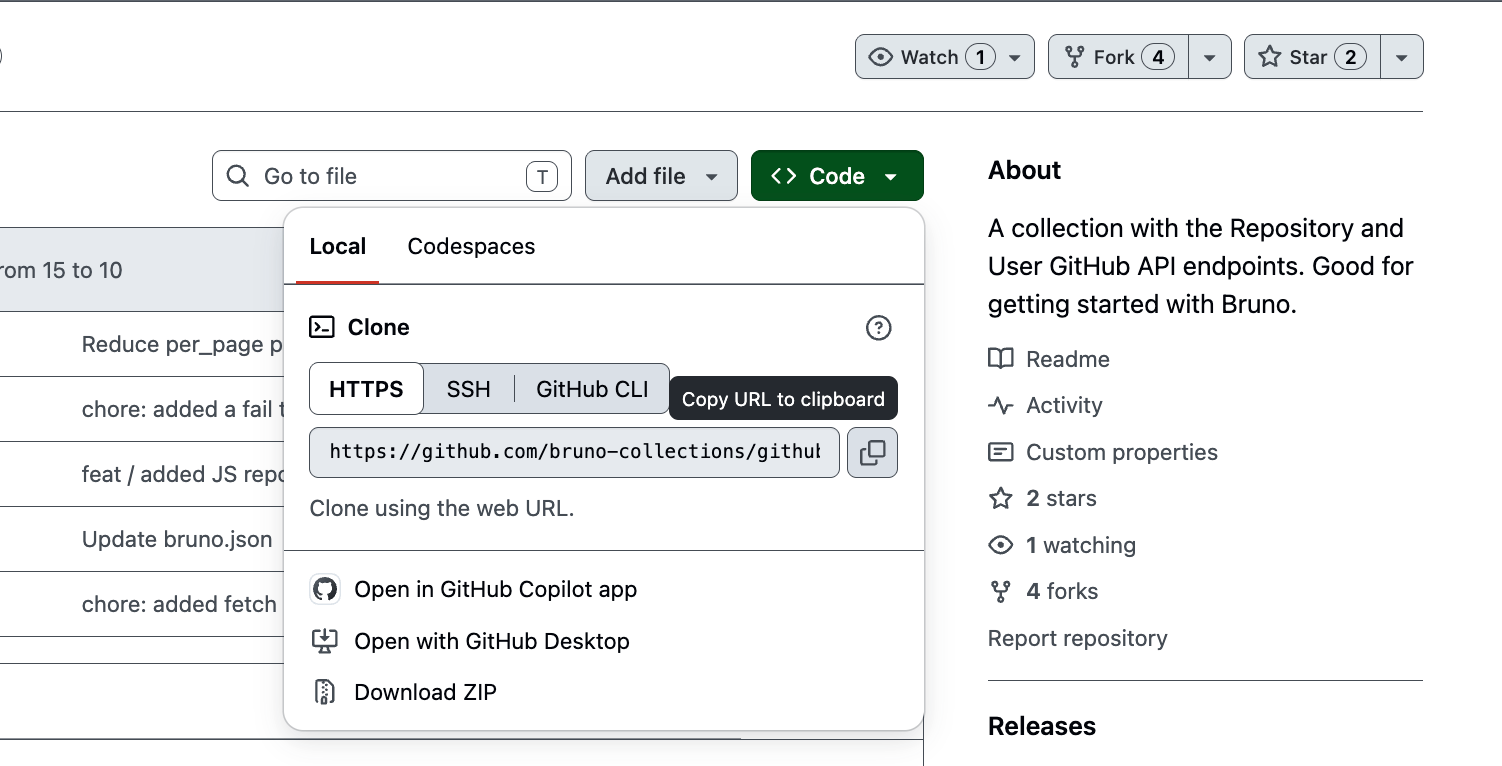
- Add origin (can be any name) as the name of the remote and paste your repository URL (copied previously).
Use the GitHub CLI (gh)
The GitHub CLI lets you create repositories, authenticate, and clone from the terminal. That is often faster than switching between the browser and Bruno, and it is the same CLI Bruno can use under Preferences → Git Providers → GitHub.
Install and sign in
macOS (Homebrew):
Create a repository with gh
gh repo create --source=. needs an existing Git repository. Initialize the collection first, then create the remote.
- In Bruno, open the collection and click Initialize Git or initialize the collection from the collection folder in a terminal:
- Create the GitHub repo and set
originfrom that folder:
gh prints something like:
- In Bruno, open Git UI and click on Add Remote button, set the name to
origin, and paste the remote URL from the output (for examplehttps://github.com/<username>/my-bruno-collection.git).
--publicor--private— visibility--source=.— use the current directory as the repo root (requiresgit initfirst)--remote=origin— adds the GitHub repo as a local Git remote namedorigin--push— push existing commits after create
Import a collection with GitHub provider
Import your existing collections from GitHub by connecting GitHub CLI in Bruno.- In Bruno, go to Preferences → Git providers → GitHub.
- Open the GitHub CLI tab, install
ghif needed, and authenticate.
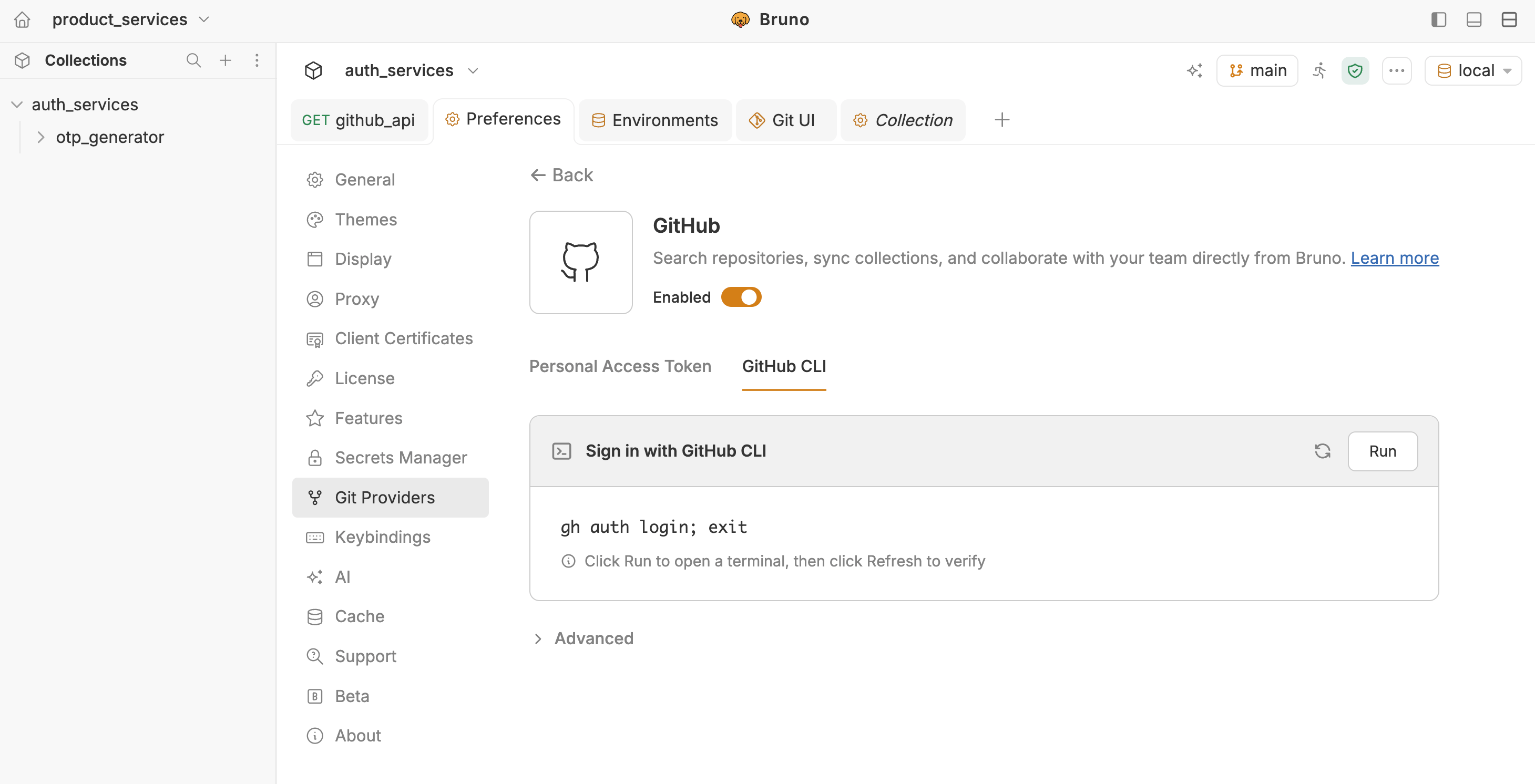
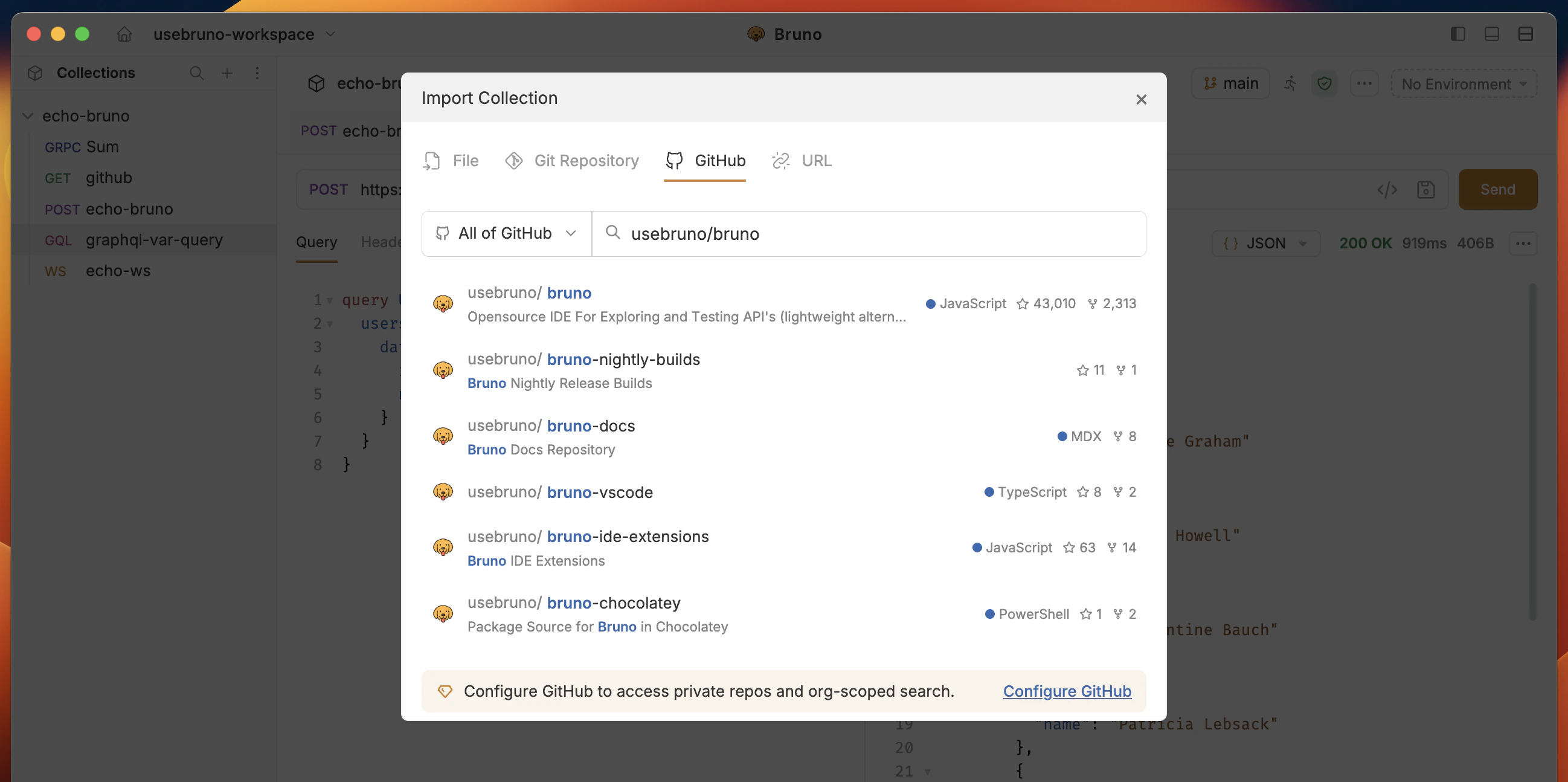
- Go to import dialog in Bruno and navigate to GitHub tab.
- Search for the repository (use the scope dropdown for your user or an organization for private repos).
- Click Clone, select the Bruno collections in that repo, and open them.
Push and pull after Bruno commits
If you prefer the terminal for network operations after committing in Bruno’s Git UI:gh authenticated over HTTPS, Git uses that login for git push / git pull without pasting a PAT each time.