

Access and import public repositories
Public repositories on GitHub are searchable from Bruno without signing in.- Open Import collection dialog box and go to the GitHub tab.
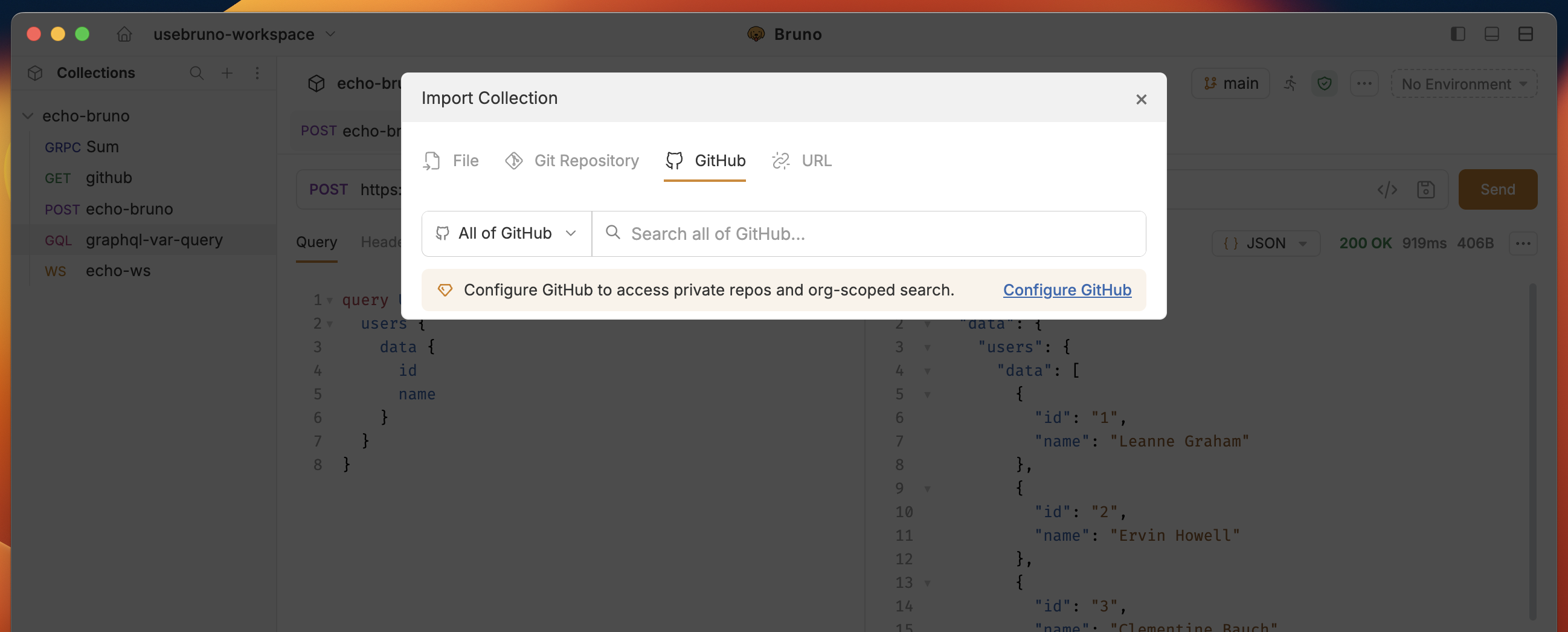
- Search any public repository by name or keywords.
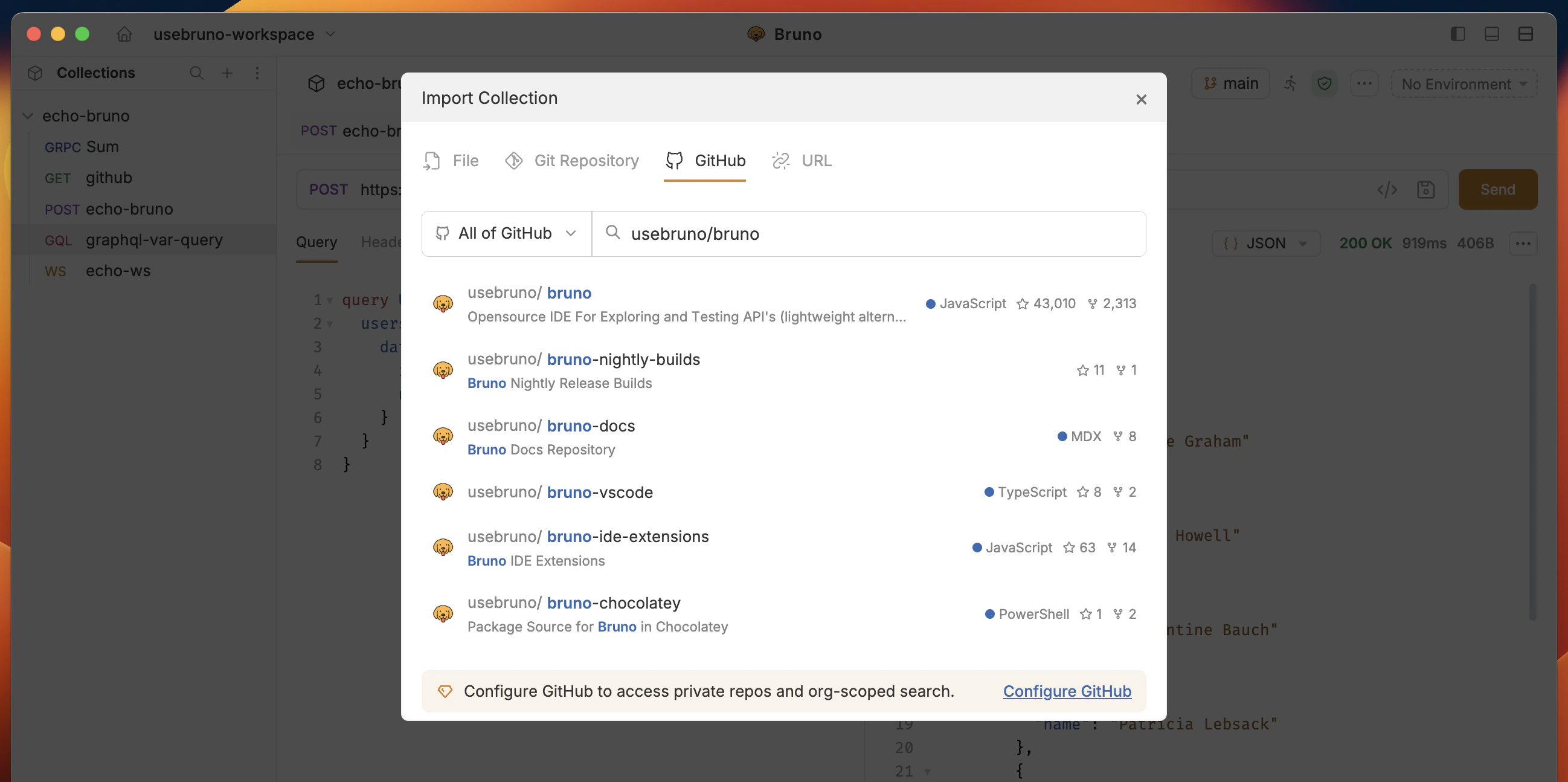
- Select the repository you want to import and click on the Clone button.
Bruno by default clone repositories to the
~/Documents/bruno folder. You can change the location by clicking on the Browse button.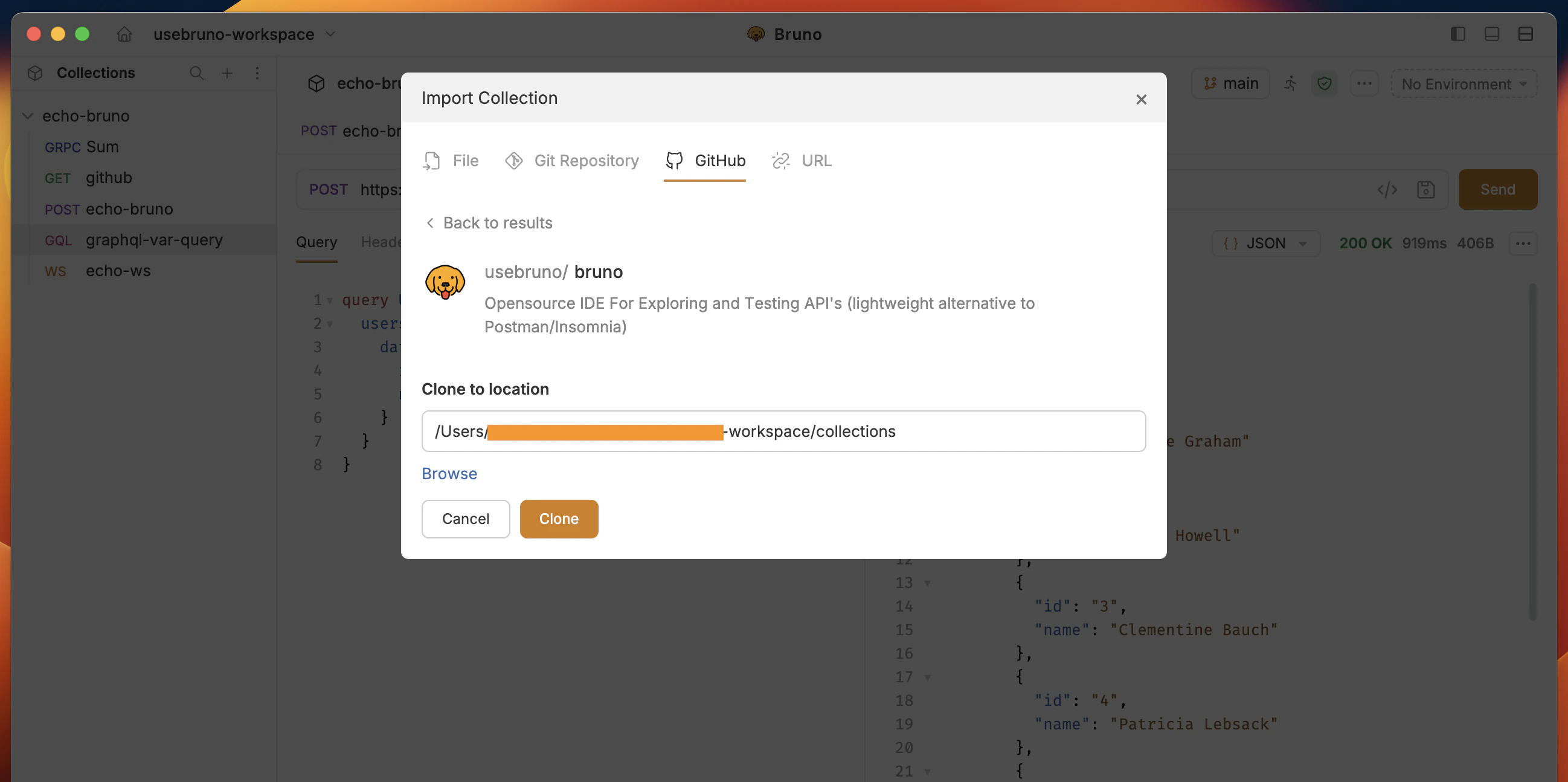
- Select the collections you want to import and click on the Open button.
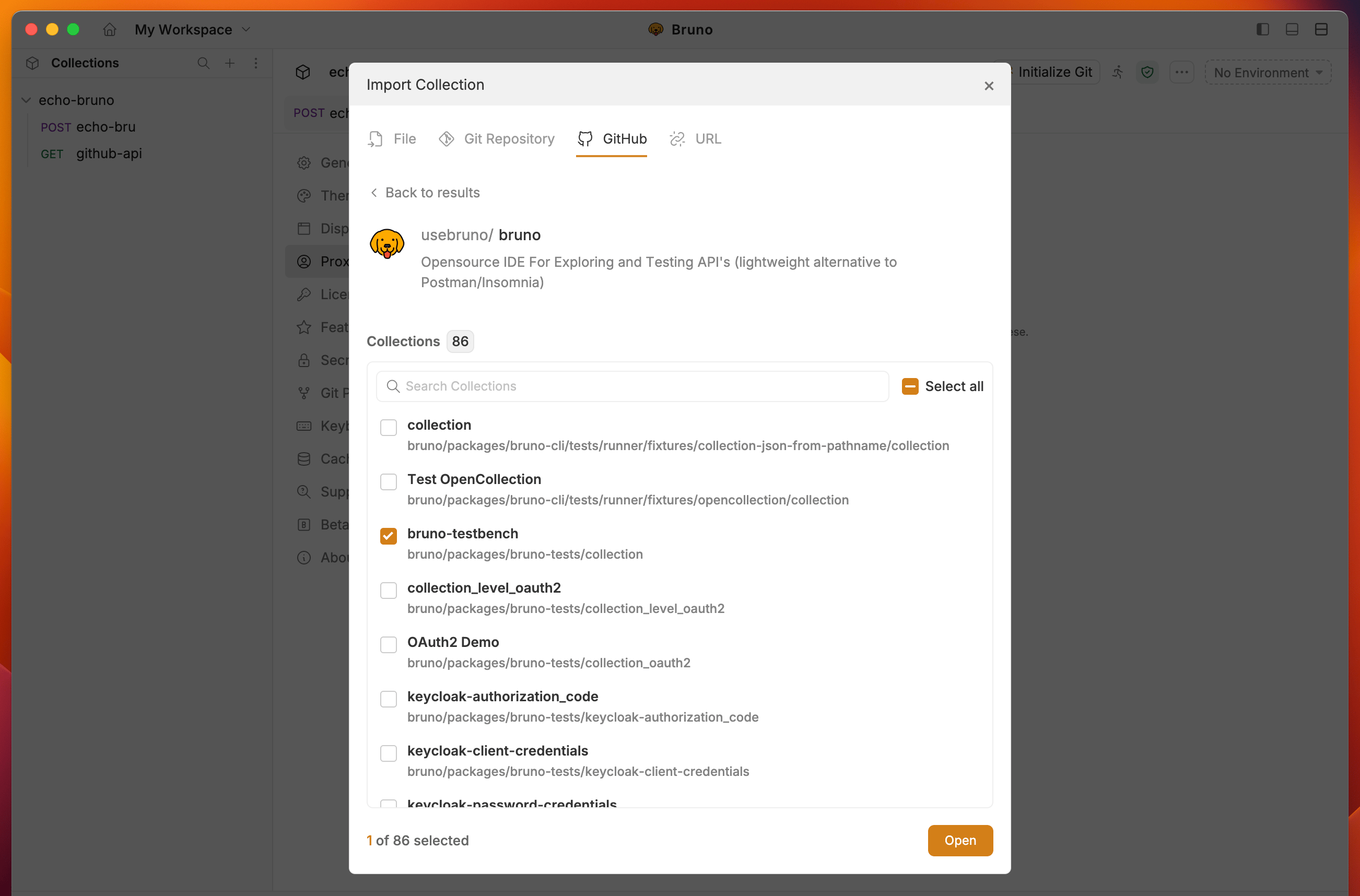
- You will see the collections you imported in the sidebar.
Private repositories and authentication
Authentication, searching and importing private repositories at organization and individual level is available in Bruno Pro and Ultimate editions.
- Personal Access Token (PAT) (recommended)
- GitHub CLI (
gh) — sign in with the official GH CLI
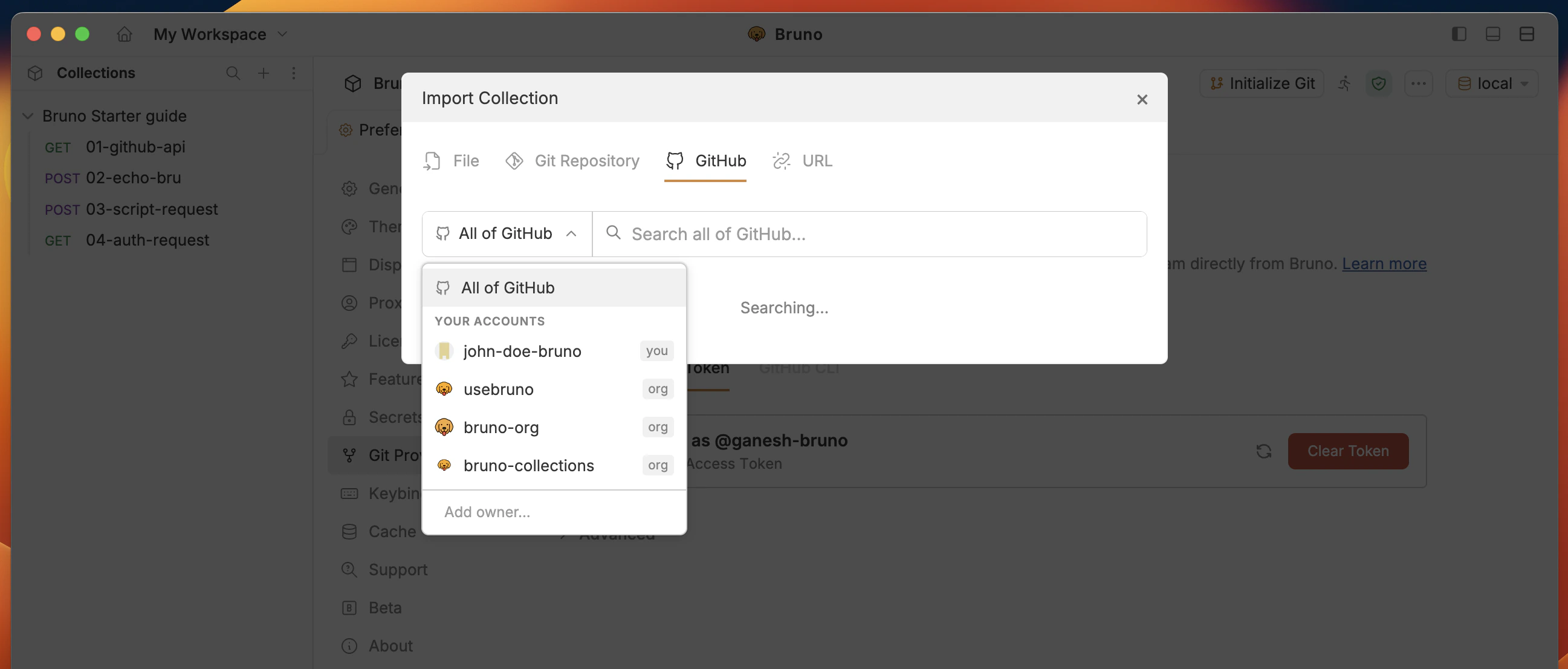
- You can import private repos and narrow search to your user and organizations you belong to (dropdown entries such as you, org).
- You can scope search to an org (for example
your-org) and see private repos (often shown with a lock icon in the list).
Configure a Personal Access Token (recommended)
Use a PAT when you want predictable, documented access for Bruno on your machine.1. Open Git provider settings
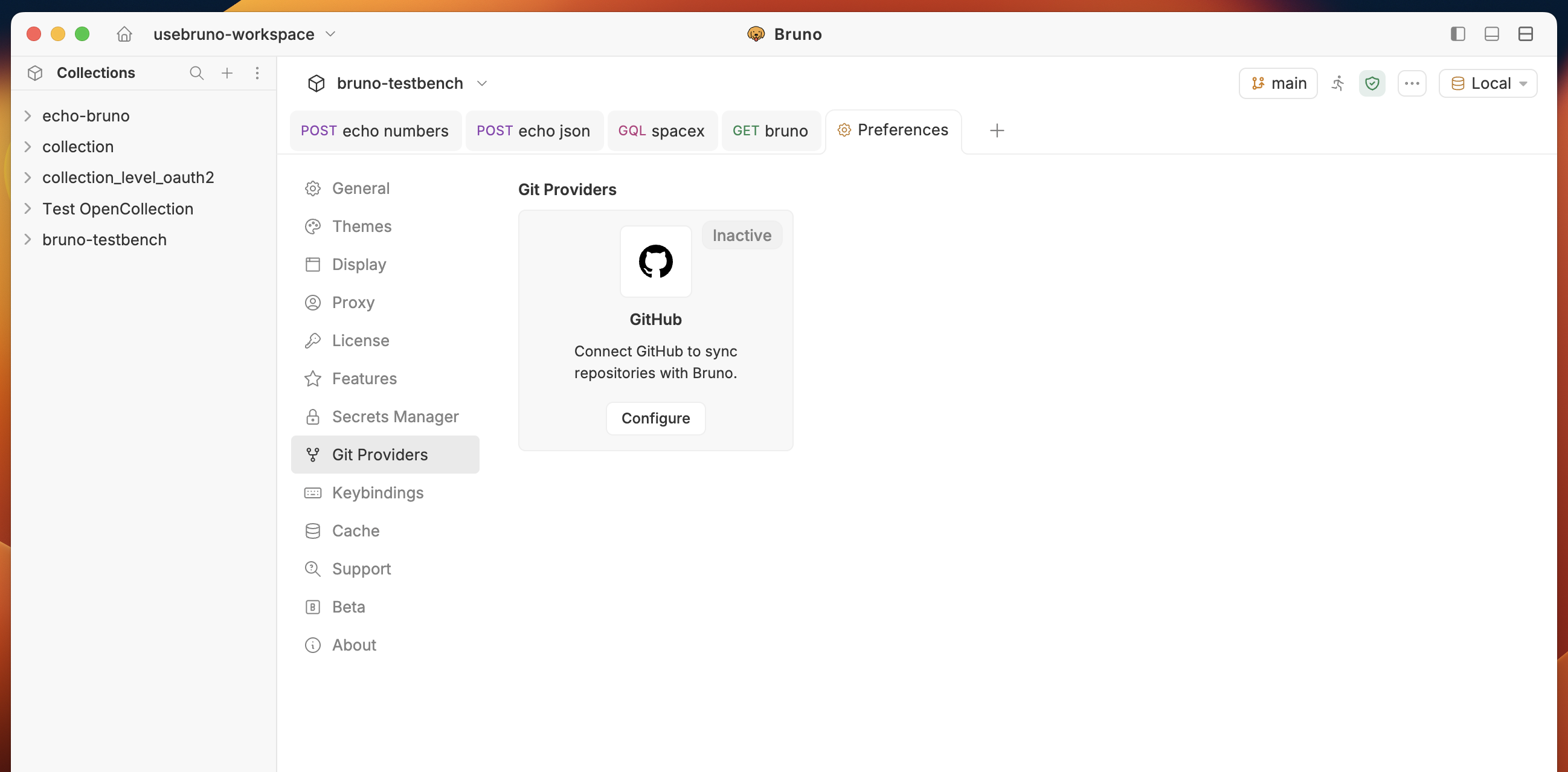
- Open Preferences settings from bottom left corner.
- Go to Git providers in the sidebar.
- Select GitHub and click on Configure button.
2. Enable GitHub
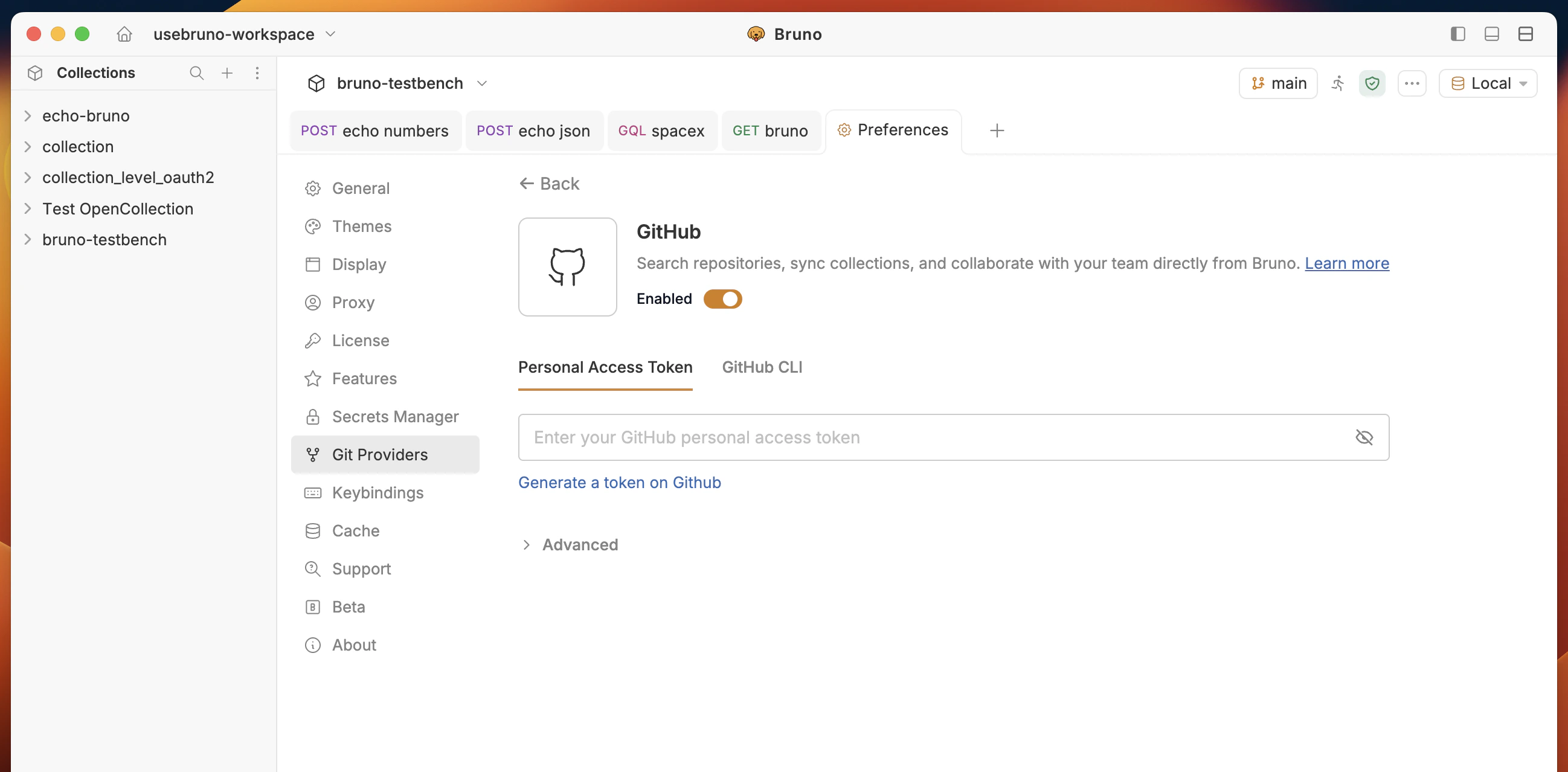
- Turn Enabled on.
- Go to Personal Access Token and click on Generate a token on GitHub link.
If you already have a token, you can paste it in the Enter your GitHub personal access token field.
3. Create and paste the token
- Click on Generate a token on GitHub and sign in to GitHub.
- Sign in to GitHub and create a token with the scopes your org requires (repo read for private repos, also follow your company policy for fine-grained vs classic tokens).
- Copy the token value, return to Bruno, paste it into Enter your GitHub personal access token.
- You should see a connected state (eg Connected as @your-username via Personal Access Token) with options to Refresh or Clear token when you need to rotate credentials.
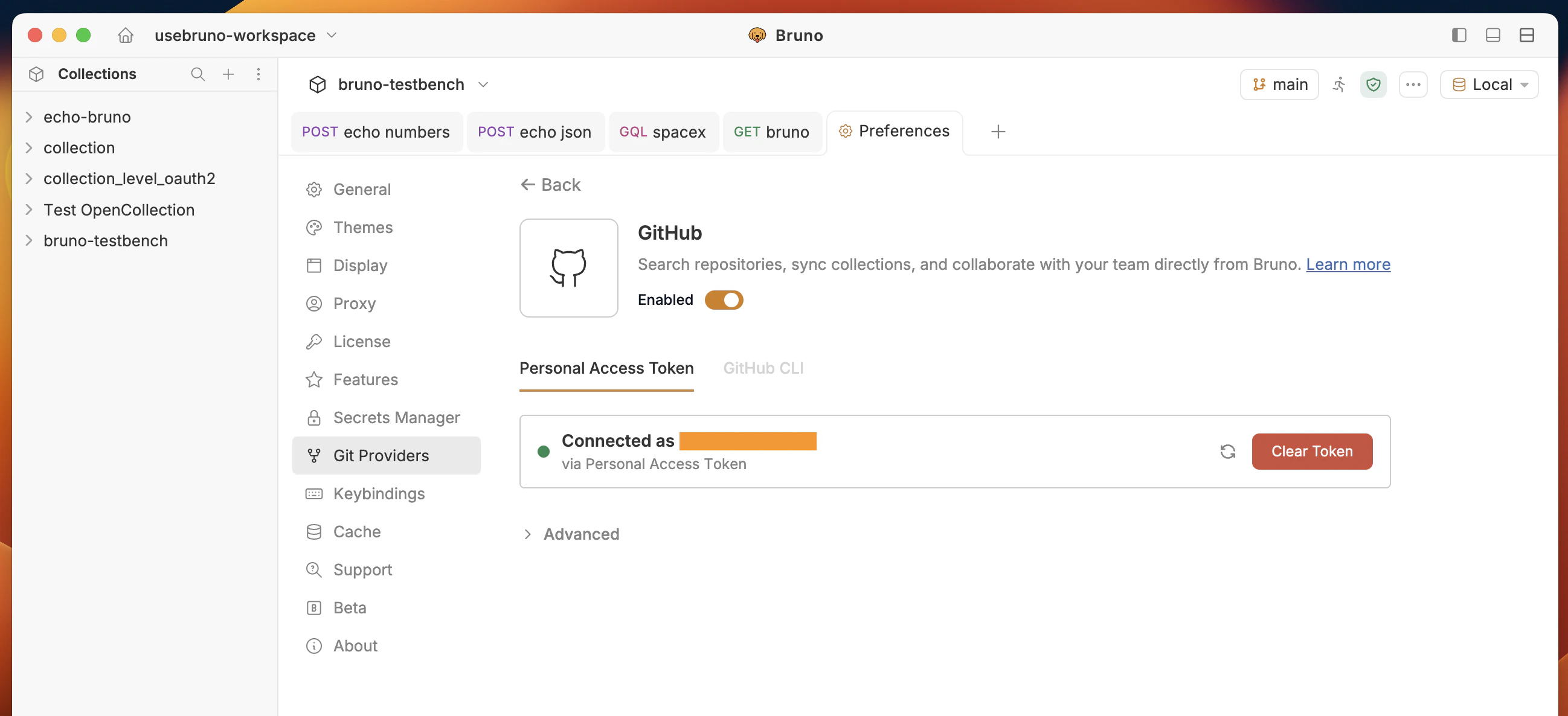
Advanced options are available to configure the enterprise GitHub API URL.
4. Import again from the GitHub tab
- Return to Import collection → GitHub.
- Use the scope dropdown to pick your user or an organization.
Private repositories should appear in search results; clone and select collections as in Access and import public repositories.
GitHub CLI
You can authenticate with GitHub CLI if you prefer not to paste a PAT:- In Preferences → Git providers → GitHub, open the GitHub CLI tab.
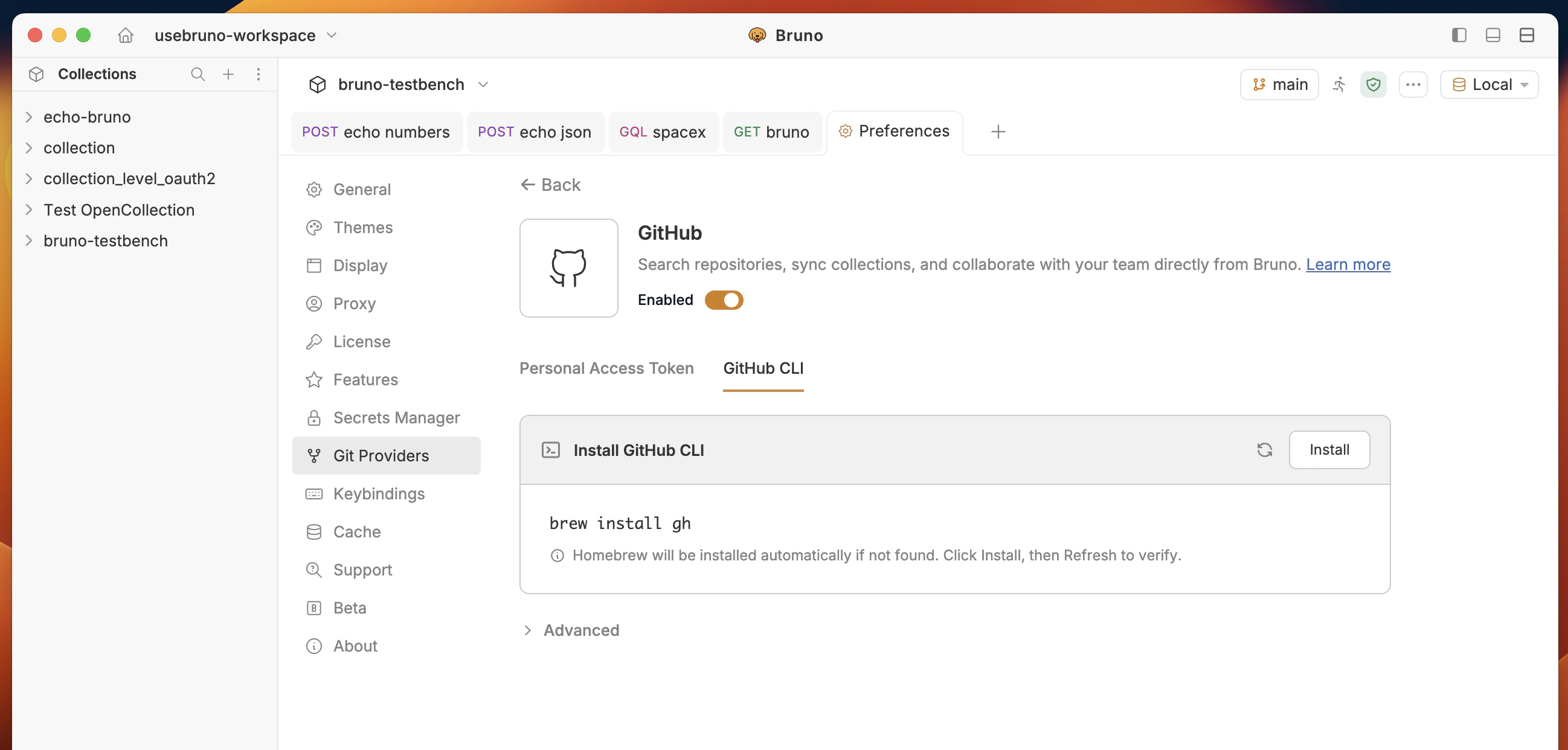
- Click on Install button to install GitHub CLI and authenticate with it in Bruno.
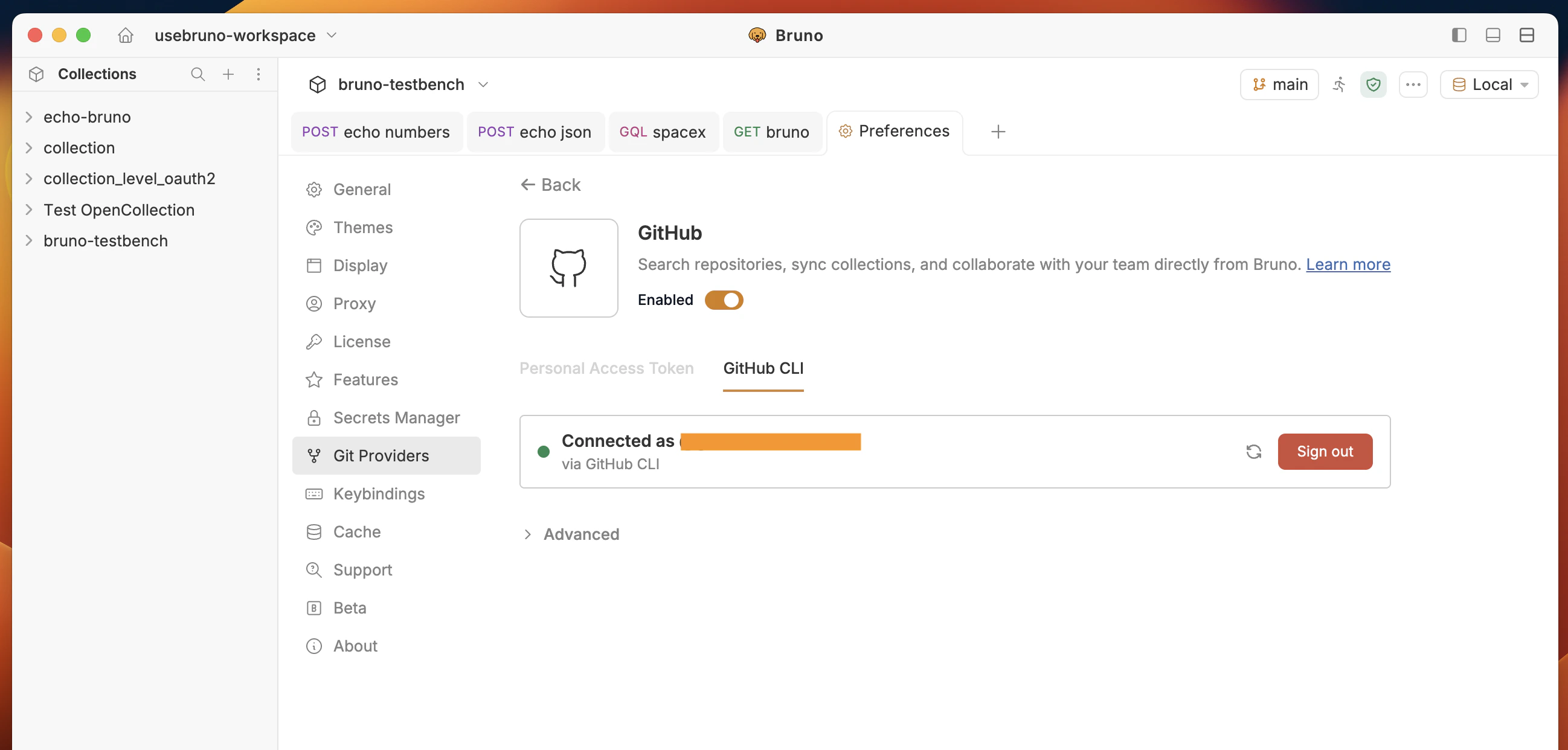
- You should see a connected state (eg Connected as @your-username via GitHub CLI) with options to Refresh or Clear token when you need to rotate credentials.
GitHub Enterprise and custom API URL
For GitHub Enterprise Server (self-hosted) or a different API base than public GitHub, set the REST API URL Bruno uses for search and repo metadata.- In Preferences → Git providers → GitHub
- Expand Advanced.
- Replace the default
https://api.github.comwith your Enterprise API root. For GitHub Enterprise Server, the REST API is often athttps://<your-hostname>/api/v3. Your administrator or About GitHub’s REST APIs for your Enterprise version documents the exact base URL. - Connect with PAT or CLI as above.
Quick comparison
Resources
- Git integration overview — init, remotes, commit, push, pull.
- Collaboration via GUI — Provider — remotes and Git workflow with a GitHub remote.
- Fetch in Bruno — one-click open for a GitHub repo from a README or site.
- Blog - Git Provider Integration for Effortless Collection Import in Bruno