

Starting from Bruno v4.0.0, secret manager configuration lives under Environment > External Secrets.
- Open your collection environment and go to External Secrets.
- Select GCP Secrets Manager.
- Choose the GCP Secrets Manager account you configured in Preferences, or use Add new account to create one.
-
Add one or more rows for the projects you want to fetch from:
- Name - the alias used to reference secrets in Bruno (for example,
stagingorprod) - Project ID - the GCP project to read secrets from. Bruno prefills the account’s Default Project ID; override it on any row to fetch from another project with the same service account.
- Name - the alias used to reference secrets in Bruno (for example,
- Click Fetch Secrets in the top-right corner.
- Bruno lists every secret in each project (latest version). Fetched secret IDs appear under Secret Keys.
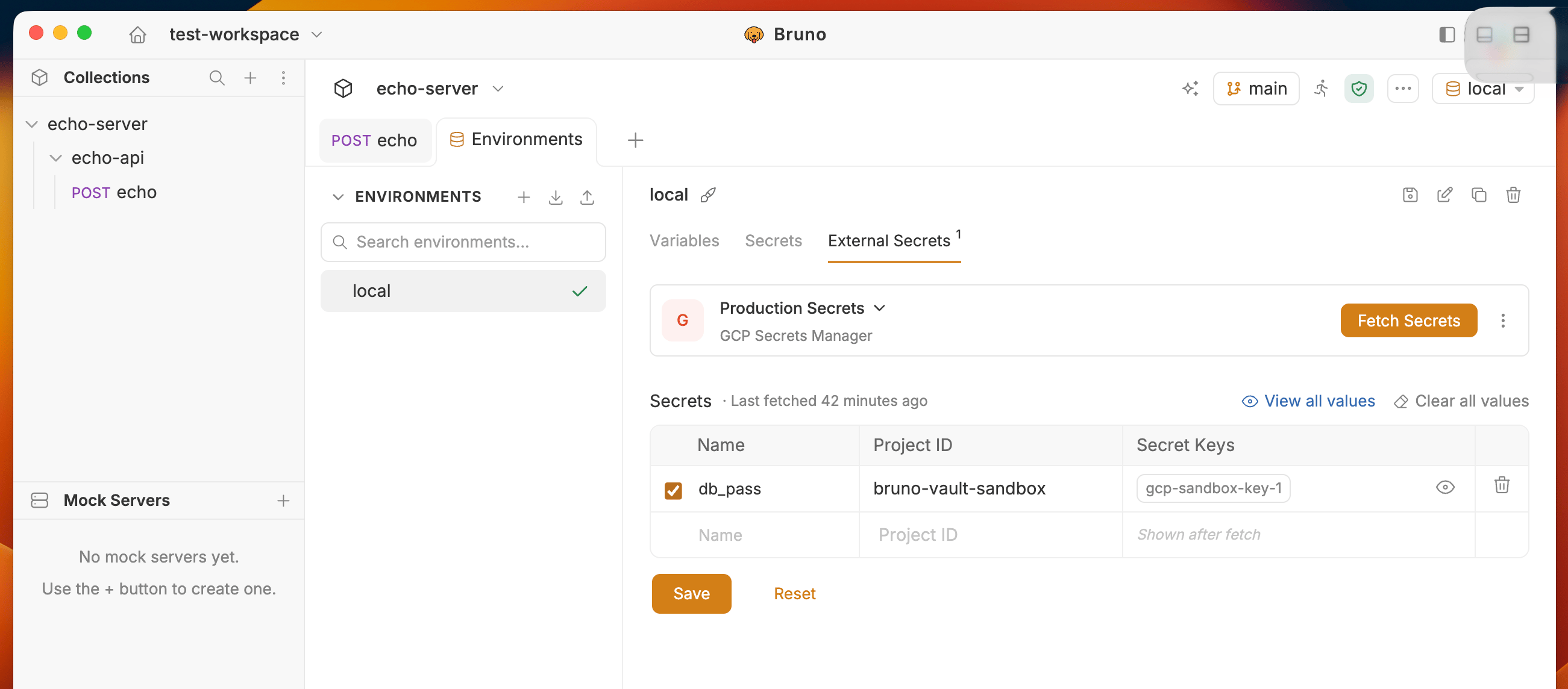
- Edit account - change account details
- Remove secret manager - remove the provider from this environment
How project override works
One service account can reach multiple projects. Keep the default project on one row, and add another row with a different Project ID when you need secrets from a second project. Each row’s Name becomes the namespace for that project’s secrets after fetch.Notes
- Secrets are always fetched at their latest version. Per-secret version pinning is planned for future support.
- If a secret’s payload is JSON, Bruno parses it so you can access individual keys (see Using secrets).
- Plain-string payloads are exposed under the secret ID as a single value.