

AI Policy is an Ultimate Edition feature that governs the Bruno AI features introduced in v4.0.0. The AI tab only appears in the License Portal for Ultimate subscriptions.
What is AI Policy?
AI Policy lets License Administrators set AI governance for their whole organization from the License Portal. Instead of every user configuring AI independently, an admin decides what AI is allowed and how requests are protected, and that policy applies to every user on the subscription. The model is simple: the org sets policy, the user brings the key. No API keys are entered or stored in the License Portal — keys stay user-level, set by each user in the desktop app. A provider or model toggle in the License Portal means allowed or not allowed, not enabled: within the allowed set, users still add their own keys for the providers they want to use.Accessing AI Policy
- Sign in to the License Portal as a License Administrator.
- Navigate to Settings.
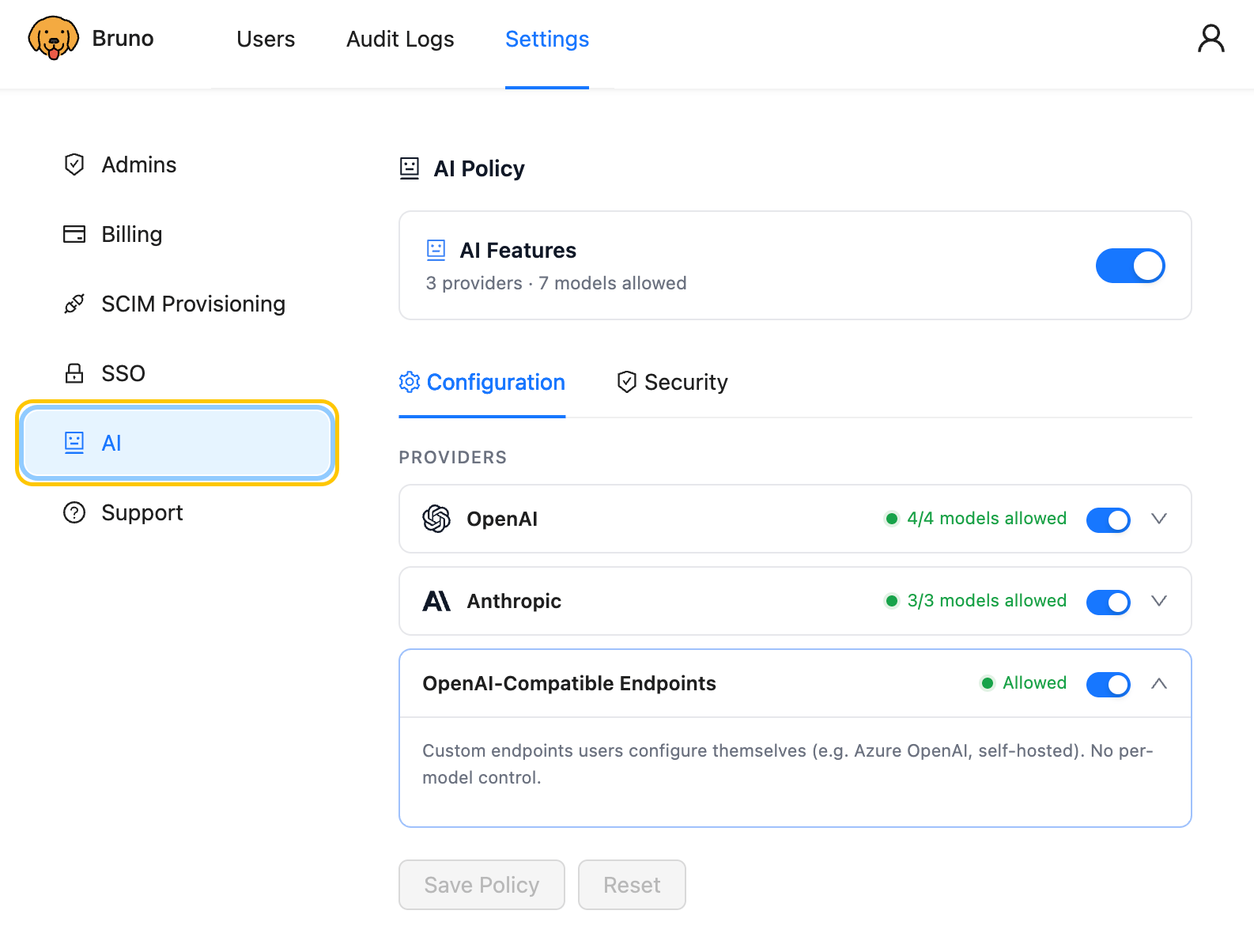
- Select AI from the left-hand menu.
Enabling AI features
At the top of the page, the AI Features card is the master switch for your organization. It also summarizes the current policy (for example, 3 providers · 7 models allowed).- Toggle AI Features on to allow AI usage across your organization.
- Toggle it off to disable all Bruno AI features for every user. When off, the rest of the policy is inert.
Configuration
The Configuration tab controls which providers and models your users can enable.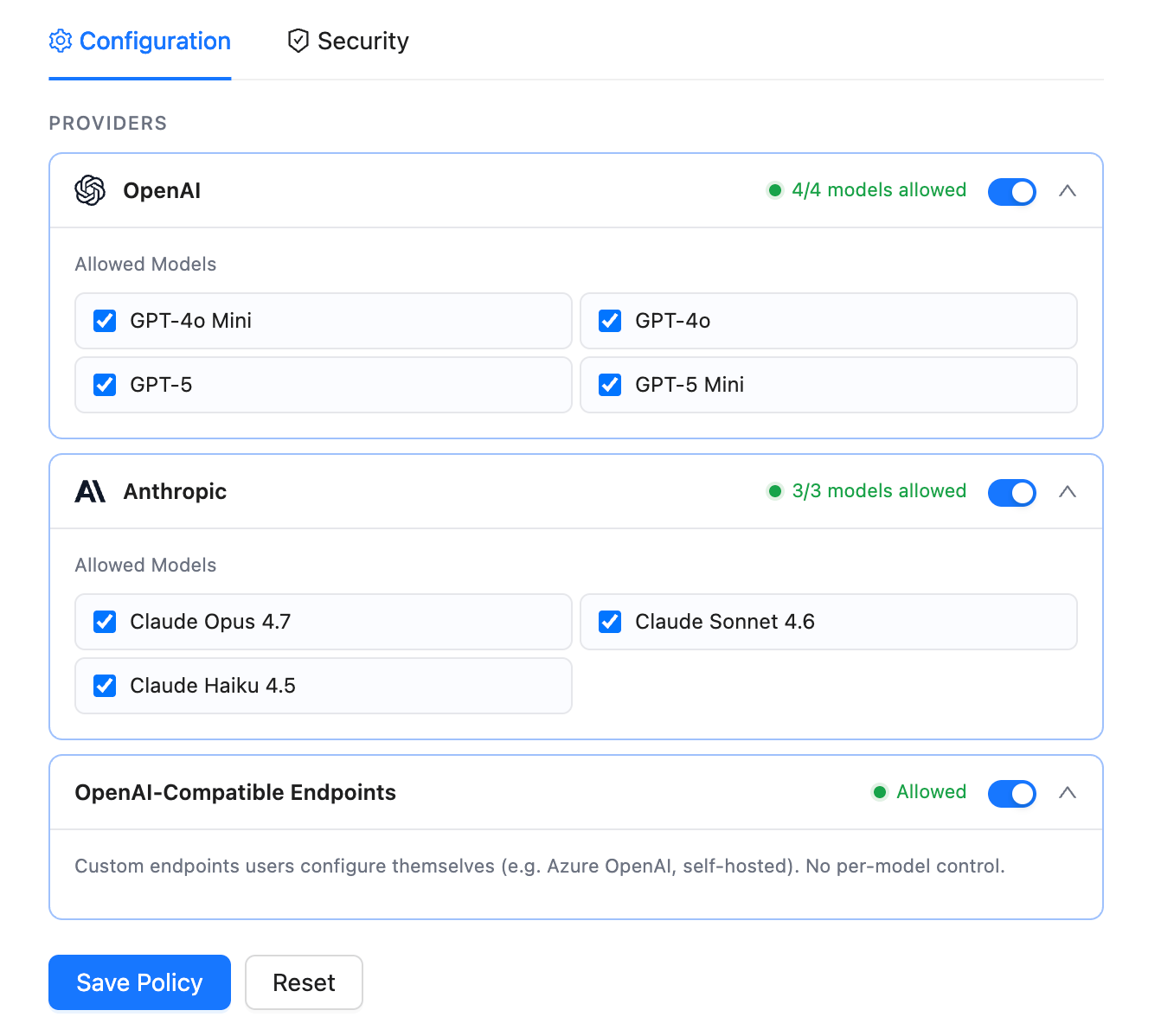
Providers
Each provider has its own allow/deny toggle and a summary of how many of its models are allowed (for example, 4/4 models allowed). Turning a provider off makes it unavailable to users regardless of their own configuration or stored key.OpenAI
Toggle OpenAI on to allow it, then expand the row to allow or deny individual models. The summary count reflects how many OpenAI models are currently permitted.Anthropic
Toggle Anthropic on to allow it, then expand the row to allow or deny individual models.OpenAI-Compatible Endpoints
Custom endpoints that users configure themselves — for example Azure OpenAI or self-hosted models. Because these are user-defined, there is no per-model control: you can either allow or deny custom endpoints as a whole.Per-model control
Expand a provider row to allow or deny its individual models. Denying a model removes it from the allowed list — users cannot select it in the desktop app even when its provider is allowed. The provider summary updates to reflect your selection (for example, denying one of four OpenAI models shows 3/4 models allowed).Security
The Security tab governs the data-protection (redaction) rules applied to context Bruno sends to AI providers. These are the same protections available in the Bruno app’s Security settings, but set here they can be enforced org-wide.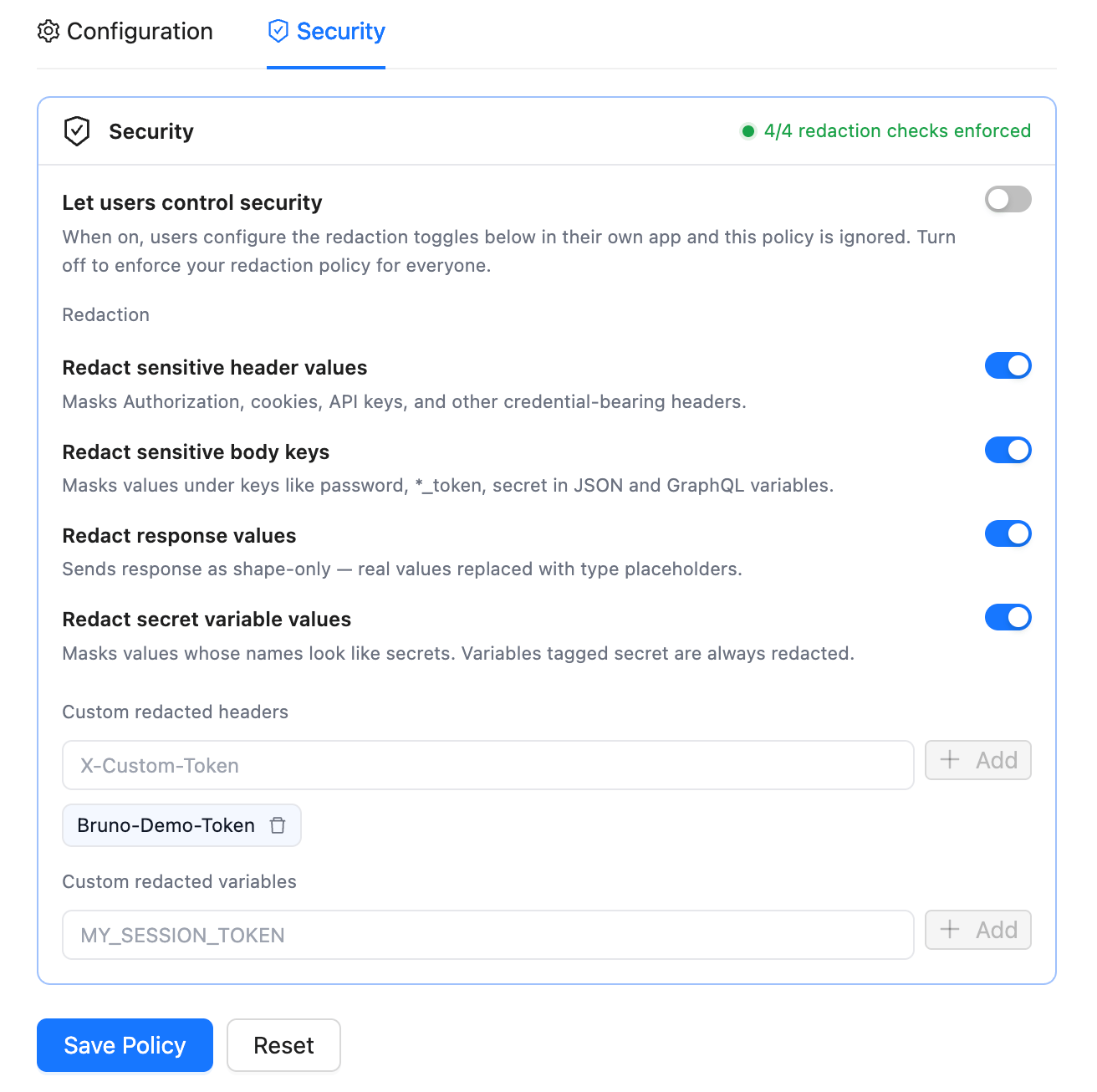
Let users control security
A Let users control security switch decides who owns the redaction settings:- On — users manage their own redaction toggles in the desktop app; org policy is ignored.
- Off — the org’s redaction policy below is enforced for everyone, and users cannot change it in the app.
Redaction controls
The policy covers four redaction controls, plus custom lists:- Redact sensitive header values — mask credential-bearing headers such as
Authorizationand cookies. - Redact sensitive body keys — mask values under keys like
password,*_token, andsecret. - Redact response values — send the response as a shape only, replacing real values with type placeholders.
- Redact secret variable values — mask values of variables that look like secrets.
- Custom redacted headers and custom redacted variables — additional names to always mask.
Saving your policy
Use the buttons at the bottom of the page:- Save Policy — apply your changes to the whole subscription.
- Reset — discard unsaved changes and revert to the last saved policy.
How the policy reaches users
Policy is delivered to the desktop app through Bruno’s existing license verification cycle, which runs when the app opens and every ~24 hours. As a result, a policy change can take up to about a day to reach a client that stays open without being restarted. Enforcement is defense-in-depth: disallowed providers and models are gated in the app’s configuration screen and blocked at request time, regardless of any key the user has stored.What users see in the app
Disabled features are shown in a disabled state with clear messaging — they are not hidden:- When AI is disabled entirely, the app shows:
AI features are currently disabled. If your access is managed by an administrator, reach out to them to enable it.
- When the Security tab is governed by the org (AI on, settings locked), the app shows:
These security settings are managed for your account and can’t be changed here. If your access is managed by an administrator, reach out to them to make changes.
Security governance applies to trial and paid subscriptions. Free / unlicensed users manage their redaction settings locally in the app.