

Dashboard interface walkthrough
The mock opens as its own tab in the main pane (distinct from a request tab).Header
Headers is a top level section in the dashboard with the following controls:- Editable name field: Rename quickly by clicking the title at the top of the dashboard header.
- Source label: Shows what the mock is linked to, or “Standalone” if not linked.
- Live N routes / N responses: Shows the number of registered routes and responses while running.
- Port warning: If the configured port doesn’t match the running port, a warning appears: “Configured port N differs from the running port N.”
- Delay (ms): Adds a fixed latency to matched responses. Unmatched routes are never delayed.
- Refresh: Re-reads the source and rebuilds the route table without dropping the port.
- Gear icon: On the right side of the dashboard header, opens Mock Server Settings (rename, change link source, port, delay, or delete).
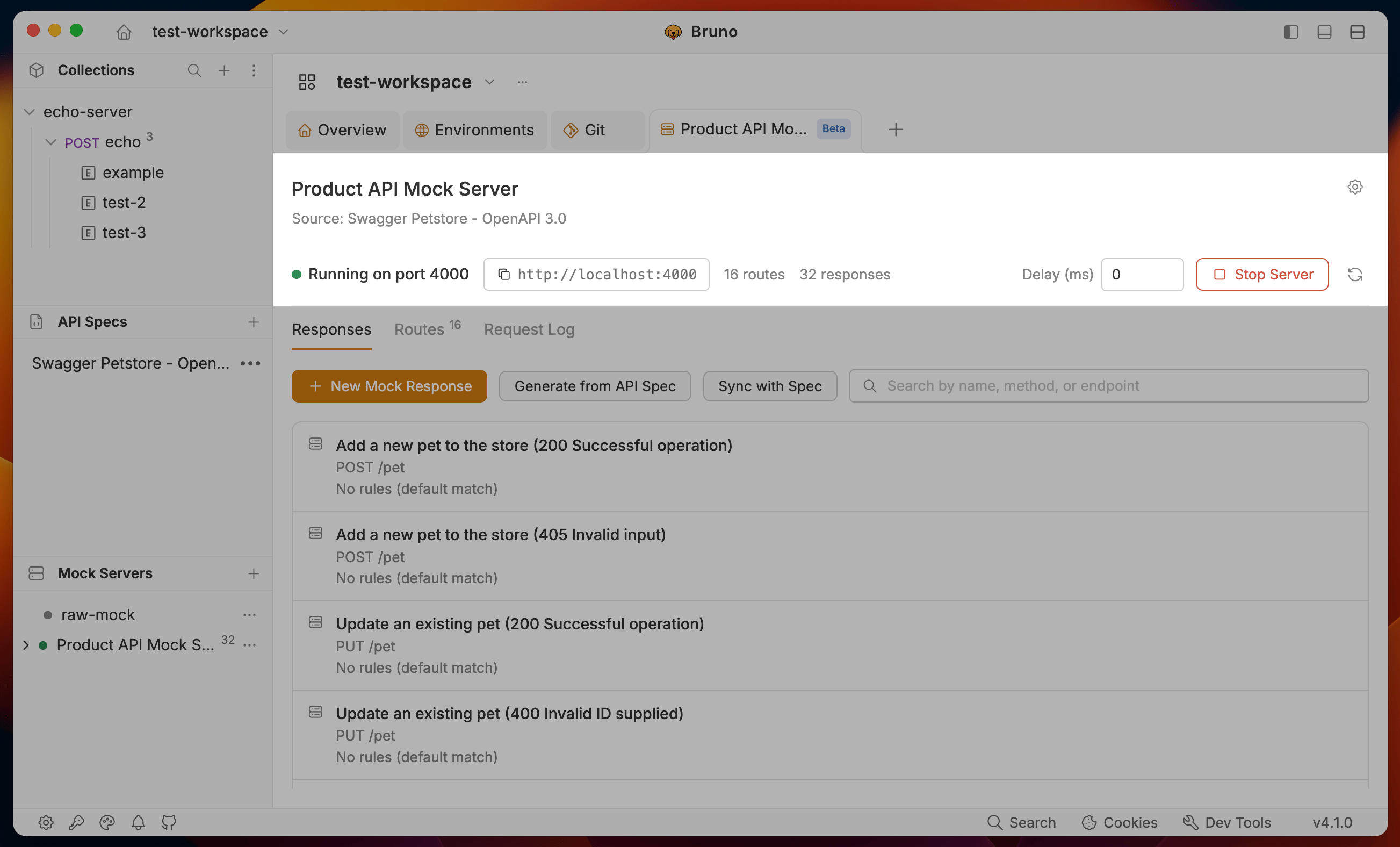
Responses tab
The Responses tab is where you manage, generate, and sync your mock responses. The toolbar at the top provides New Mock Response and also surfaces context-aware buttons depending on how the mock is linked:- New Mock Response creates a new mock response with a default method, path
- Sync with Examples is shown for collection-linked mocks, syncing responses to the latest examples.
- Generate from API Spec appears for API-spec mocks without any added responses, bulk-generating responses from the spec.
- Sync with Spec is shown for API-spec mock servers that already have mock responses. Clicking it re-imports the API spec and overwrites existing responses that still match the spec (method and path), while preserving any custom responses you’ve added or changed.
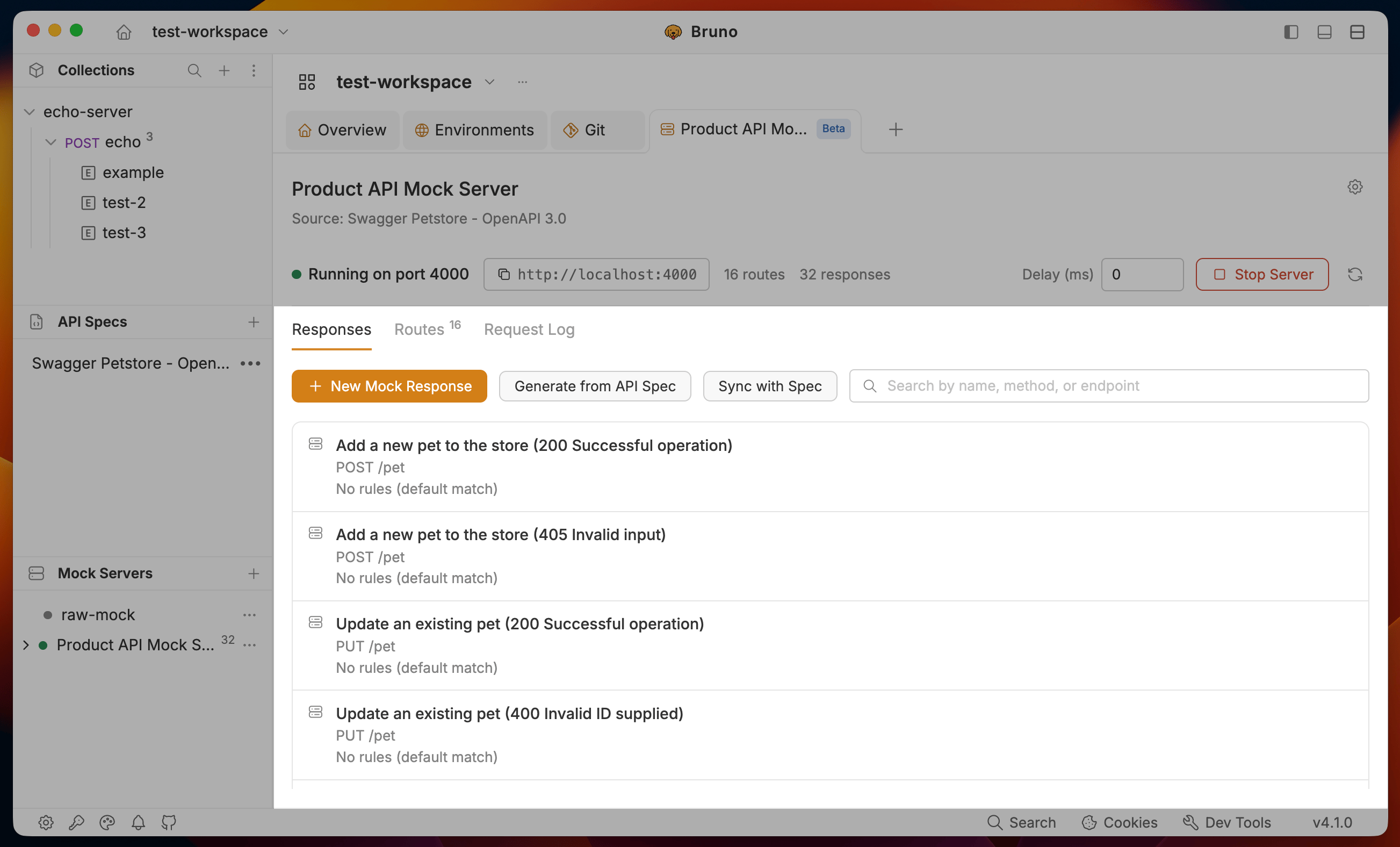
Mock response editor
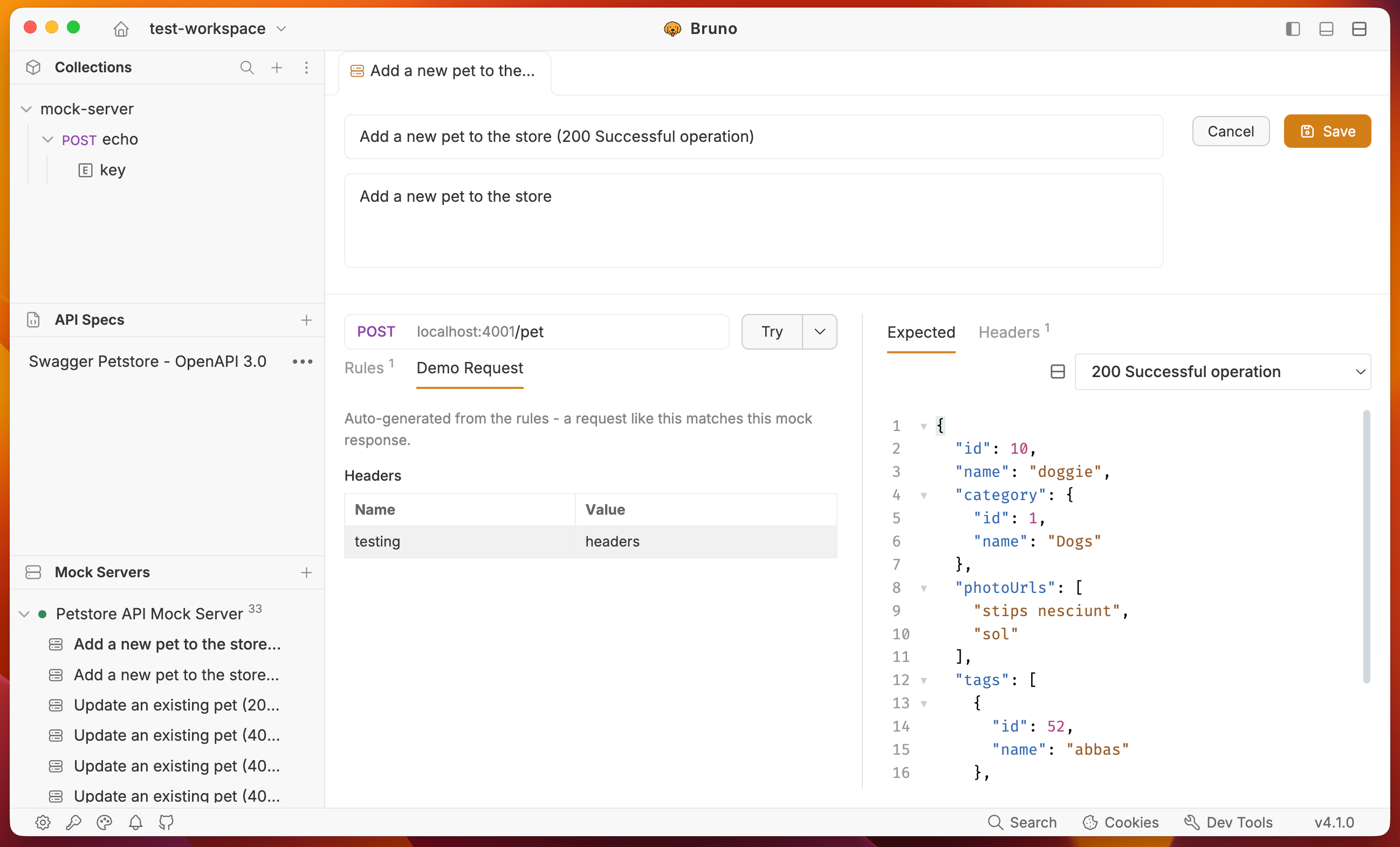
Each mock response is presented as a first-class object with:- Method and Path - path parameters use
:name(for example,/users/:id) - Status and Headers
- Expected editor with syntax highlighting and expected response body
- Rules - optional conditions that select one response over another for the same method + path
- Demo Request - Automatically generated based on the defined rules. Shows an example of a request that would match this mock response.
- Try - lets you send a real request to this route and see the response in the Try Result tab without leaving the editor. The mock server must be running. Try requests follow all configured rules and are also recorded in the Request Log.
- Open a New Request - opens a new request tab with the method, path, and body pre-filled with the demo request
- Edit and Delete responses from the top-right corner of the response editor. Click on Edit to add or change rules.
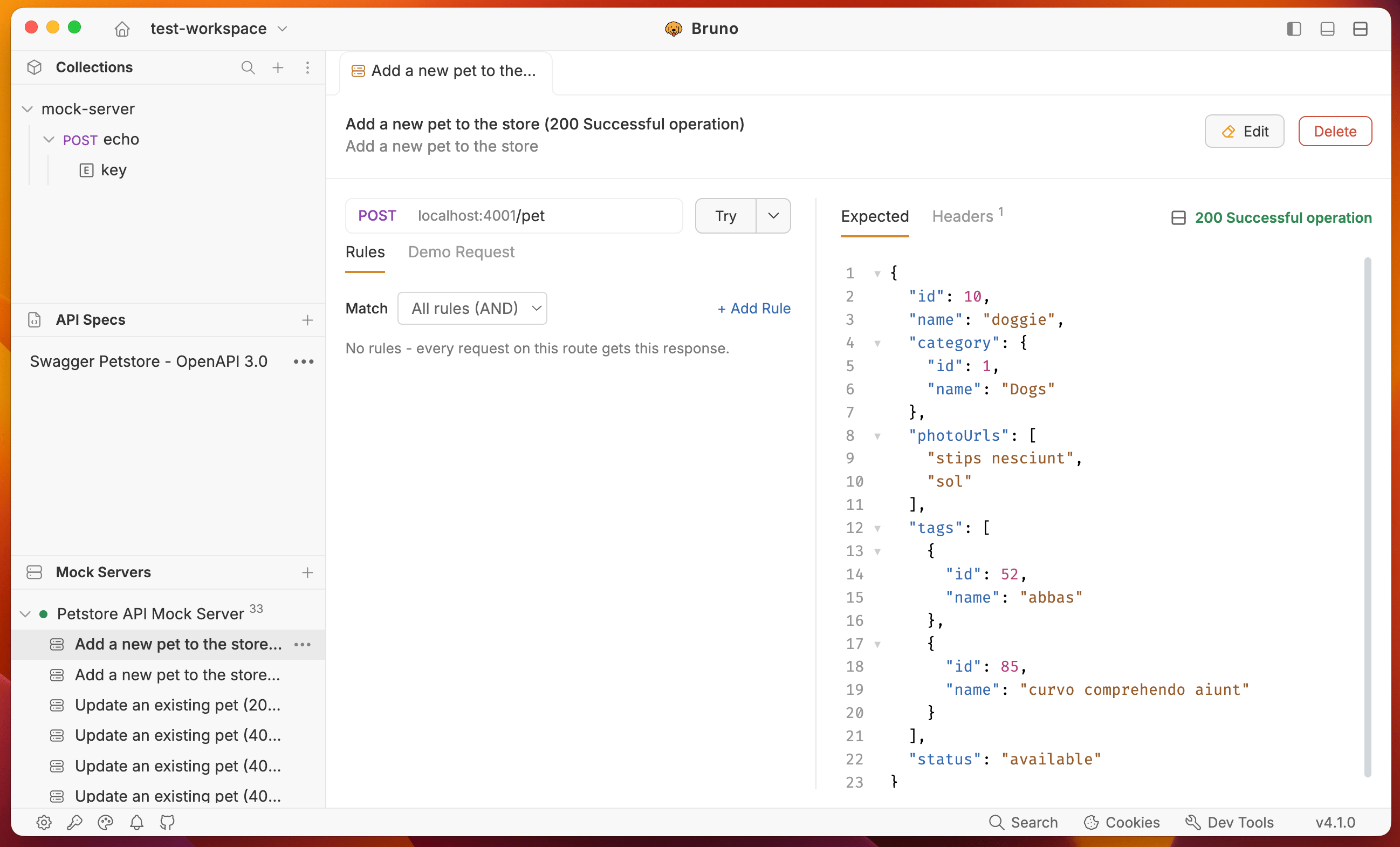
Rules
Rules are optional conditions that select one response over another for the same method + path. You can add rules for headers, query parameters and body fields with respect to the target.You can use Match switcher between All rules AND and Any rule OR to match the request against all rules or any rule. Default is All rules AND.
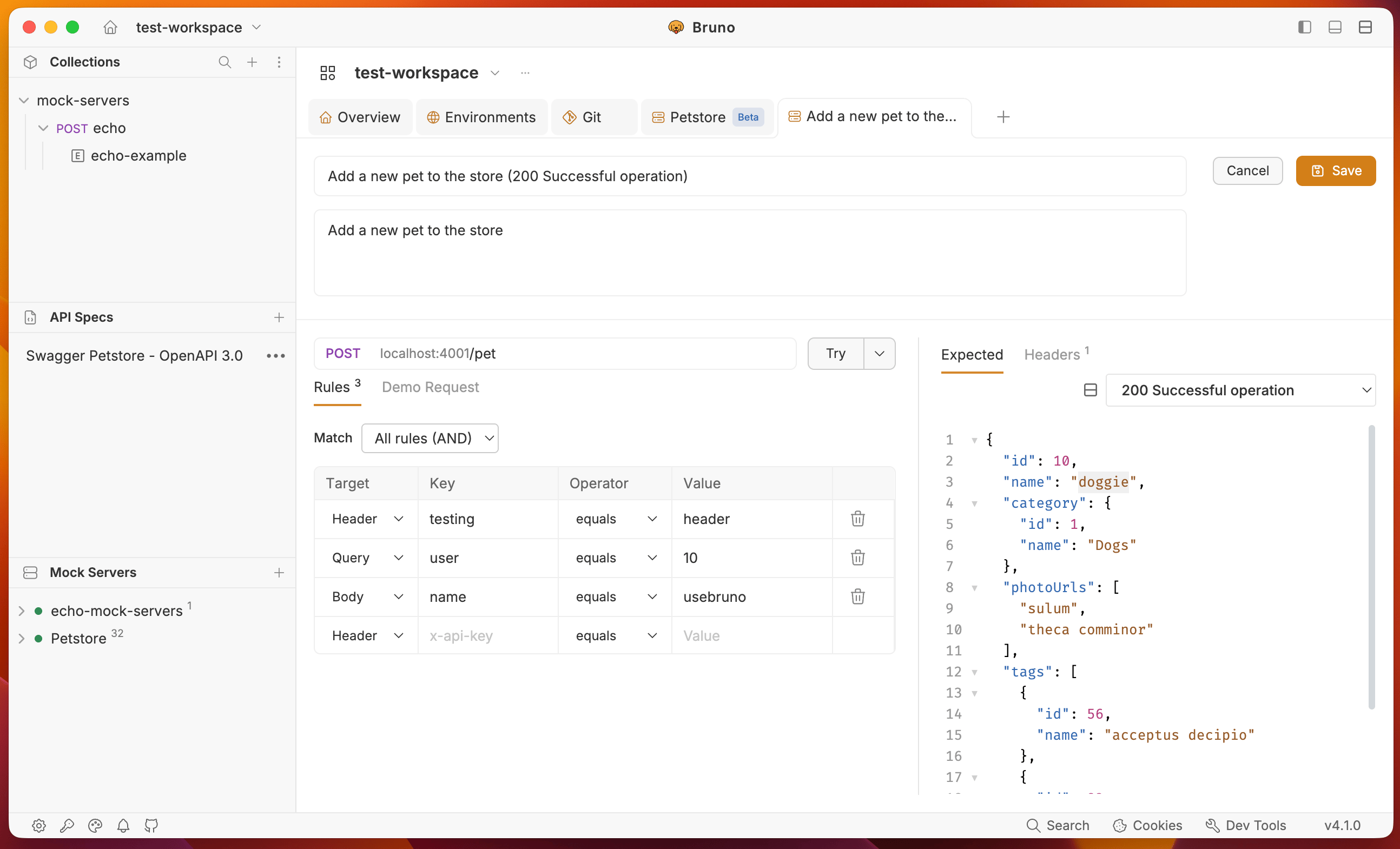
POST /users endpoint. You can add different rules to each response and let Bruno select the appropriate response based on the incoming request body.
Incoming request body:
When
user.type equals admin, Bruno returns the response configured with this rule.
Demo Request
Demo Request is automatically generated from the defined rules. It shows an example request that satisfies the conditions required to match this mock response.
testing equal to header in ab, the demo request will have testing: header as a request header. This is automatically generated from the defined rules.
Routes tab
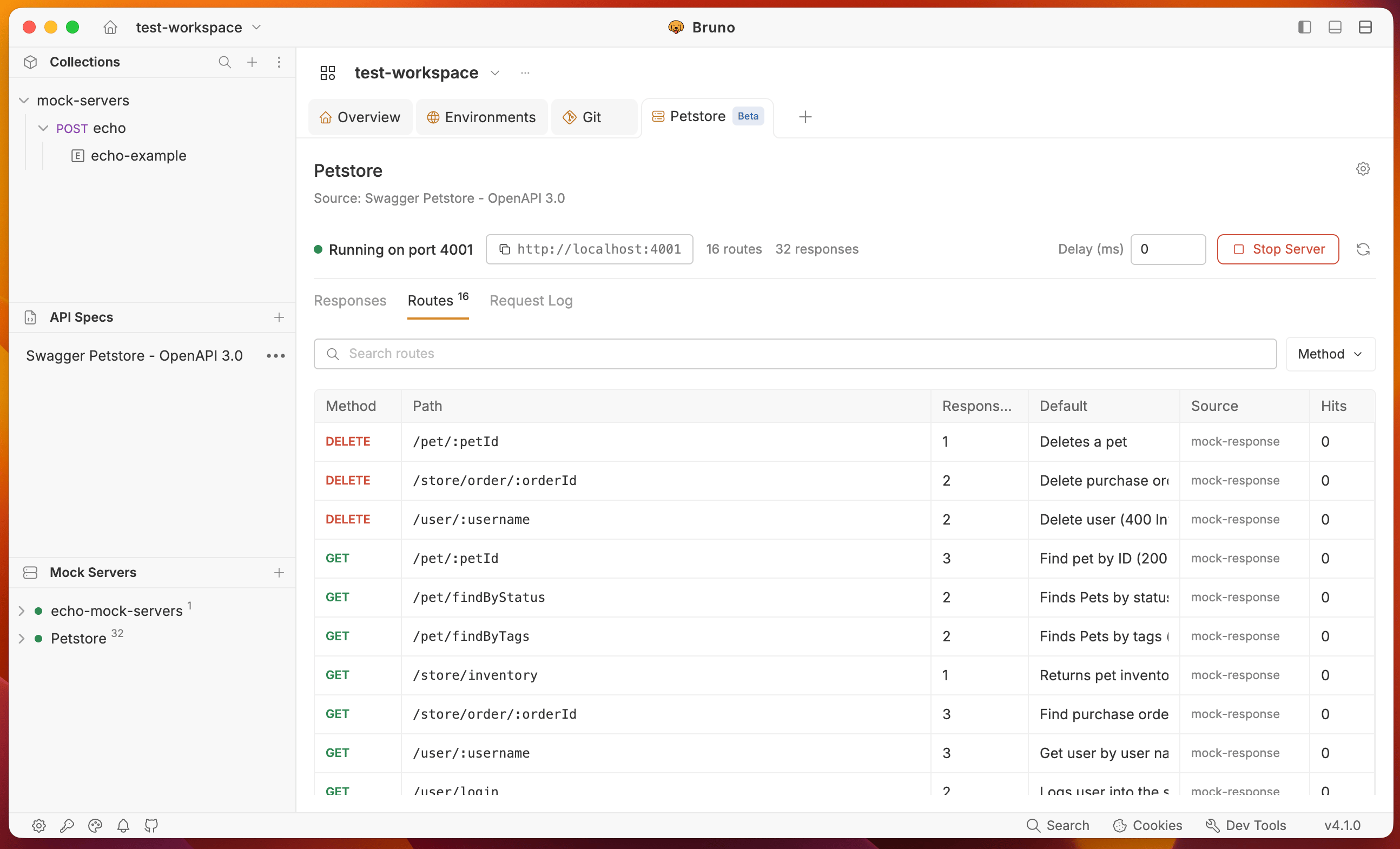
The Routes tab displays a read-only, searchable table listing every registered method + path combination in your mock server. Each row includes:- Method - HTTP method (e.g. GET, POST, etc.), with a filter that only shows exact methods in use.
- Path - The route path, with a copy-route-URL button when the server is running.
- Responses - Number of mock responses defined for this route.
- Default - Indicates which response is the default for this route.
- Source - Shows the origin (e.g. collection, spec, or standalone).
- Hits - How many times this route has been called while the server is running.
Request Log tab
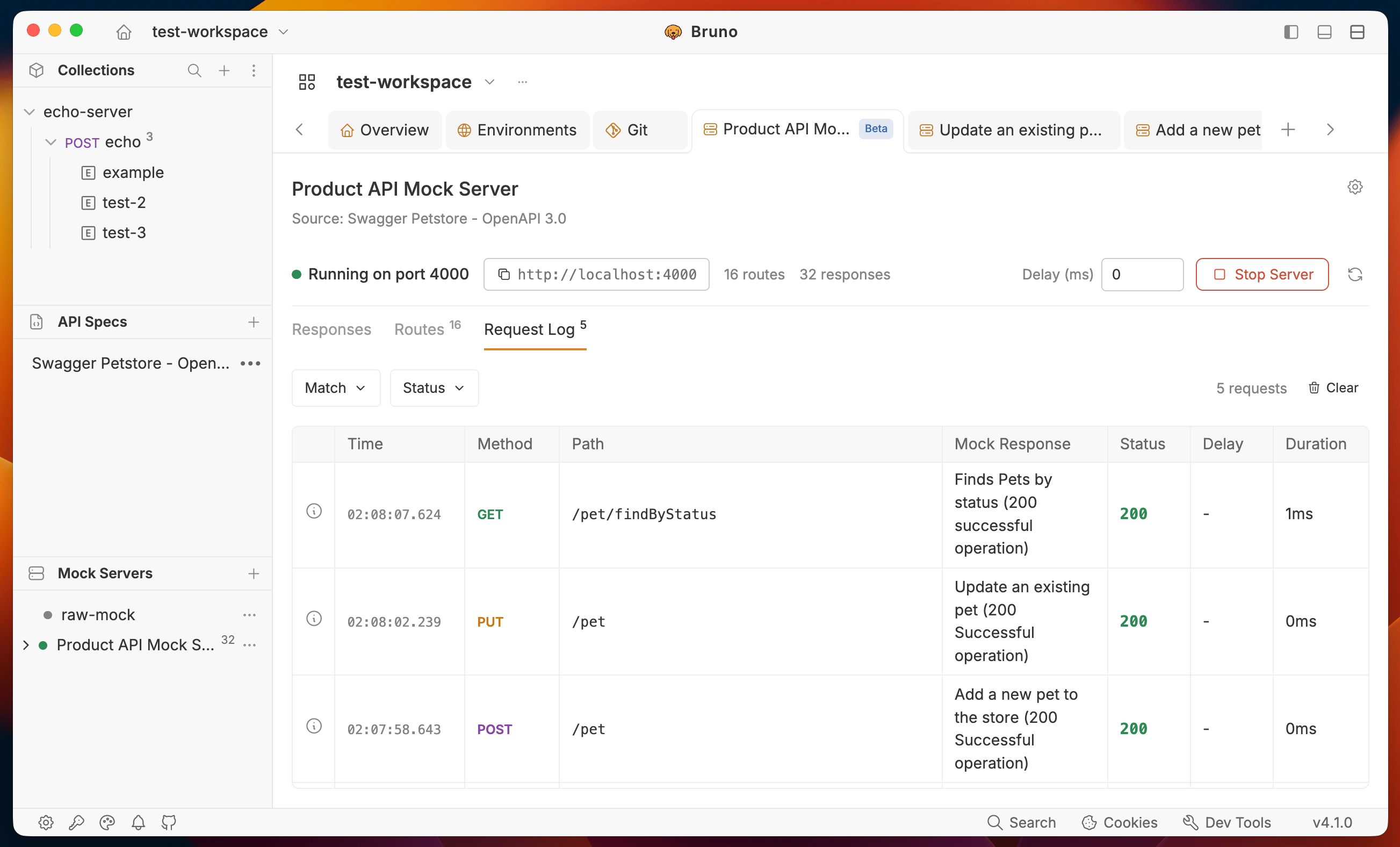
While the server is running, every incoming request is listed live in the Request Log table. The table columns are:- Time - when the request was received (newest first)
- Method - HTTP method (e.g. GET, POST)
- Path - endpoint path
- Mock Response - name of the mock response selected (or No Match if none found)
- Status - response status code returned
- Delay - any artificial delay (if configured) before the response was sent
- Duration - total time taken to serve the response
Match Trace Inspector
Each row in the Request Log has an info icon that opens the Match Trace Inspector - a powerful tool for understanding how Bruno evaluated your request against the available mock responses for that route. The Match Trace Inspector shows:- Every mock response considered for the matched route
- Each rule condition, with whether it passed or failed, and the actual value received (e.g., got
"guest") - Which response was selected and why - such as specific rules passing, or fallback/default logic
- For unmatched requests, a list of available routes to help identify missing or misconfigured mocks
How the running server behaves
- CORS is enabled by default. Browser apps can call the mock without extra setup.
OPTIONSpreflight returns204with the correct headers. - Trailing slashes are normalised (
/users/and/usersboth match). - Unmatched paths return 404 with a JSON payload: method and path tried, a hint to create a matching mock response, and a truncated list of registered routes.
- Transport-level headers such as
transfer-encodingandcontent-encodingare stripped from replies. - Content type comes from the saved example’s headers, defaulting to
application/jsonwhen the body is JSON. - If the requested port is taken, the server won’t start and reports whether the conflict is with another Bruno mock server or another process on your system. Change it under Mock Server Settings (gear icon) → Advanced settings.