

What is SAML SSO?
SAML (Security Assertion Markup Language) Single Sign-On allows your organization to use your existing identity provider (IdP) to authenticate users accessing Bruno. With SAML SSO, users can sign in to Bruno using their corporate credentials without needing a separate Bruno password.Benefits of SAML SSO with Bruno
Centralized Authentication
- Single set of credentials: Admins and users access Bruno with the same credentials they use for other corporate applications
- Streamlined access: One-click access to Bruno through your identity provider’s portal
Enhanced Security
- Centralized access control: Manage Bruno access through your existing identity management system
- Multi-factor authentication: Leverage your IdP’s MFA capabilities for Bruno access
- Audit trail: Track all authentication activities in your identity provider
- Automatic session management: Control session timeouts and security policies centrally
Operational Efficiency
- Simplified onboarding: New employees automatically receive Bruno Ultimate access as part of their standard onboarding
- Simplified offboarding: Departing employees automatically lose Bruno Ultimate access when removed from your IdP
- Reduced administrative overhead: IT teams spend less time on manual user management
Supported Identity Providers
Bruno supports SAML 2.0 SSO with the following identity providers:- Okta - Configuration Guide
- Microsoft Entra ID (Azure AD) - Configuration Guide
- Generic SAML 2.0 providers - Any SAML 2.0 compliant identity provider
Prerequisites
Before configuring SAML SSO, ensure you have:- Ultimate Edition subscription with SAML SSO feature enabled
- Admin access to the Bruno License Portal (
https://license.usebruno.com/) - Admin access to your identity provider (Okta, Entra ID, etc.)
General Setup Flow
Setting up SAML SSO involves configuration in both your identity provider and Bruno:1. Configure Your Identity Provider
In your identity provider (Okta, Entra ID, etc.):- Create a new SAML application for Bruno
- Configure the SAML settings using Bruno’s ACS URL and Entity ID
- Set up attribute mappings for user information
- Configure role mappings for admin and user access
- Assign users or groups to the Bruno application
2. Configure Bruno
In the Bruno License Portal:- Navigate to Settings → SSO
- Toggle Enable SSO to on
- Enter your IdP’s SAML metadata (Entity IDLogin URL, Certificate)
- Configure Role Mapping to match your IdP’s role attributes
- Set session timeout preferences
- Save Configuration
3. Test and Verify
- Test SSO login with a test user account
- Verify user attributes are correctly mapped
- Confirm role assignments work as expected
- Test session timeout behavior
SAML Configuration Values
When configuring your identity provider, you’ll need these Bruno-specific values:Important: Always copy the ACS URL and SP Issuer ID / Entity ID directly from your Bruno SSO settings page. The Entity ID can be any unique value you choose, but it must match exactly between Bruno and your identity provider.
Required SAML Attributes
Bruno requires the following SAML attributes to be configured in your identity provider. These attributes are sent in the SAML assertion and used to provision and manage user access:User Attributes
Attribute Configuration Details:
-
NameID: Bruno uses the NameID as the unique user identifier and email address. Configure your IdP to send the user’s email address as the NameID with format
urn:oasis:names:tc:SAML:1.1:nameid-format:emailAddress. This is critical for user identification and license activation. -
roles: This attribute contains the role value(s) from your identity provider. The value can be:
- Any existing role or group attribute from your IdP (e.g.,
Engineering,BrunoAdmin,IT-Team) - A hardcoded value for testing purposes (e.g.,
admin,user) - Mapped from existing user attributes or group memberships in your IdP
- Any existing role or group attribute from your IdP (e.g.,
-
fullName: This attribute should contain the user’s complete name. It can be mapped to:
- A single field if your IdP has a combined name field
- A concatenation of first and last name fields (e.g.,
user.firstName+" "+user.lastName) - Any existing user property in your IdP that contains the full name
Example SAML Assertion
Here’s an example of how these attributes appear in a SAML assertion:Role Mapping
After configuring theroles attribute in your identity provider, you need to map those role values to Bruno access levels in the License Portal.
Configuring Role Mapping in Bruno
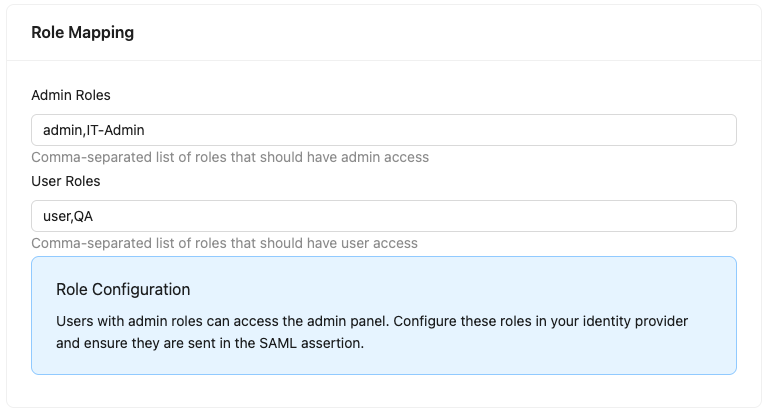
In the Bruno License Portal’s SSO Settings, you’ll find two fields under “Role Mapping”:-
Admin Roles: Comma-separated list of role values that should have admin access
- Example:
admin,BrunoAdmin,IT-Administrators - Users with these roles can access the admin panel and manage licenses
- Example:
-
User Roles: Comma-separated list of role values that should have user access
- Example:
user,Engineering,Developers - Users with these roles have standard access to Bruno
- Example:
How Role Mapping Works:
- Your IdP sends the
rolesattribute value in the SAML assertion (e.g.,Engineering) - Bruno checks if this value matches any role in the “Admin Roles” or “User Roles” fields
- If it matches “Admin Roles”, the user will be able to access the license portal and manage licenses
- If it matches “User Roles”, the user will be able to activate their license with SSO but will not have license portal access
- If it doesn’t match either, the user will be denied access
- IdP sends:
roles="Engineering" - Bruno Admin Roles:
admin,BrunoAdmin - Bruno User Roles:
user,Engineering,QA - Result: User gets standard access (matches “Engineering” in User Roles)
- Role matching is case-sensitive -
admin≠Admin - A user can have multiple roles in the IdP; Bruno checks if any of them match the configured roles
- If a user matches “Admin Roles”, they get admin access (even if they also match “User Roles”)
- When a user is removed from the IdP, they lose access on their next login attempt
Just-in-Time (JIT) Provisioning
With SSO enabled, Bruno automatically provisions standard licensed users the first time they activate their license via SSO in the Bruno app — this is known as Just-in-Time (JIT) provisioning. You do not need to create these accounts in advance, and JIT provisioning works without SCIM.JIT provisioning applies to users who activate their license through the SSO option in the Bruno app’s Activate License screen. It does not apply to signing in to the License Portal website.
How JIT Provisioning Works
- In the Bruno app’s Activate License screen, a user selects SSO, enters their email, and signs in with SSO for the first time.
- Bruno validates the SAML assertion and checks the
rolesvalue against your Role Mapping. - If the role matches a value in User Roles, Bruno automatically creates a standard licensed user account and issues them a license.
- On subsequent logins, the existing account is reused (and reactivated if it was previously deactivated).
Users created through JIT provisioning appear in the License Portal’s user list with Added By: System (SSO), which distinguishes them from users you add manually.
JIT Provisioning Does Not Create Admins
JIT provisioning applies to standard licensed users only. It does not create or grant License Manager Admin access. A user must already exist as an Admin in the License Portal before they can sign in to the License Manager with SSO. Mapping an IdP role to Admin Roles is not sufficient on its own: role mapping controls the access level of users who are already provisioned as Admins, but it does not automatically create the Admin account. To provision Admins, use one of the following:- Add them manually in the License Portal under Settings → Admins, then have the user sign in with SSO.
- Use SCIM Admin Role Mapping to provision Admins automatically from your identity provider. See SCIM Provisioning.
License Activation and Access Control
License Activation Flow
For User Role Users:- Users can activate their Bruno license using SSO
- They receive a license key via email on first login
- They can use this key to activate Bruno on their local machine
- They do NOT have access to the License Portal
- Admins can access the License Portal to manage licenses and users
- Admins can view all users in their subscription
- Admins can manage role mappings and SSO configuration
- Admins can view subscription details and usage
Session Management
- Session timeout: Configured in Bruno SSO settings (default: 1 hour / 3600 seconds)
- Minimum timeout: 60 seconds
- Session cookies: Secure, HTTP-only cookies are used for session management
- Logout: Users are logged out when the session expires or when they manually log out
Coordination with IdP Sessions: Bruno’s session timeout is independent of your IdP’s session timeout. The shorter timeout will take precedence. For example, if your IdP session expires after 30 minutes but Bruno is set to 1 hour, users will be logged out after 30 minutes.
Next Steps
Ready to configure SAML SSO? Choose your identity provider:- Configure SAML SSO with Okta - Complete setup guide for Okta
- Configure SAML SSO with Entra ID - Complete setup guide for Microsoft Entra ID