> ## Documentation Index
> Fetch the complete documentation index at: https://docs.usebruno.com/llms.txt
> Use this file to discover all available pages before exploring further.
# Send Request
Bruno VS Code extension allows you to send API requests directly from your editor. This feature integrates seamlessly with your development workflow, enabling you to test APIs without leaving your coding environment.
## Create Request
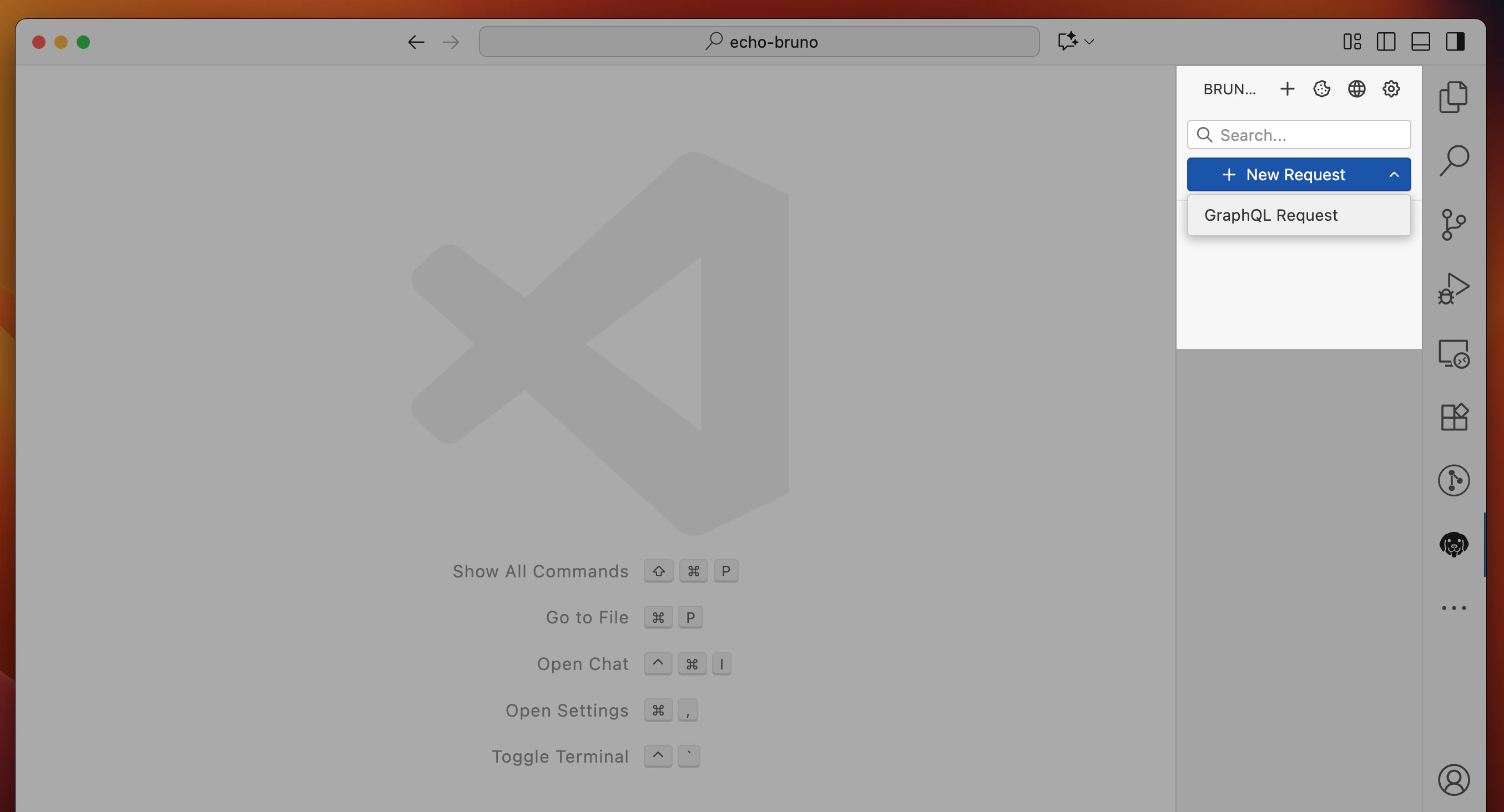
You can create requests by navigating to the Bruno extension:
* Click on **New Request**
* Provide request `name` and `URL`
To create a new collection, you can press the **"+"** button and provide a location to store it. Once you have a collection, you can create folders, configure settings, and organize your requests.
You can also open existing collections from your system by simply opening the collection folder in the editor.
 ## Create Environment
To create a new environment:
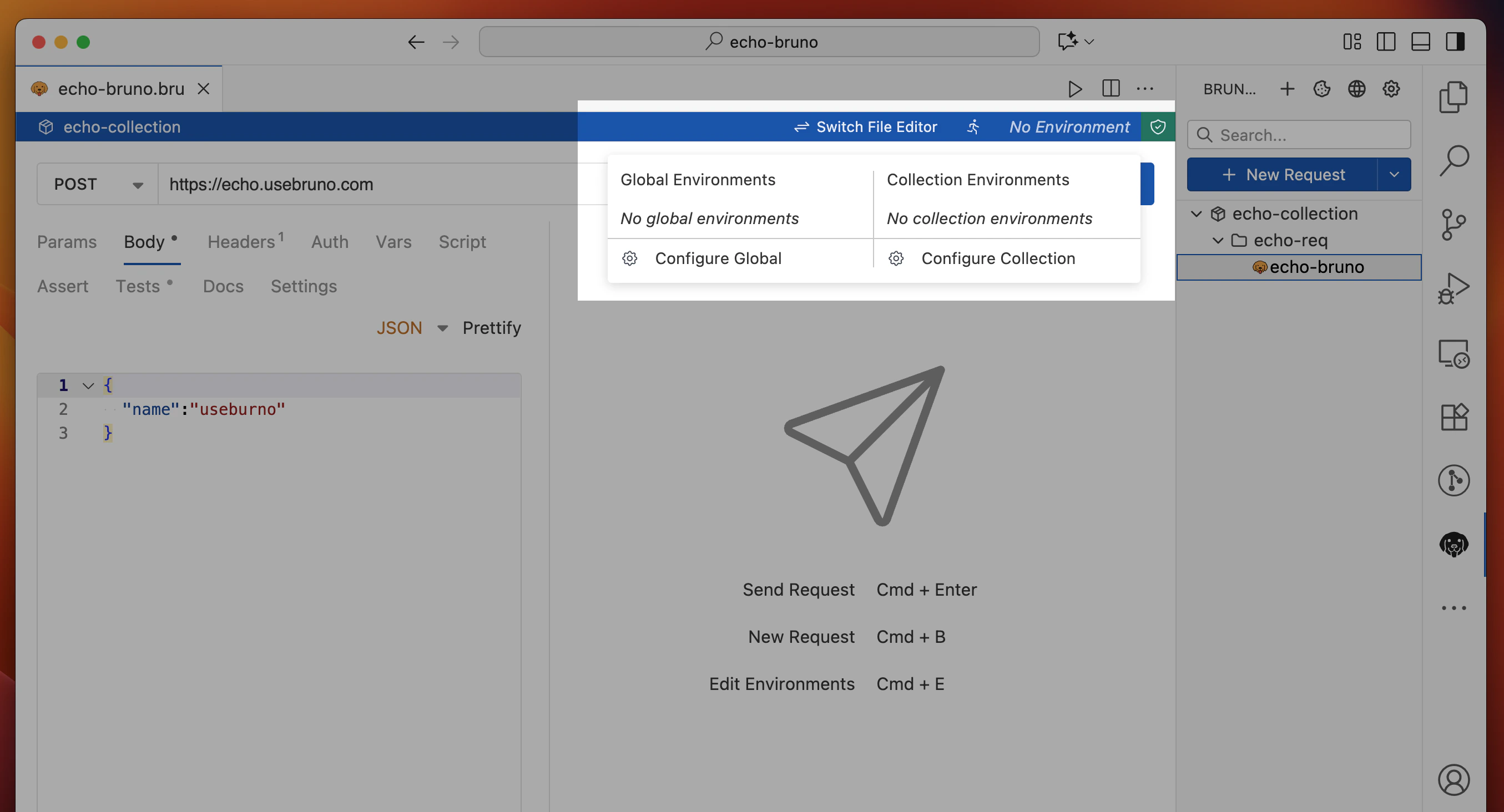
* Click on **No Environment**
* Go to **Configure** (Global or Collection) as per your preference
* Enter name for the environment and create values
* Set up variables for different environments (dev, staging, production)
If you have Collection environments in Bruno, the extension will automatically pick them up from the environment folder.
[Global environment](../variables/global-environment-variables) variables created within Bruno desktop app are not accessible in the extension due to security reasons.
## Create Environment
To create a new environment:
* Click on **No Environment**
* Go to **Configure** (Global or Collection) as per your preference
* Enter name for the environment and create values
* Set up variables for different environments (dev, staging, production)
If you have Collection environments in Bruno, the extension will automatically pick them up from the environment folder.
[Global environment](../variables/global-environment-variables) variables created within Bruno desktop app are not accessible in the extension due to security reasons.
 ## Console
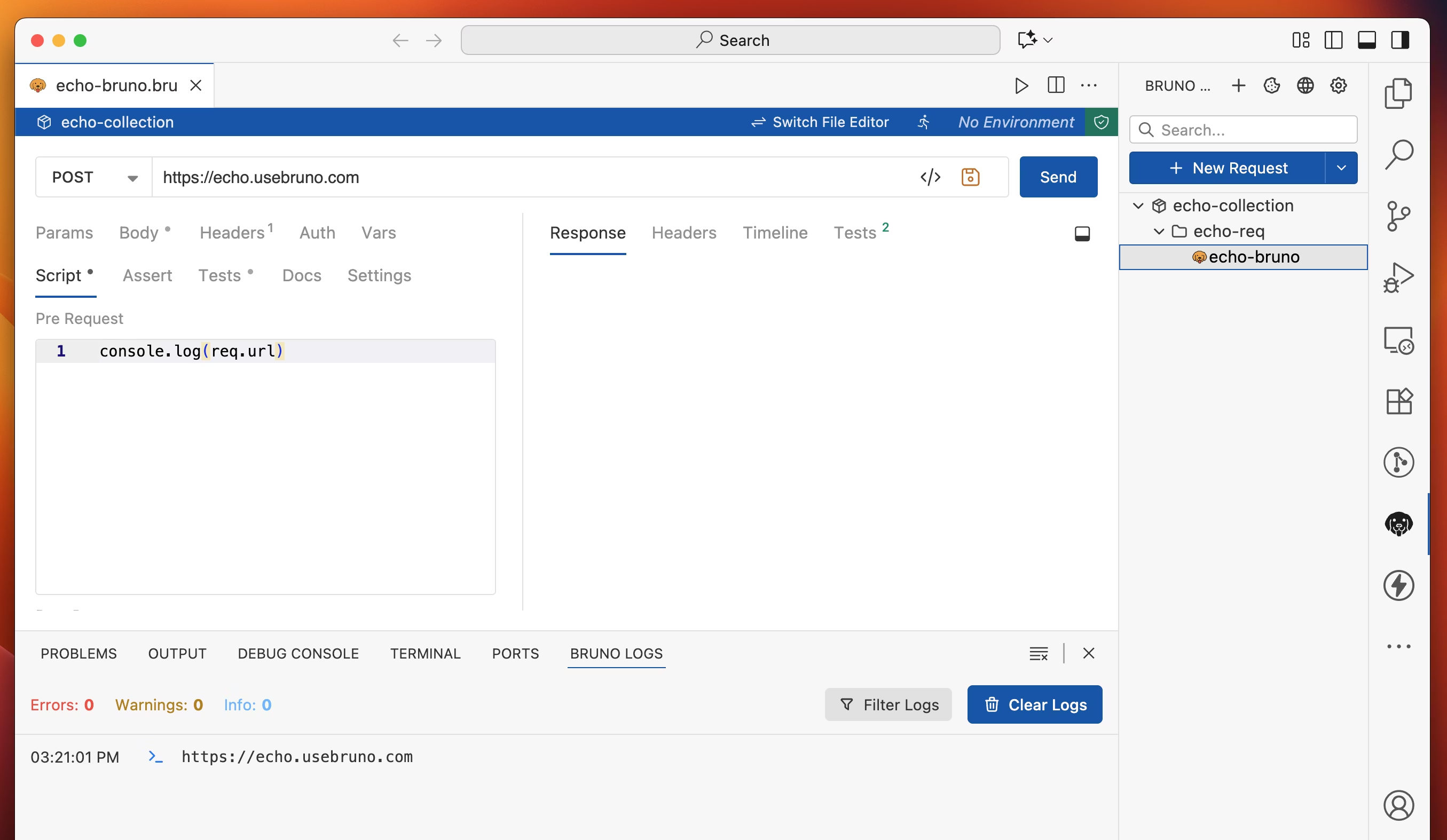
To test, debug, and troubleshoot script issues, the Bruno console is available in the terminal as the **Bruno Console** tab.
**Features:**
* View console output from your scripts
* Debug pre-request and test scripts
* Monitor variable values and execution flow
## Console
To test, debug, and troubleshoot script issues, the Bruno console is available in the terminal as the **Bruno Console** tab.
**Features:**
* View console output from your scripts
* Debug pre-request and test scripts
* Monitor variable values and execution flow
 ## Configurations
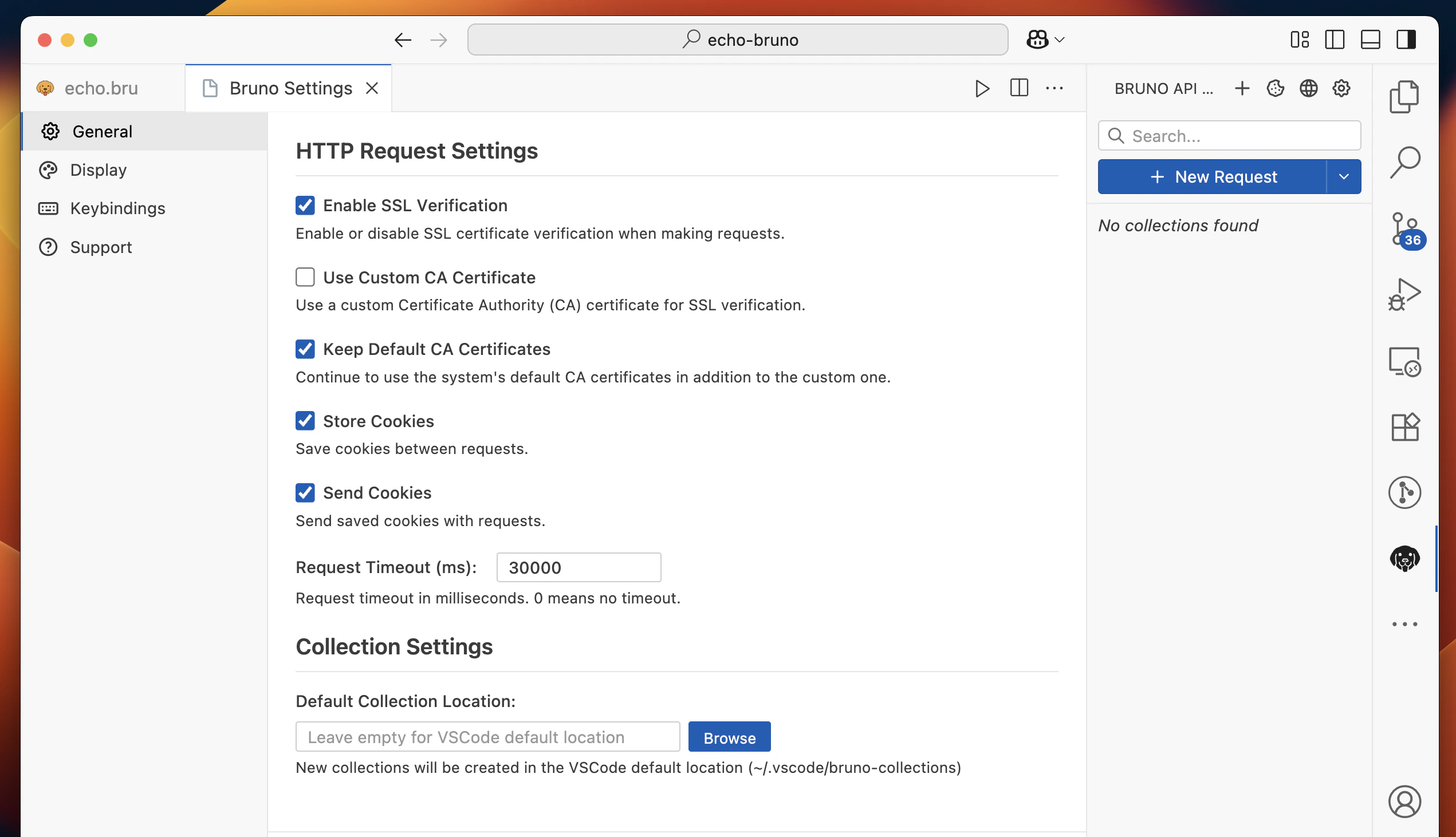
To add configurations such as SSL, CA certificates, Cookies, and more, click on the **Gear** icon available on the home screen of the extension.
**Available Settings:**
* **SSL/TLS**: Configure client certificates and CA certificates
* **Cookies**: Manage cookie policies
* **Request Timeout**: Configure default timeout values
* **Response Formatting**: Choose how responses are displayed
## Configurations
To add configurations such as SSL, CA certificates, Cookies, and more, click on the **Gear** icon available on the home screen of the extension.
**Available Settings:**
* **SSL/TLS**: Configure client certificates and CA certificates
* **Cookies**: Manage cookie policies
* **Request Timeout**: Configure default timeout values
* **Response Formatting**: Choose how responses are displayed
 ## JavaScript Sandbox
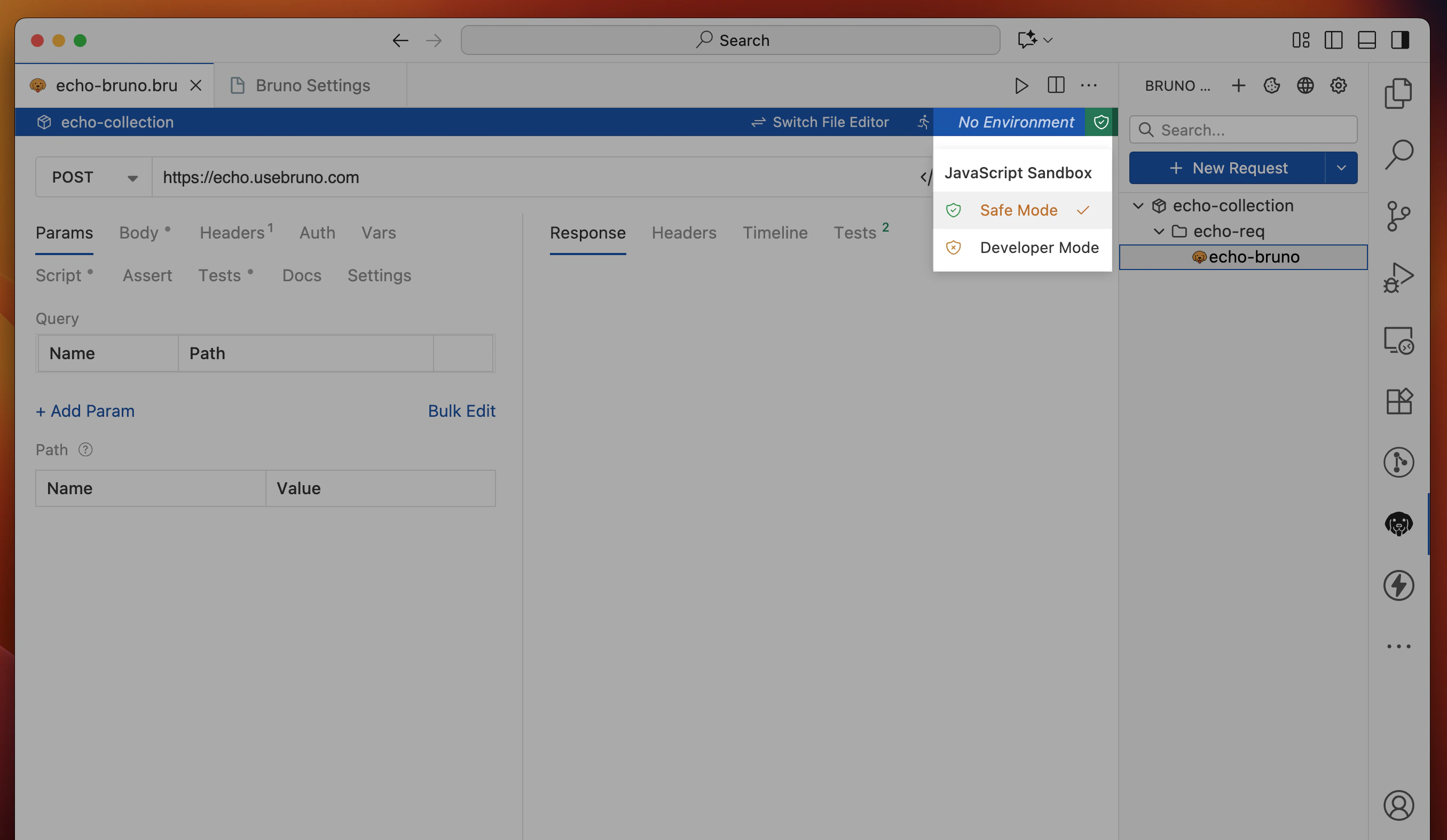
To switch between safe and developer mode to use JavaScript libraries and APIs features, navigate to the sandbox icon next to environments.
**Sandbox Modes:**
* **Safe Mode**: Restricted environment with limited API access for security
* **Developer Mode**: Full access to Node.js APIs and external libraries
## JavaScript Sandbox
To switch between safe and developer mode to use JavaScript libraries and APIs features, navigate to the sandbox icon next to environments.
**Sandbox Modes:**
* **Safe Mode**: Restricted environment with limited API access for security
* **Developer Mode**: Full access to Node.js APIs and external libraries
 ## Defaults
* **File Mode**: Default in explorer view, UI mode for extension
* **Proxy Configuration**: If you have proxy configuration set up in the editor, Bruno will pick up the values directly
* **Cookie Management**: Manage cookies separately from the cookies setting available in the extension home screen
## Future Development
* **gRPC Support**: Currently in development (available in Bruno as beta feature)
* **OAuth2 Authentication**: Not yet supported in the extension
## Feedback
If you encounter any issues or have feature requests, feel free to [share your feedback](https://github.com/usebruno/bruno/issues).
## Defaults
* **File Mode**: Default in explorer view, UI mode for extension
* **Proxy Configuration**: If you have proxy configuration set up in the editor, Bruno will pick up the values directly
* **Cookie Management**: Manage cookies separately from the cookies setting available in the extension home screen
## Future Development
* **gRPC Support**: Currently in development (available in Bruno as beta feature)
* **OAuth2 Authentication**: Not yet supported in the extension
## Feedback
If you encounter any issues or have feature requests, feel free to [share your feedback](https://github.com/usebruno/bruno/issues).