> ## Documentation Index
> Fetch the complete documentation index at: https://docs.usebruno.com/llms.txt
> Use this file to discover all available pages before exploring further.
# External Libraries
Bruno allows you to load any npm module or package for use in your scripting workflows.
Always turn on [Developer Mode](/get-started/configure/javascript-sandbox) when using external libraries in Bruno.
## Prerequisites
Before you begin, ensure that you have the following:
1. Node.js installed on your system.
2. Bruno installed.
## Project structure
The folder structure depends on your collection format.
Starting with Bruno v3.1.0, YAML (OpenCollection format) is the default file format when creating new collections. Learn more about create collection [here](/get-started/bruno-basics/create-a-collection).
## Configuration
You need a `package.json` file at the root of your Bruno collection.
1. Open your collection folder in **Bruno** or in an editor such as **VS Code**.
2. Open the integrated terminal (in Bruno or your editor) and go to the collection root:
```bash theme={null}
cd path/to/your/bruno-collection
```
3. Initialize `package.json`:
```bash theme={null}
npm init -y
```
4. Install the package (run this in the same terminal, from the collection root):
```bash theme={null}
npm install csv-parse
```
5. Confirm **`csv-parse`** appears under `dependencies` in `package.json`, for example:
```json theme={null}
"dependencies": {
"csv-parse": "^6.2.1"
}
```
Exact versions may differ, but what matters is that the dependency is listed after a successful install.
6. In Bruno, enable **[Developer Mode](/get-started/configure/javascript-sandbox)** for the collection so `require()` can load packages from `node_modules`.
## Example: Parse CSV with csv-parse
This example uses [csv-parse ↗](https://www.npmjs.com/package/csv-parse) to turn CSV text into JavaScript objects, then sends the first row as JSON on the request. See the [npm package page ↗](https://www.npmjs.com/package/csv-parse) for options, streaming APIs, and more.
Use a **Pre Request** script with **Developer Mode** on:
```javascript theme={null}
const { parse } = require('csv-parse/sync');
const csvData = `name,email
Smith,smith@example.com
John,john@example.com`;
const records = parse(csvData, {
columns: true,
skip_empty_lines: true
});
req.setHeader('Content-Type', 'application/json');
req.setBody(records[0]);
```
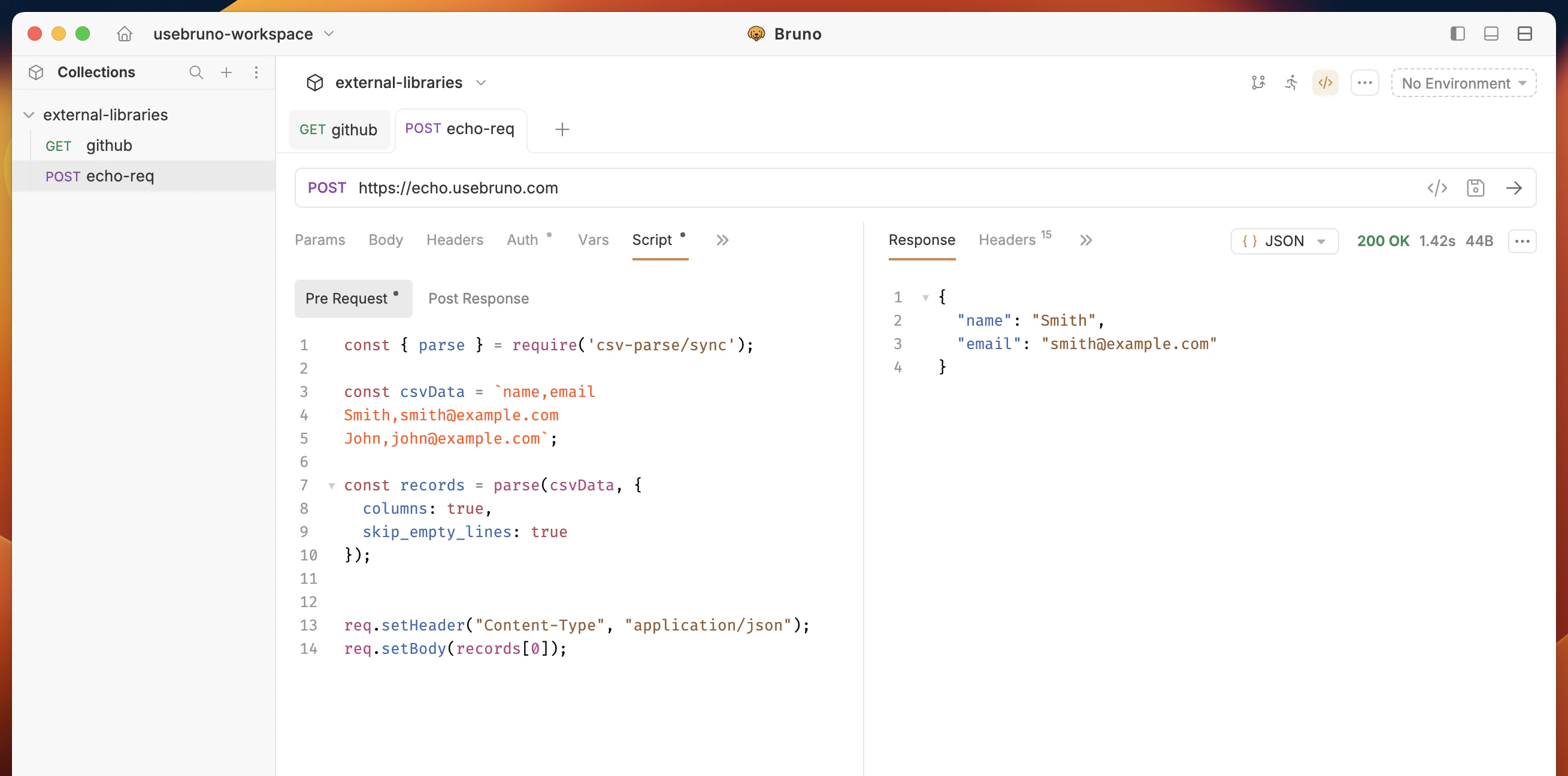 `records[0]` is the first data row as an object (for example `{ name: 'Smith', email: 'smith@example.com' }`) because `columns: true` uses the first line as headers.
### Reading CSV from a file
You can also pass CSV from a file in your collection (path is relative to the collection root):
```javascript theme={null}
const fs = require('fs');
const path = require('path');
const { parse } = require('csv-parse/sync');
const csvData = fs.readFileSync(path.join(__dirname, 'data.csv'), 'utf8');
const records = parse(csvData, {
columns: true,
skip_empty_lines: true
});
req.setHeader('Content-Type', 'application/json');
req.setBody(records[0]);
```
Adjust the path to match where you store your `.csv` file.
`records[0]` is the first data row as an object (for example `{ name: 'Smith', email: 'smith@example.com' }`) because `columns: true` uses the first line as headers.
### Reading CSV from a file
You can also pass CSV from a file in your collection (path is relative to the collection root):
```javascript theme={null}
const fs = require('fs');
const path = require('path');
const { parse } = require('csv-parse/sync');
const csvData = fs.readFileSync(path.join(__dirname, 'data.csv'), 'utf8');
const records = parse(csvData, {
columns: true,
skip_empty_lines: true
});
req.setHeader('Content-Type', 'application/json');
req.setBody(records[0]);
```
Adjust the path to match where you store your `.csv` file.