> ## Documentation Index
> Fetch the complete documentation index at: https://docs.usebruno.com/llms.txt
> Use this file to discover all available pages before exploring further.
# Running Tests Manually
export const PremiumBadge = ({noLink}) => {
const badge =
PREMIUM
;
if (noLink) {
return badge;
}
return
{badge}
;
};
Running tests manually in Bruno allows you to quickly validate functionality and immediately view results. The most common example of this would be simply hitting an endpoint and seeing if it is working.
### Running a Single Test
The smallest unit of testing in Bruno is a single request. The request itself tests the functionality of any given endpoint. You can add additional logic to requests by using the `Tests` tab.
To manually trigger a single test:
1. Open a Collection
2. Select the Request that you would like to run
3. Click Enter or press the send icon
4. View the results in the `Tests` section of the response pane
### Running a Test Suite
Often times a Bruno Collection can represent a test suite of different actions or workflows of an API. You can use the Collection Runner to execute this entire suite, and also iterate through data using [data driven testing](/testing/automate-test/data-driven-testing).
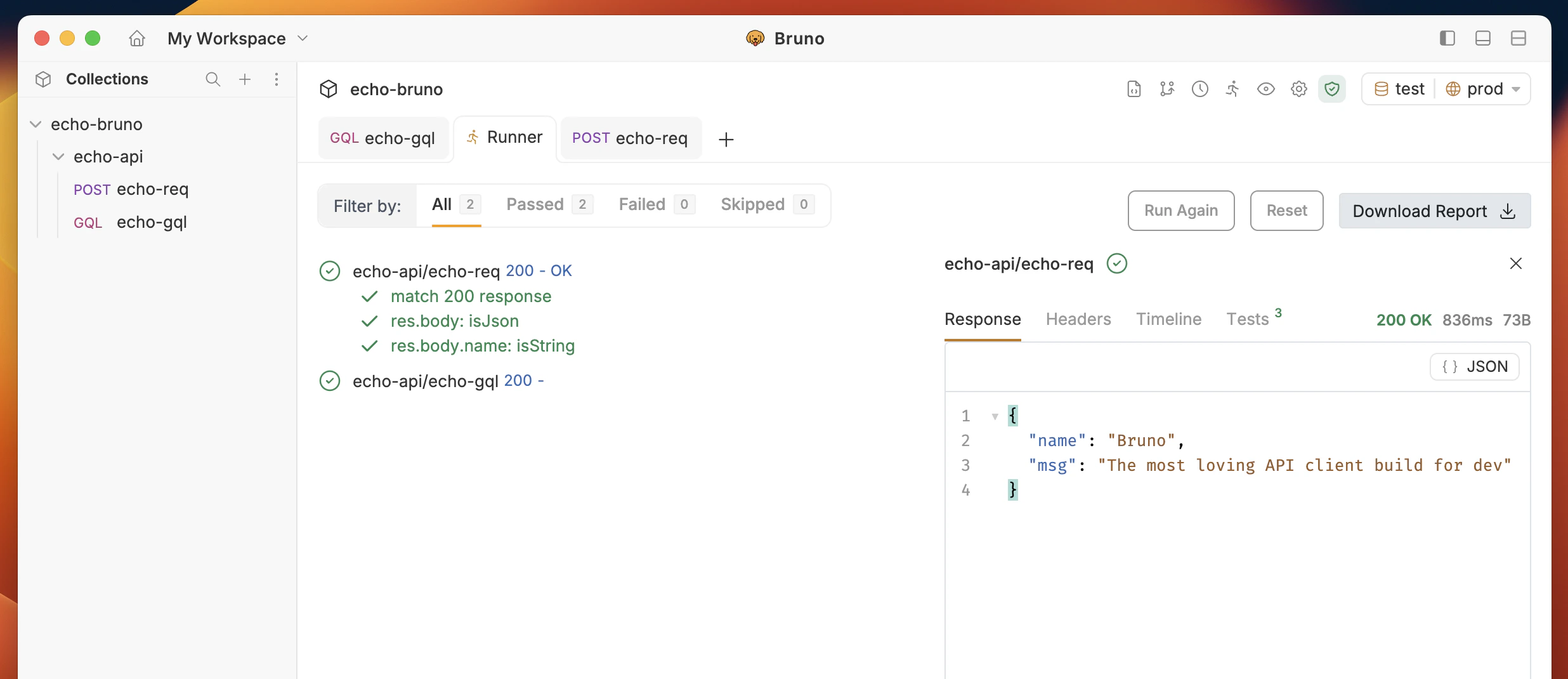
Follow these steps to run your collection, view the results, and optionally download the test report as an HTML document.
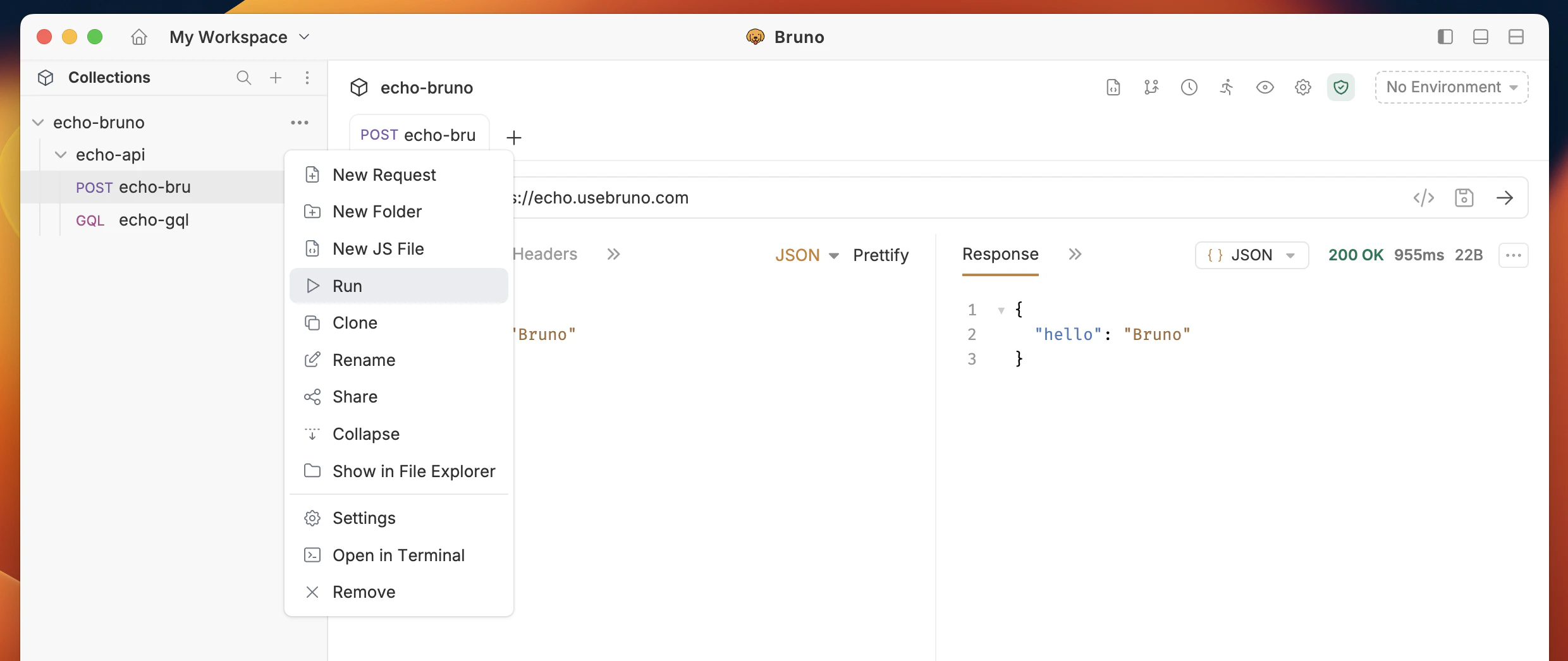
1. Open the **Bruno** collection
2. Click on the **Run** option from the dropdown menu.
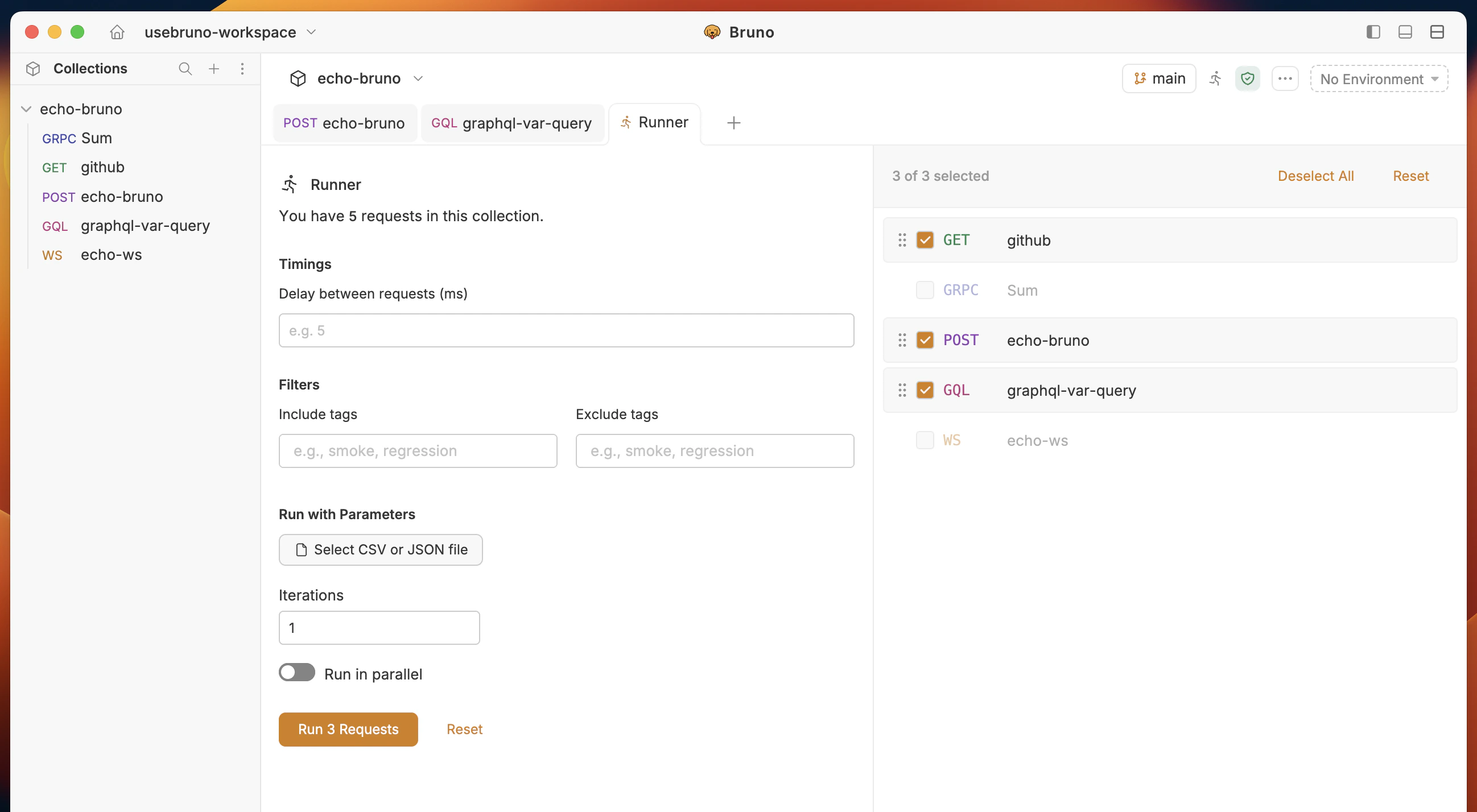
 3. Click **Run Collection** to initiate the test.
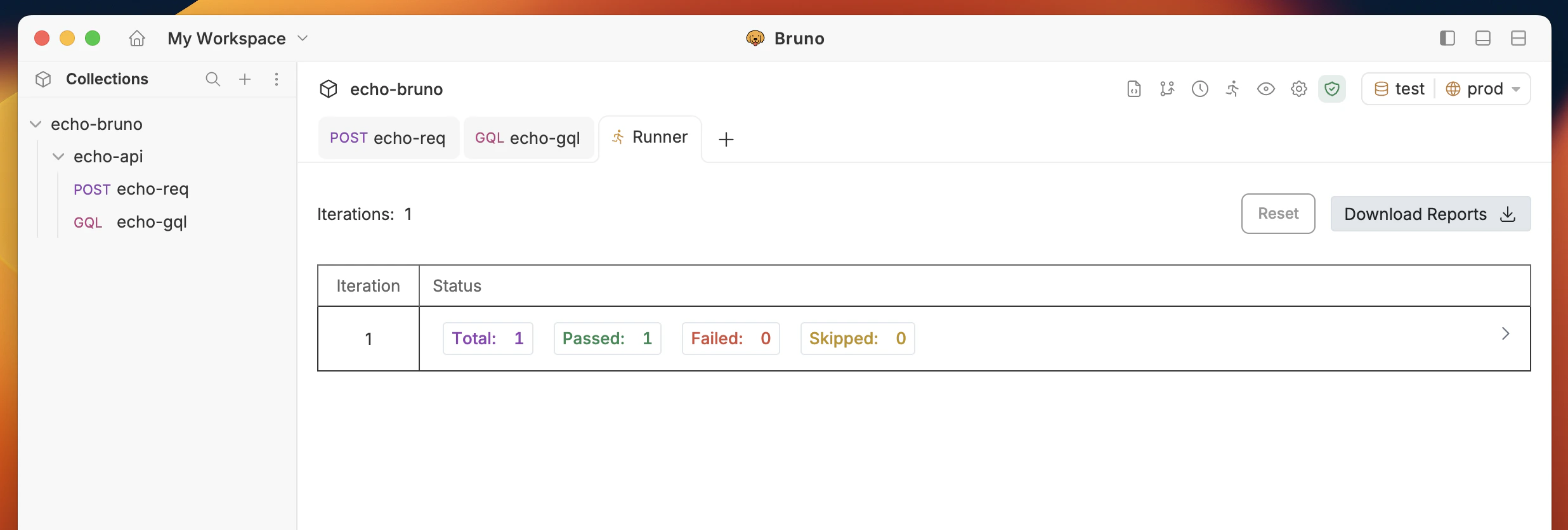
 4. Once the test run is complete, a test report will be automatically generated.
 ### Download Test Report
After the test report is generated, you can download it as an HTML document (`report.html`).
1. Click the **Download Report** button to save the report.
### Download Test Report
After the test report is generated, you can download it as an HTML document (`report.html`).
1. Click the **Download Report** button to save the report.
 ## Managing Request Execution
Bruno allows you to filter which requests to run in your collection using tags. You can add tags to your requests and then filter them during collection runs.
### Tag-Based Request Filtering
When running a collection in the Bruno app, you can filter requests by tags:
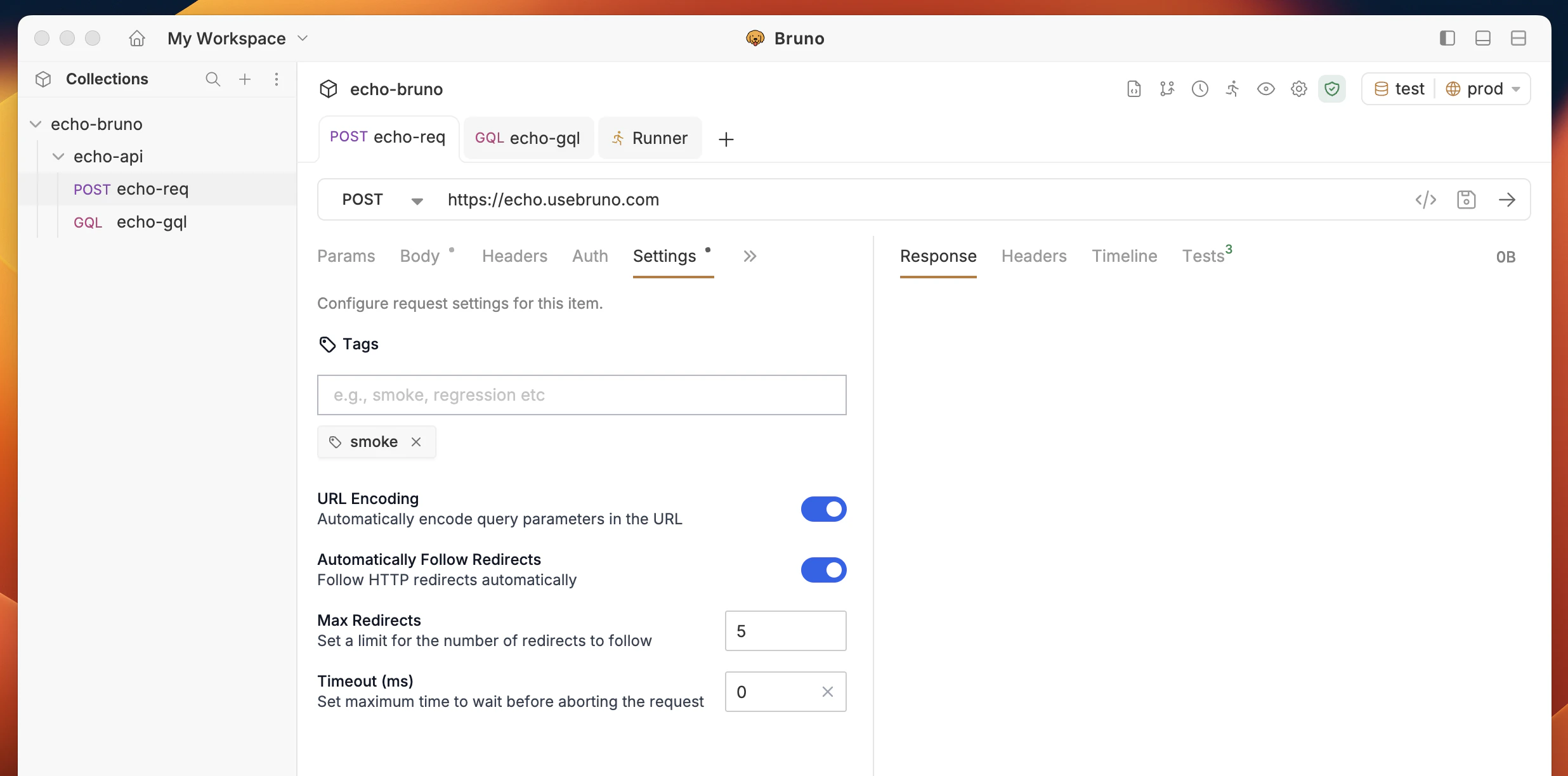
1. **Add tags to your requests**: Go to request settings and add tags to categorize your requests
## Managing Request Execution
Bruno allows you to filter which requests to run in your collection using tags. You can add tags to your requests and then filter them during collection runs.
### Tag-Based Request Filtering
When running a collection in the Bruno app, you can filter requests by tags:
1. **Add tags to your requests**: Go to request settings and add tags to categorize your requests
 2. **Go to Collection Runner**: Open the collection runner to start filtering requests
3. **Use tag filter options**: Use the tag filter options to include or exclude requests based on their tags
4. **Run filtered collection**: Only requests matching your tag criteria will be executed
#### Tag Filtering Options
* **Include tags**: Only run requests that have ALL of the specified tags
* **Exclude tags**: Skip requests that have ANY of the specified tags
* **Combined filtering**: Use both include and exclude filters together
Learn more about tag filtering in Bruno CLI in the [CLI tag filtering documentation](/bru-cli/runCollection#filtering-requests-with-tags).
### Reordering Request Execution
You can reorder, select, and deselect requests by enabling the **Configure requests to run** option in the Collection Runner. This feature allows you to:
* **Select specific requests** to execute while ignoring others
* **Reorder requests** to control the execution sequence
* **Customize test runs** without modifying the collection structure
By default, the Collection Runner executes all requests in the collection. When you enable request configuration, only the selected requests will be executed.
## View Test Report
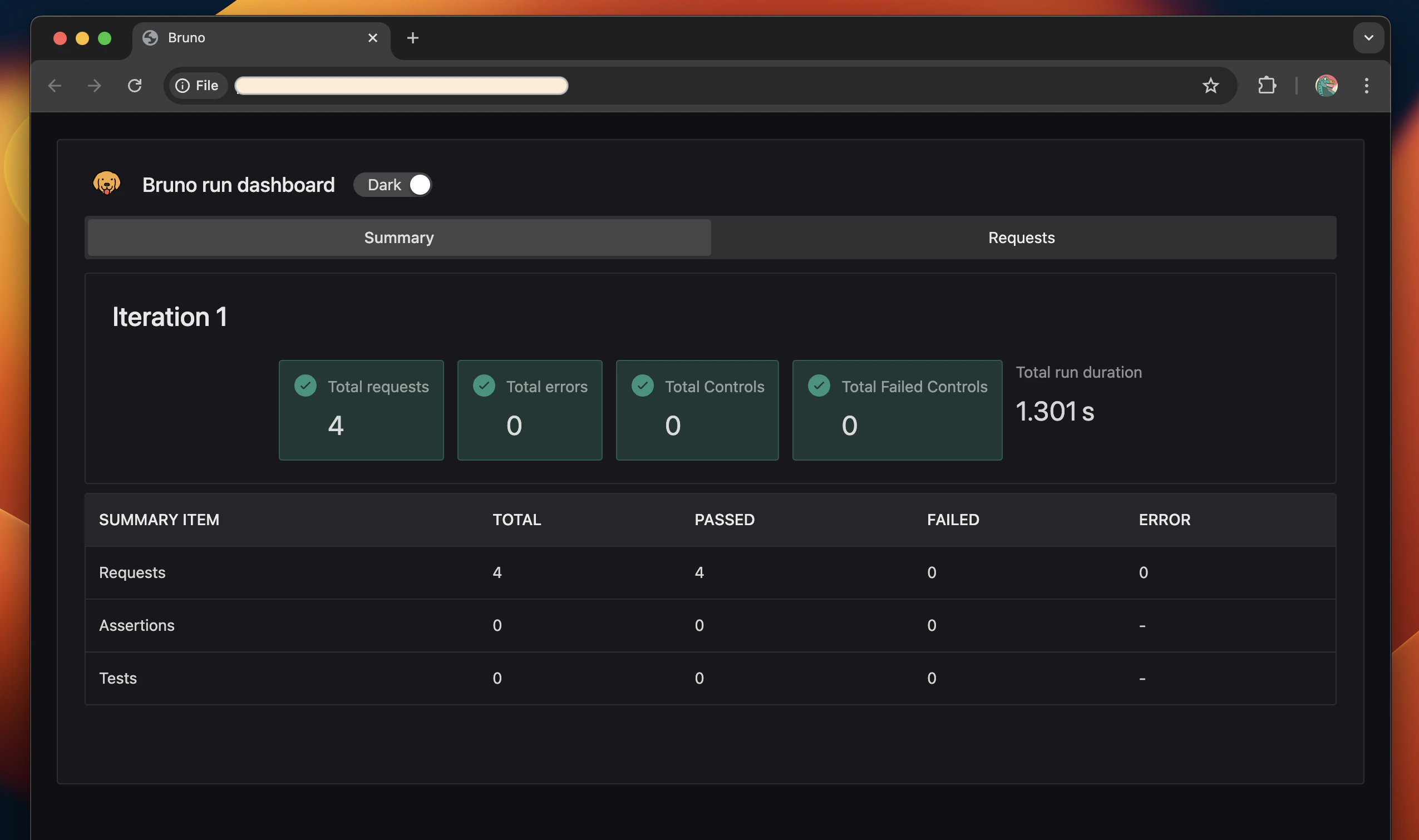
Once the report is downloaded, you can open the `report.html` file in any web browser to review the detailed test results.
2. **Go to Collection Runner**: Open the collection runner to start filtering requests
3. **Use tag filter options**: Use the tag filter options to include or exclude requests based on their tags
4. **Run filtered collection**: Only requests matching your tag criteria will be executed
#### Tag Filtering Options
* **Include tags**: Only run requests that have ALL of the specified tags
* **Exclude tags**: Skip requests that have ANY of the specified tags
* **Combined filtering**: Use both include and exclude filters together
Learn more about tag filtering in Bruno CLI in the [CLI tag filtering documentation](/bru-cli/runCollection#filtering-requests-with-tags).
### Reordering Request Execution
You can reorder, select, and deselect requests by enabling the **Configure requests to run** option in the Collection Runner. This feature allows you to:
* **Select specific requests** to execute while ignoring others
* **Reorder requests** to control the execution sequence
* **Customize test runs** without modifying the collection structure
By default, the Collection Runner executes all requests in the collection. When you enable request configuration, only the selected requests will be executed.
## View Test Report
Once the report is downloaded, you can open the `report.html` file in any web browser to review the detailed test results.