> ## Documentation Index
> Fetch the complete documentation index at: https://docs.usebruno.com/llms.txt
> Use this file to discover all available pages before exploring further.
# Iterate Using Data Files
The **Collection Runner** feature allows you to iterate over data files, making it easy to automate and manage data-driven requests. Bruno supports both CSV and JSON files for running requests, so you can efficiently run tests or process multiple data inputs.
## How request bodies and data files work together
Understanding this avoids the most common confusion with data-driven runs:
1. **The data file does not replace your request body.**\
Uploading CSV/JSON does not merge row objects into the body or overwrite a hardcoded JSON payload. Row values are available as **iteration variables** for each run.
2. **To use row values in the body, reference them explicitly** with `{{columnName}}` (same names as CSV headers or JSON object keys). Example: `"name": "{{name}}"` uses the `name` field from the current row.
3. **If the body has no `{{...}}` placeholders** for your data columns, Bruno sends **exactly the body you typed on every iteration**. The file still controls **how many iterations** run, but each request uses the same static payload. In the runner, the **Data** column shows the **current iteration’s row** (iteration data), not “the body Bruno built from the file.”
4. **In scripts**, read the current row with `bru.runner.iterationData.get("columnName")` (or build the body there with `req.setBody(...)`). See [Runner iteration utilities](#runner-iteration-utilities) below.
A plain body like `{"name": "morpheus", "job": "leader"}` is fine for a **single** request or when you want **the same body every time** while the runner still steps through rows (e.g. for side effects or tests only). To send **different `name` / `job` per row**, the body must use `{{name}}` and `{{job}}` (or set the body from a script).
## Introduction
In this tutorial, we'll use the Collection Runner with a CSV or JSON file so each iteration sends **different** `name` and `job` values to `https://reqres.in/api/users`.
## Steps to Get Started
1. Open the Bruno app.
2. Create a collection called `runner-example`.
3. Create a POST request and name it `runner-request`.
4. Use the URL: `https://reqres.in/api/users`.
5. Set the request body to **JSON** and use **placeholders** that match your data file columns (`name` and `job`):
```json theme={null}
{
"name": "{{name}}",
"job": "{{job}}"
}
```
For a one-off request **without** a data file, you could use fixed values instead (e.g. `morpheus` / `leader`); that is unrelated to substituting CSV/JSON rows.
## Using the Collection Runner
We will create a sample data file `csv-example.csv` that includes input fields such as `name` and `job` to be used in data-driven testing. You need to create a CSV or JSON file according to the specific requirements of the API you're working with.
Since the API in this case expects two data inputs `name` and `job` the file should contain these fields. Here's an example of how to structure your data:
### 1. CSV Format Example
A sample CSV file might look like this:
```csv copy theme={null}
name,job
John Doe,Software Engineer
Jane Smith,Product Manager
Mark Lee,Data Scientist
```
### 2. JSON Format Example
A sample JSON file might look like this:
```json copy theme={null}
[
{ "name": "John Doe", "job": "Software Engineer" },
{ "name": "Jane Smith", "job": "Product Manager" },
{ "name": "Mark Lee", "job": "Data Scientist" }
]
```
Now you're ready to use the Collection Runner. You can access it in two ways:
### Using the Bruno App
1. Click on the runner icon in the right-hand navbar.
2. Select the file type: CSV or JSON and upload your data file.
3. Click **Run Collection** to start the iterations.
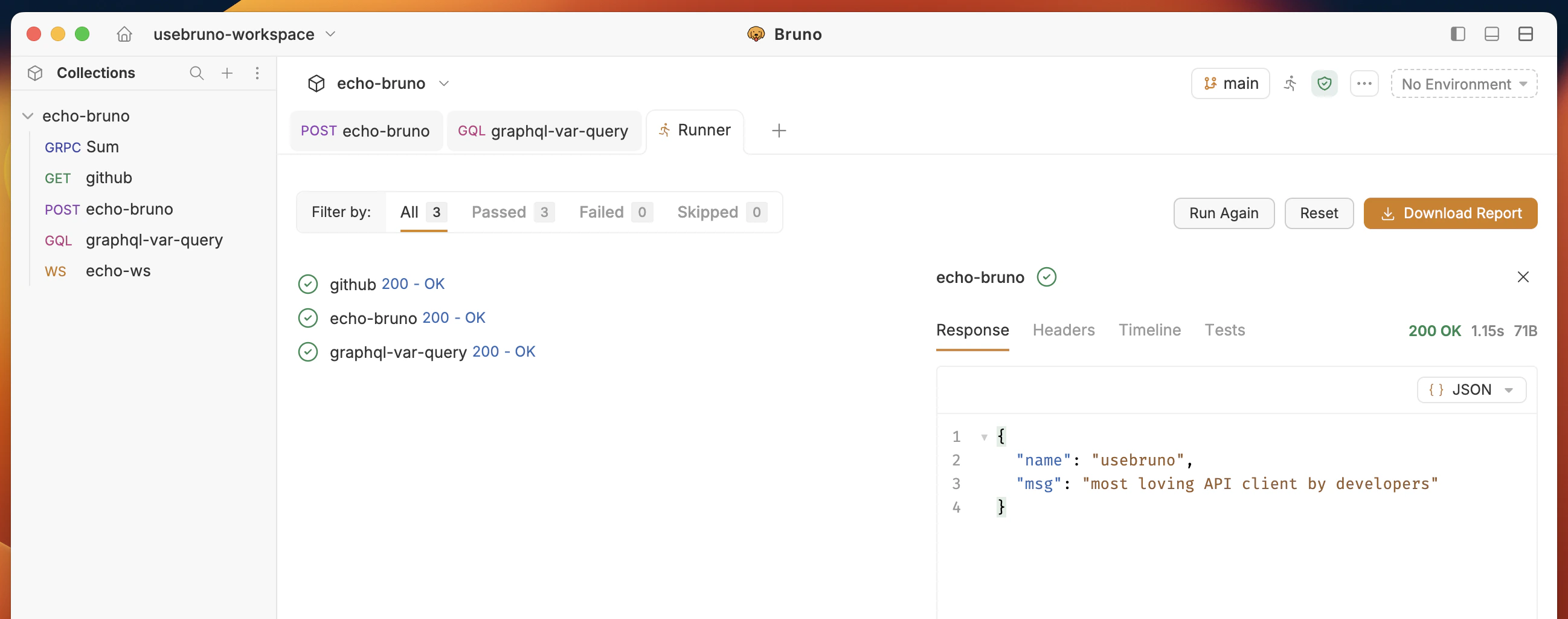
Once the execution is complete, you can review the results for each individual request and check their statuses.
#### How to Use Variables from CSV/JSON Files
When you upload a CSV or JSON file, each **column** (CSV) or **object key** (JSON) becomes an iteration variable. Use the `{{variableName}}` syntax in the URL, headers, or body so each iteration sends that row’s values.
##### Accessing Variables in Request Body
Template the body with names that match your file:
```json showLineNumbers filename="request-body" theme={null}
{
"name": "{{name}}",
"email": "{{email}}"
}
```
For a given iteration, Bruno resolves those placeholders from the current row—for example:
```json showLineNumbers filename="resolved-example-one-iteration" theme={null}
{
"name": "John Doe",
"email": "john.doe@example.com"
}
```
##### Accessing Variables in Scripts
In pre-request or post-response scripts, read the current iteration with **`bru.runner.iterationData.get("columnName")`**. Depending on your setup, **`bru.getVar()`** may also reflect runner variables.
```javascript theme={null}
console.log(bru.runner.iterationData.get("name"));
console.log(bru.getVar("name")); // May match iteration data when exposed by the runner
```
When you run the collection, check the **Timeline** for the **actual request body** sent on each iteration.
### Using the Bruno CLI
1. Navigate to the root directory of your Bruno collection.
2. Run the following command:
```bash copy theme={null}
bru run --reporter-html results.html --csv-file-path /path/to/csv/file.csv
```
It will create a `results.html` file in your Bruno collection's root directory. You can view this file in your browser.
For how to open and use test reports in the Bruno app (including downloaded HTML reports), see **[View test report](./manual-test#view-test-report)**.
### Command Overview
* `--reporter-html results.html`: Generates a human-readable HTML report.
* `--csv-file-path /path/to/csv/file.csv`: Specifies the path to the CSV file you want to use.
[Bruno CLI Overview](../../bru-cli/overview)
## Runner Iteration Utilities
Bruno provides various utility functions to access and manipulate data from attached data files (CSV/JSON) during collection runs.
### Accessing Iteration Data
#### Check if a variable exists
```javascript theme={null}
if (bru.runner.iterationData.has("username")) {
console.log("Username exists in current iteration");
}
```
#### Get a specific value
```javascript theme={null}
const username = bru.runner.iterationData.get("username");
console.log(`Current username: ${username}`);
```
#### Get all iteration data
```javascript theme={null}
const allData = bru.runner.iterationData.get();
console.log("All iteration data:", allData);
```
#### Convert to JSON string
```javascript theme={null}
const jsonData = bru.runner.iterationData.stringify();
console.log("JSON data:", jsonData);
```
#### Remove a variable
```javascript theme={null}
bru.runner.iterationData.unset("password");
```
### Iteration Information
#### Get current iteration index
```javascript theme={null}
const currentIteration = bru.runner.iterationIndex;
console.log(`Running iteration ${currentIteration}`);
```
#### Get total iterations
```javascript theme={null}
const total = bru.runner.totalIterations;
console.log(`Total iterations: ${total}`);
```
### Example Usage
#### Basic Data Access
```javascript theme={null}
// Get values from current iteration
const username = bru.runner.iterationData.get("username");
const password = bru.runner.iterationData.get("password");
// Use in request (pre-request script only)
req.setBody({
username: username,
password: password
});
```
#### Conditional Logic Based on Iteration
```javascript theme={null}
// Only modify data in first iteration
if (bru.runner.iterationIndex === 0) {
bru.runner.iterationData.unset("password");
}
// Check if variable exists
if (bru.runner.iterationData.has("password")) {
console.log("Password available");
}
```
### Data File Examples
#### CSV Format
```csv theme={null}
username,password
user1,pass123
user2,pass456
```
#### JSON Format
```json theme={null}
[
{ "username": "user1", "password": "pass123" },
{ "username": "user2", "password": "pass456" }
]
```
### Notes
* Variables removed with `unset()` only affect the current iteration.
* Each iteration runs with fresh data from the file.
* Supports both CSV and JSON data files.
* Data is automatically loaded from the attached file at the start of each iteration.
* **Iteration count** comes from the number of rows (CSV) or objects (JSON) in the file.
* **The request body is not ignored:** if you use no `{{}}` references, the same static body is sent every time; the data file still drives how many times the request runs and what appears under **Data** for each iteration.
 2. Select the file type: CSV or JSON and upload your data file.
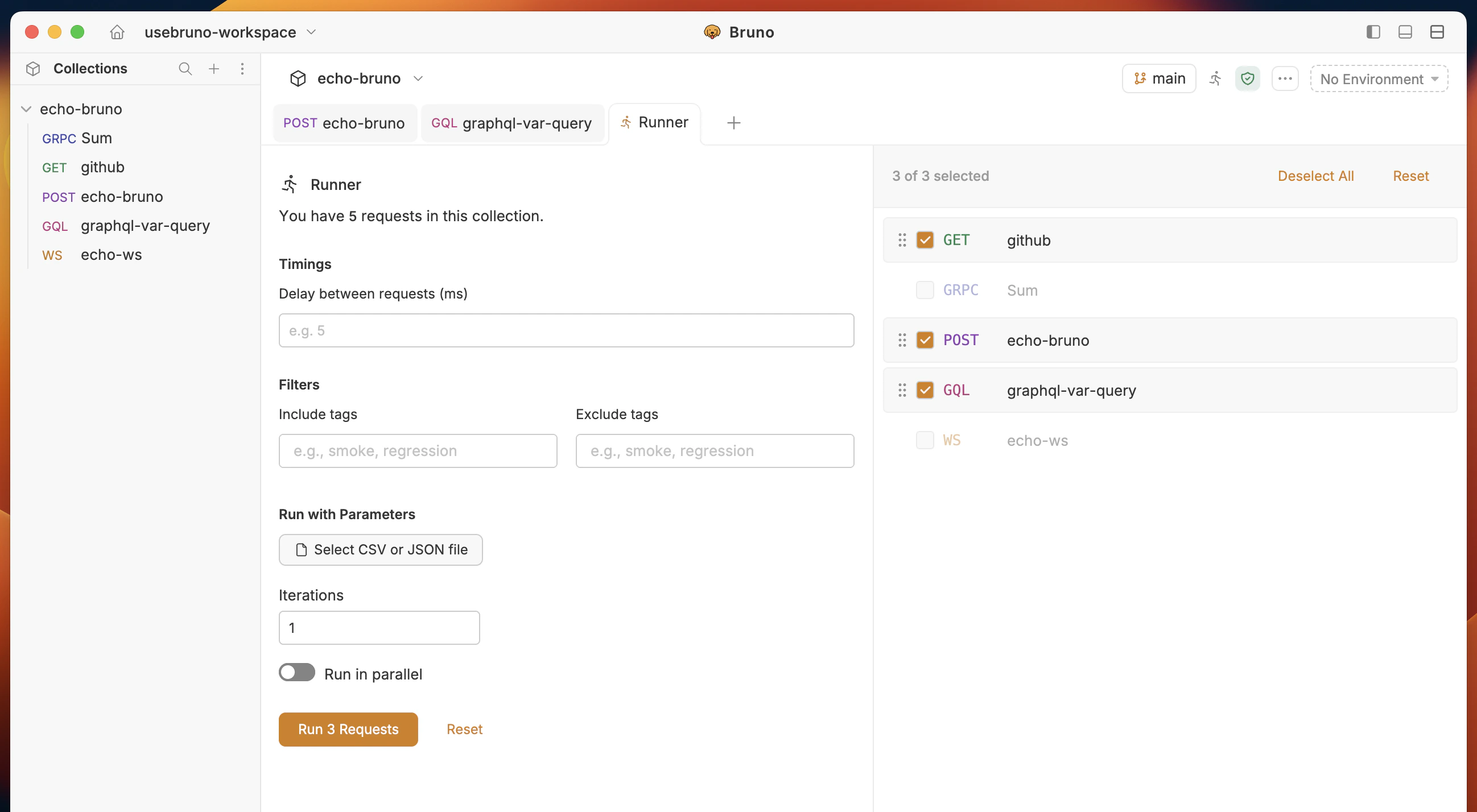 3. Click **Run Collection** to start the iterations.
Once the execution is complete, you can review the results for each individual request and check their statuses.
3. Click **Run Collection** to start the iterations.
Once the execution is complete, you can review the results for each individual request and check their statuses.
 #### How to Use Variables from CSV/JSON Files
When you upload a CSV or JSON file, each **column** (CSV) or **object key** (JSON) becomes an iteration variable. Use the `{{variableName}}` syntax in the URL, headers, or body so each iteration sends that row’s values.
#### How to Use Variables from CSV/JSON Files
When you upload a CSV or JSON file, each **column** (CSV) or **object key** (JSON) becomes an iteration variable. Use the `{{variableName}}` syntax in the URL, headers, or body so each iteration sends that row’s values.
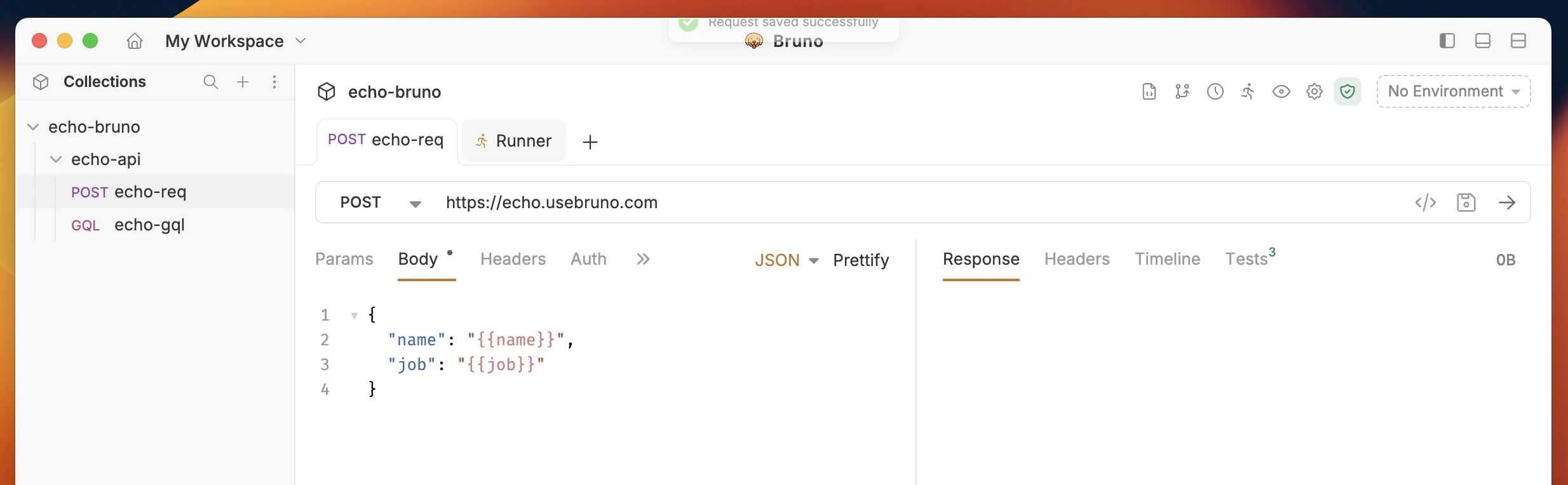 ##### Accessing Variables in Request Body
Template the body with names that match your file:
```json showLineNumbers filename="request-body" theme={null}
{
"name": "{{name}}",
"email": "{{email}}"
}
```
For a given iteration, Bruno resolves those placeholders from the current row—for example:
```json showLineNumbers filename="resolved-example-one-iteration" theme={null}
{
"name": "John Doe",
"email": "john.doe@example.com"
}
```
##### Accessing Variables in Scripts
In pre-request or post-response scripts, read the current iteration with **`bru.runner.iterationData.get("columnName")`**. Depending on your setup, **`bru.getVar()`** may also reflect runner variables.
```javascript theme={null}
console.log(bru.runner.iterationData.get("name"));
console.log(bru.getVar("name")); // May match iteration data when exposed by the runner
```
When you run the collection, check the **Timeline** for the **actual request body** sent on each iteration.
### Using the Bruno CLI
1. Navigate to the root directory of your Bruno collection.
2. Run the following command:
```bash copy theme={null}
bru run --reporter-html results.html --csv-file-path /path/to/csv/file.csv
```
It will create a `results.html` file in your Bruno collection's root directory. You can view this file in your browser.
For how to open and use test reports in the Bruno app (including downloaded HTML reports), see **[View test report](./manual-test#view-test-report)**.
### Command Overview
* `--reporter-html results.html`: Generates a human-readable HTML report.
* `--csv-file-path /path/to/csv/file.csv`: Specifies the path to the CSV file you want to use.
[Bruno CLI Overview](../../bru-cli/overview)
## Runner Iteration Utilities
Bruno provides various utility functions to access and manipulate data from attached data files (CSV/JSON) during collection runs.
### Accessing Iteration Data
#### Check if a variable exists
```javascript theme={null}
if (bru.runner.iterationData.has("username")) {
console.log("Username exists in current iteration");
}
```
#### Get a specific value
```javascript theme={null}
const username = bru.runner.iterationData.get("username");
console.log(`Current username: ${username}`);
```
#### Get all iteration data
```javascript theme={null}
const allData = bru.runner.iterationData.get();
console.log("All iteration data:", allData);
```
#### Convert to JSON string
```javascript theme={null}
const jsonData = bru.runner.iterationData.stringify();
console.log("JSON data:", jsonData);
```
#### Remove a variable
```javascript theme={null}
bru.runner.iterationData.unset("password");
```
### Iteration Information
#### Get current iteration index
```javascript theme={null}
const currentIteration = bru.runner.iterationIndex;
console.log(`Running iteration ${currentIteration}`);
```
#### Get total iterations
```javascript theme={null}
const total = bru.runner.totalIterations;
console.log(`Total iterations: ${total}`);
```
### Example Usage
#### Basic Data Access
```javascript theme={null}
// Get values from current iteration
const username = bru.runner.iterationData.get("username");
const password = bru.runner.iterationData.get("password");
// Use in request (pre-request script only)
req.setBody({
username: username,
password: password
});
```
#### Conditional Logic Based on Iteration
```javascript theme={null}
// Only modify data in first iteration
if (bru.runner.iterationIndex === 0) {
bru.runner.iterationData.unset("password");
}
// Check if variable exists
if (bru.runner.iterationData.has("password")) {
console.log("Password available");
}
```
### Data File Examples
#### CSV Format
```csv theme={null}
username,password
user1,pass123
user2,pass456
```
#### JSON Format
```json theme={null}
[
{ "username": "user1", "password": "pass123" },
{ "username": "user2", "password": "pass456" }
]
```
### Notes
* Variables removed with `unset()` only affect the current iteration.
* Each iteration runs with fresh data from the file.
* Supports both CSV and JSON data files.
* Data is automatically loaded from the attached file at the start of each iteration.
* **Iteration count** comes from the number of rows (CSV) or objects (JSON) in the file.
* **The request body is not ignored:** if you use no `{{}}` references, the same static body is sent every time; the data file still drives how many times the request runs and what appears under **Data** for each iteration.
##### Accessing Variables in Request Body
Template the body with names that match your file:
```json showLineNumbers filename="request-body" theme={null}
{
"name": "{{name}}",
"email": "{{email}}"
}
```
For a given iteration, Bruno resolves those placeholders from the current row—for example:
```json showLineNumbers filename="resolved-example-one-iteration" theme={null}
{
"name": "John Doe",
"email": "john.doe@example.com"
}
```
##### Accessing Variables in Scripts
In pre-request or post-response scripts, read the current iteration with **`bru.runner.iterationData.get("columnName")`**. Depending on your setup, **`bru.getVar()`** may also reflect runner variables.
```javascript theme={null}
console.log(bru.runner.iterationData.get("name"));
console.log(bru.getVar("name")); // May match iteration data when exposed by the runner
```
When you run the collection, check the **Timeline** for the **actual request body** sent on each iteration.
### Using the Bruno CLI
1. Navigate to the root directory of your Bruno collection.
2. Run the following command:
```bash copy theme={null}
bru run --reporter-html results.html --csv-file-path /path/to/csv/file.csv
```
It will create a `results.html` file in your Bruno collection's root directory. You can view this file in your browser.
For how to open and use test reports in the Bruno app (including downloaded HTML reports), see **[View test report](./manual-test#view-test-report)**.
### Command Overview
* `--reporter-html results.html`: Generates a human-readable HTML report.
* `--csv-file-path /path/to/csv/file.csv`: Specifies the path to the CSV file you want to use.
[Bruno CLI Overview](../../bru-cli/overview)
## Runner Iteration Utilities
Bruno provides various utility functions to access and manipulate data from attached data files (CSV/JSON) during collection runs.
### Accessing Iteration Data
#### Check if a variable exists
```javascript theme={null}
if (bru.runner.iterationData.has("username")) {
console.log("Username exists in current iteration");
}
```
#### Get a specific value
```javascript theme={null}
const username = bru.runner.iterationData.get("username");
console.log(`Current username: ${username}`);
```
#### Get all iteration data
```javascript theme={null}
const allData = bru.runner.iterationData.get();
console.log("All iteration data:", allData);
```
#### Convert to JSON string
```javascript theme={null}
const jsonData = bru.runner.iterationData.stringify();
console.log("JSON data:", jsonData);
```
#### Remove a variable
```javascript theme={null}
bru.runner.iterationData.unset("password");
```
### Iteration Information
#### Get current iteration index
```javascript theme={null}
const currentIteration = bru.runner.iterationIndex;
console.log(`Running iteration ${currentIteration}`);
```
#### Get total iterations
```javascript theme={null}
const total = bru.runner.totalIterations;
console.log(`Total iterations: ${total}`);
```
### Example Usage
#### Basic Data Access
```javascript theme={null}
// Get values from current iteration
const username = bru.runner.iterationData.get("username");
const password = bru.runner.iterationData.get("password");
// Use in request (pre-request script only)
req.setBody({
username: username,
password: password
});
```
#### Conditional Logic Based on Iteration
```javascript theme={null}
// Only modify data in first iteration
if (bru.runner.iterationIndex === 0) {
bru.runner.iterationData.unset("password");
}
// Check if variable exists
if (bru.runner.iterationData.has("password")) {
console.log("Password available");
}
```
### Data File Examples
#### CSV Format
```csv theme={null}
username,password
user1,pass123
user2,pass456
```
#### JSON Format
```json theme={null}
[
{ "username": "user1", "password": "pass123" },
{ "username": "user2", "password": "pass456" }
]
```
### Notes
* Variables removed with `unset()` only affect the current iteration.
* Each iteration runs with fresh data from the file.
* Supports both CSV and JSON data files.
* Data is automatically loaded from the attached file at the start of each iteration.
* **Iteration count** comes from the number of rows (CSV) or objects (JSON) in the file.
* **The request body is not ignored:** if you use no `{{}}` references, the same static body is sent every time; the data file still drives how many times the request runs and what appears under **Data** for each iteration.