> ## Documentation Index
> Fetch the complete documentation index at: https://docs.usebruno.com/llms.txt
> Use this file to discover all available pages before exploring further.
# SOAP API request
Bruno enables you to make HTTP calls using Simple Object Access Protocol (SOAP), a messaging protocol used for exchanging structured information between systems over a network. SOAP defines a standard for request-response communication and is based on XML data format.
**Working with WSDL files?** Bruno can automatically import WSDL files and generate SOAP request collections. Learn more in the [WSDL to Bruno Converter guide](/converters/wsdl-to-bruno).
### Key Components of a SOAP Message
1. **Envelope**: The outermost element that defines the start and end of the message.
2. **Header**: (Optional) Contains meta-information or additional information about the message.
3. **Body**: The main part of the message that contains the actual data or the request/response payload
## Create SOAP request
You have two options for creating SOAP requests in Bruno:
### Option 1: Import from WSDL (Recommended)
If you have a WSDL file, Bruno can automatically generate SOAP requests with pre-configured envelopes:
1. Right-click on a collection and select **Import Collection**
2. Choose **WSDL** and upload your `.wsdl` file
3. Bruno will generate all SOAP operations with proper XML structure
[Learn more about WSDL import →](/converters/wsdl-to-bruno)
### Option 2: Create Manually
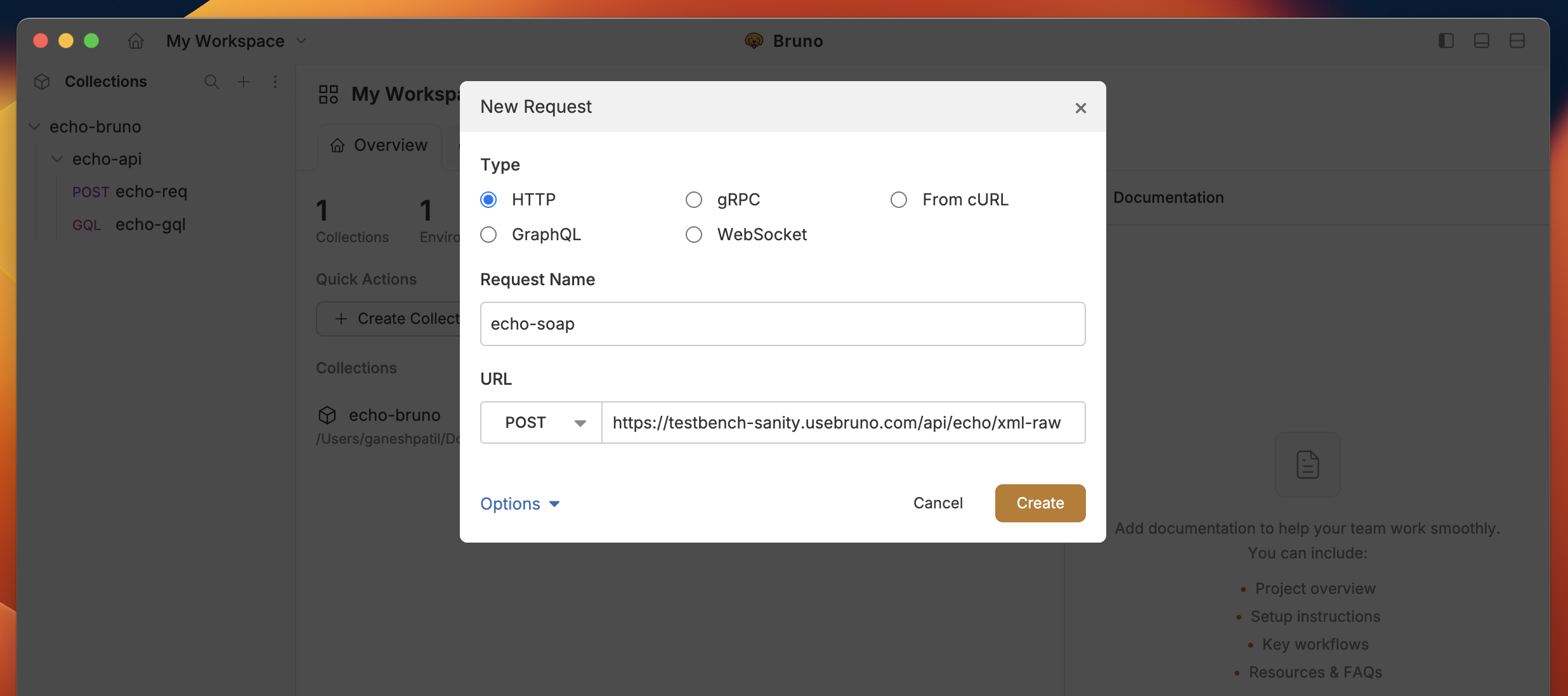
1. Create new request inside a collection in Bruno.
2. Select **HTTP** and add URL and name.
3. Click on **Create** button.
 ## Adding body data
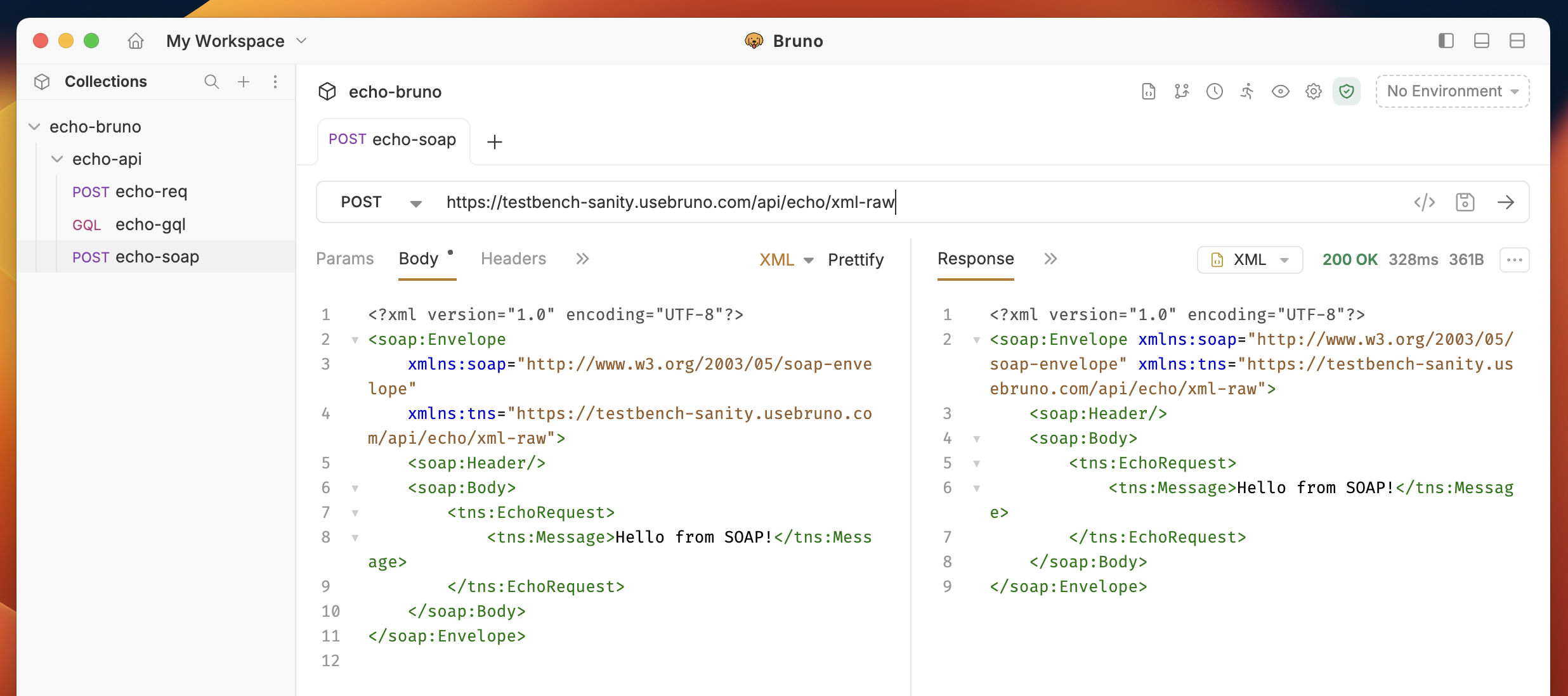
1. After creating request, Go to **Body**.
2. Select **XML** from the dropdown list.
3. Add your XML data in the textarea section.
4. Save and Execute the request.
If your request is successful, Bruno will display the response in the **Response** tab.
## Adding body data
1. After creating request, Go to **Body**.
2. Select **XML** from the dropdown list.
3. Add your XML data in the textarea section.
4. Save and Execute the request.
If your request is successful, Bruno will display the response in the **Response** tab.