> ## Documentation Index
> Fetch the complete documentation index at: https://docs.usebruno.com/llms.txt
> Use this file to discover all available pages before exploring further.
# Integrating Google Cloud Secret Manager
Bruno integrates with Google Cloud Secret Manager to securely fetch secrets for use in your collections. The provider is configured once in **Preferences** and can then be attached to any collection environment.
## Configuration steps
1. Go to **Preferences** and open the **Secrets Manager** section from left-bottom sidebar.
2. Click **+ Add Secret Manager**.
3. Select **GCP Secrets Manager** as the provider type.
4. Enter a **Name** for the account (for example, `Production GCP`).
5. Provide your service account credentials using either method:
* **Upload or paste** a GCP service account JSON key - Bruno fills in **Default Project ID**, **Client Email**, and **Private Key** from the file.
* Or enter the fields manually:
* **Default Project ID** - defaults from the key’s `project_id`, you can change it later per environment when fetching secrets
* **Client Email** - for example, `service-account@project.iam.gserviceaccount.com`
* **Private Key** - the `private_key` value from the service account JSON
6. Click **Test Connection** to verify that Bruno can authenticate with the service account.
7. Click **Add** (or **Save** when editing) to save the secret manager configuration.
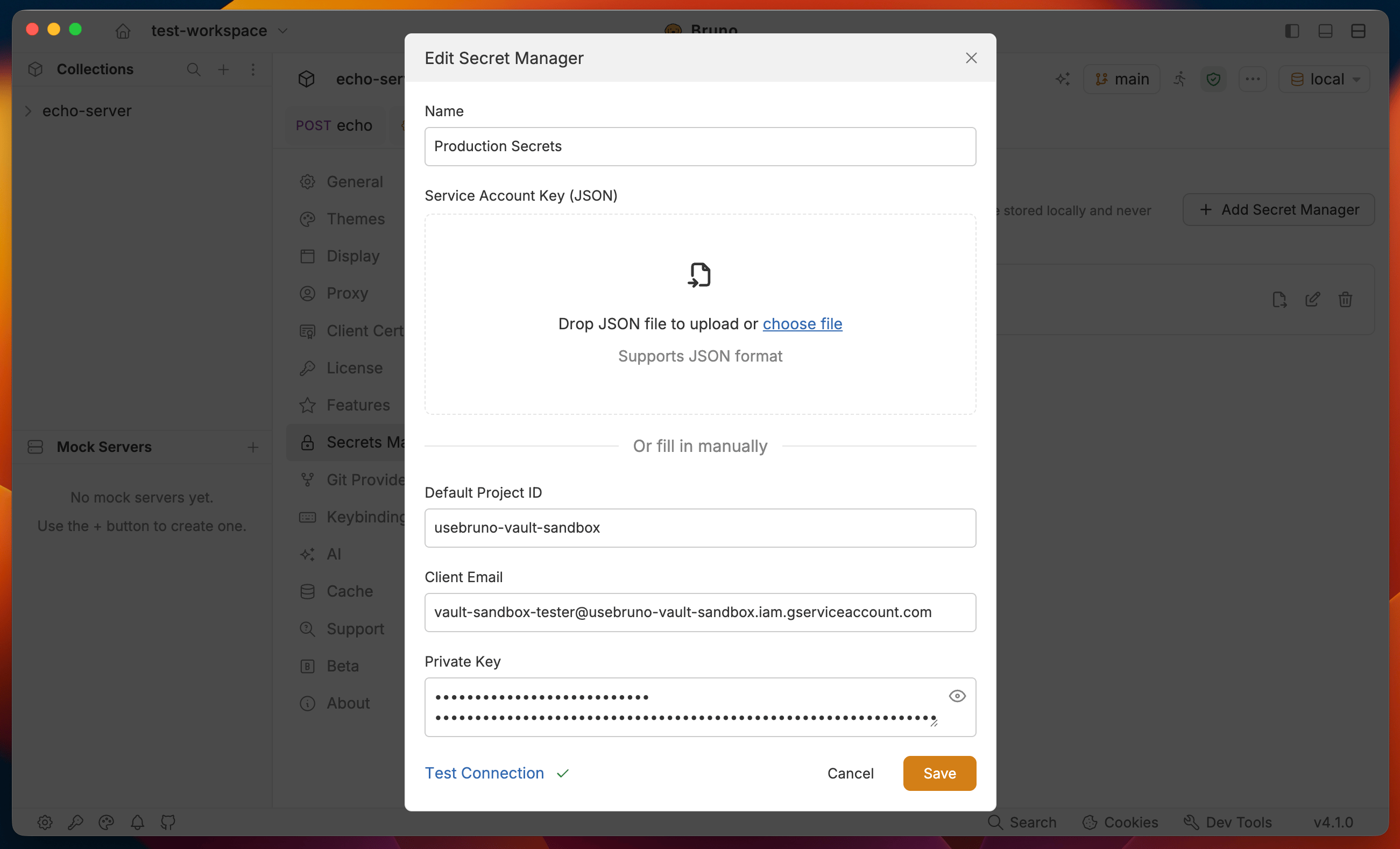 Once saved, the account appears in the **Secrets Manager** list and is available when configuring external secrets on an environment.
Application Default Credentials, `gcloud` CLI authentication, and Workload Identity Federation are planned for future support. Use a service account key for now.
## Exporting as a .env file
Once a provider is saved, you can export its configuration as a `.env` file from **Preferences** > **Secrets Manager**. This is useful for passing credentials to the Bruno CLI or seeding a CI/CD pipeline.
1. In the **Secrets Manager** list, hover over the account you want to export.
2. Click the **Export as .env** icon.
3. Bruno writes the credentials to a `.env` file on your machine.
Once saved, the account appears in the **Secrets Manager** list and is available when configuring external secrets on an environment.
Application Default Credentials, `gcloud` CLI authentication, and Workload Identity Federation are planned for future support. Use a service account key for now.
## Exporting as a .env file
Once a provider is saved, you can export its configuration as a `.env` file from **Preferences** > **Secrets Manager**. This is useful for passing credentials to the Bruno CLI or seeding a CI/CD pipeline.
1. In the **Secrets Manager** list, hover over the account you want to export.
2. Click the **Export as .env** icon.
3. Bruno writes the credentials to a `.env` file on your machine.
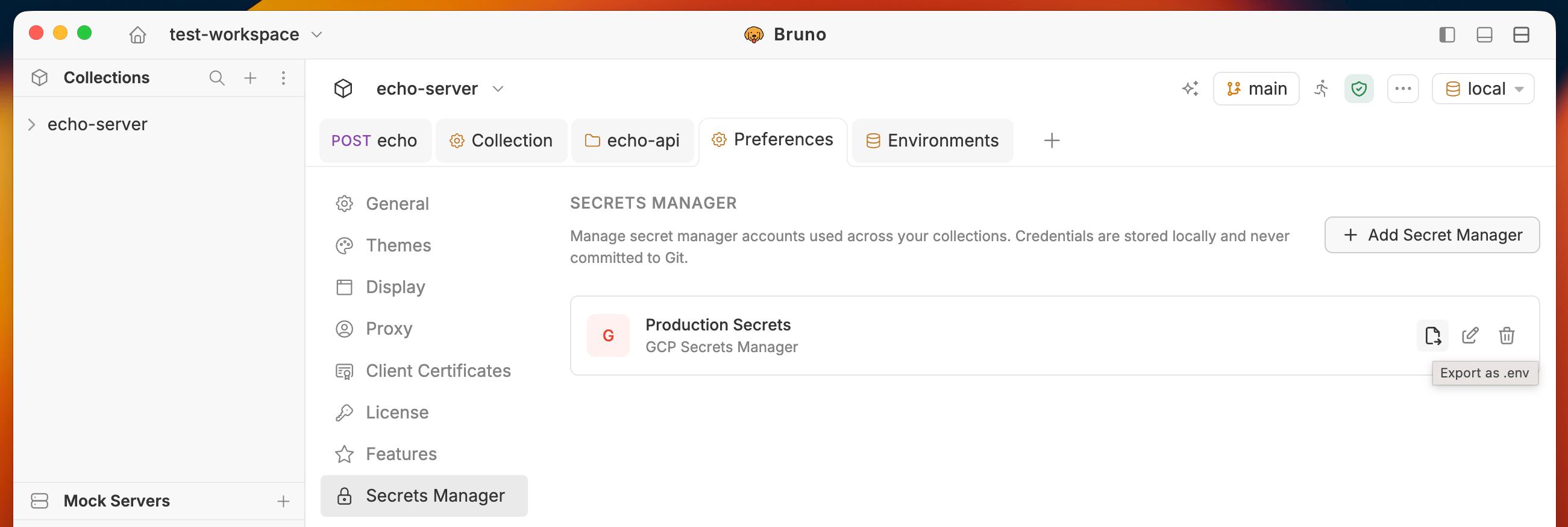 The exported file includes variables such as:
```bash theme={null}
BRUNO_GCP_SECRETS_MANAGER_PROJECT_ID=my-project
BRUNO_GCP_SECRETS_MANAGER_CLIENT_EMAIL=service-account@my-project.iam.gserviceaccount.com
BRUNO_GCP_SECRETS_MANAGER_PRIVATE_KEY="-----BEGIN PRIVATE KEY-----\n...\n-----END PRIVATE KEY-----\n"
```
The exported `.env` file contains your service account private key in plain text. Add it to `.gitignore` immediately and never commit it to version control.
Pass the exported file to the CLI using the `--secrets-env-file` flag:
```bash theme={null}
bru run collection/ --env Production --secrets-env-file ./secrets.env
```
## Next steps
* [Configure and fetch secrets](./configuring-and-fetching-secrets) — attach the provider to an environment and pull secrets into Bruno
* [Use secrets in requests](./using-secrets) — reference fetched secrets in headers, body, auth fields, and scripts
The exported file includes variables such as:
```bash theme={null}
BRUNO_GCP_SECRETS_MANAGER_PROJECT_ID=my-project
BRUNO_GCP_SECRETS_MANAGER_CLIENT_EMAIL=service-account@my-project.iam.gserviceaccount.com
BRUNO_GCP_SECRETS_MANAGER_PRIVATE_KEY="-----BEGIN PRIVATE KEY-----\n...\n-----END PRIVATE KEY-----\n"
```
The exported `.env` file contains your service account private key in plain text. Add it to `.gitignore` immediately and never commit it to version control.
Pass the exported file to the CLI using the `--secrets-env-file` flag:
```bash theme={null}
bru run collection/ --env Production --secrets-env-file ./secrets.env
```
## Next steps
* [Configure and fetch secrets](./configuring-and-fetching-secrets) — attach the provider to an environment and pull secrets into Bruno
* [Use secrets in requests](./using-secrets) — reference fetched secrets in headers, body, auth fields, and scripts