> ## Documentation Index
> Fetch the complete documentation index at: https://docs.usebruno.com/llms.txt
> Use this file to discover all available pages before exploring further.
# Azure CLI Authentication
Azure CLI authentication feature allows you to authenticate with Azure Key Vault using your existing Azure CLI session, without requiring manual entry of Tenant ID, Client ID, or Client Secret in Bruno.
## Prerequisites
1. **Azure CLI Installation**: Ensure Azure CLI is installed on your system
2. **Azure CLI Authentication**: Log in to Azure CLI using `az login`
3. **Key Vault Access**: Ensure your Azure account has access to the target Key Vault
## Setup Instructions
### Step 1: Install and Configure Azure CLI
1. Install Azure CLI from [Microsoft's official website](https://docs.microsoft.com/en-us/cli/azure/install-azure-cli)
2. Open terminal/command prompt and run:
```bash theme={null}
az login
```
3. Follow the browser-based authentication process
### Step 2: Configure Secrets
1. Navigate to the **Secrets** tab in your collection
2. Click on **Select Provider** and select **Azure Key Vault** from dropdown.
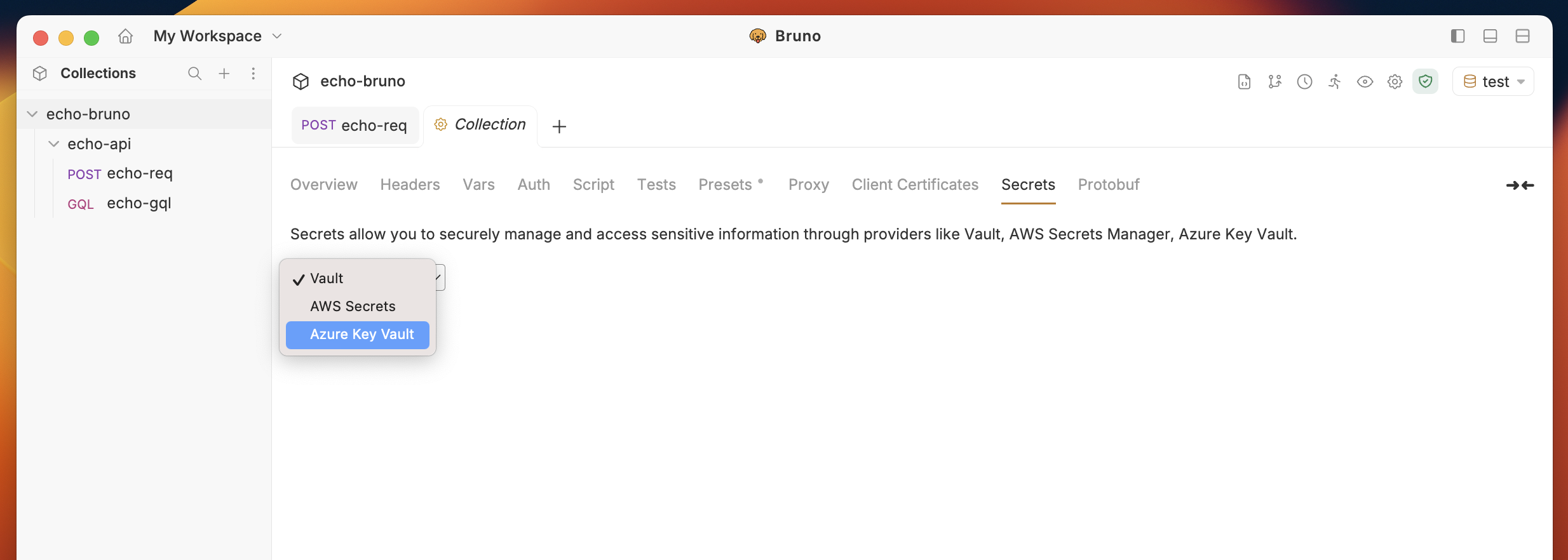 3. In the **EDIT PROVIDER** dialog:
* Click **+ Add Secret**
* Enter the **Name** for your secret
* Enter the **Vault Name** (your Azure Key Vault name)
3. In the **EDIT PROVIDER** dialog:
* Click **+ Add Secret**
* Enter the **Name** for your secret
* Enter the **Vault Name** (your Azure Key Vault name)
 4. Click on **Save** button.
### Step 3: Fetch Secrets
1. Click **Fetch Secrets** to retrieve secrets from Azure Key Vault
2. In the **FETCH AZURE SECRETS** dialog:
* Select the **CLI** tab
* Click **Test CLI** to verify authentication
* Click **Fetch** to retrieve secrets
4. Click on **Save** button.
### Step 3: Fetch Secrets
1. Click **Fetch Secrets** to retrieve secrets from Azure Key Vault
2. In the **FETCH AZURE SECRETS** dialog:
* Select the **CLI** tab
* Click **Test CLI** to verify authentication
* Click **Fetch** to retrieve secrets
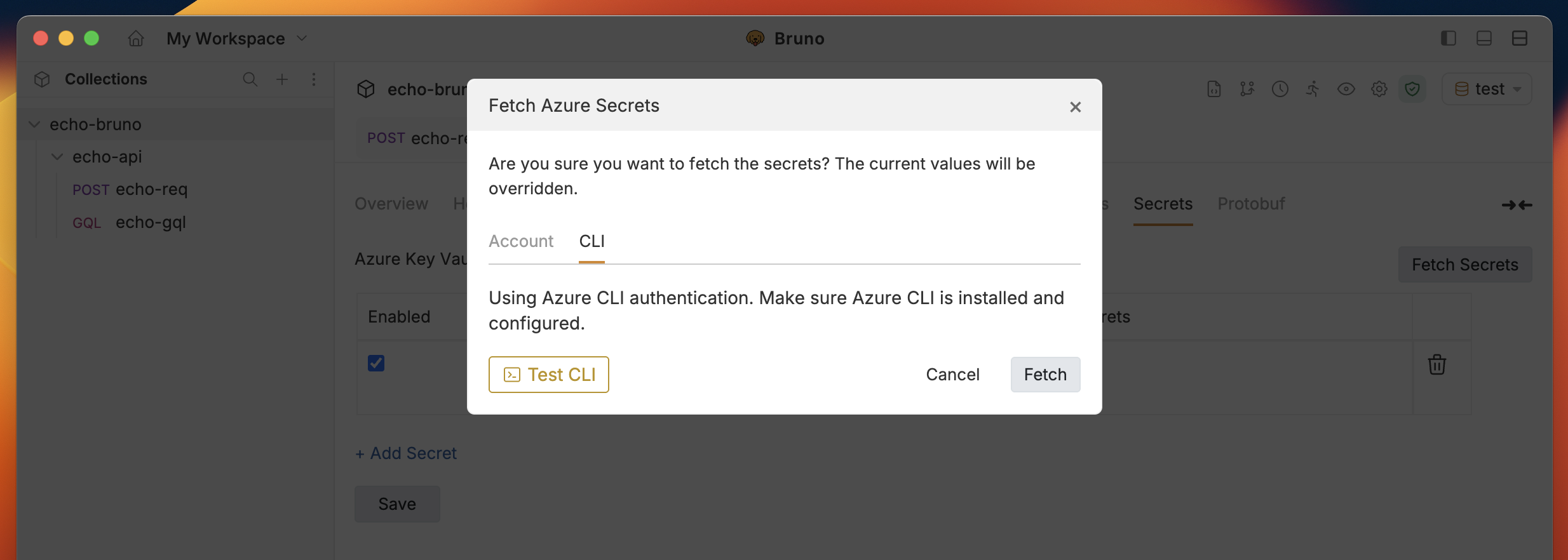 3. If successful, you'll see secrets fetched in the **Secrets** tab.
Bruno Azure CLI authentication for Azure Key Vault integration, eliminating the need to store credentials locally and providing a more secure authentication method.
3. If successful, you'll see secrets fetched in the **Secrets** tab.
Bruno Azure CLI authentication for Azure Key Vault integration, eliminating the need to store credentials locally and providing a more secure authentication method.