> ## Documentation Index
> Fetch the complete documentation index at: https://docs.usebruno.com/llms.txt
> Use this file to discover all available pages before exploring further.
# Configuring and Fetching Secrets
## Overview
This guide walks you through the process of configuring and fetching secrets from AWS Secrets Manager in Bruno. You'll learn how to set up secret mappings and retrieve them securely for use in your API requests.
Secrets in Bruno are environment-specific, so ensure you have a collection environment selected before proceeding.
## Prerequisites
* AWS Secrets Manager provider already configured in Bruno
* Collection environment selected
* Appropriate AWS permissions to access secrets
## Configuration Steps
### Step 1: Access Collection Secrets
1. Open your collection in Bruno
2. Navigate to **Collection Settings**
3. Go to the **Secrets** section
### Step 2: Select AWS Secrets Manager Provider
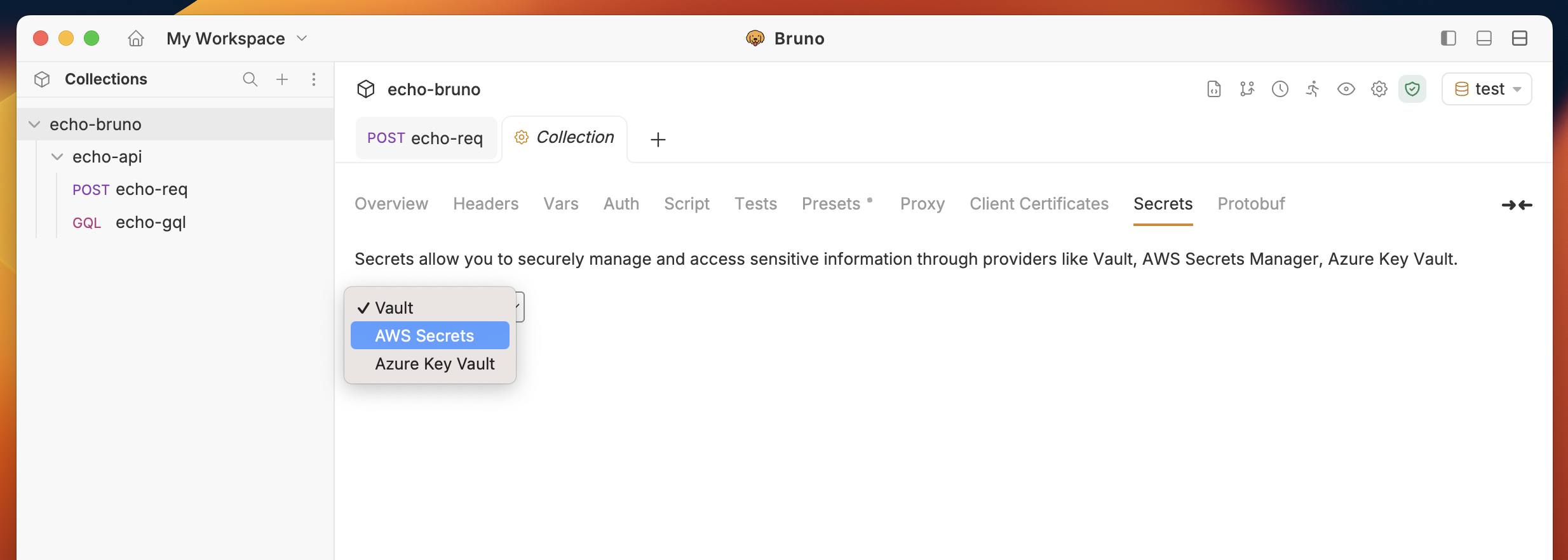
1. In the Secrets section, click on **Select Provider**
2. Choose **AWS Secrets Manager** from the dropdown menu
 ### Step 3: Add Secret Mappings
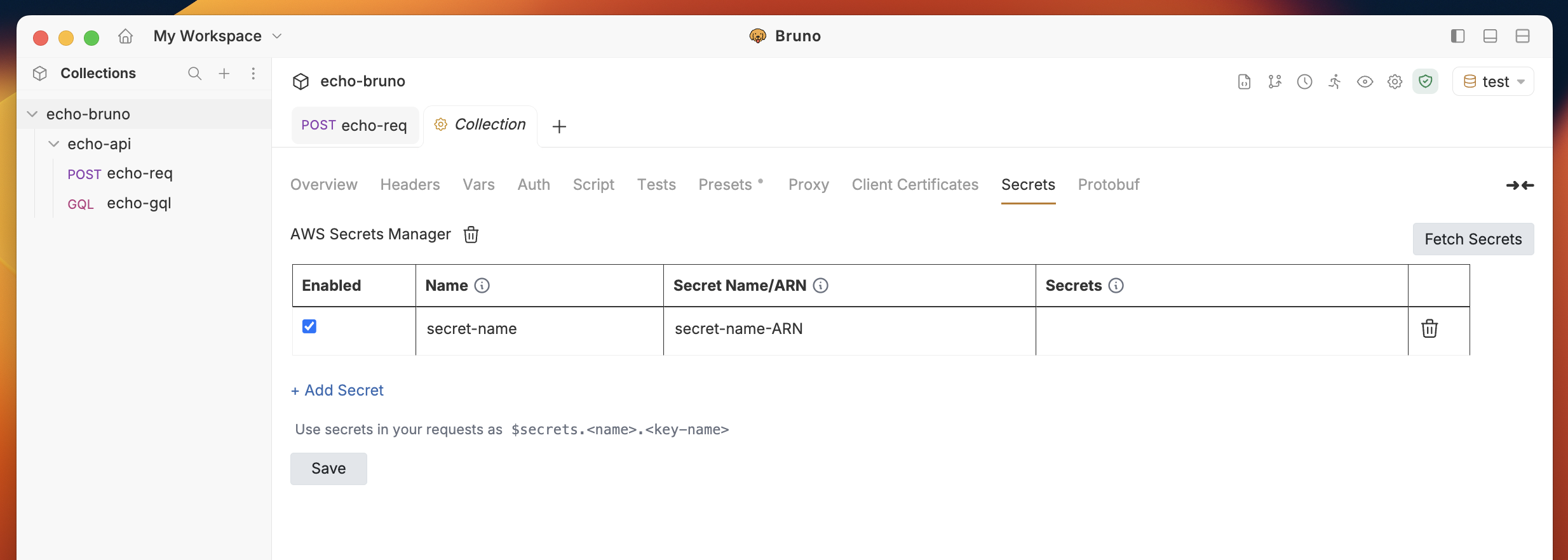
1. Click the **+ Add Secret** button to create a new secret mapping
2. In the configuration dialog:
* **Name**: Enter a friendly name for the secret (this will be used in Bruno)
* **AWS Secret Name/ARN**: Specify the exact AWS secret name or ARN
### Step 3: Add Secret Mappings
1. Click the **+ Add Secret** button to create a new secret mapping
2. In the configuration dialog:
* **Name**: Enter a friendly name for the secret (this will be used in Bruno)
* **AWS Secret Name/ARN**: Specify the exact AWS secret name or ARN
 ### Step 4: Fetch Secrets from AWS
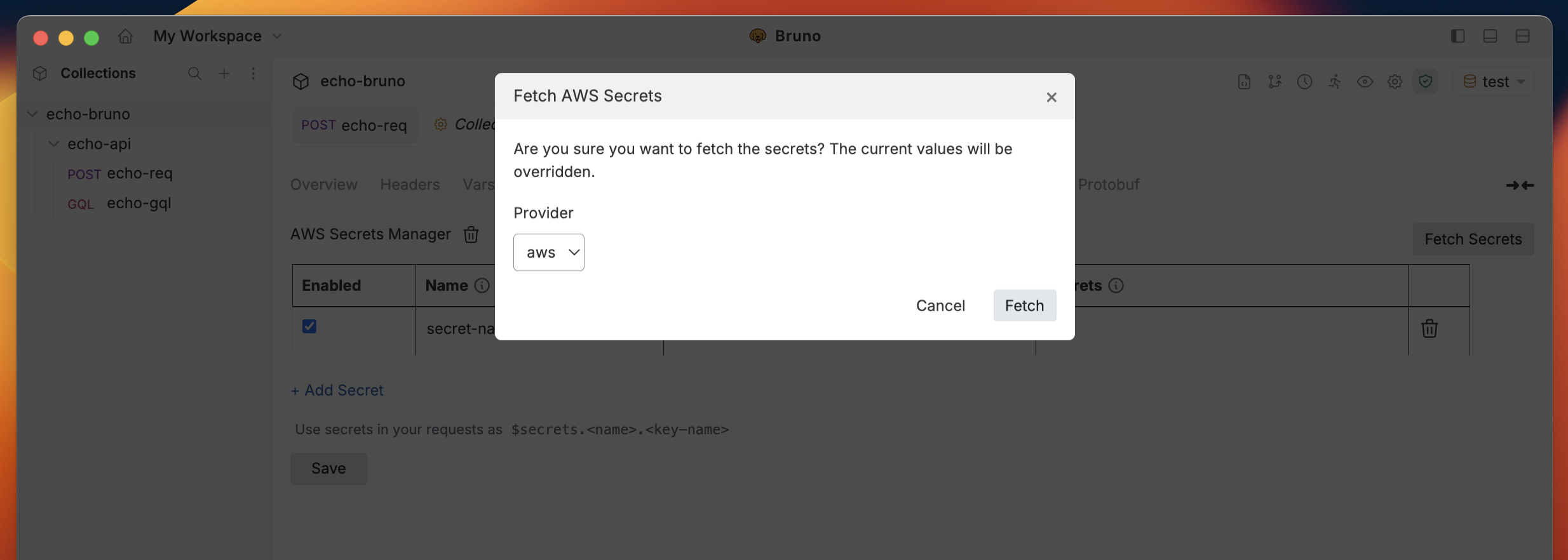
1. Click the **Fetch Secrets** button in the top-right corner
2. Select the appropriate AWS account from the dropdown
3. Click **Fetch** to retrieve the secrets from AWS Secrets Manager
### Step 4: Fetch Secrets from AWS
1. Click the **Fetch Secrets** button in the top-right corner
2. Select the appropriate AWS account from the dropdown
3. Click **Fetch** to retrieve the secrets from AWS Secrets Manager
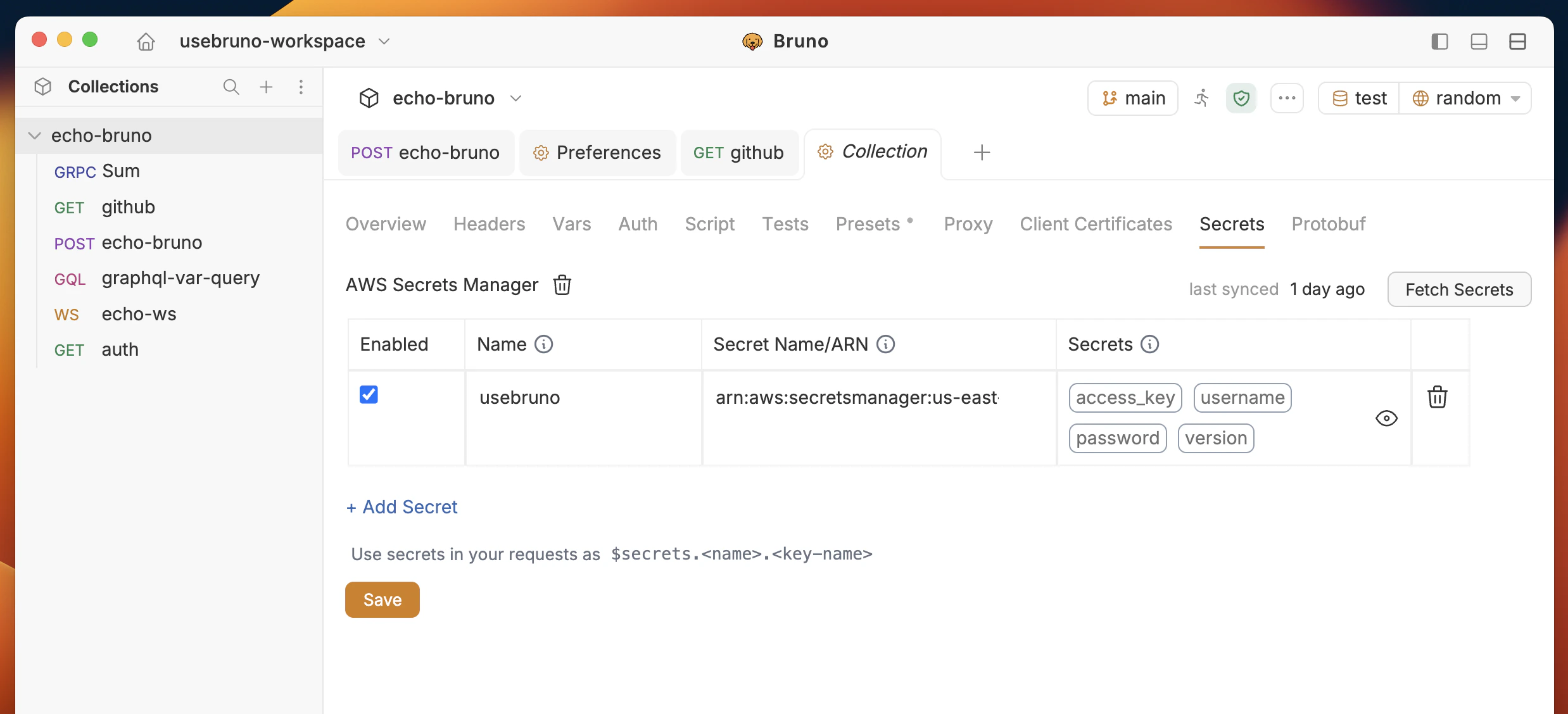
 After successful fetching, you should see the secret values populated in the Secrets section and available for use in your requests.