> ## Documentation Index
> Fetch the complete documentation index at: https://docs.usebruno.com/llms.txt
> Use this file to discover all available pages before exploring further.
# Adding AWS Secrets Manager
AWS Secrets Manager can be integrated with Bruno to securely manage and retrieve secrets for your collections. This guide walks you through the process of adding AWS Secrets Manager as a secret provider in Bruno.
## Configuration Steps
1. **Access Secrets Manager Settings**
* Navigate to the **Preferences** settings (bottom-left sidebar).
* Go to the **Secrets Manager** section.
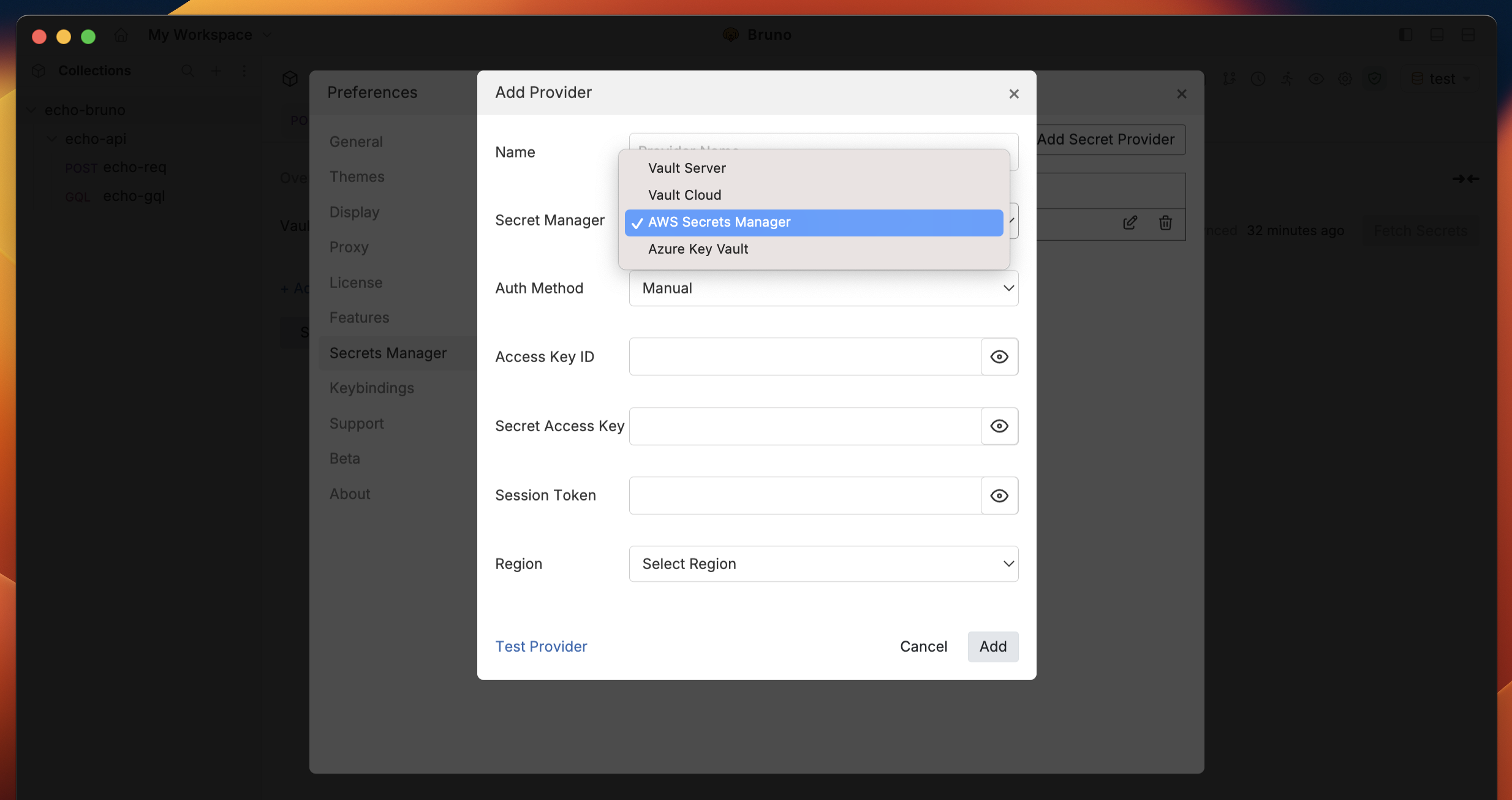
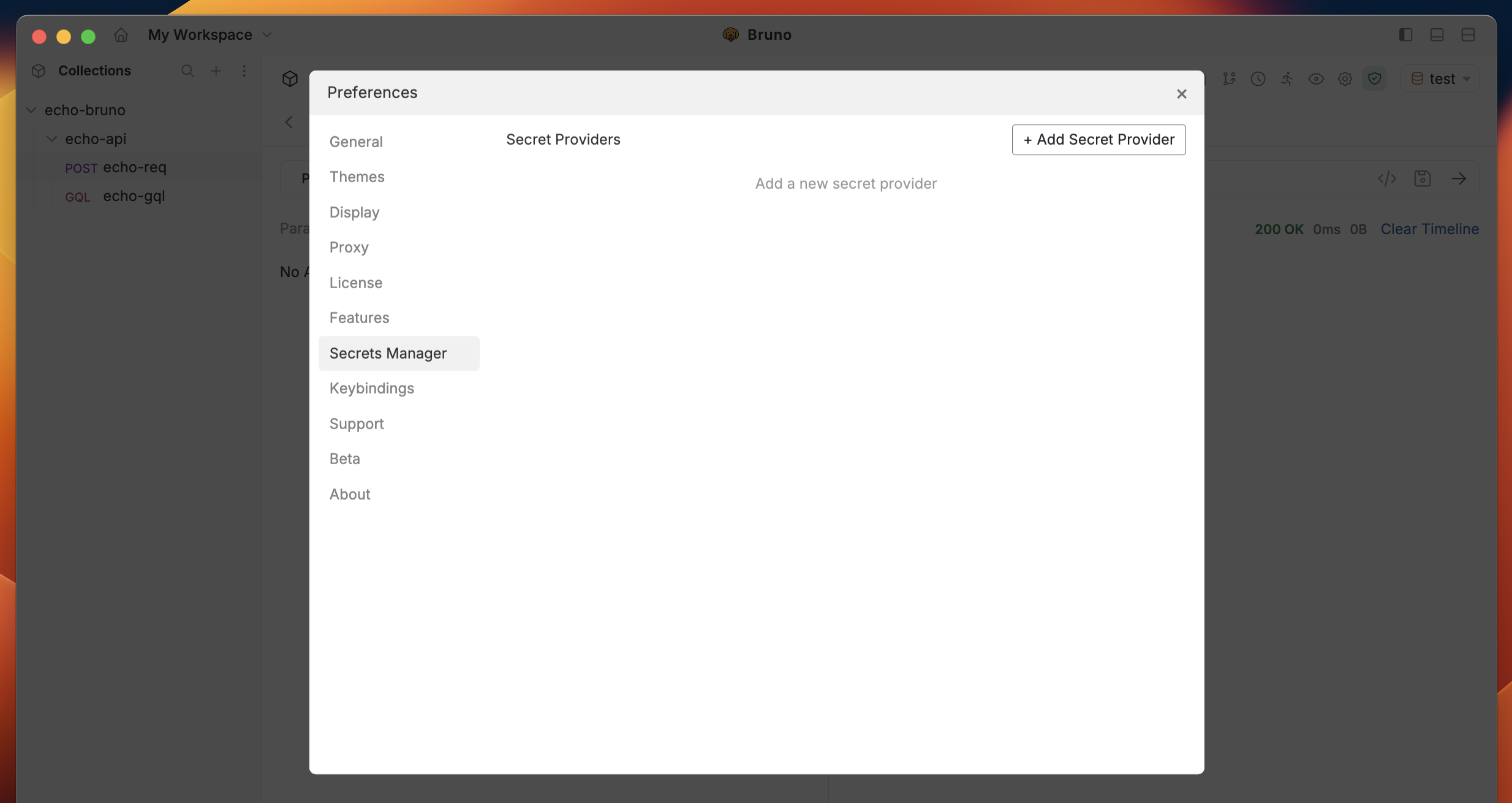 2. **Add a New Secret Provider**
* Click the `+ Add Secret Provider` button.
* Select **AWS Secrets Manager** as the provider type.
2. **Add a New Secret Provider**
* Click the `+ Add Secret Provider` button.
* Select **AWS Secrets Manager** as the provider type.
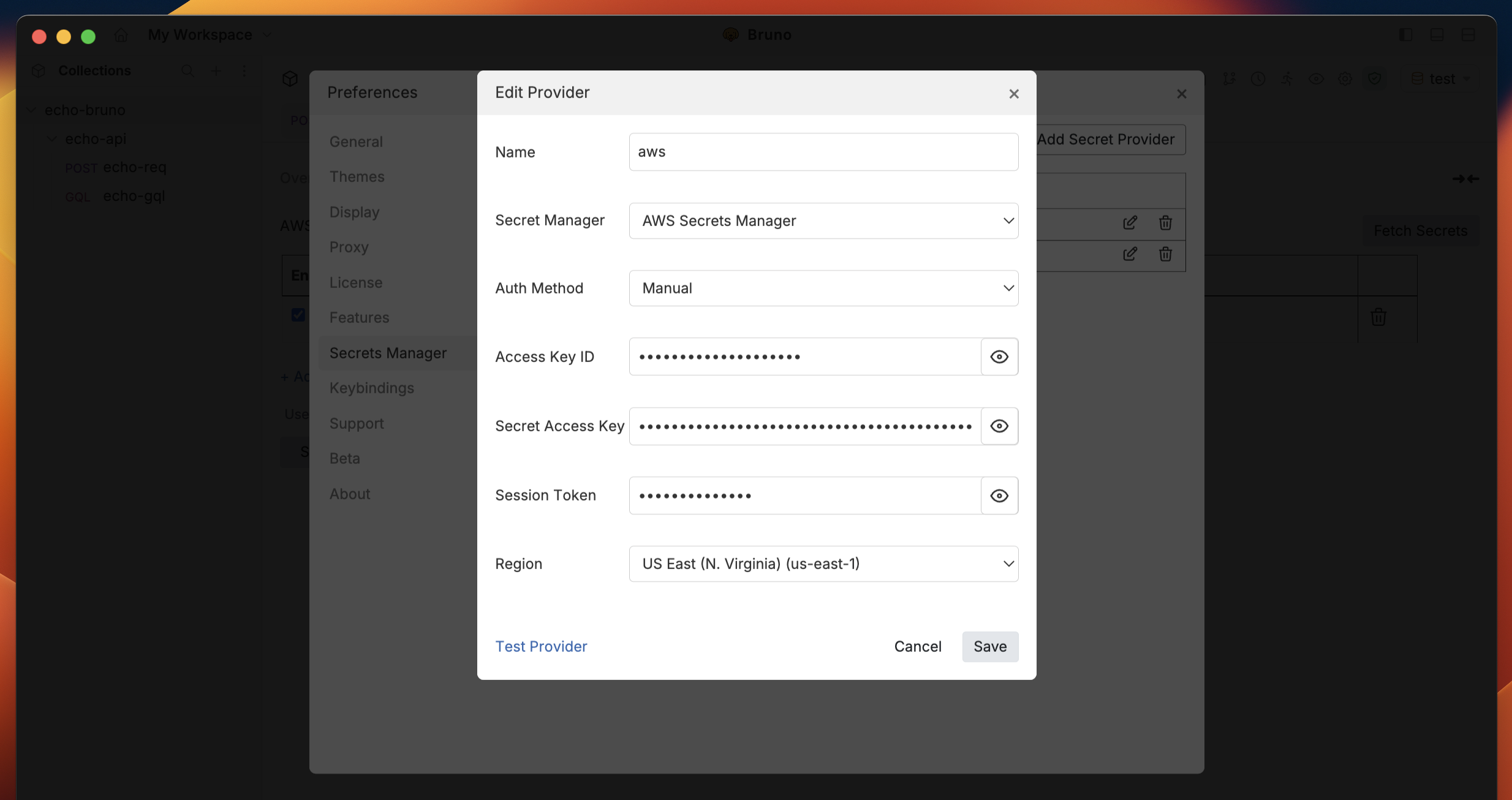
 3. **Enter AWS Credentials**
* Fill in the required fields:
* **Access Key ID**
* **Secret Access Key**
* **Session Token** (if applicable)
* **Region**
3. **Enter AWS Credentials**
* Fill in the required fields:
* **Access Key ID**
* **Secret Access Key**
* **Session Token** (if applicable)
* **Region**
 4. **Test the Provider**
* Use the `Test Provider` feature to verify your connection and credentials.
5. **Save the Configuration**
* Click on the `Save` button to save the secret provider configuration.
## Next Steps
Once you have successfully added AWS Secrets Manager as a secret provider, you can:
* [Configure and fetch secrets](./configuring-and-fetching-secrets) - Learn how to set up secret mappings and retrieve secrets from AWS
* [Using secrets in Bruno](./using-secrets) - Learn how to use fetched secrets in your API requests
4. **Test the Provider**
* Use the `Test Provider` feature to verify your connection and credentials.
5. **Save the Configuration**
* Click on the `Save` button to save the secret provider configuration.
## Next Steps
Once you have successfully added AWS Secrets Manager as a secret provider, you can:
* [Configure and fetch secrets](./configuring-and-fetching-secrets) - Learn how to set up secret mappings and retrieve secrets from AWS
* [Using secrets in Bruno](./using-secrets) - Learn how to use fetched secrets in your API requests