> ## Documentation Index
> Fetch the complete documentation index at: https://docs.usebruno.com/llms.txt
> Use this file to discover all available pages before exploring further.
# DotEnv File
Environment variables are used to store sensitive data such as API keys, tokens, and configuration settings outside the source code. This helps keep your code secure and makes it easier to manage different settings for various environments (e.g., local, staging, production).
## DotEnv File for Secret Management
In **Bruno**, you can store your secrets (e.g., API keys, JWT tokens) in a `.env` file located at the **root** of your collection folder. This approach is inspired by how developers typically manage secrets in their codebase.
### Folder Structure Example
Below is an example folder structure for your collection:
## Creating and Using the `.env` File
1. Create a `.env` file manually in the root of your collection folder. This file will store your sensitive environment variables.
2. Define your secrets in the `.env` file. For example:
```bash filename=".env" showLineNumbers theme={null}
JWT_TOKEN=your_jwt_token_value
API_KEY=your_api_key_value
```
These secrets will be accessible in your Bruno collection via the `process.env` object.
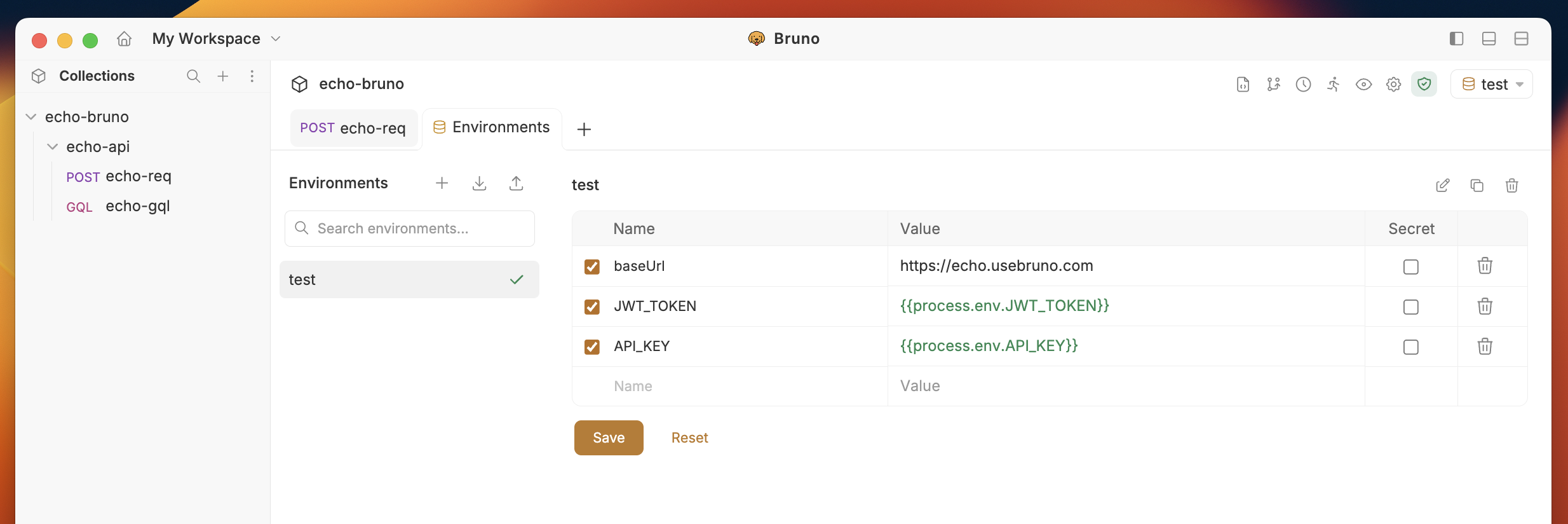 Bruno will automatically load the secrets from this file and make them available to your collection via `process.env.`.
Your environment file at `environments/local.bru` would look like
```bash filename="local.bru" theme={null}
vars {
baseURL: https://echo.usebruno.com
JWT_TOKEN: {{process.env.JWT_TOKEN}}
API_KEY: {{process.env.API_KEY}}
}
```
In this example, the `JWT_TOKEN` secret from the `.env` file is referenced using `process.env.JWT_TOKEN`. This will be replaced with the actual value of `JWT_TOKEN` when the collection is executed.
## Managing Secrets
1. Always add the `.env` file to your `.gitignore` file to ensure secrets are not accidentally pushed to version control.
2. If you need to share the structure of your environment variables with other developers, create a `.env.sample` file without actual secret values.
### Handling Variables with Dots
When using environment variables that contain dots in their names, use square bracket notation:
```bash theme={null}
# In .env file
example.test=mysecretvalue
```
```javascript theme={null}
// In your request
// Won't work
"secret": "{{process.env.demo.example.test}}"
// Works correctly
"secret": "{{process.env['example.test']}}"
```
This happens because Bruno interprets dots as object path separators. Square brackets tell Bruno to treat the entire string as a single variable name.
## Manage Environment Credentials
**Bruno v3.1.0**: You can now create, view, and delete environment variables directly from Bruno at the workspace level without manually editing `.env` files.
### Accessing Environment Variables
1. Navigate to **Workspace** → **Global Environment** section
Bruno will automatically load the secrets from this file and make them available to your collection via `process.env.`.
Your environment file at `environments/local.bru` would look like
```bash filename="local.bru" theme={null}
vars {
baseURL: https://echo.usebruno.com
JWT_TOKEN: {{process.env.JWT_TOKEN}}
API_KEY: {{process.env.API_KEY}}
}
```
In this example, the `JWT_TOKEN` secret from the `.env` file is referenced using `process.env.JWT_TOKEN`. This will be replaced with the actual value of `JWT_TOKEN` when the collection is executed.
## Managing Secrets
1. Always add the `.env` file to your `.gitignore` file to ensure secrets are not accidentally pushed to version control.
2. If you need to share the structure of your environment variables with other developers, create a `.env.sample` file without actual secret values.
### Handling Variables with Dots
When using environment variables that contain dots in their names, use square bracket notation:
```bash theme={null}
# In .env file
example.test=mysecretvalue
```
```javascript theme={null}
// In your request
// Won't work
"secret": "{{process.env.demo.example.test}}"
// Works correctly
"secret": "{{process.env['example.test']}}"
```
This happens because Bruno interprets dots as object path separators. Square brackets tell Bruno to treat the entire string as a single variable name.
## Manage Environment Credentials
**Bruno v3.1.0**: You can now create, view, and delete environment variables directly from Bruno at the workspace level without manually editing `.env` files.
### Accessing Environment Variables
1. Navigate to **Workspace** → **Global Environment** section
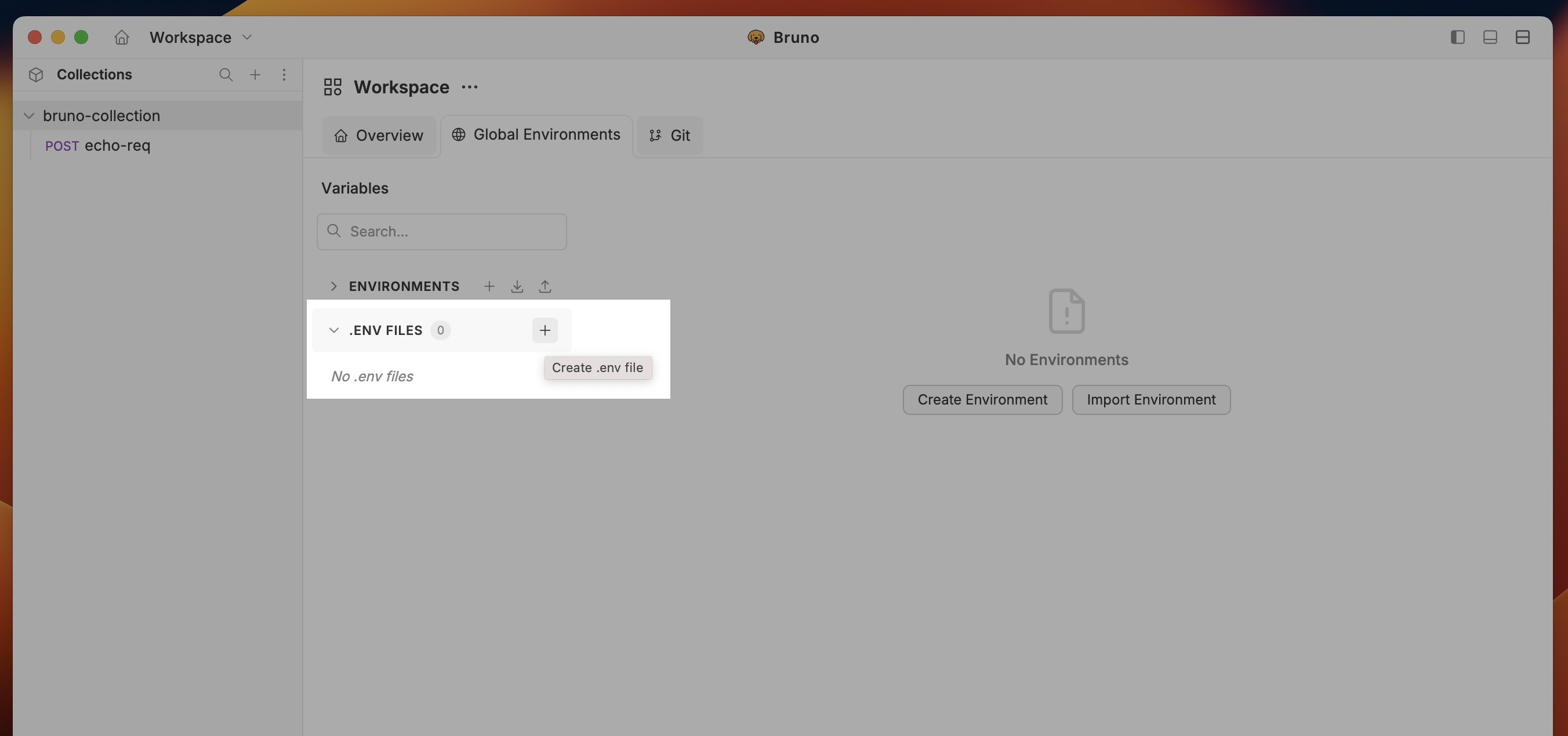 2. Create or edit environment variables with your credentials
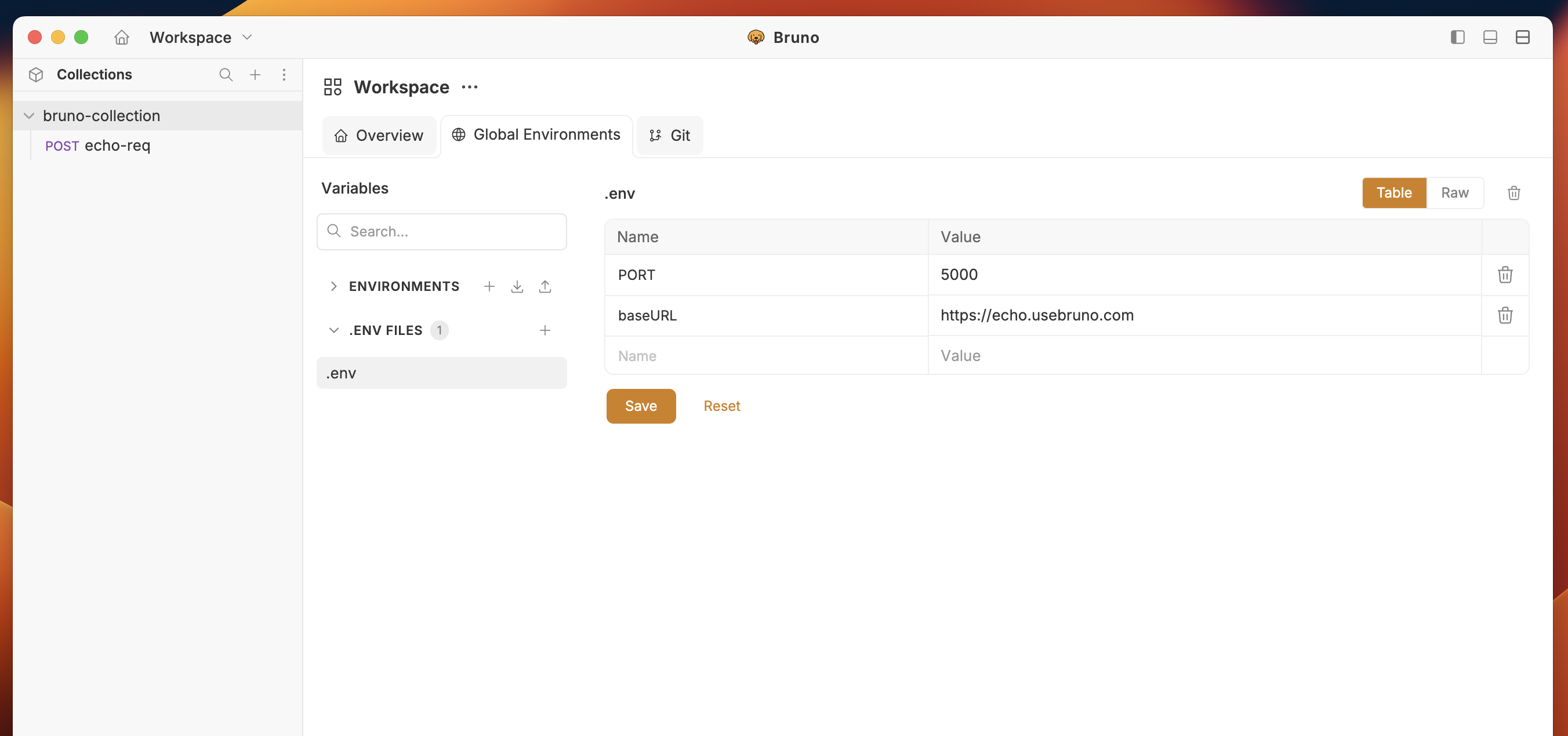 3. Use these variables across all collections in your workspace using `{{process.env.}}` syntax.
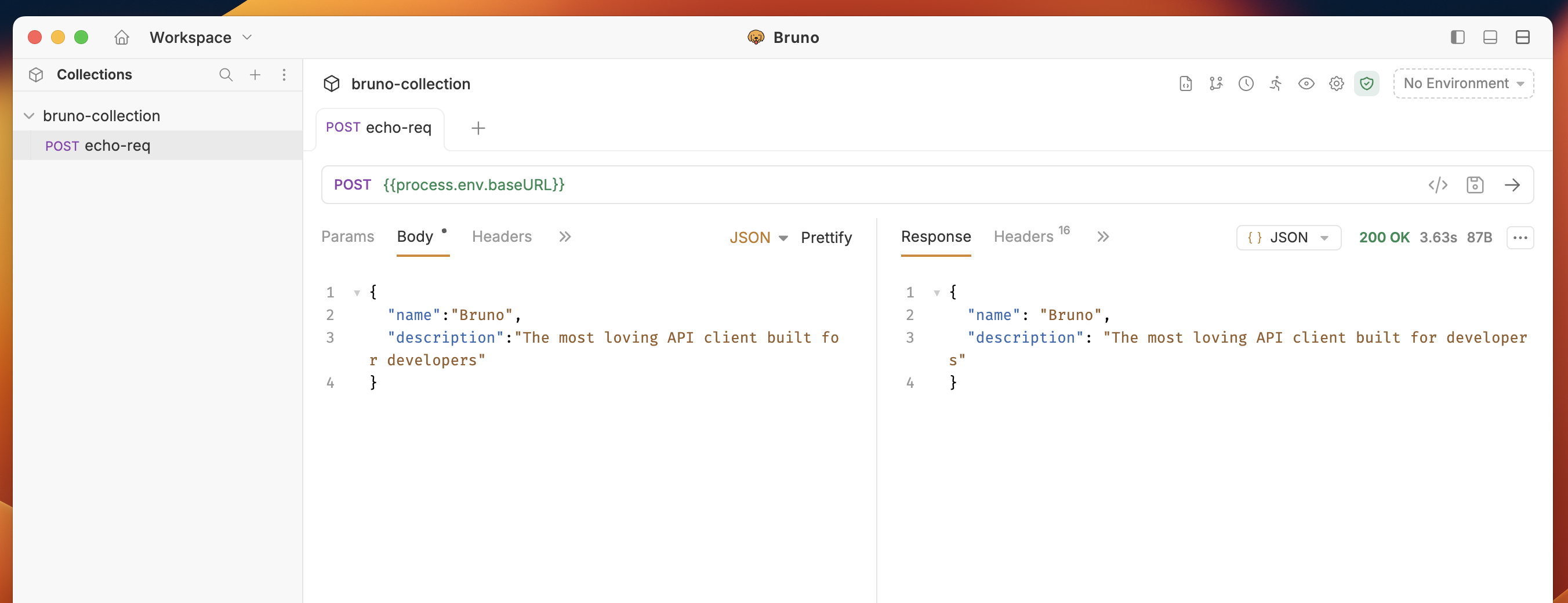 This feature provides a centralized UI to create, view, and delete environment credentials directly from Bruno, eliminating the need to manually edit `.env` files while maintaining the same security and accessibility benefits.