> ## Documentation Index
> Fetch the complete documentation index at: https://docs.usebruno.com/llms.txt
> Use this file to discover all available pages before exploring further.
# Activating Your License
export const PremiumBadge = ({noLink}) => {
const badge =
PREMIUM
;
if (noLink) {
return badge;
}
return
{badge}
;
};
## Activating with License Key
If you've been provisioned a license, you should have received a license key via email. If you have not received a key and already checked your spam folder, please reach out to your license administrator.
### Step 1: Click on the Settings or Key icon in Bruno
Both icons are located at the bottom left corner of the Bruno window. The Key icon will take you directly to the `License` section. If you choose to use the Settings icon, simply select `License` from the settings menu.
### Step 2: Enter License Details
Enter your license key and associated email address
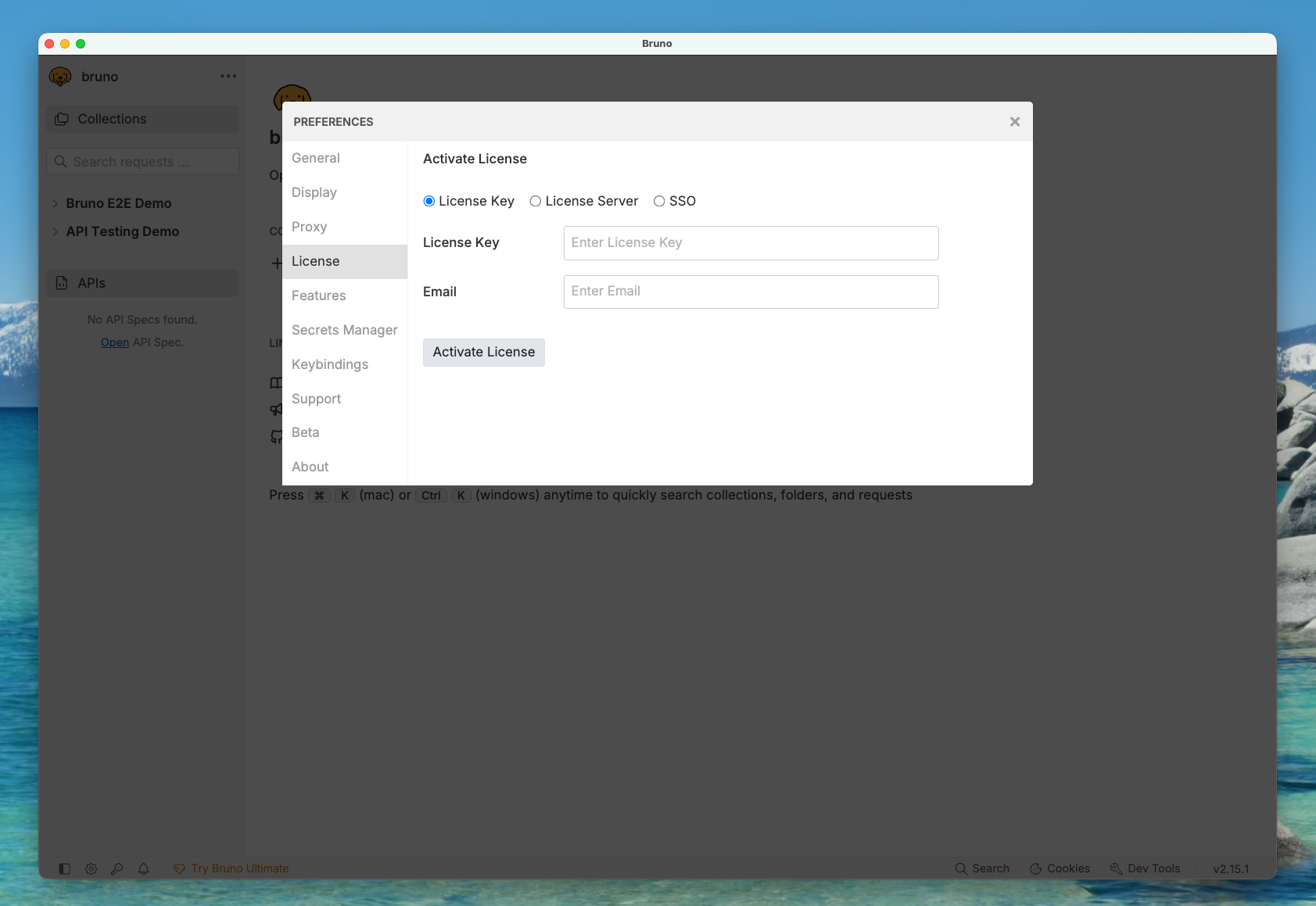 If your company uses a self-hosted licensing server, select `License Server` and enter the details provided to you by your License Administrator.
### Step 3: License Activated
Once the license is activated, you will see a success message.
## Activating with SSO
SSO license activation is available for Ultimate Edition customers. Please see the [SAML SSO Overview](/license-administrators/saml-sso/overview) for more information.
### Step 1: Click on the Settings or Key icon in Bruno
Both icons are located at the bottom left corner of the Bruno window. The Key icon will take you directly to the `License` section. If you choose to use the Settings icon, simply select `License` from the settings menu.
### Step 2: Activate with SSO
If your company has configured SSO for Bruno, select `SSO` and click `Activate License`.
If your company uses a self-hosted licensing server, select `License Server` and enter the details provided to you by your License Administrator.
### Step 3: License Activated
Once the license is activated, you will see a success message.
## Activating with SSO
SSO license activation is available for Ultimate Edition customers. Please see the [SAML SSO Overview](/license-administrators/saml-sso/overview) for more information.
### Step 1: Click on the Settings or Key icon in Bruno
Both icons are located at the bottom left corner of the Bruno window. The Key icon will take you directly to the `License` section. If you choose to use the Settings icon, simply select `License` from the settings menu.
### Step 2: Activate with SSO
If your company has configured SSO for Bruno, select `SSO` and click `Activate License`.
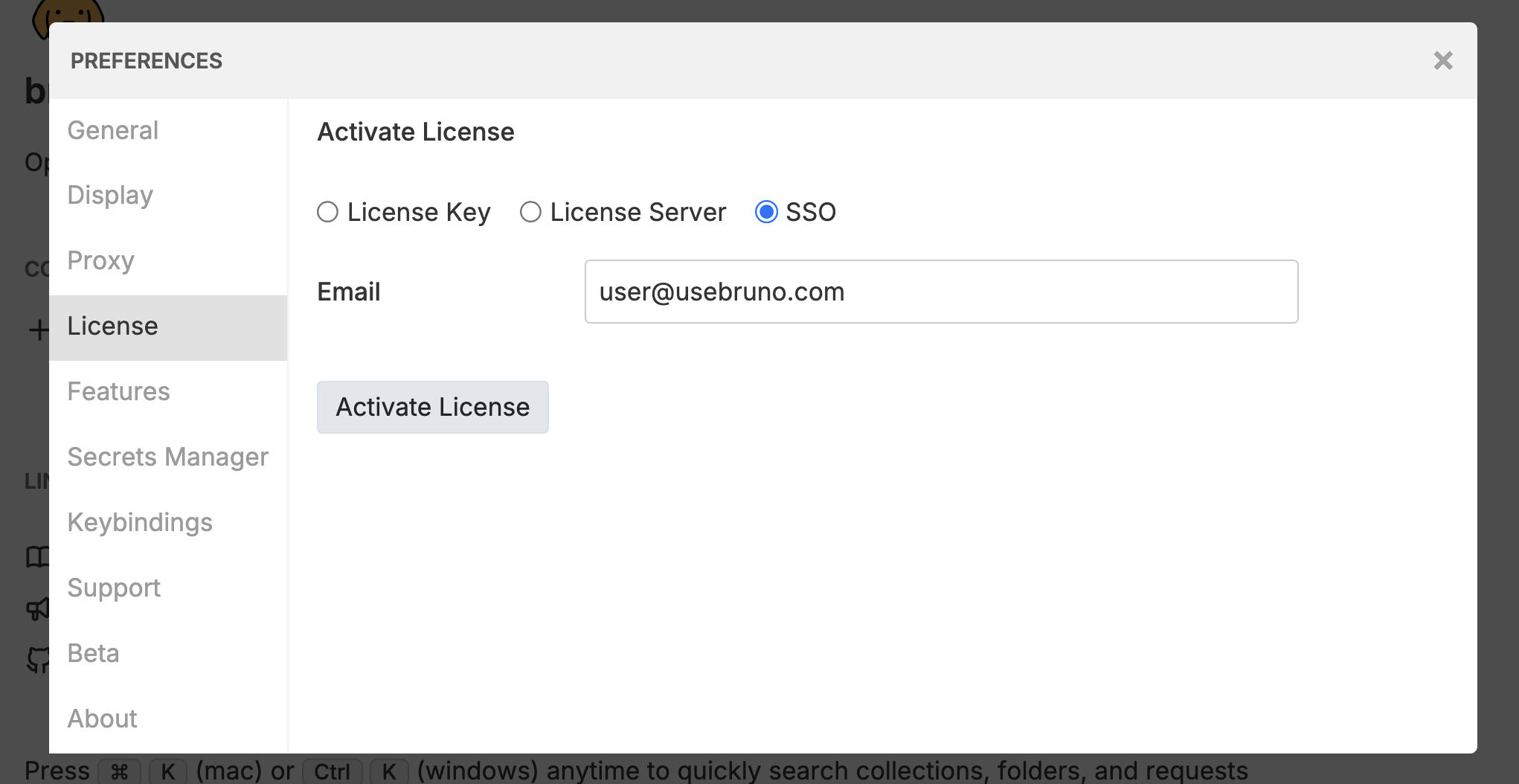 Your email needs to be part of the SSO configuration in order to activate your license, with the `User Role` mapped. See [Role Mapping](/license-administrators/saml-sso/overview#role-mapping) for details.
### Step 3: SSO Login
You will be redirected to your corporate SSO login page. Enter your credentials to login.
A successful login message will be displayed.
Your email needs to be part of the SSO configuration in order to activate your license, with the `User Role` mapped. See [Role Mapping](/license-administrators/saml-sso/overview#role-mapping) for details.
### Step 3: SSO Login
You will be redirected to your corporate SSO login page. Enter your credentials to login.
A successful login message will be displayed.
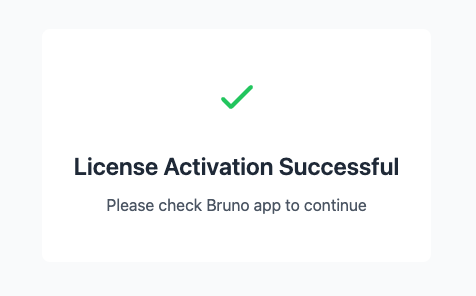 Returning to Bruno, you will see the license as activated.