> ## Documentation Index
> Fetch the complete documentation index at: https://docs.usebruno.com/llms.txt
> Use this file to discover all available pages before exploring further.
# Microsoft Entra ID SCIM provisioning with Bruno
This guide will walk you through setting up SCIM (System for Cross-domain Identity Management) provisioning with Bruno using Microsoft Entra ID (formerly Azure Active Directory).
**Prerequisites**: Before configuring Microsoft Entra ID, you must first enable SCIM provisioning in Bruno and generate an API key. Follow the [Enabling SCIM Provisioning](./overview#enabling-scim-provisioning) section in the overview page to complete this setup and save your API key for use in the steps below.
## Create a custom application in Microsoft Entra ID
**Already have an Enterprise Application for SSO?** If you previously set up a Bruno Enterprise Application for [SAML SSO](../saml-sso/configure-saml-sso-with-entra-id), you can reuse it for SCIM provisioning. Skip to the [Configure automatic provisioning](#configure-automatic-provisioning) section to add provisioning to your existing application.
Microsoft Entra ID queries the Bruno SCIM endpoint every 40 minutes for assigned users, and creates or modifies them according to the assignment details you configure.
1. Sign in to the [Microsoft Entra admin center](https://entra.microsoft.com/)
2. On the left sidebar, navigate to **Enterprise apps** → **+ New application**
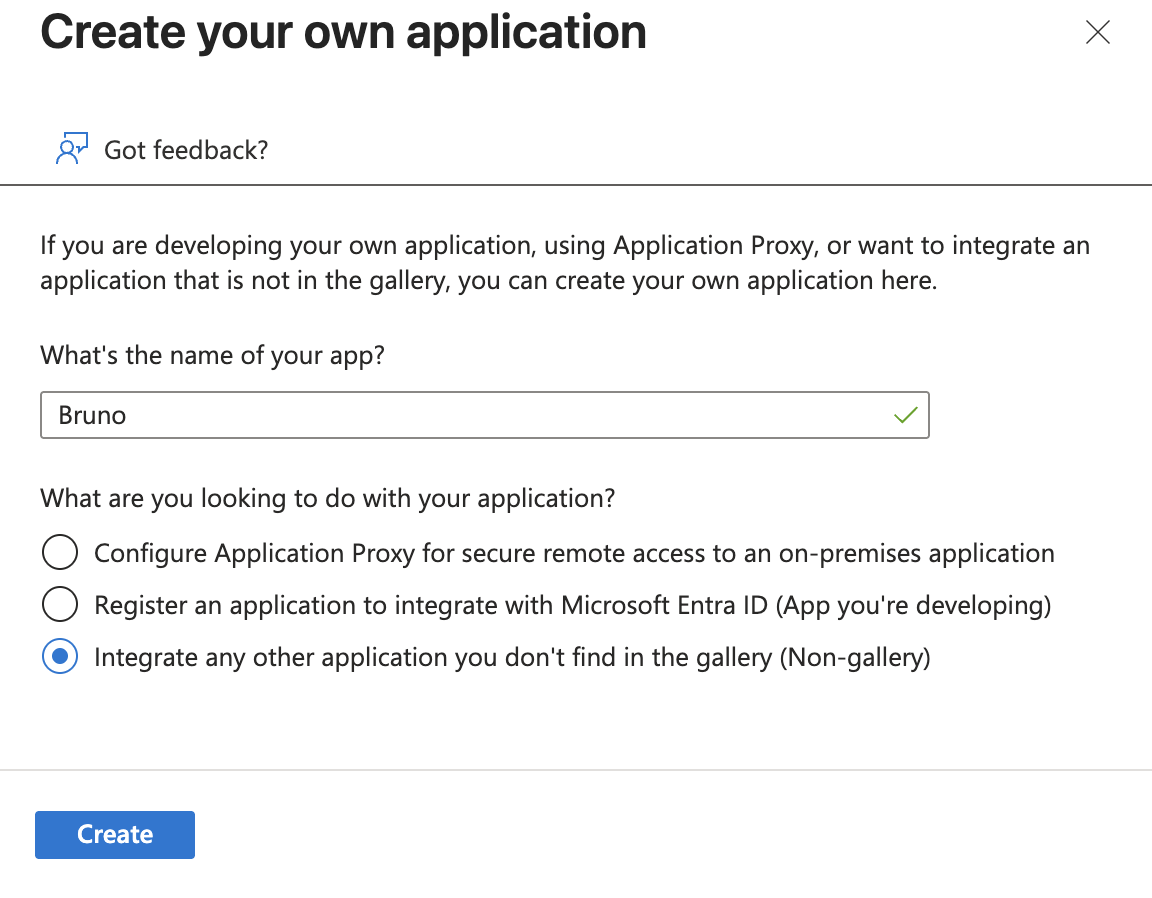
3. Click **Create your own application**
4. In the **Create your own application** panel:
* Enter a name for your application (e.g., "Bruno SCIM Integration")
* Select **Integrate any other application you don't find in the gallery (Non-gallery)**
* Click **Create**
 ## Configure automatic provisioning
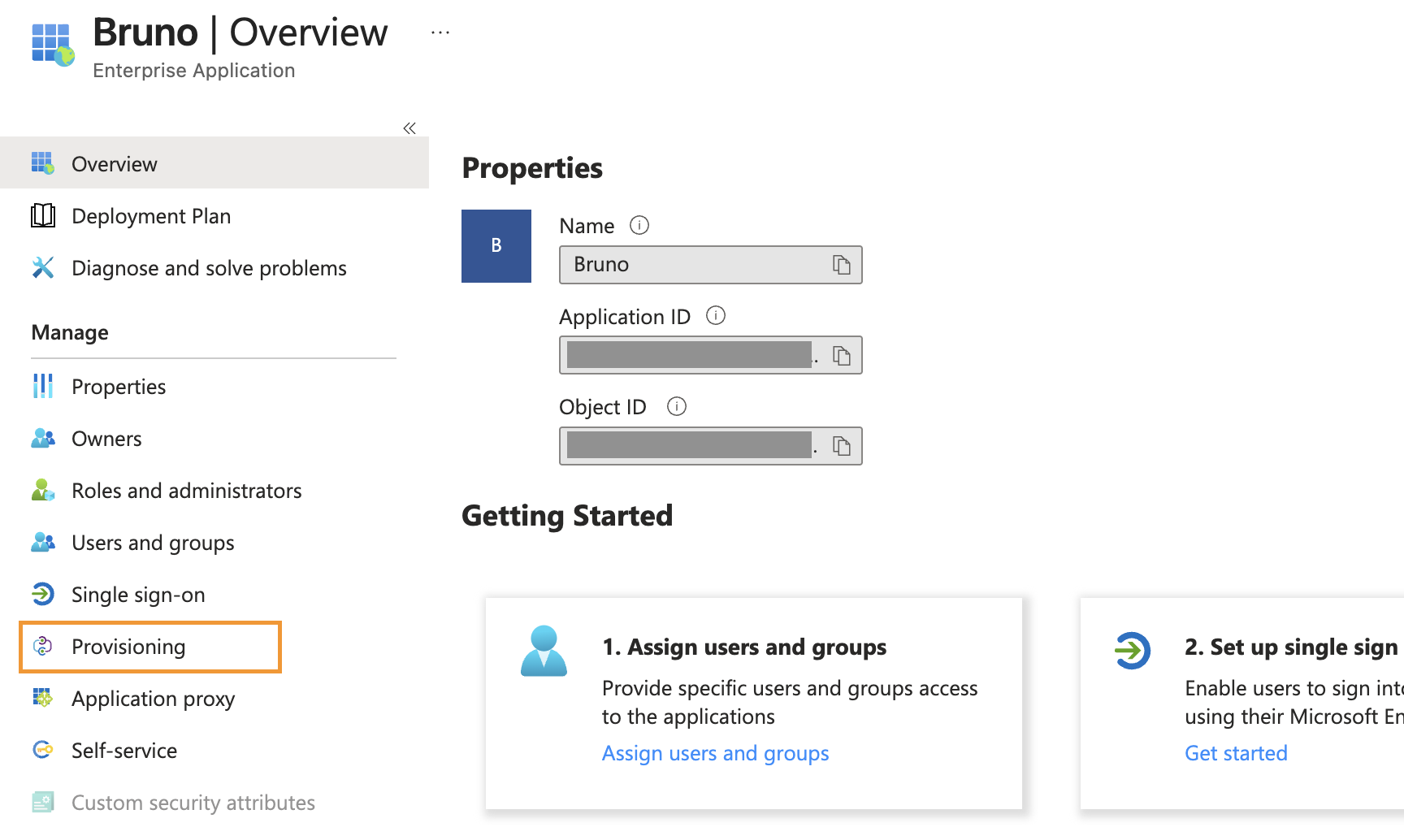
1. In your newly created (or existing) Enterprise Application, select **Provisioning** from the left navigation menu
## Configure automatic provisioning
1. In your newly created (or existing) Enterprise Application, select **Provisioning** from the left navigation menu
 2. In the **Provisioning Mode** dropdown, select **Automatic**
3. Under **Admin Credentials**, configure the following:
* **Tenant URL**: `https://license.usebruno.com/scim/v2`
* **Secret Token**: Enter the SCIM API key you generated in the [prerequisites step](./overview#enabling-scim-provisioning)
2. In the **Provisioning Mode** dropdown, select **Automatic**
3. Under **Admin Credentials**, configure the following:
* **Tenant URL**: `https://license.usebruno.com/scim/v2`
* **Secret Token**: Enter the SCIM API key you generated in the [prerequisites step](./overview#enabling-scim-provisioning)
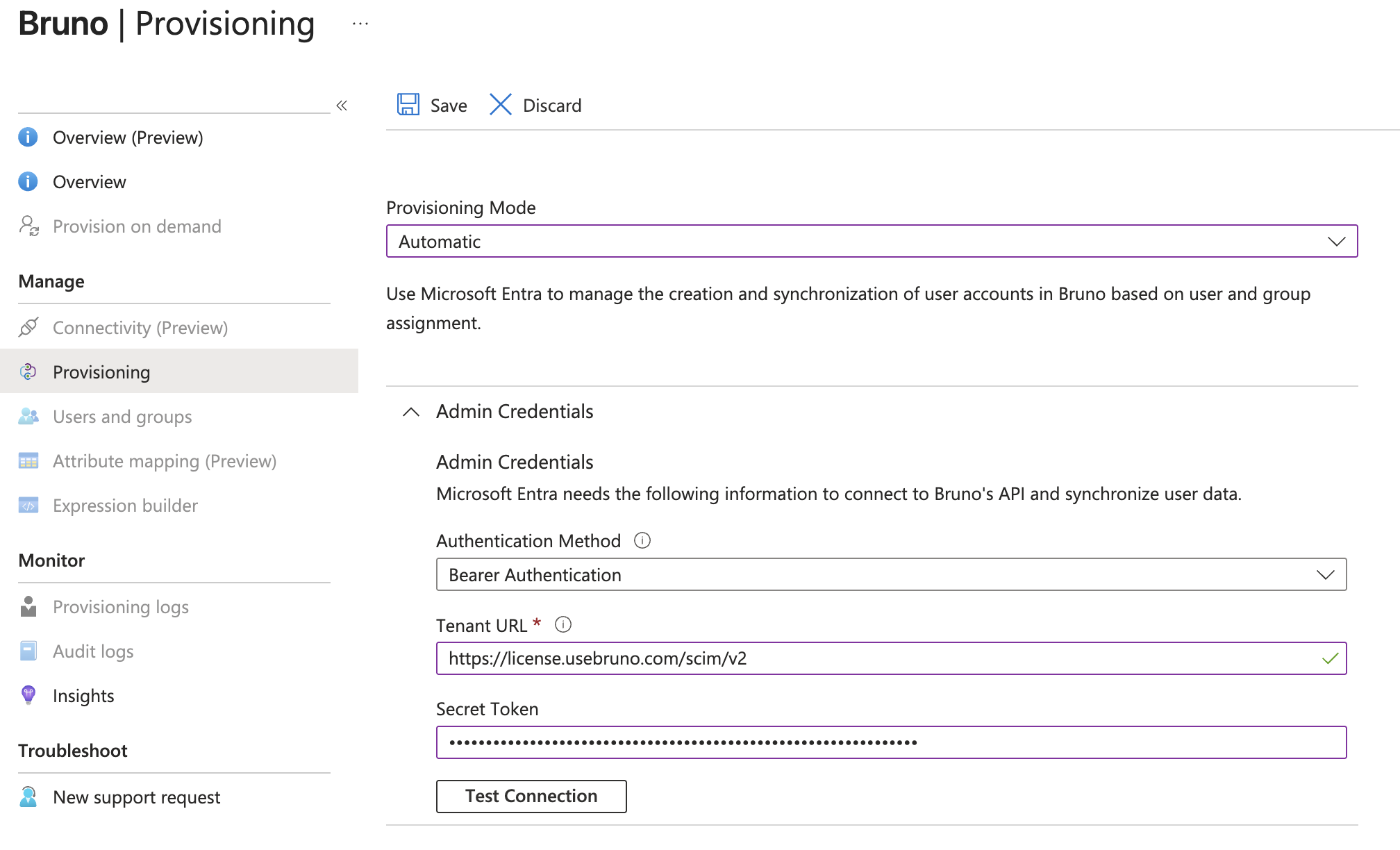 4. Click **Test Connection** to verify that Microsoft Entra ID can connect to Bruno's SCIM endpoint
5. If the test is successful, click **Save** to save the admin credentials
## Configure attribute mappings
Attribute mappings control how user data from Microsoft Entra ID is mapped to Bruno user accounts.
### Configure user attribute mappings
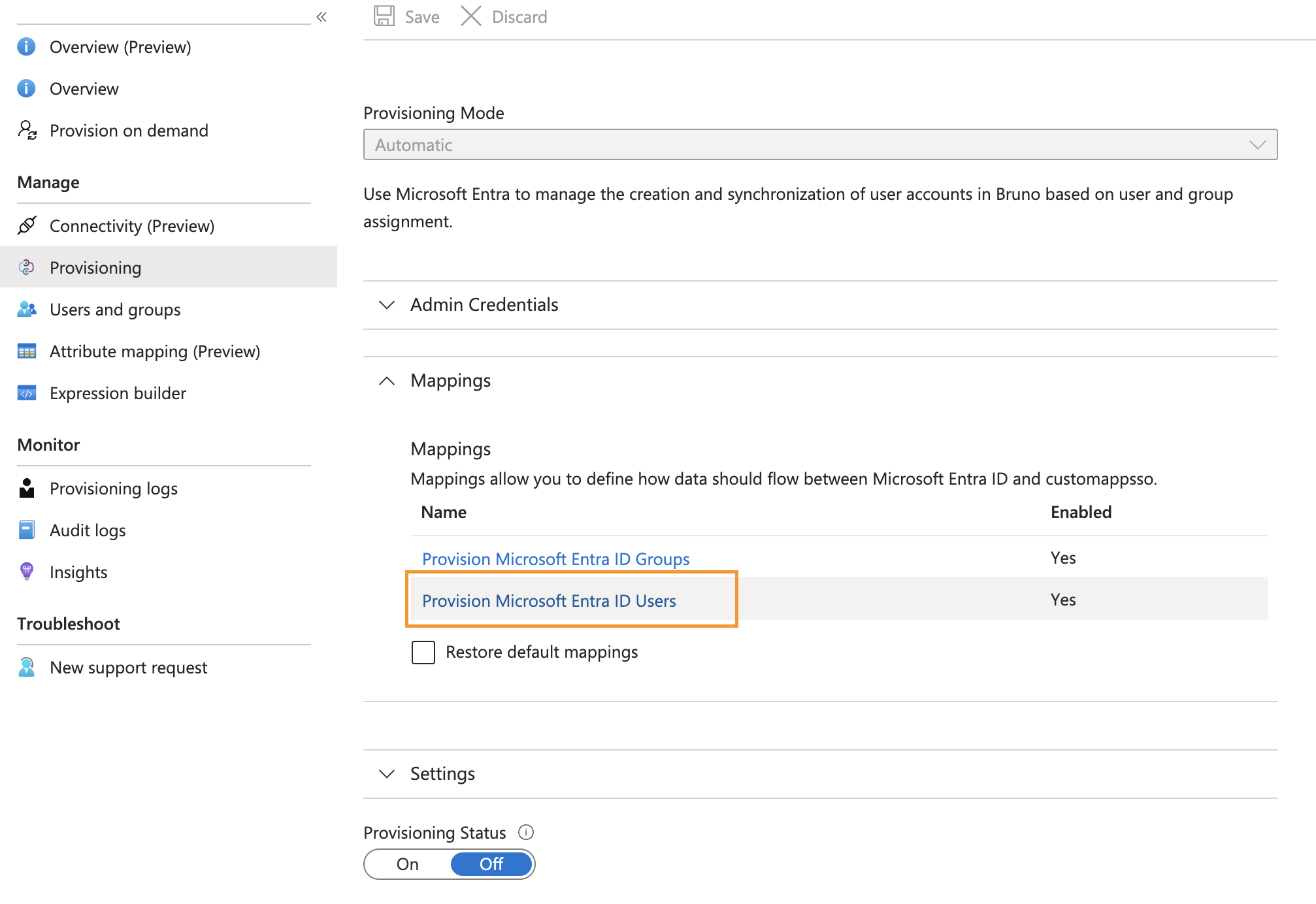
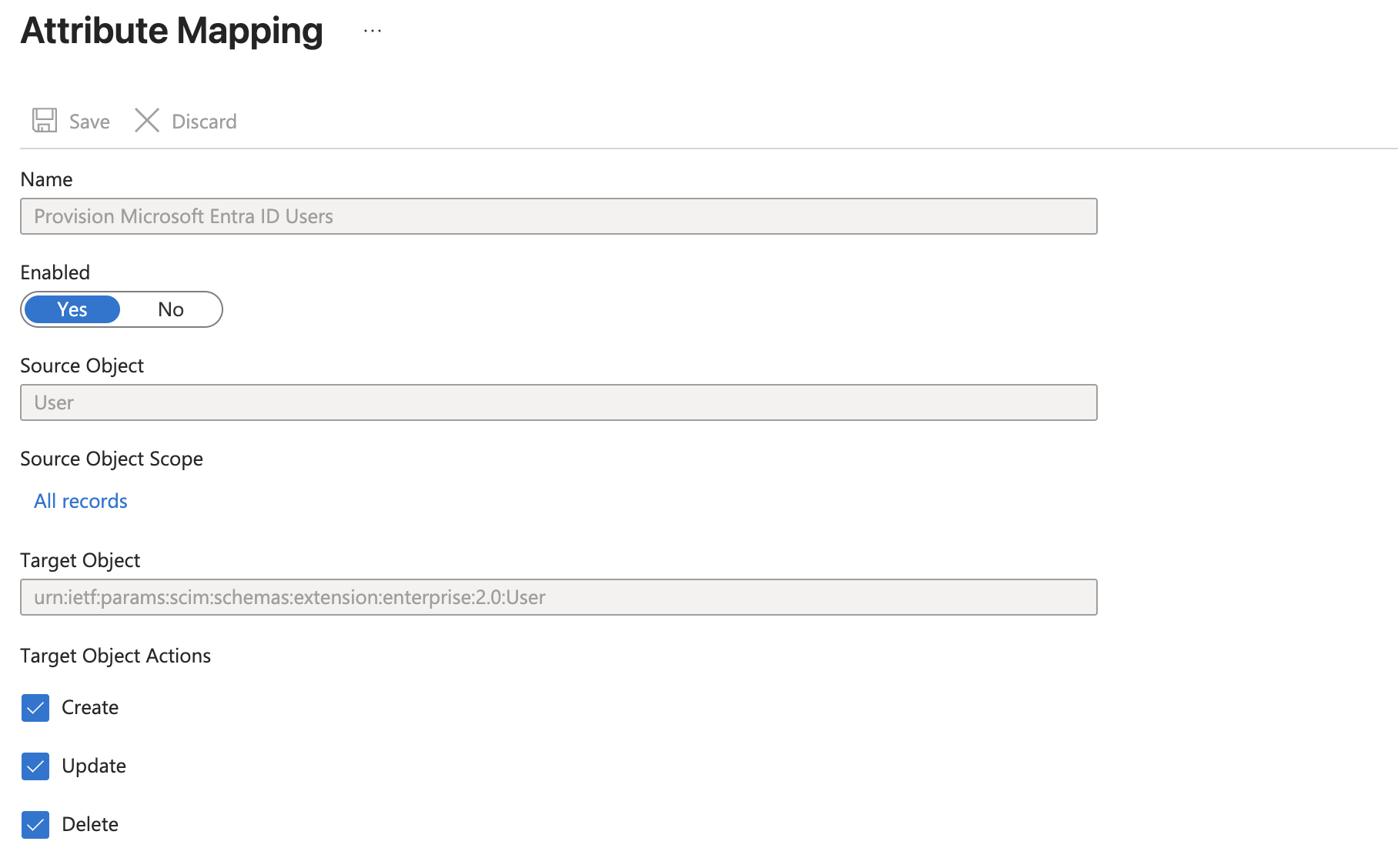
1. Under the **Mappings** section, click **Provision Microsoft Entra ID Users**
4. Click **Test Connection** to verify that Microsoft Entra ID can connect to Bruno's SCIM endpoint
5. If the test is successful, click **Save** to save the admin credentials
## Configure attribute mappings
Attribute mappings control how user data from Microsoft Entra ID is mapped to Bruno user accounts.
### Configure user attribute mappings
1. Under the **Mappings** section, click **Provision Microsoft Entra ID Users**
 2. Under **Target Object Actions**, ensure the following are enabled:
* **Create**
* **Update**
* **Delete**
2. Under **Target Object Actions**, ensure the following are enabled:
* **Create**
* **Update**
* **Delete**
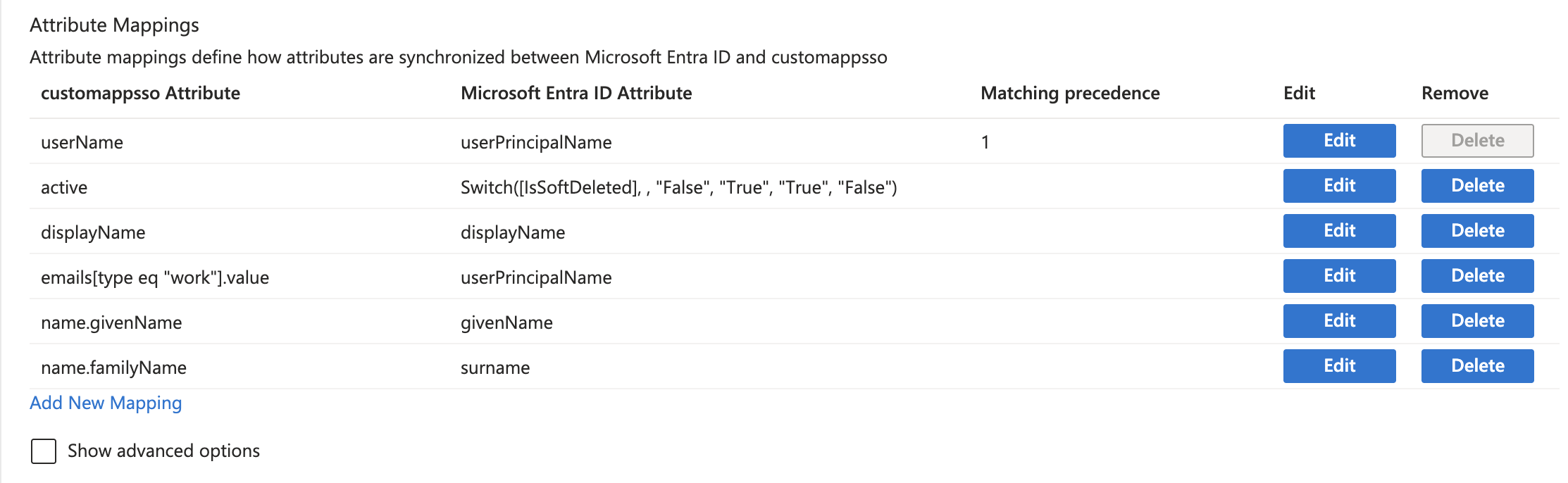
 3. Under **Attribute Mappings**, configure the following mappings. **You must remove any existing attribute mappings that are not on this list** to avoid conflicts:
| Bruno Attribute | Microsoft Entra ID Attribute | Mapping Type | Match objects using this attribute | Apply this mapping |
| ------------------------------ | ------------------------------------------------------------- | ------------ | ---------------------------------- | ------------------ |
| `userName` | `userPrincipalName` | Direct | Yes (Matching precedence: 1) | Always |
| `active` | `Switch([IsSoftDeleted], , "False", "True", "True", "False")` | Expression | No | Always |
| `displayName` | `displayName` | Direct | No | Always |
| `emails[type eq "work"].value` | `userPrincipalName` | Direct | No | Always |
| `name.givenName` | `givenName` | Direct | No | Always |
| `name.familyName` | `surname` | Direct | No | Always |
3. Under **Attribute Mappings**, configure the following mappings. **You must remove any existing attribute mappings that are not on this list** to avoid conflicts:
| Bruno Attribute | Microsoft Entra ID Attribute | Mapping Type | Match objects using this attribute | Apply this mapping |
| ------------------------------ | ------------------------------------------------------------- | ------------ | ---------------------------------- | ------------------ |
| `userName` | `userPrincipalName` | Direct | Yes (Matching precedence: 1) | Always |
| `active` | `Switch([IsSoftDeleted], , "False", "True", "True", "False")` | Expression | No | Always |
| `displayName` | `displayName` | Direct | No | Always |
| `emails[type eq "work"].value` | `userPrincipalName` | Direct | No | Always |
| `name.givenName` | `givenName` | Direct | No | Always |
| `name.familyName` | `surname` | Direct | No | Always |
 **Important**:
* The `userName` attribute must map to the user's email address and is used as the unique identifier
* Set **Matching precedence** to `1` for the `userName` mapping
* The `emails[type eq "work"].value` attribute must also map to `userPrincipalName` to ensure email addresses are properly provisioned
* Remove any attribute mappings not listed above to prevent provisioning errors
4. Click **Save** to save the attribute mappings
## Configure provisioning settings
1. Under **Settings**, configure the **Scope**:
* Select **Sync only assigned users and groups** to provision only users and groups explicitly assigned to the Bruno application
* Or select **Sync all users and groups** to provision all users in your directory
2. (Optional) Under **Notification Email**, enter an email address to receive provisioning error notifications
3. Set **Provisioning Status** to **On**
**Important**:
* The `userName` attribute must map to the user's email address and is used as the unique identifier
* Set **Matching precedence** to `1` for the `userName` mapping
* The `emails[type eq "work"].value` attribute must also map to `userPrincipalName` to ensure email addresses are properly provisioned
* Remove any attribute mappings not listed above to prevent provisioning errors
4. Click **Save** to save the attribute mappings
## Configure provisioning settings
1. Under **Settings**, configure the **Scope**:
* Select **Sync only assigned users and groups** to provision only users and groups explicitly assigned to the Bruno application
* Or select **Sync all users and groups** to provision all users in your directory
2. (Optional) Under **Notification Email**, enter an email address to receive provisioning error notifications
3. Set **Provisioning Status** to **On**
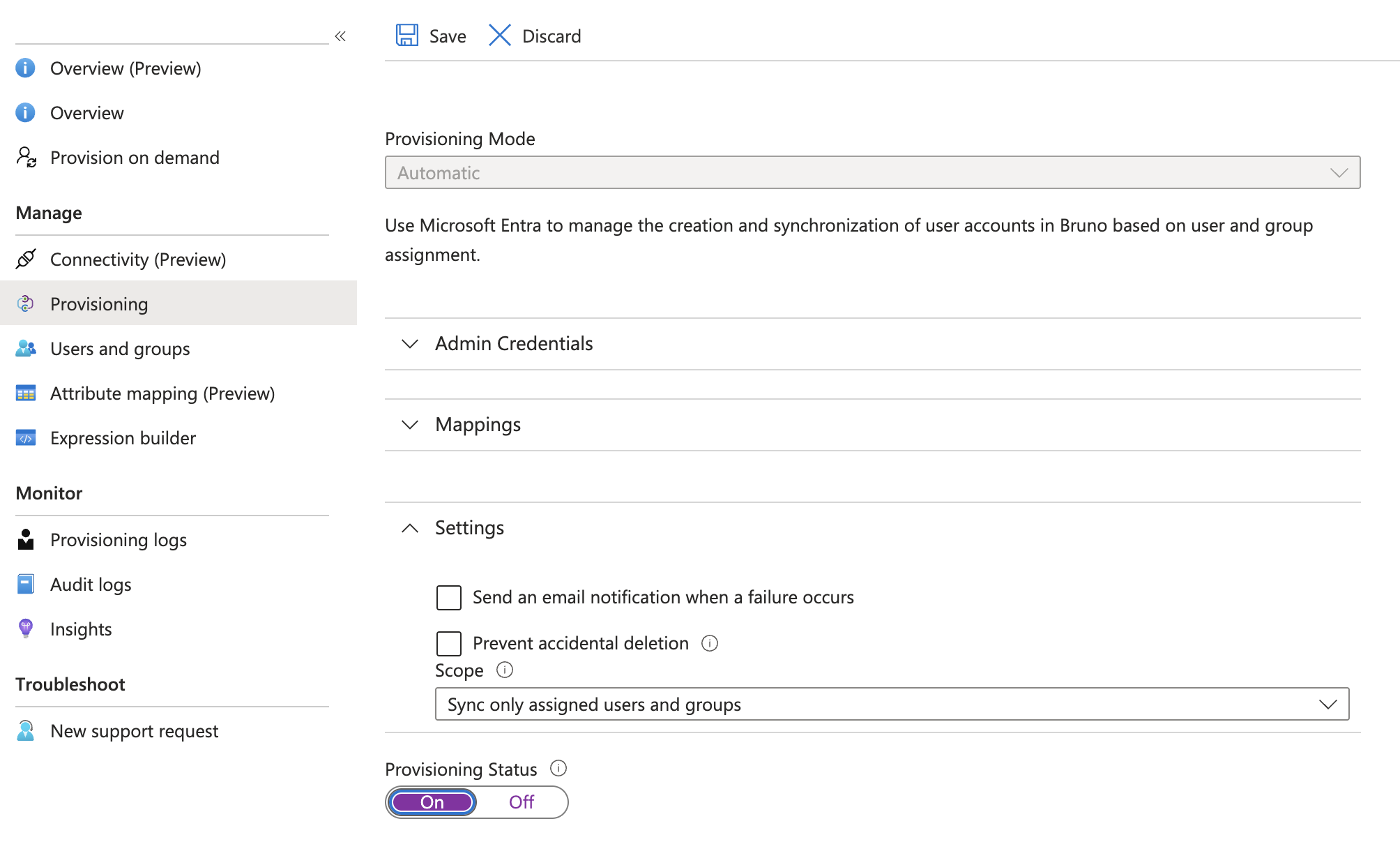 4. Click **Save**
The initial provisioning cycle will begin immediately. Microsoft Entra ID will continue to sync every 40 minutes.
## Assign users and groups to Bruno
1. In your Enterprise Application, navigate to **Users and groups** from the left navigation menu
2. Click **+ Add user/group**
3. Select the users or groups you want to provision with Bruno licenses
4. Click **Assign**
5. Assigned users will receive an email with their **License Key** once the provisioning cycle completes
4. Click **Save**
The initial provisioning cycle will begin immediately. Microsoft Entra ID will continue to sync every 40 minutes.
## Assign users and groups to Bruno
1. In your Enterprise Application, navigate to **Users and groups** from the left navigation menu
2. Click **+ Add user/group**
3. Select the users or groups you want to provision with Bruno licenses
4. Click **Assign**
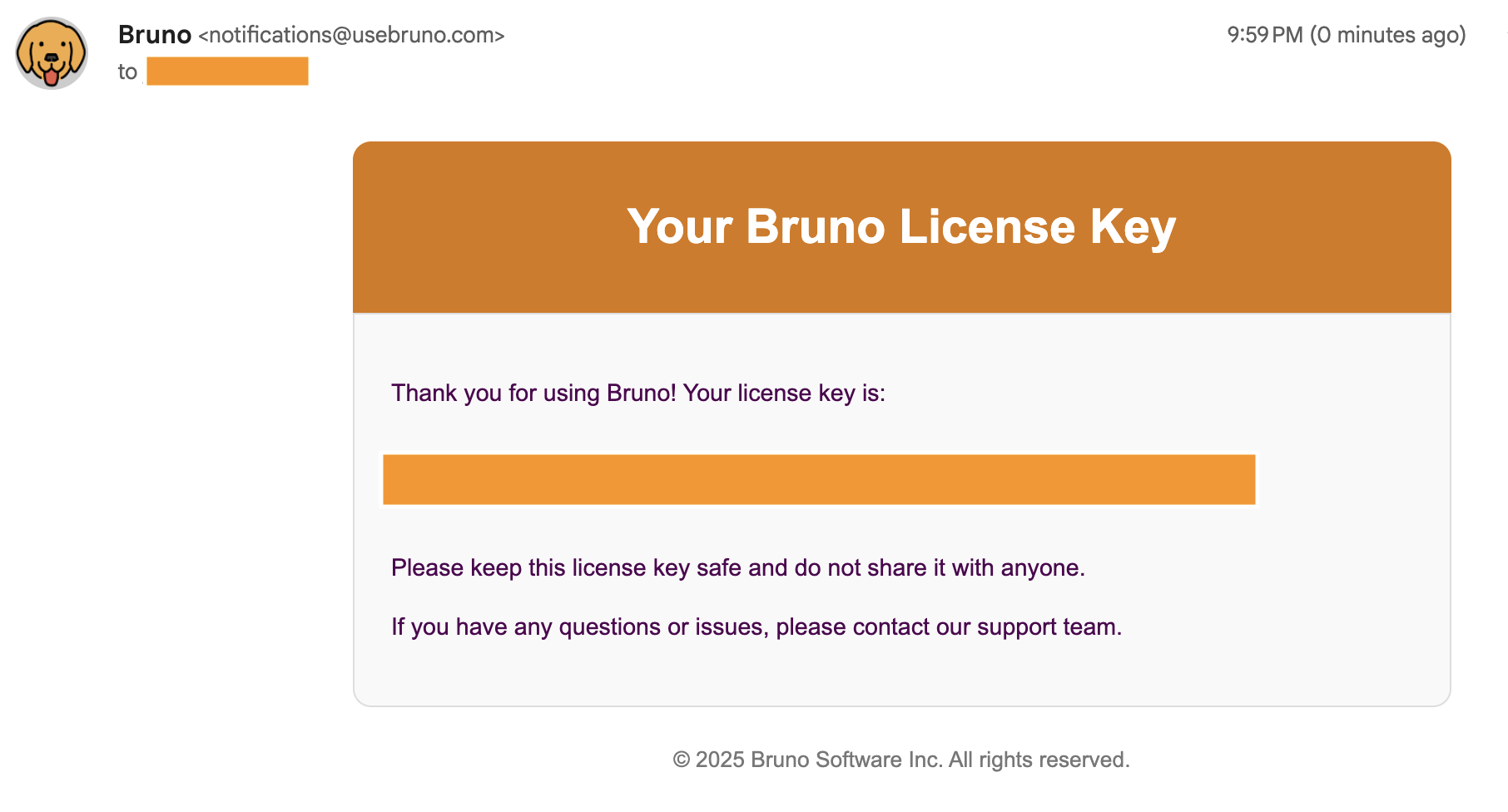
5. Assigned users will receive an email with their **License Key** once the provisioning cycle completes
 **Note**: Microsoft Entra ID syncs changes every 40 minutes. For immediate provisioning of specific users, you can use the [on-demand provisioning feature](https://learn.microsoft.com/entra/identity/app-provisioning/provision-on-demand) in Microsoft Entra ID.
## Deprovision users from Bruno
1. To remove a user's access to Bruno, navigate to **Users and groups** in your Bruno application
2. Select the user(s) you want to remove and click **Remove**
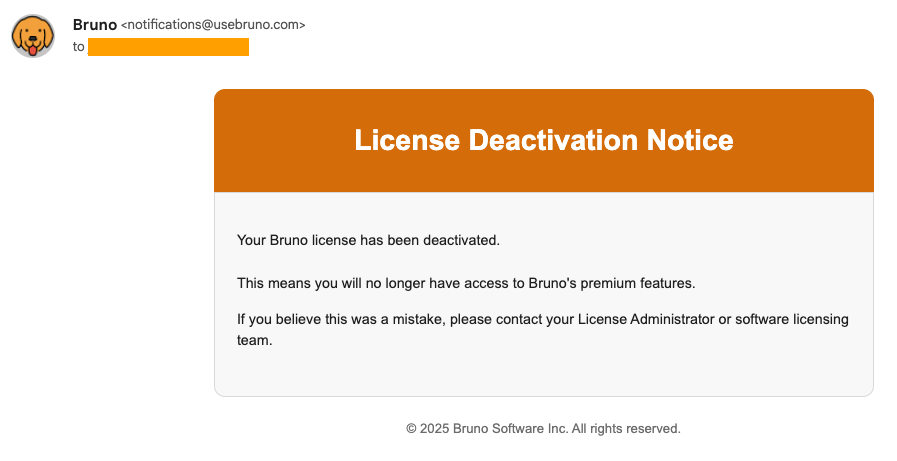
3. The user's license will be deactivated during the next provisioning cycle (within 40 minutes), and they will receive an email notification
**Note**: Microsoft Entra ID syncs changes every 40 minutes. For immediate provisioning of specific users, you can use the [on-demand provisioning feature](https://learn.microsoft.com/entra/identity/app-provisioning/provision-on-demand) in Microsoft Entra ID.
## Deprovision users from Bruno
1. To remove a user's access to Bruno, navigate to **Users and groups** in your Bruno application
2. Select the user(s) you want to remove and click **Remove**
3. The user's license will be deactivated during the next provisioning cycle (within 40 minutes), and they will receive an email notification
 **Note**: Microsoft Entra ID syncs changes every 40 minutes. For immediate provisioning of specific users, you can use the [on-demand provisioning feature](https://learn.microsoft.com/entra/identity/app-provisioning/provision-on-demand) in Microsoft Entra ID.
## Troubleshooting
### Monitor provisioning activity
1. To monitor provisioning activity, navigate to **Provisioning** in your Bruno application
2. Click **View provisioning logs** to see detailed information about provisioning operations
3. The provisioning logs show:
* Users and groups that were created, updated, or deleted
* Any errors that occurred during provisioning
* Timestamps for each operation
### Common issues
**Connection test fails**
* Verify the SCIM Base URL is correct: `https://license.usebruno.com/scim/v2`
* Ensure your SCIM API key is valid and hasn't been revoked
* Check that SCIM is enabled in your Bruno license portal
**Users not provisioning**
* Verify users are assigned to the Bruno application
* Check the provisioning logs for specific error messages
* Ensure attribute mappings are configured correctly
* Confirm the provisioning status is set to **On**
**Duplicate user errors**
* Ensure the `userName` attribute mapping uses a unique identifier (email address)
* Check that no users with the same email already exist in Bruno
For additional help, [contact Bruno Support](https://www.usebruno.com/support) or visit the [Bruno SCIM API documentation](./bruno-scim-api).
## Related Resources
For more information about configuring SCIM provisioning with Microsoft Entra ID, refer to these Microsoft documentation resources:
* [SCIM synchronization with Microsoft Entra ID](https://learn.microsoft.com/en-us/entra/architecture/sync-scim) - Overview of SCIM protocol and how Microsoft Entra ID uses SCIM for provisioning
* [What is automated app user provisioning in Microsoft Entra ID](https://learn.microsoft.com/en-us/entra/identity/app-provisioning/user-provisioning) - Introduction to automated provisioning and SCIM
* [Understand how Application Provisioning in Microsoft Entra ID works](https://learn.microsoft.com/en-us/entra/identity/app-provisioning/how-provisioning-works) - Detailed explanation of the provisioning process and lifecycle
* [Tutorial - Develop a SCIM endpoint for user provisioning](https://learn.microsoft.com/en-us/entra/identity/app-provisioning/use-scim-to-provision-users-and-groups) - Guide for implementing SCIM endpoints and attribute mappings
* [On-demand provisioning in Microsoft Entra ID](https://learn.microsoft.com/entra/identity/app-provisioning/provision-on-demand) - Provision specific users immediately without waiting for the sync cycle
* [Troubleshoot provisioning to a Microsoft Entra gallery app](https://learn.microsoft.com/en-us/entra/identity/app-provisioning/troubleshoot) - Common provisioning issues and troubleshooting steps
* [Known issues for provisioning in Microsoft Entra ID](https://learn.microsoft.com/en-us/entra/identity/app-provisioning/known-issues) - Known issues and limitations with application provisioning
**Note**: Microsoft Entra ID syncs changes every 40 minutes. For immediate provisioning of specific users, you can use the [on-demand provisioning feature](https://learn.microsoft.com/entra/identity/app-provisioning/provision-on-demand) in Microsoft Entra ID.
## Troubleshooting
### Monitor provisioning activity
1. To monitor provisioning activity, navigate to **Provisioning** in your Bruno application
2. Click **View provisioning logs** to see detailed information about provisioning operations
3. The provisioning logs show:
* Users and groups that were created, updated, or deleted
* Any errors that occurred during provisioning
* Timestamps for each operation
### Common issues
**Connection test fails**
* Verify the SCIM Base URL is correct: `https://license.usebruno.com/scim/v2`
* Ensure your SCIM API key is valid and hasn't been revoked
* Check that SCIM is enabled in your Bruno license portal
**Users not provisioning**
* Verify users are assigned to the Bruno application
* Check the provisioning logs for specific error messages
* Ensure attribute mappings are configured correctly
* Confirm the provisioning status is set to **On**
**Duplicate user errors**
* Ensure the `userName` attribute mapping uses a unique identifier (email address)
* Check that no users with the same email already exist in Bruno
For additional help, [contact Bruno Support](https://www.usebruno.com/support) or visit the [Bruno SCIM API documentation](./bruno-scim-api).
## Related Resources
For more information about configuring SCIM provisioning with Microsoft Entra ID, refer to these Microsoft documentation resources:
* [SCIM synchronization with Microsoft Entra ID](https://learn.microsoft.com/en-us/entra/architecture/sync-scim) - Overview of SCIM protocol and how Microsoft Entra ID uses SCIM for provisioning
* [What is automated app user provisioning in Microsoft Entra ID](https://learn.microsoft.com/en-us/entra/identity/app-provisioning/user-provisioning) - Introduction to automated provisioning and SCIM
* [Understand how Application Provisioning in Microsoft Entra ID works](https://learn.microsoft.com/en-us/entra/identity/app-provisioning/how-provisioning-works) - Detailed explanation of the provisioning process and lifecycle
* [Tutorial - Develop a SCIM endpoint for user provisioning](https://learn.microsoft.com/en-us/entra/identity/app-provisioning/use-scim-to-provision-users-and-groups) - Guide for implementing SCIM endpoints and attribute mappings
* [On-demand provisioning in Microsoft Entra ID](https://learn.microsoft.com/entra/identity/app-provisioning/provision-on-demand) - Provision specific users immediately without waiting for the sync cycle
* [Troubleshoot provisioning to a Microsoft Entra gallery app](https://learn.microsoft.com/en-us/entra/identity/app-provisioning/troubleshoot) - Common provisioning issues and troubleshooting steps
* [Known issues for provisioning in Microsoft Entra ID](https://learn.microsoft.com/en-us/entra/identity/app-provisioning/known-issues) - Known issues and limitations with application provisioning