> ## Documentation Index
> Fetch the complete documentation index at: https://docs.usebruno.com/llms.txt
> Use this file to discover all available pages before exploring further.
# Consumer Guide
This guide covers Git operations for team members who clone and consume shared collections.
All features on this page are available in the **free version** starting from Bruno 3.0.0.
## Cloning Collections from GitHub
To clone a collection from GitHub into **Bruno**, you need to have an existing collection repository hosted on GitHub.
For example, you can use this [Bruno repository](https://github.com/usebruno/github-rest-api-collection) and follow the steps below.
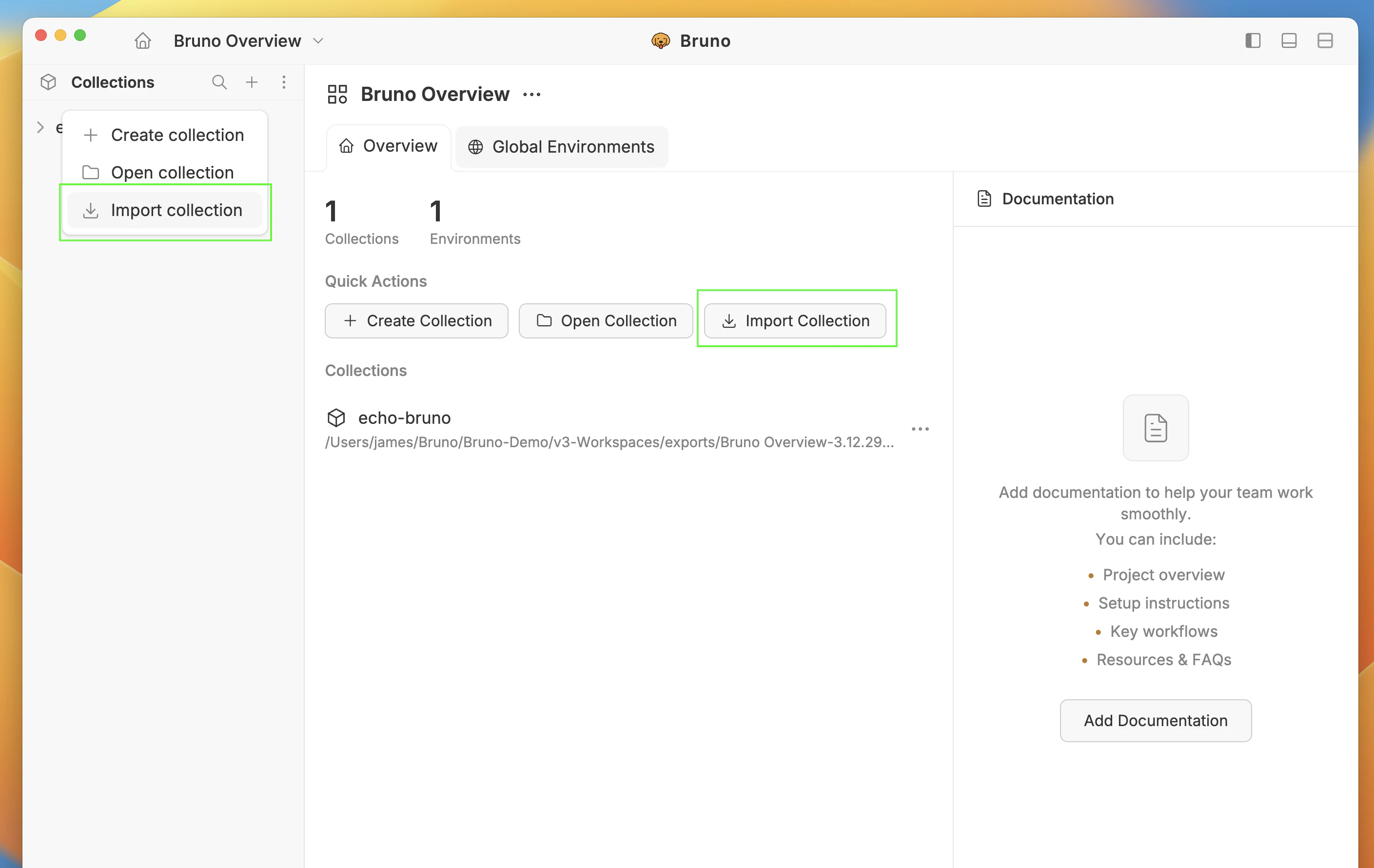
1. Launch **Bruno** and click the **Import Collection** button in the Quick Actions section on the Overview page. Alternatively, click the **+** icon in the sidebar and select **Import collection**.
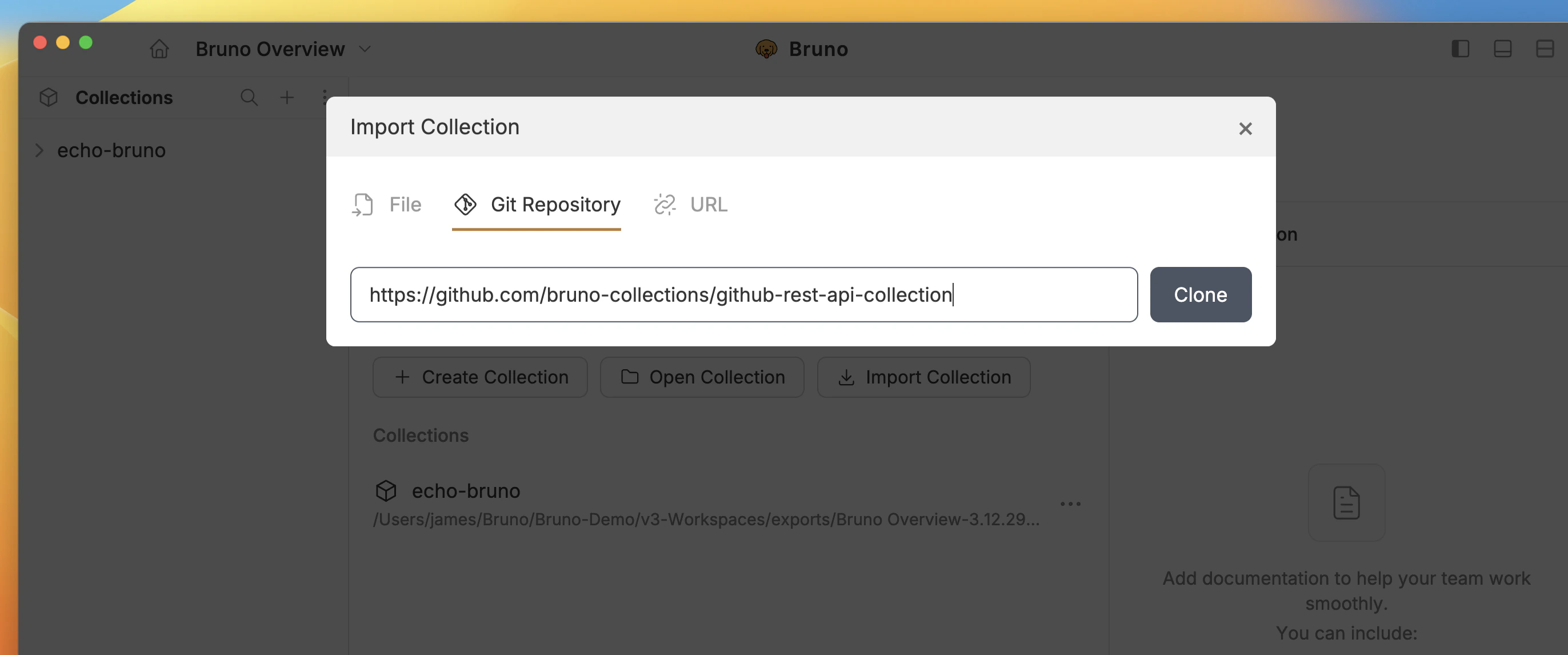
 2. In the Import Collection dialog, select the **Git Repository** tab.
3. Enter the **Git repository URL** and click the **Clone** button.
2. In the Import Collection dialog, select the **Git Repository** tab.
3. Enter the **Git repository URL** and click the **Clone** button.
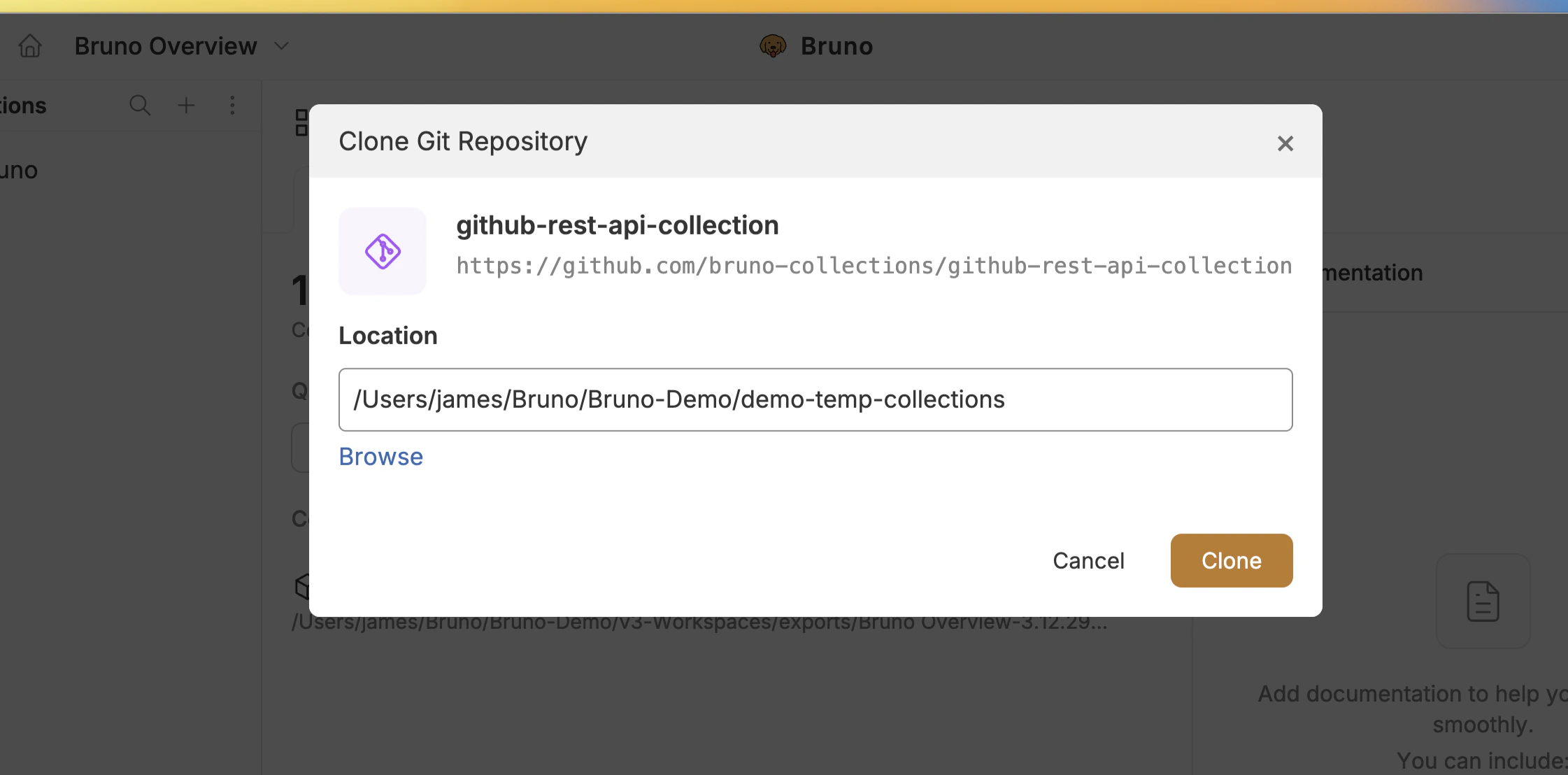
 4. Choose a **Location** to clone the collection to.
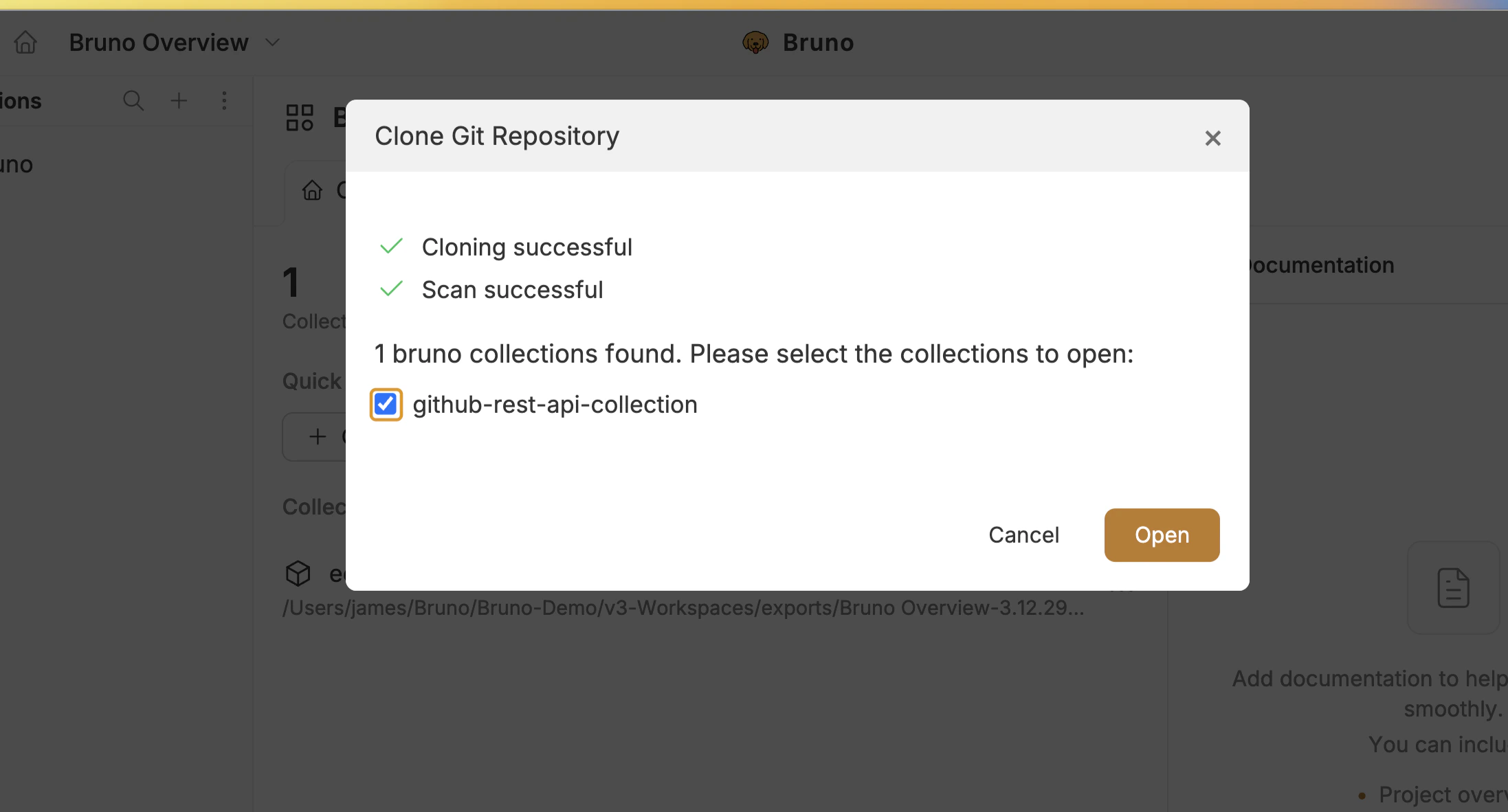
 5. After the cloning process completes, select the **Collection** you want to open and click **Open**.
 Your collection will now be open in **Bruno**.
## Checking for Updates
You can check if there are new changes available in the remote repository.
1. Go to **Git UI**.
2. Click the **Fetch** button.
3. Bruno will display if there are incoming changes available.
This allows you to see if your team has pushed new changes before you pull them.
## Pulling Changes
Pull the latest changes from the remote repository to stay synchronized with your team.
1. Go to **Git UI**.
2. Click the **Fetch** button.
3. Click the **Pull** button.
Your collection will now be open in **Bruno**.
## Checking for Updates
You can check if there are new changes available in the remote repository.
1. Go to **Git UI**.
2. Click the **Fetch** button.
3. Bruno will display if there are incoming changes available.
This allows you to see if your team has pushed new changes before you pull them.
## Pulling Changes
Pull the latest changes from the remote repository to stay synchronized with your team.
1. Go to **Git UI**.
2. Click the **Fetch** button.
3. Click the **Pull** button.
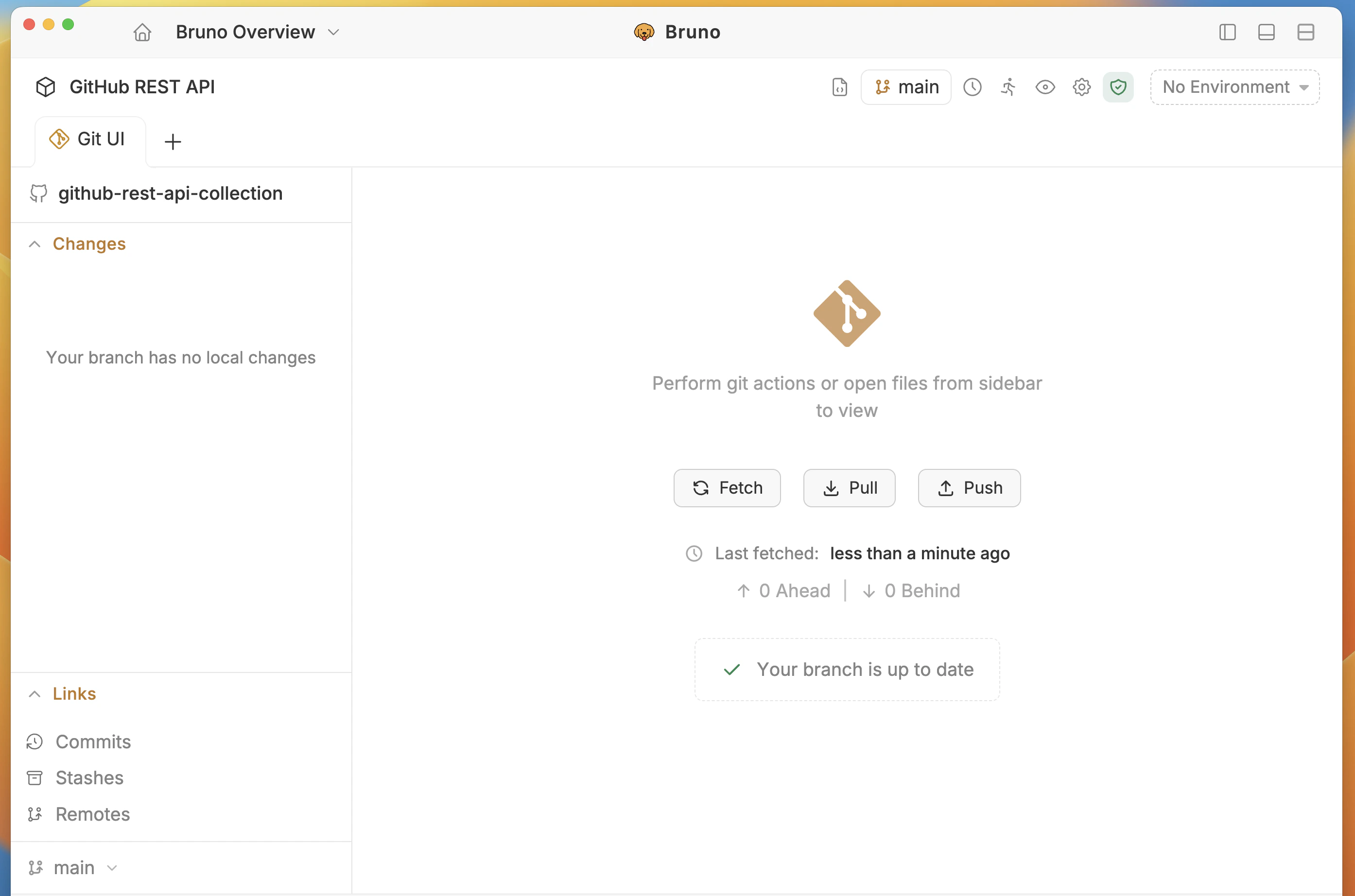 Now you can see all your remote changes pulled in your collection.
If you have local uncommitted changes when pulling, you may be prompted to stash them first. The [Stash Changes](../using-gui/provider#stash-changes) feature (Pro/Ultimate) helps manage this workflow.
Now you can see all your remote changes pulled in your collection.
If you have local uncommitted changes when pulling, you may be prompted to stash them first. The [Stash Changes](../using-gui/provider#stash-changes) feature (Pro/Ultimate) helps manage this workflow.