> ## Documentation Index
> Fetch the complete documentation index at: https://docs.usebruno.com/llms.txt
> Use this file to discover all available pages before exploring further.
# Collaboration via GitLab
GitLab is widely recognized as a leading all-in-one platform for teams and organizations to efficiently manage and collaborate on software development projects. Offering a comprehensive suite of DevOps tools, GitLab streamlines the entire software lifecycle from planning and coding to testing, deployment, and monitoring—enabling seamless collaboration and faster delivery.
Bruno's Git functionality allows you to work with GitLab to manage, collaborate, and maintain your API development workflow.
## Configure GitLab
You need to set up an SSH key with GitLab. While you can also set up personal access tokens (HTTPS), this requires you to enter your token on every operation. SSH is a more convenient and secure way to work with GitLab.
### Create Repository on GitLab
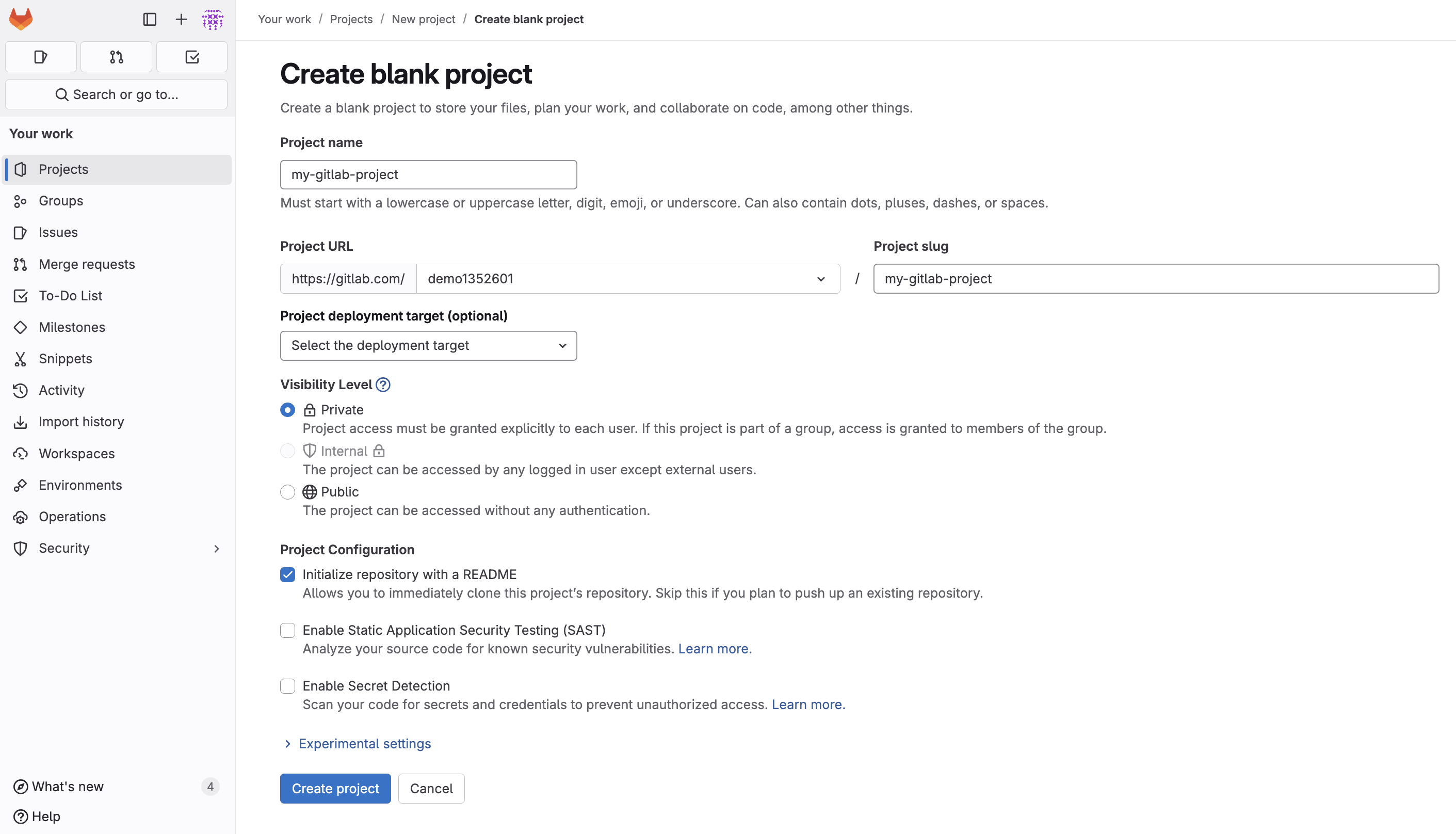
To get started, you have to create a project/repository on GitLab. Follow these steps:
1. Log into your GitLab account (create one if you don't have one)
2. Click on the **New Project** button
3. Choose **Create blank project** or **Create from template**
4. Fill in all required fields (Project name, Description, Visibility level)
5. Click **Create project**
 Once you create a repository, click on the **Clone** button and copy the SSH URL, which looks similar to:
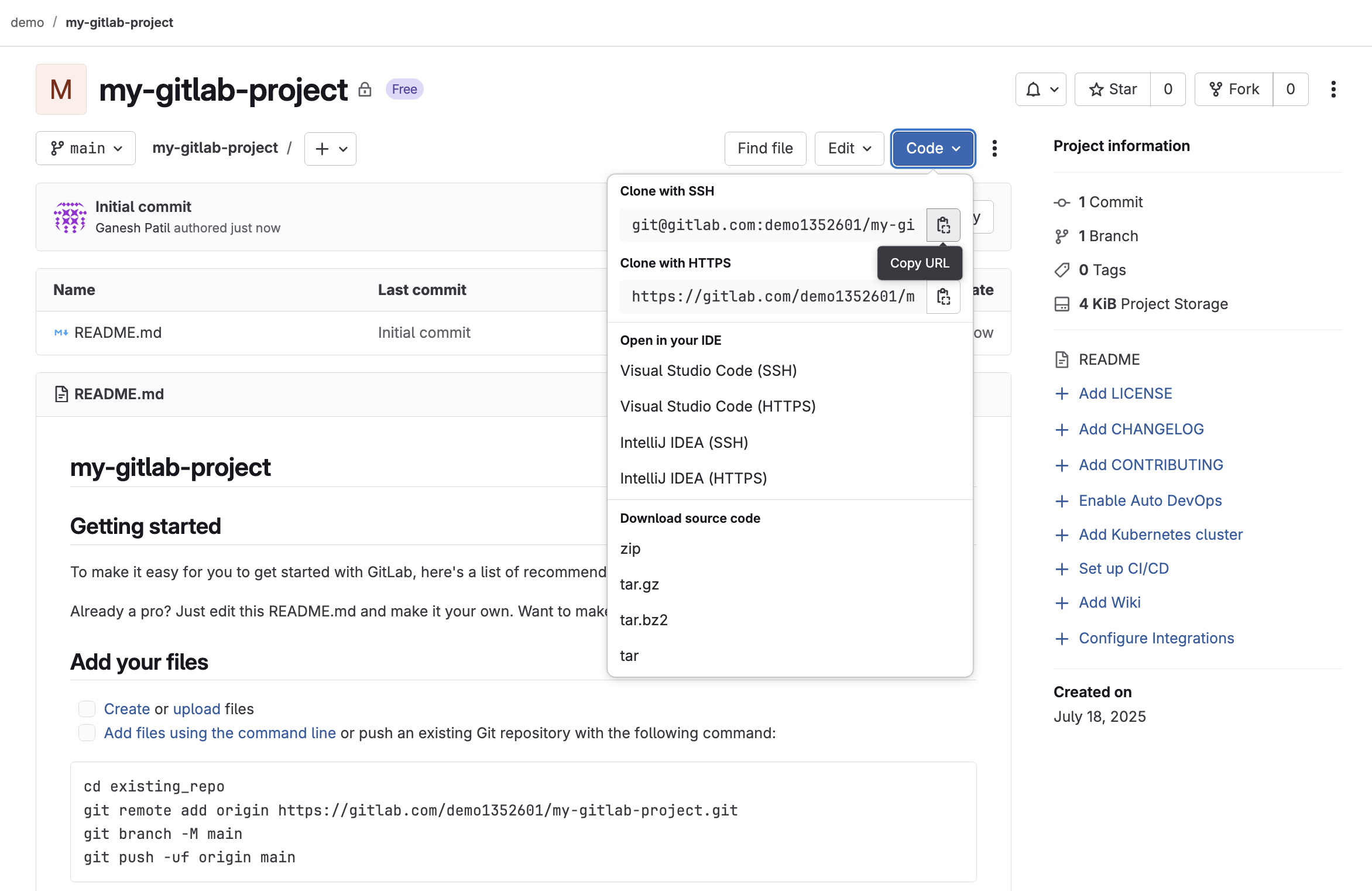 ```bash theme={null}
git@gitlab.com:/.git
```
### Configure SSH Key
Follow these steps to configure an SSH key on your local system:
#### 1. Generate SSH Key
Open your terminal and execute:
```bash theme={null}
ssh-keygen -t ed25519 -C "your_email@example.com" -f ~/.ssh/id_ed25519_gitlab
```
#### 2. Add SSH Key to SSH Agent
Add the SSH key to your SSH agent so it can be used for authentication:
```bash theme={null}
ssh-add ~/.ssh/id_ed25519_gitlab
```
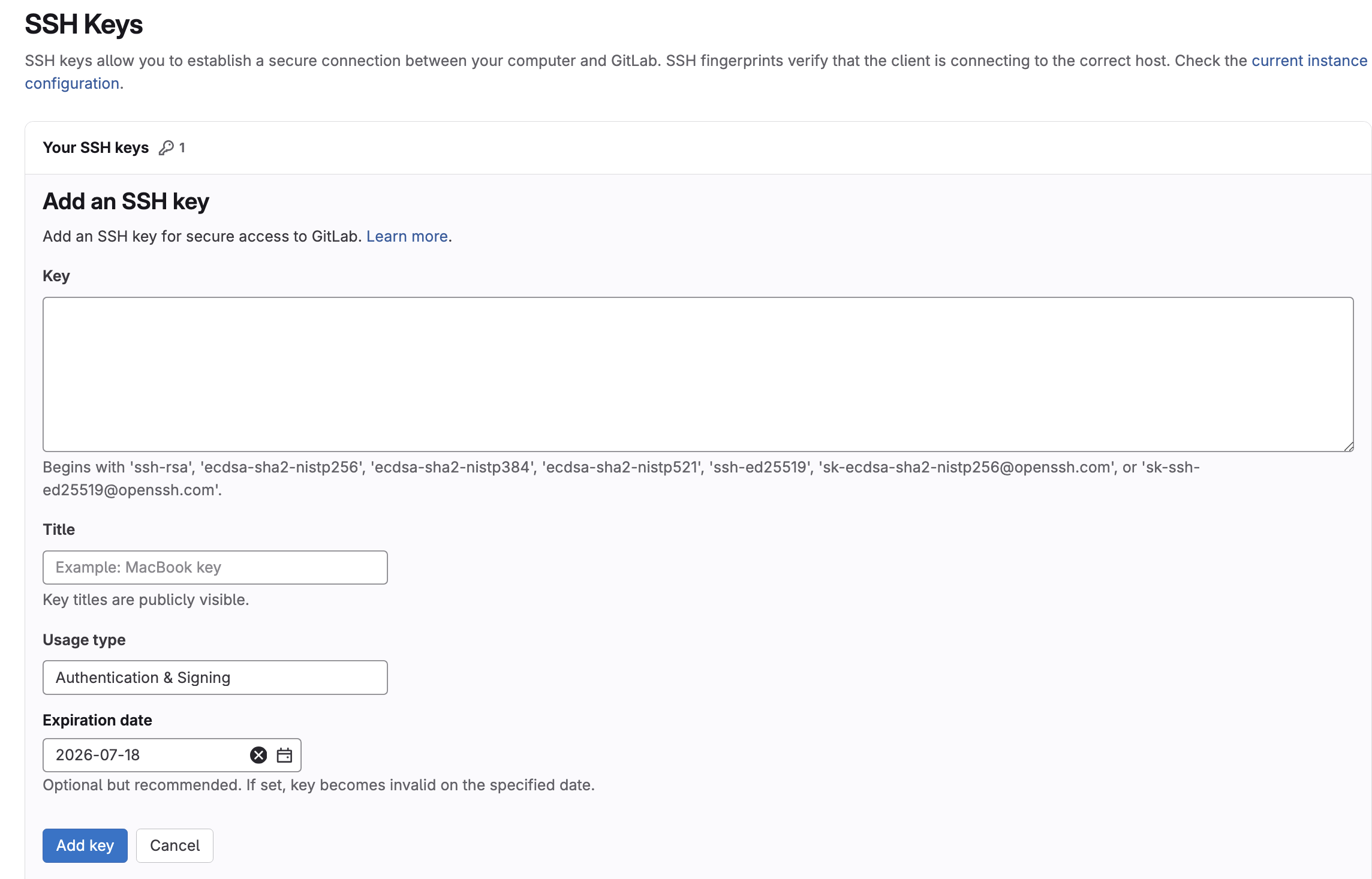
#### 3. Add the SSH Key to Your GitLab Account
1. Go to **GitLab** > **User Settings** (click your avatar) > **SSH Keys**
2. Click **Add new key**
3. Paste your `id_ed25519_gitlab.pub` content
4. Give your key a title (e.g., "Bruno Development")
5. Click **Add key**
```bash theme={null}
git@gitlab.com:/.git
```
### Configure SSH Key
Follow these steps to configure an SSH key on your local system:
#### 1. Generate SSH Key
Open your terminal and execute:
```bash theme={null}
ssh-keygen -t ed25519 -C "your_email@example.com" -f ~/.ssh/id_ed25519_gitlab
```
#### 2. Add SSH Key to SSH Agent
Add the SSH key to your SSH agent so it can be used for authentication:
```bash theme={null}
ssh-add ~/.ssh/id_ed25519_gitlab
```
#### 3. Add the SSH Key to Your GitLab Account
1. Go to **GitLab** > **User Settings** (click your avatar) > **SSH Keys**
2. Click **Add new key**
3. Paste your `id_ed25519_gitlab.pub` content
4. Give your key a title (e.g., "Bruno Development")
5. Click **Add key**
 ## Use GitLab with Bruno
1. Create a Collection inside Bruno (if you haven't already)
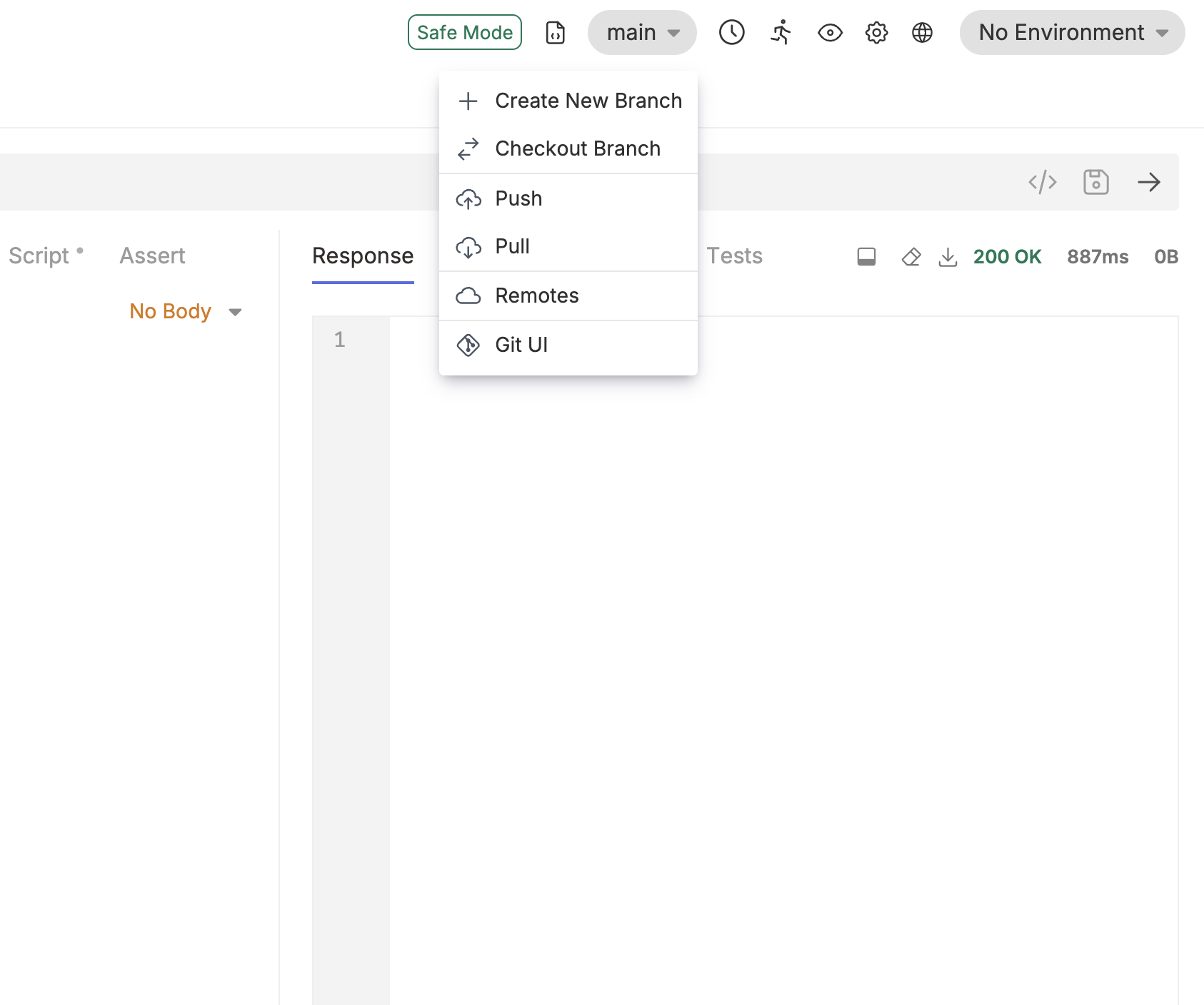
2. Click on the **Git** icon (next to Safe Mode) and select **Initialize repo**
3. Click on **main** and select **Remotes** from the dropdown
4. Add **origin** as the name of the remote and paste your repository URL (copied previously)
Now you can perform push, pull, and other Git operations directly from Bruno.
## Use GitLab with Bruno
1. Create a Collection inside Bruno (if you haven't already)
2. Click on the **Git** icon (next to Safe Mode) and select **Initialize repo**
3. Click on **main** and select **Remotes** from the dropdown
4. Add **origin** as the name of the remote and paste your repository URL (copied previously)
Now you can perform push, pull, and other Git operations directly from Bruno.
 For more detailed information about Git operations in Bruno, check out the [Collaboration via GUI documentation](/git-integration/using-gui/intro).