> ## Documentation Index
> Fetch the complete documentation index at: https://docs.usebruno.com/llms.txt
> Use this file to discover all available pages before exploring further.
# Fetch in Bruno Button
export const BrunoButton = ({collectionUrl, width = 160, height = 40, className = '', style = {}}) => {
const encodedUrl = encodeURIComponent(collectionUrl);
const buttonUrl = `https://fetch.usebruno.com?url=${encodedUrl}`;
return ;
};
Bruno allows you to share your Git-synchronized workspace and collections via an embedded "Fetch in Bruno" (FiB) button turning the import/cloning process into a single click!
This button can be placed in websites, articles, and documentation, with support for both HTML and Markdown formats.
## Import workspace and collections from Git
This feature helps you to share your workspace and collections in an easy and flexible way - meeting the user wherever they are. Once imported, the user now has a Git-synced collections and can seamlessly pull down new changes as updates are made.
1. [How to share your collections](#how-to-share-your-collections)
2. [How to share your workspace](#how-to-share-your-workspace)
### Things You Need
1. Bruno installed on your system.
2. A collection or workspace that has been initialized as a Git repository [either through the UI](https://docs.usebruno.com/git-integration/using-gui/provider#initializing-git) or from [the CLI](https://docs.usebruno.com/git-integration/using-cli#initializing-git-in-bruno-collection).
### How to Share Your Collections
1. Open Bruno.
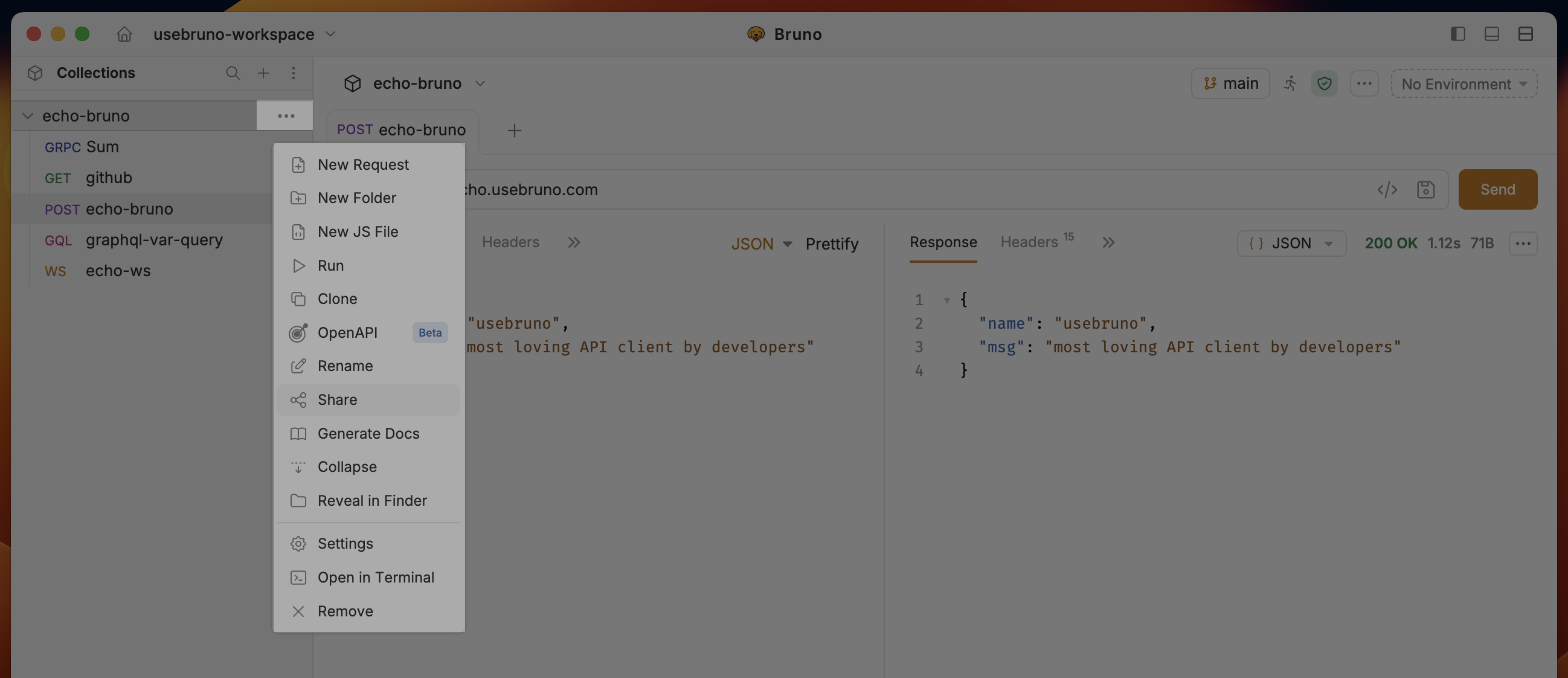
2. Either go to the collection Overview tab or click on the `...` and select `Share`.
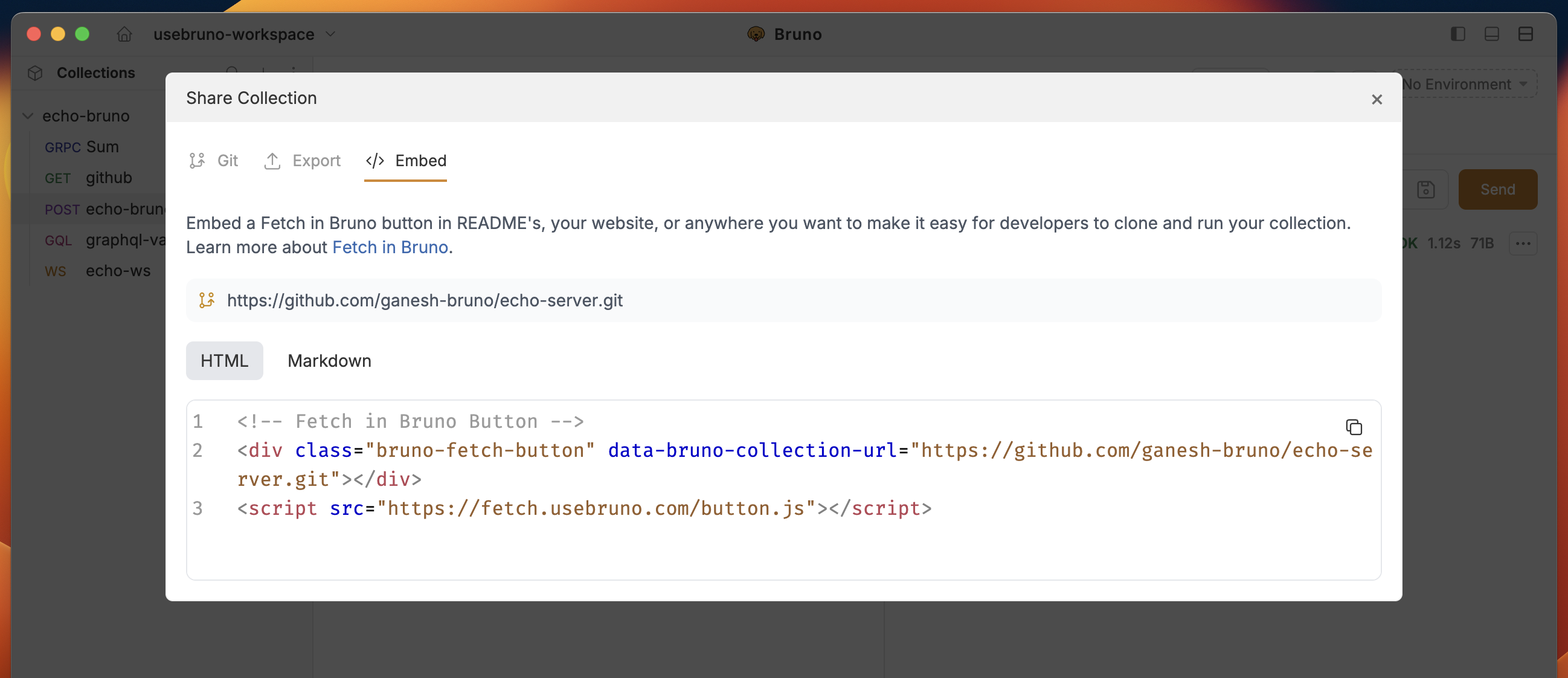
 3. Go to **Embed** tab and copy the generated link (HTML or Markdown).
 ### How to Share Your Workspace
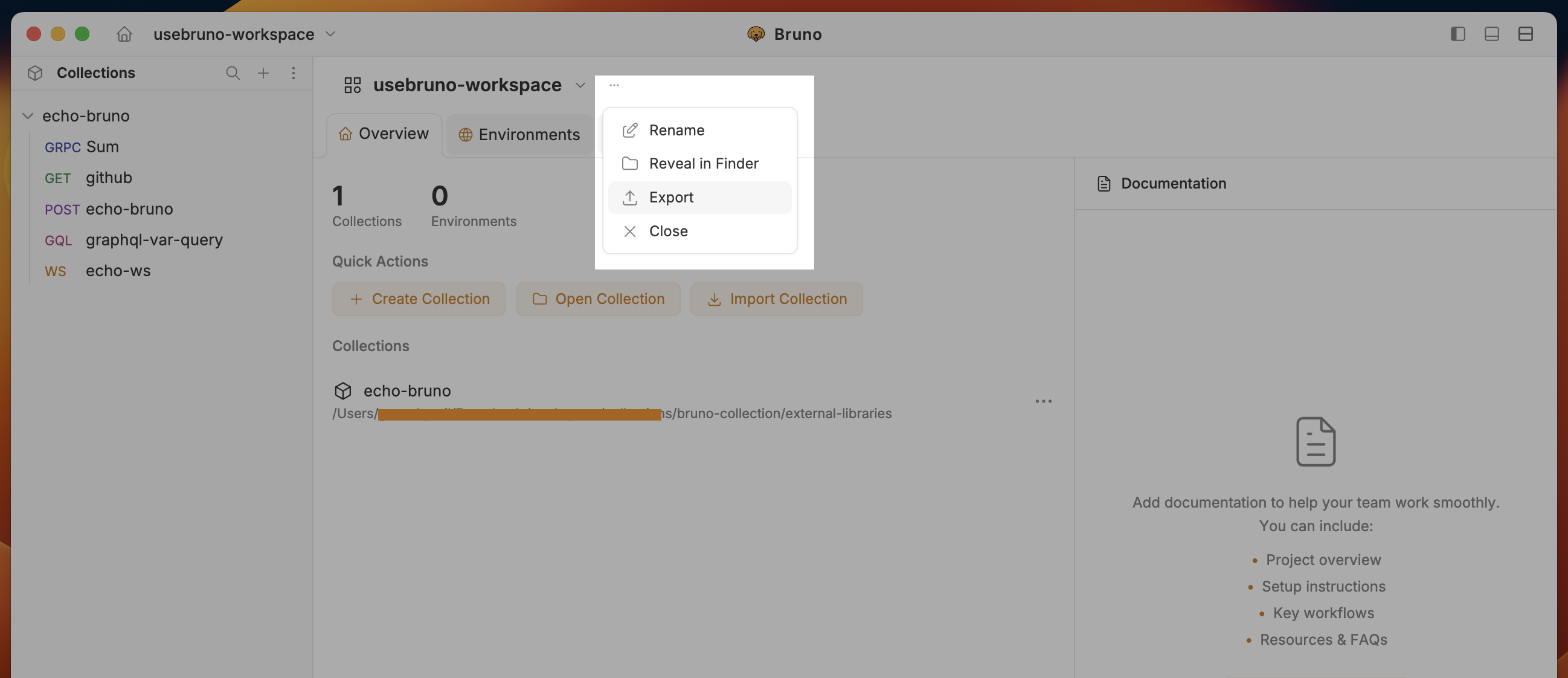
1. Go to workspace settings (double tap on the workspace name) and click on the `...` and select `Export`.
### How to Share Your Workspace
1. Go to workspace settings (double tap on the workspace name) and click on the `...` and select `Export`.
 2. Go to **Embed** tab and copy the generated link (HTML or Markdown).
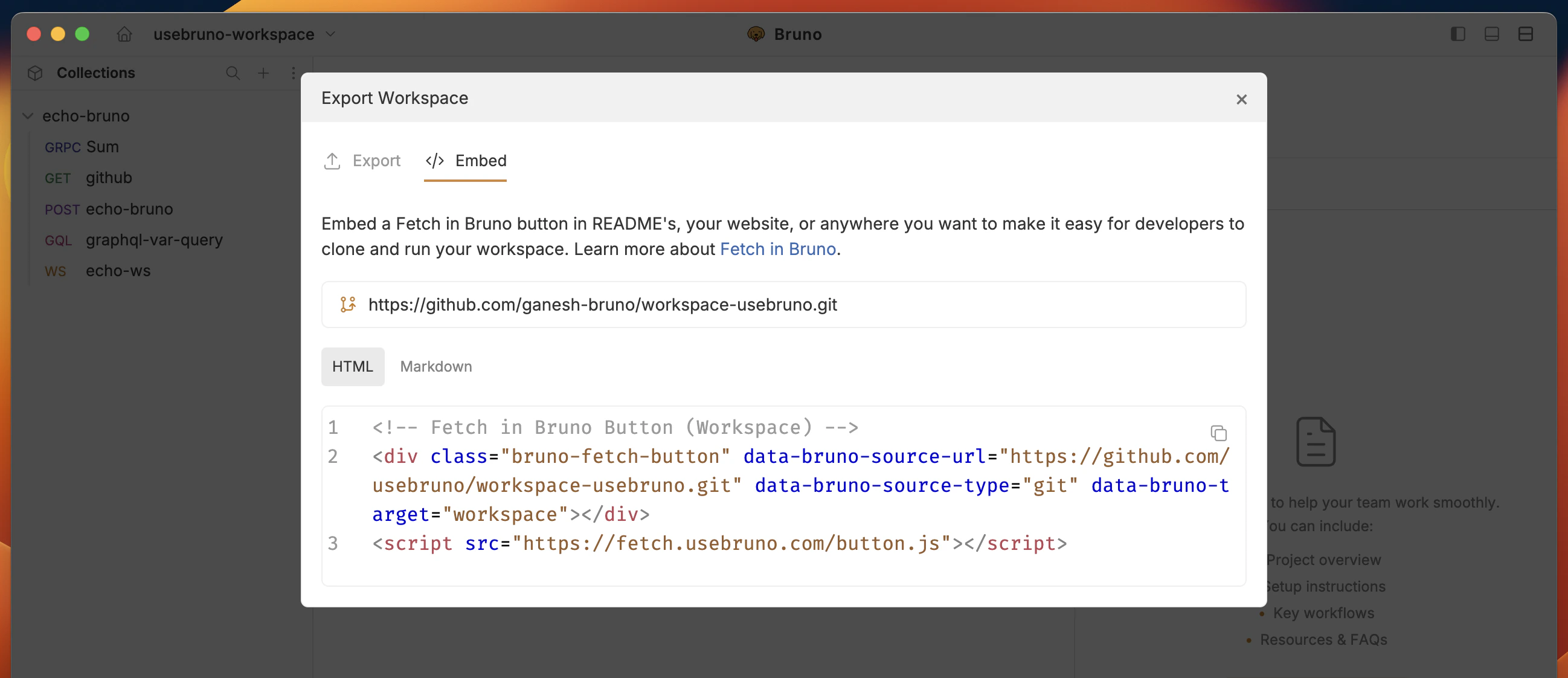 Embed the link into your website, article, or documentation(e.g. GitHub Readme).
### Manual Embedding Options
#### HTML Format
```html theme={null}
```
#### Markdown Format
```
[
Embed the link into your website, article, or documentation(e.g. GitHub Readme).
### Manual Embedding Options
#### HTML Format
```html theme={null}
```
#### Markdown Format
```
[ ](https://fetch.usebruno.com?url=https://linktoGitCollection.git "target=_blank rel=noopener noreferrer")
```
### How to Open Your Shared Workspace and Collections
The same process will follow for both workspace and collections.
1. Click on any Fetch in Bruno button.
2. A popup will appear. Click on **Open In Bruno**.
](https://fetch.usebruno.com?url=https://linktoGitCollection.git "target=_blank rel=noopener noreferrer")
```
### How to Open Your Shared Workspace and Collections
The same process will follow for both workspace and collections.
1. Click on any Fetch in Bruno button.
2. A popup will appear. Click on **Open In Bruno**.
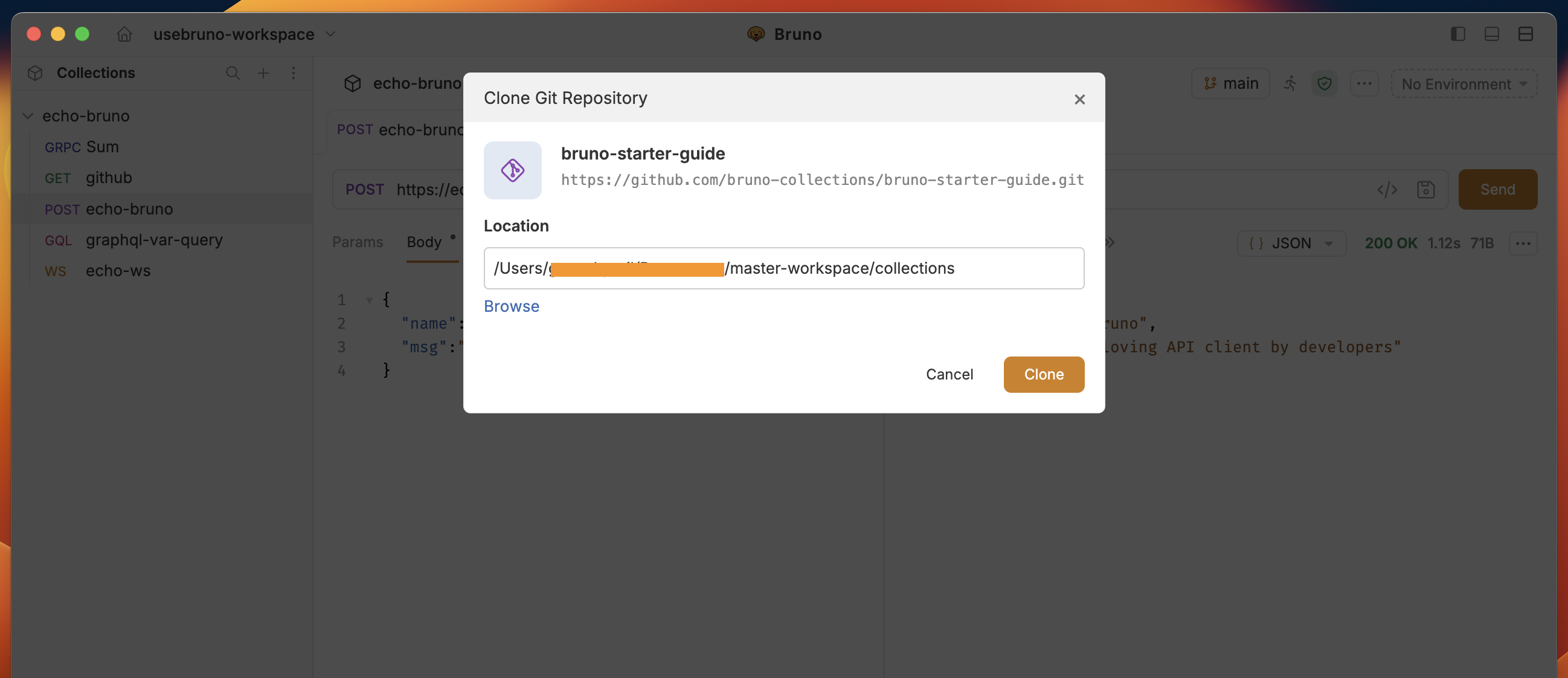
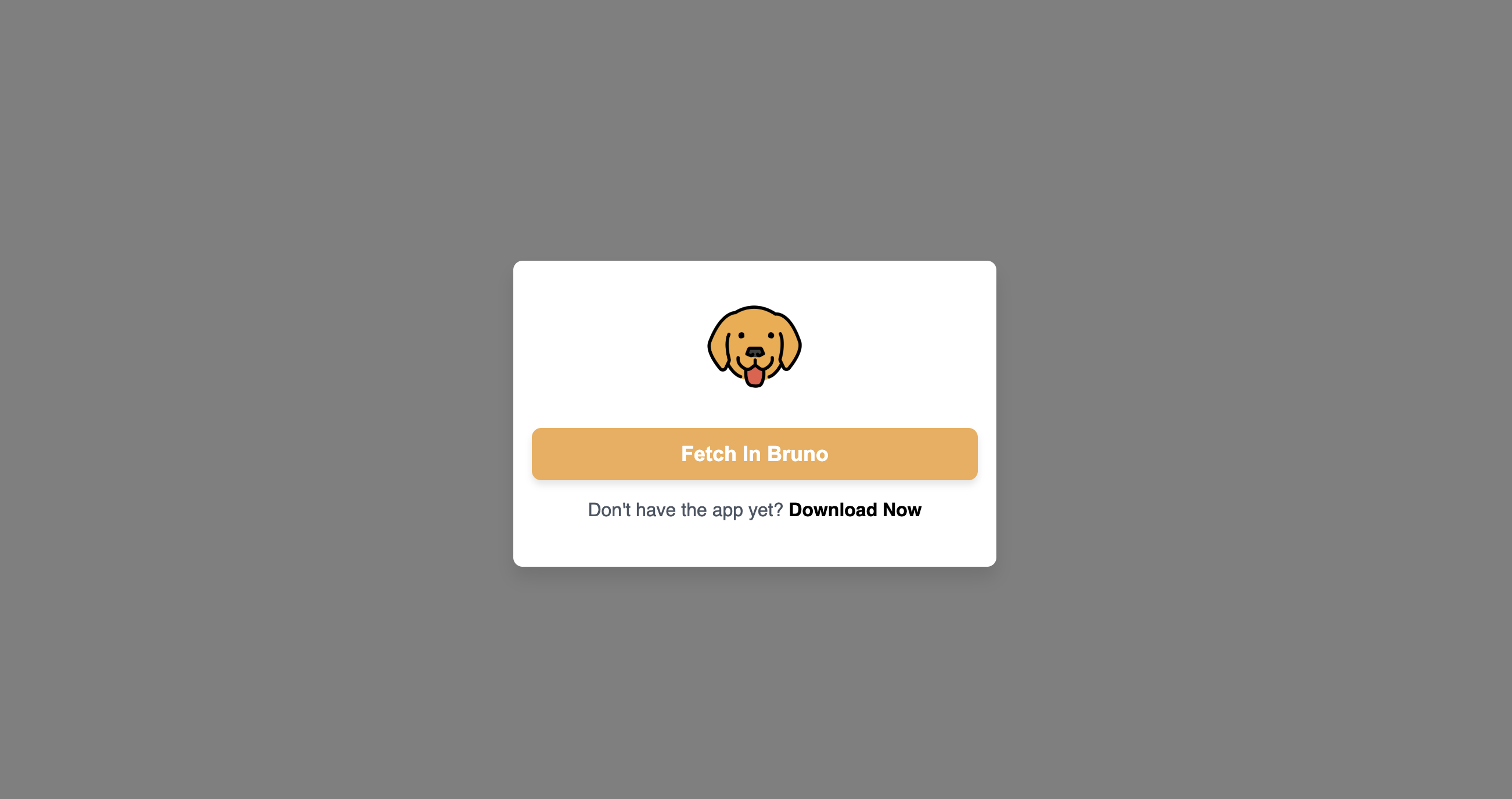 3. Choose the location where you'd like to store your collection.
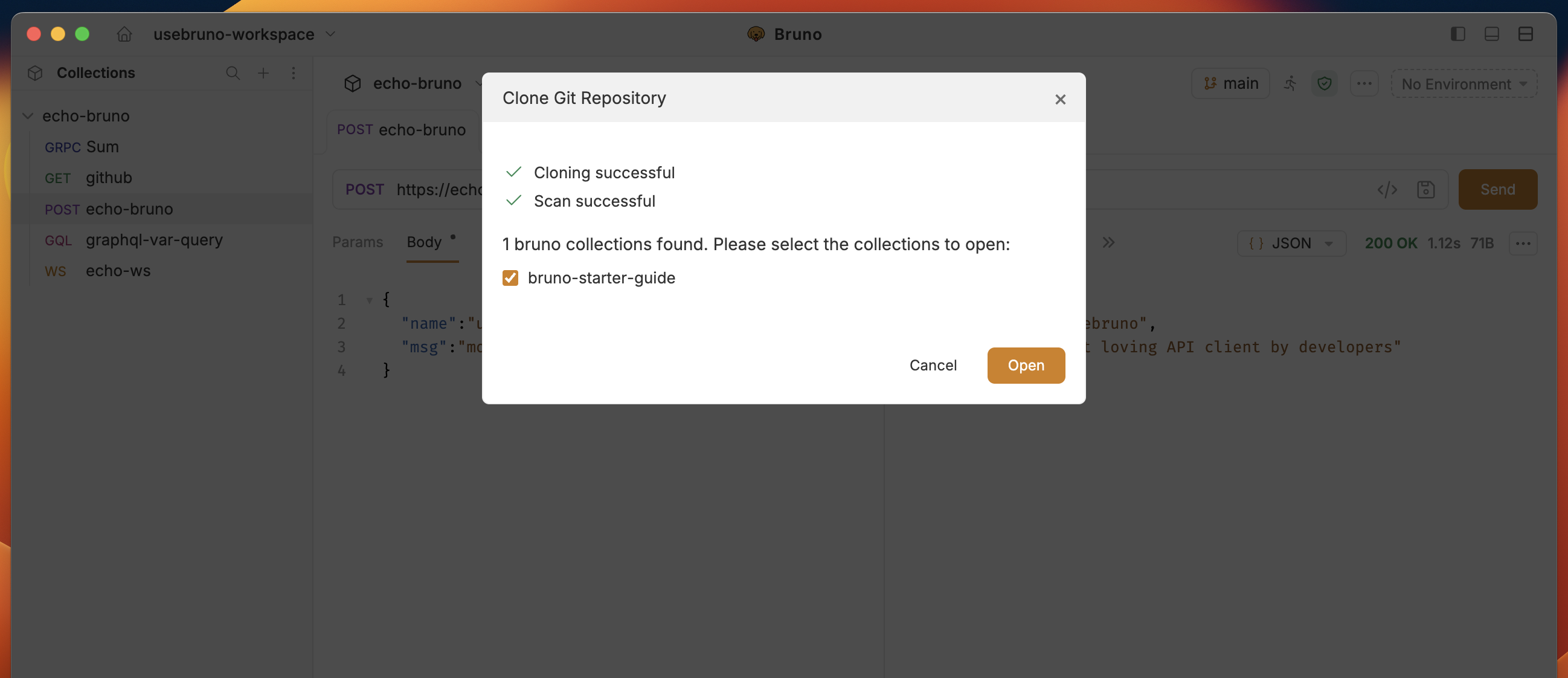
 4. You will see a list of available Bruno collections in the repository.
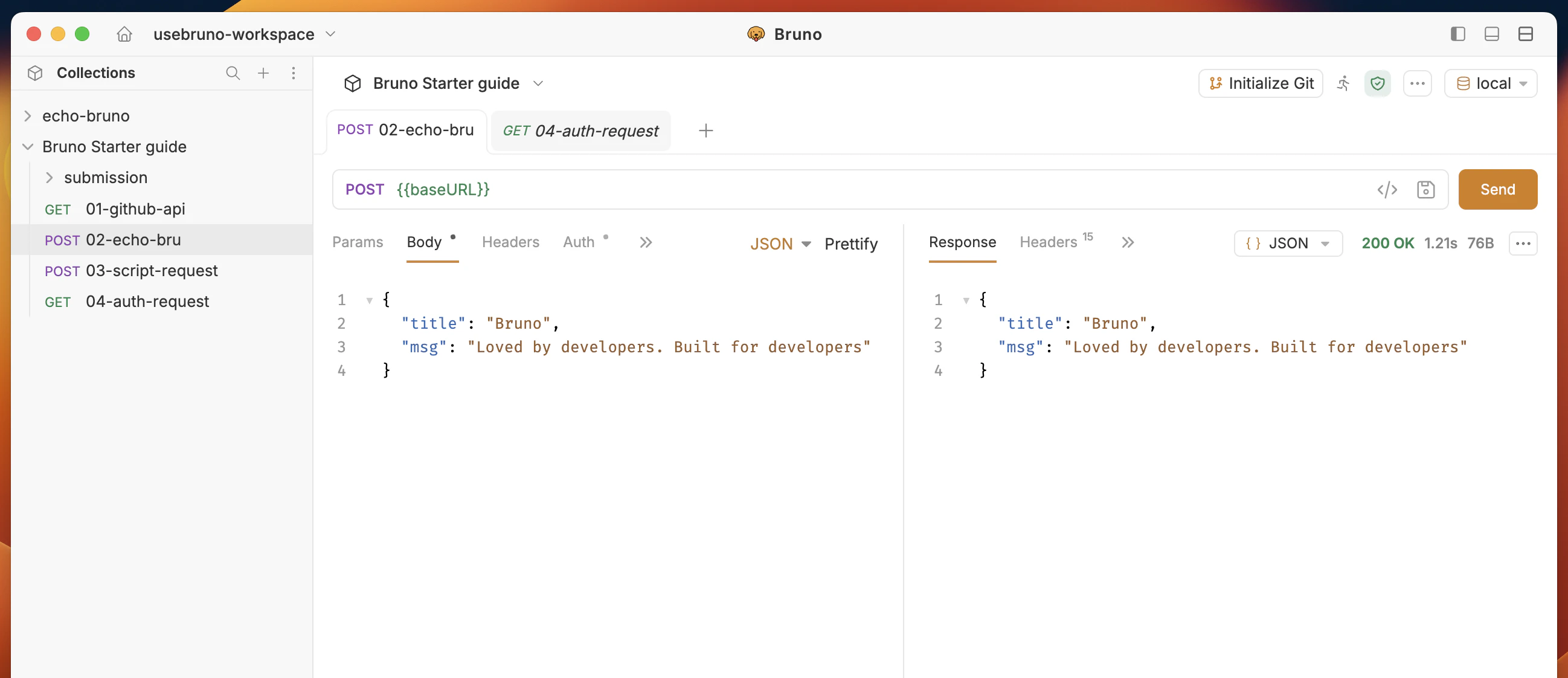
 Once the collection is loaded in Bruno, you'll be able to see the folder, requests, and all associated parameters.
 ### Customizations
You can replace the Fetch in Bruno title and logo with your preferred logo and name. Simply follow the changes below in the markdown link:
```bash theme={null}
[
### Customizations
You can replace the Fetch in Bruno title and logo with your preferred logo and name. Simply follow the changes below in the markdown link:
```bash theme={null}
[ ```
#### Markdown Format
```
[](https://fetch.usebruno.com?url=https://linktoOpenAPIspec.json&type=openapi "target=_blank rel=noopener noreferrer")
```
2. Replace `https://linktoOpenAPIspec.json` with your OpenAPI specification URL.
3. Embed this code in your website, documentation, or any HTML page.
When users click the button, Bruno will automatically:
* Fetch the OpenAPI specification from the provided URL
* Convert it into a Bruno collection
* Open it in the Bruno app and prompt the user to choose a location to save the collection
```
#### Markdown Format
```
[](https://fetch.usebruno.com?url=https://linktoOpenAPIspec.json&type=openapi "target=_blank rel=noopener noreferrer")
```
2. Replace `https://linktoOpenAPIspec.json` with your OpenAPI specification URL.
3. Embed this code in your website, documentation, or any HTML page.
When users click the button, Bruno will automatically:
* Fetch the OpenAPI specification from the provided URL
* Convert it into a Bruno collection
* Open it in the Bruno app and prompt the user to choose a location to save the collection