> ## Documentation Index
> Fetch the complete documentation index at: https://docs.usebruno.com/llms.txt
> Use this file to discover all available pages before exploring further.
# Create a Request
Bruno supports multiple ways to create API requests. You can work with HTTP, GraphQL, gRPC, WebSocket, or convert cURL commands into reusable requests.
## Create a first request
1. Open **Bruno** (workspace **Home**).
2. Click the **`+`** button to create a request.
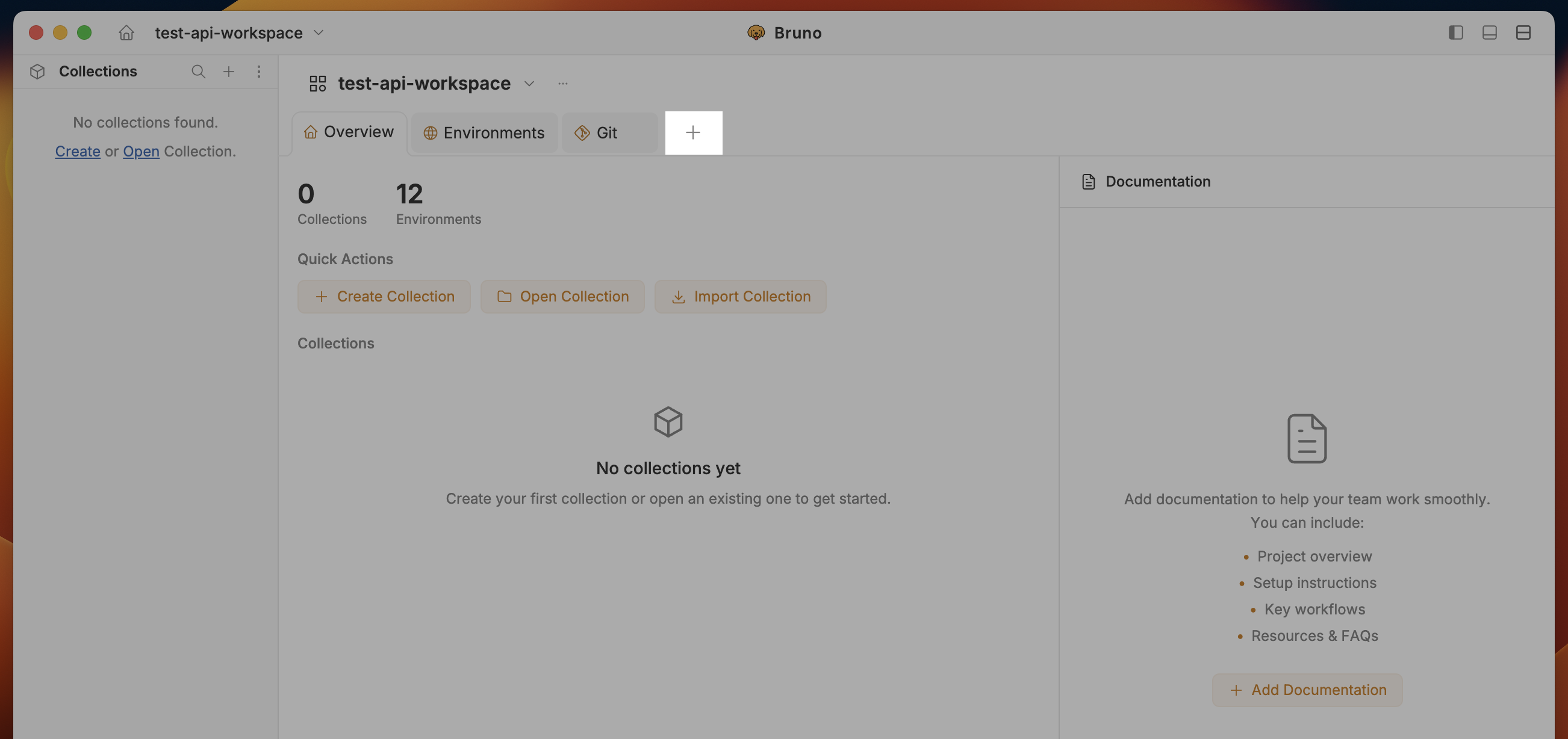 3. Enter a URL (e.g. `https://api.github.com/users/userbruno`) and press **Enter**.
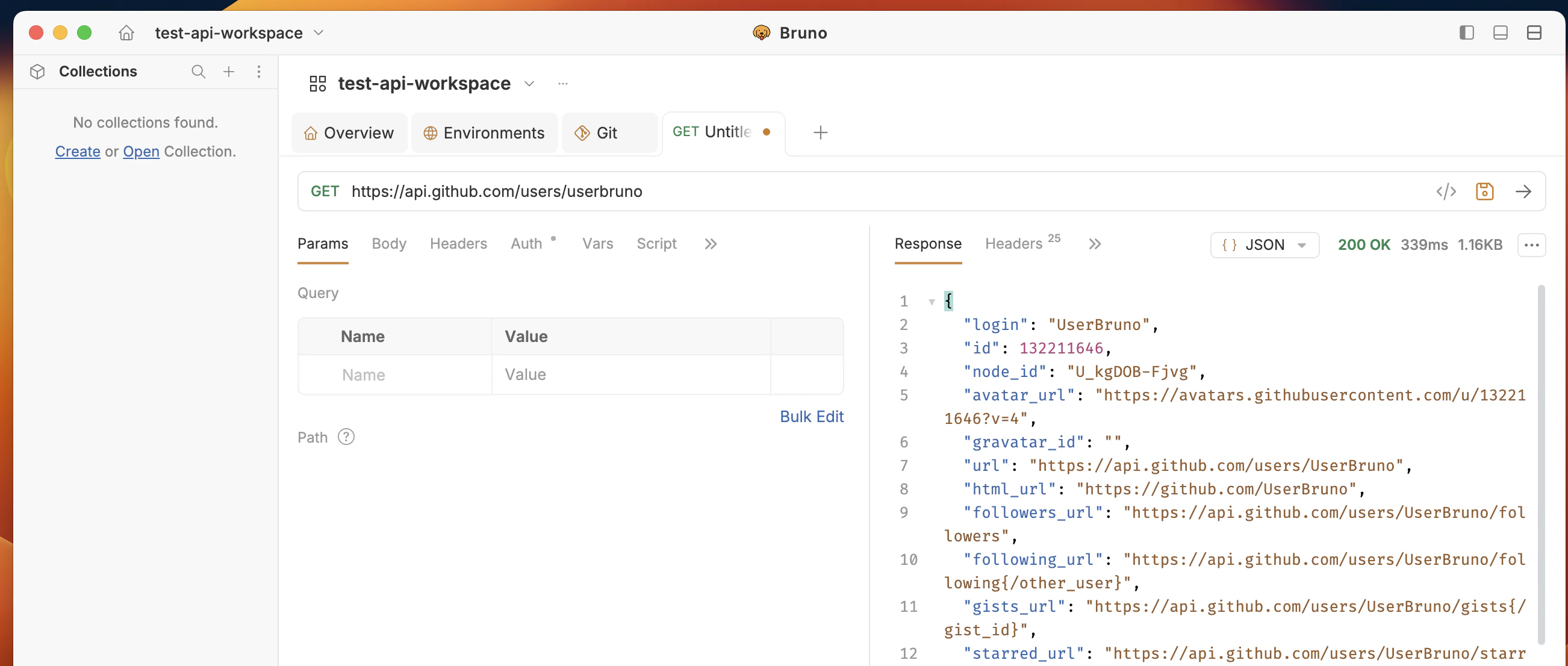 You can also create requests from a collection menu or without a collection. Read below sections to learn more.
**Three ways to create a request:**
1. **[Within a collection](#1-create-a-request-within-a-collection)** – Create a new request from the collection menu (saved to that collection).
2. **[Without a collection](#2-create-a-request-without-a-collection)** – Create an unsaved request from Workspace Home; save to a collection later (or discard).
3. **[Inline "+" button](#3-create-a-request-with-the-inline-button)** – Create a new request from the "+" icon next to the request tabs (within a collection context).
***
## 1. Create a request within a collection
Create a new request that belongs to a collection from the start:
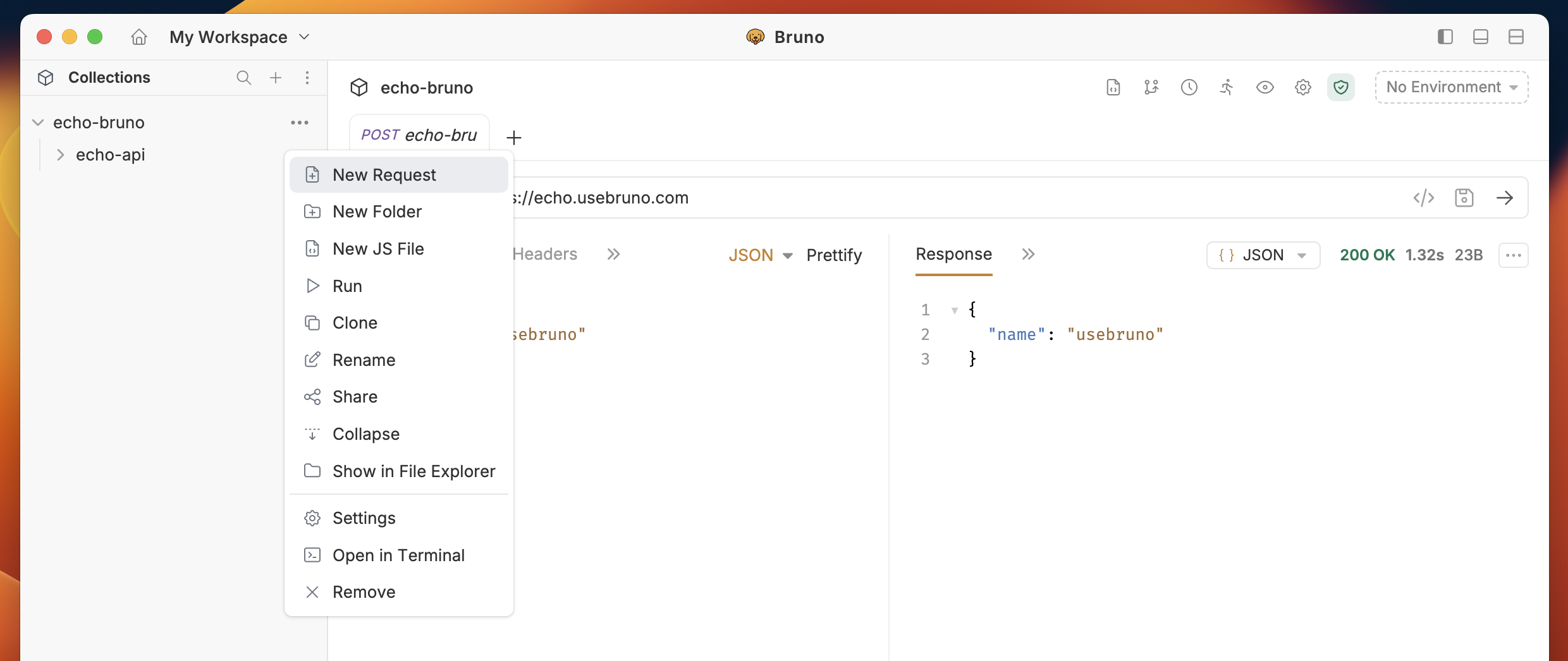
1. Open your **Collection** and click the **`···`** button.
2. Select **New Request** in the dropdown menu.
You can also create requests from a collection menu or without a collection. Read below sections to learn more.
**Three ways to create a request:**
1. **[Within a collection](#1-create-a-request-within-a-collection)** – Create a new request from the collection menu (saved to that collection).
2. **[Without a collection](#2-create-a-request-without-a-collection)** – Create an unsaved request from Workspace Home; save to a collection later (or discard).
3. **[Inline "+" button](#3-create-a-request-with-the-inline-button)** – Create a new request from the "+" icon next to the request tabs (within a collection context).
***
## 1. Create a request within a collection
Create a new request that belongs to a collection from the start:
1. Open your **Collection** and click the **`···`** button.
2. Select **New Request** in the dropdown menu.
 3. In the dialog, set:
* **Request Type** (HTTP, GraphQL, or from cURL)
* **Request Name**
* **HTTP Method** (GET, POST, PUT, etc.)
* **URL**
3. In the dialog, set:
* **Request Type** (HTTP, GraphQL, or from cURL)
* **Request Name**
* **HTTP Method** (GET, POST, PUT, etc.)
* **URL**
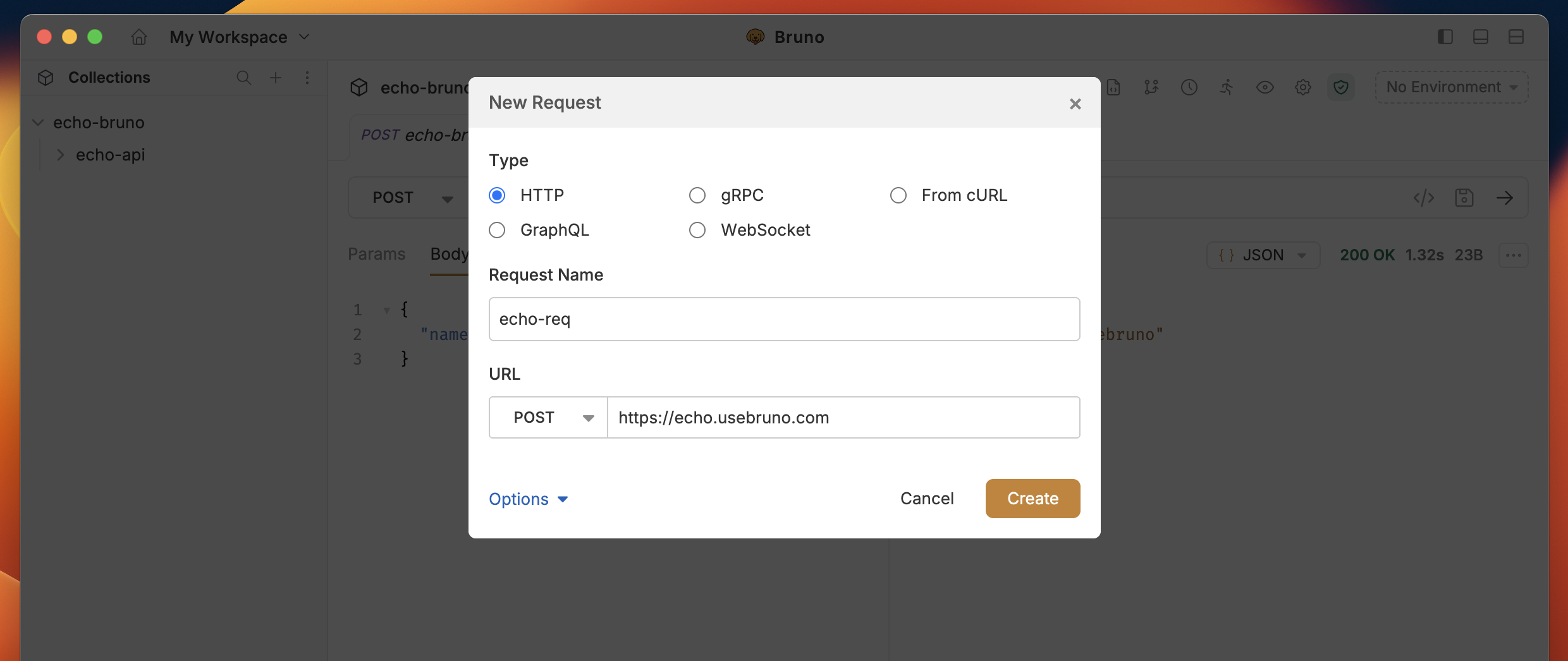 4. Click **Create**.
The request is created in your collection. You can add headers, query parameters, body, and other options as needed.
***
## 2. Create a request without a collection
Send a request without creating or opening a collection first—useful for ad-hoc checks (e.g. verifying an endpoint) or quick cURL-style calls.
1. Open **Workspace Home** and click the **"+"** icon in the tabs area.
4. Click **Create**.
The request is created in your collection. You can add headers, query parameters, body, and other options as needed.
***
## 2. Create a request without a collection
Send a request without creating or opening a collection first—useful for ad-hoc checks (e.g. verifying an endpoint) or quick cURL-style calls.
1. Open **Workspace Home** and click the **"+"** icon in the tabs area.
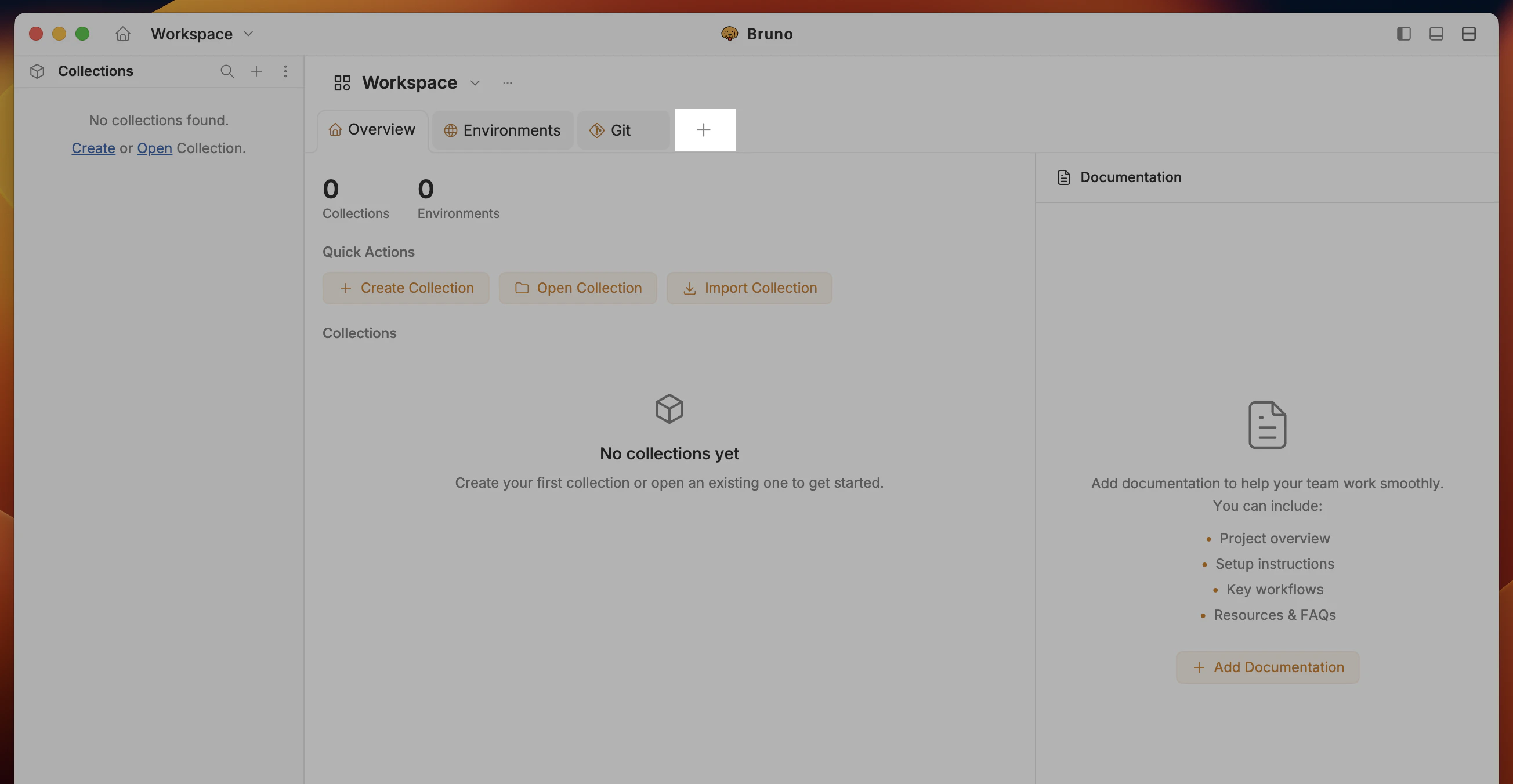 2. A new **unsaved request** opens in the editor (not tied to any collection).
3. **Configure and run** the request: URL, method, headers, auth, body, scripts, and tests are all supported.
2. A new **unsaved request** opens in the editor (not tied to any collection).
3. **Configure and run** the request: URL, method, headers, auth, body, scripts, and tests are all supported.
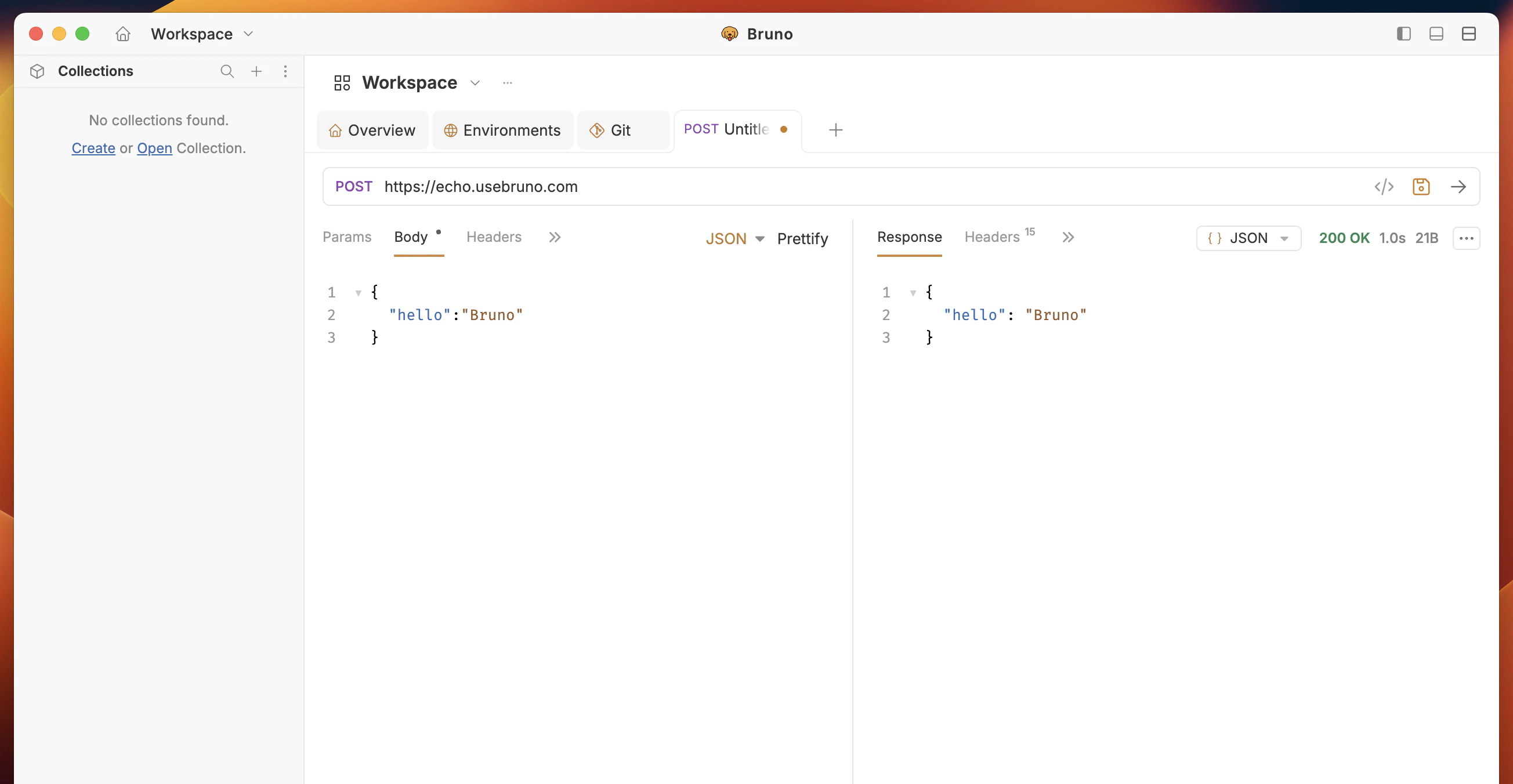 4. **Save (optional):** Click **Save** to open a modal where you can:
* Save to an **existing collection** from the list of open collections, or
* **Create a new collection** and save the request there.
If no collections are open, the flow defaults to creating a new collection. After saving, you're taken to the collection tab with the request open.
5. **Find unsaved requests** again via the **Home** icon or the workspace/collection dropdown.
6. **Closing the workspace** with unsaved requests open will prompt you that those requests will be lost unless you save them.
***
## 3. Create a request with the inline "+" button
**Quick request creation (v3.1.0+):** Create requests from the **"+"** icon next to the request tabs—no collection menu needed. The new request inherits the current collection's settings.
### Create an HTTP request
* **Click the "+" icon** next to the request tabs to create a new HTTP request in a new tab.
### Create GraphQL, gRPC, or WebSocket requests
1. **Right-click the "+" icon** next to the request tabs.
2. Choose the request type: **HTTP**, **GraphQL**, **gRPC**, or **WebSocket**.
4. **Save (optional):** Click **Save** to open a modal where you can:
* Save to an **existing collection** from the list of open collections, or
* **Create a new collection** and save the request there.
If no collections are open, the flow defaults to creating a new collection. After saving, you're taken to the collection tab with the request open.
5. **Find unsaved requests** again via the **Home** icon or the workspace/collection dropdown.
6. **Closing the workspace** with unsaved requests open will prompt you that those requests will be lost unless you save them.
***
## 3. Create a request with the inline "+" button
**Quick request creation (v3.1.0+):** Create requests from the **"+"** icon next to the request tabs—no collection menu needed. The new request inherits the current collection's settings.
### Create an HTTP request
* **Click the "+" icon** next to the request tabs to create a new HTTP request in a new tab.
### Create GraphQL, gRPC, or WebSocket requests
1. **Right-click the "+" icon** next to the request tabs.
2. Choose the request type: **HTTP**, **GraphQL**, **gRPC**, or **WebSocket**.
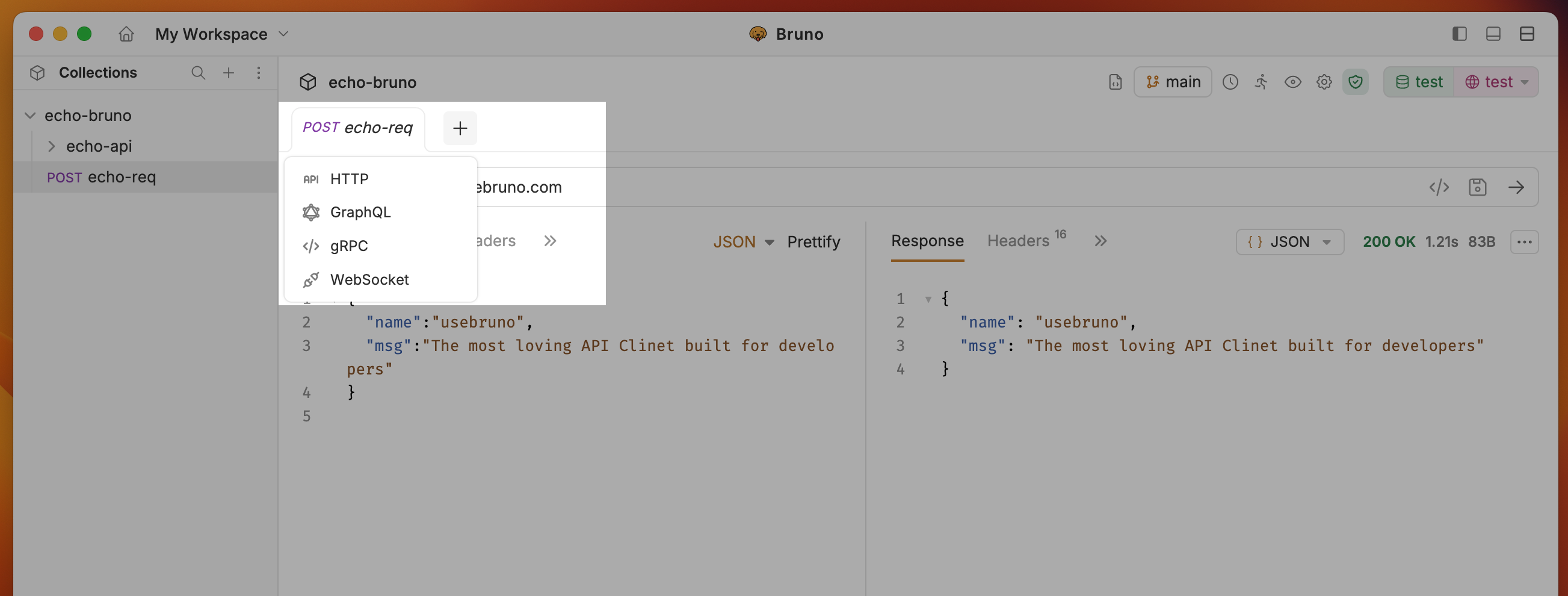 3. The new request opens in a new tab.
### How it works
* A new **"Untitled"** request opens immediately; no file is created until you save.
* The request **inherits collection-level settings** (auth, headers, etc.) and any **presets** from collection settings.
* When you **Save**, Bruno prompts you to choose a location (collection root or folder) and confirm the name.
This workflow is useful for rapid prototyping: create and run requests, then save only when you're satisfied.
***
## Custom Request Filenames
You can use any characters in your request names, including special characters like `/`, `[`, `]`, `*`, etc. Bruno automatically handles filesystem compatibility by replacing unsupported characters with `-` in the filenames while preserving your original request name.
### To view or customize the filesystem name
1. Select **Show Filesystem Name.**
3. The new request opens in a new tab.
### How it works
* A new **"Untitled"** request opens immediately; no file is created until you save.
* The request **inherits collection-level settings** (auth, headers, etc.) and any **presets** from collection settings.
* When you **Save**, Bruno prompts you to choose a location (collection root or folder) and confirm the name.
This workflow is useful for rapid prototyping: create and run requests, then save only when you're satisfied.
***
## Custom Request Filenames
You can use any characters in your request names, including special characters like `/`, `[`, `]`, `*`, etc. Bruno automatically handles filesystem compatibility by replacing unsupported characters with `-` in the filenames while preserving your original request name.
### To view or customize the filesystem name
1. Select **Show Filesystem Name.**
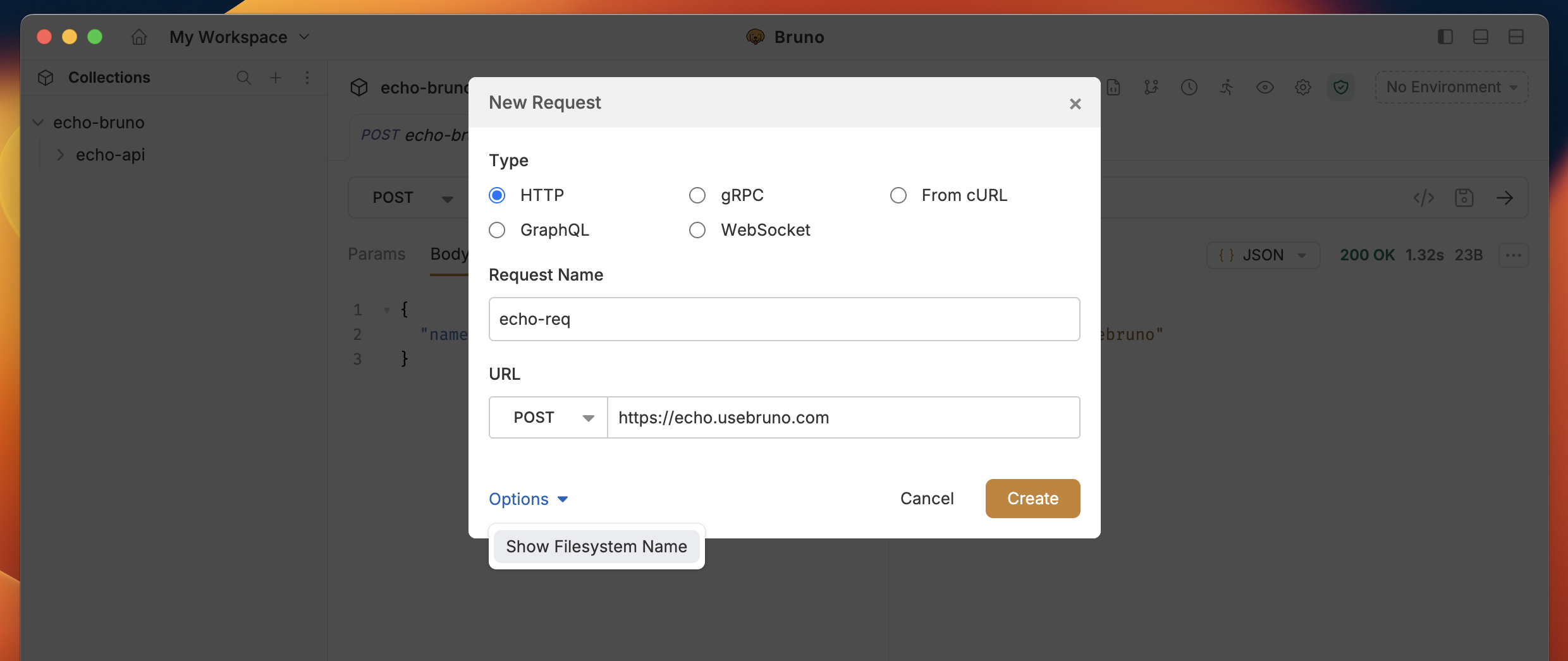 2. You can now see how your request name is stored on the filesystem.
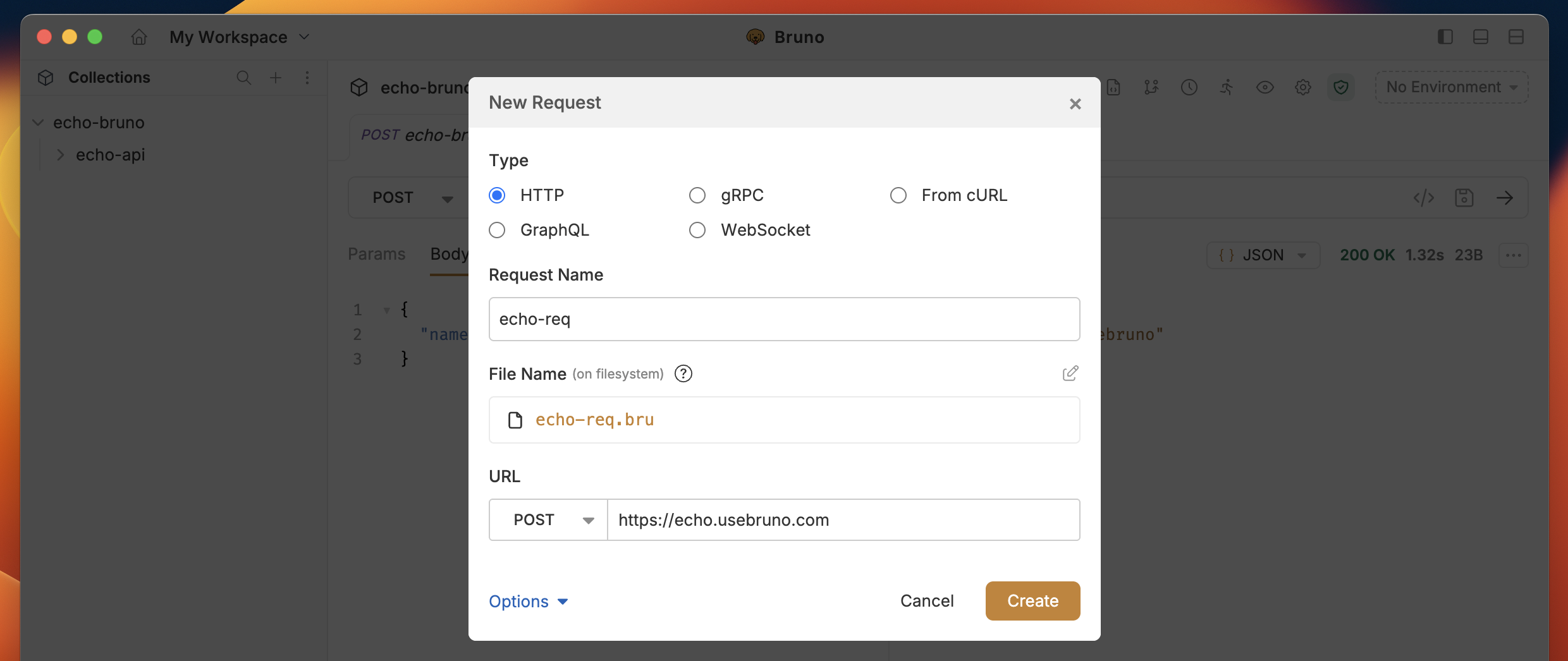 3. (Optional) Click the edit icon to customize the filename while keeping your display name intact.
This feature gives you complete freedom in naming your requests while ensuring filesystem compatibility.
3. (Optional) Click the edit icon to customize the filename while keeping your display name intact.
This feature gives you complete freedom in naming your requests while ensuring filesystem compatibility.