> ## Documentation Index
> Fetch the complete documentation index at: https://docs.usebruno.com/llms.txt
> Use this file to discover all available pages before exploring further.
# Create a Collection
A collection in Bruno is a structured group of API requests, tests, and related resources that helps you organize and manage your API testing workflow.
If you have an existing collection inside of another tool that you would like to import, please see [Importing Collections ↗](../import-export-data/import-collections).
## How to Create a Collection
1. Open Bruno and navigate to the **home screen**
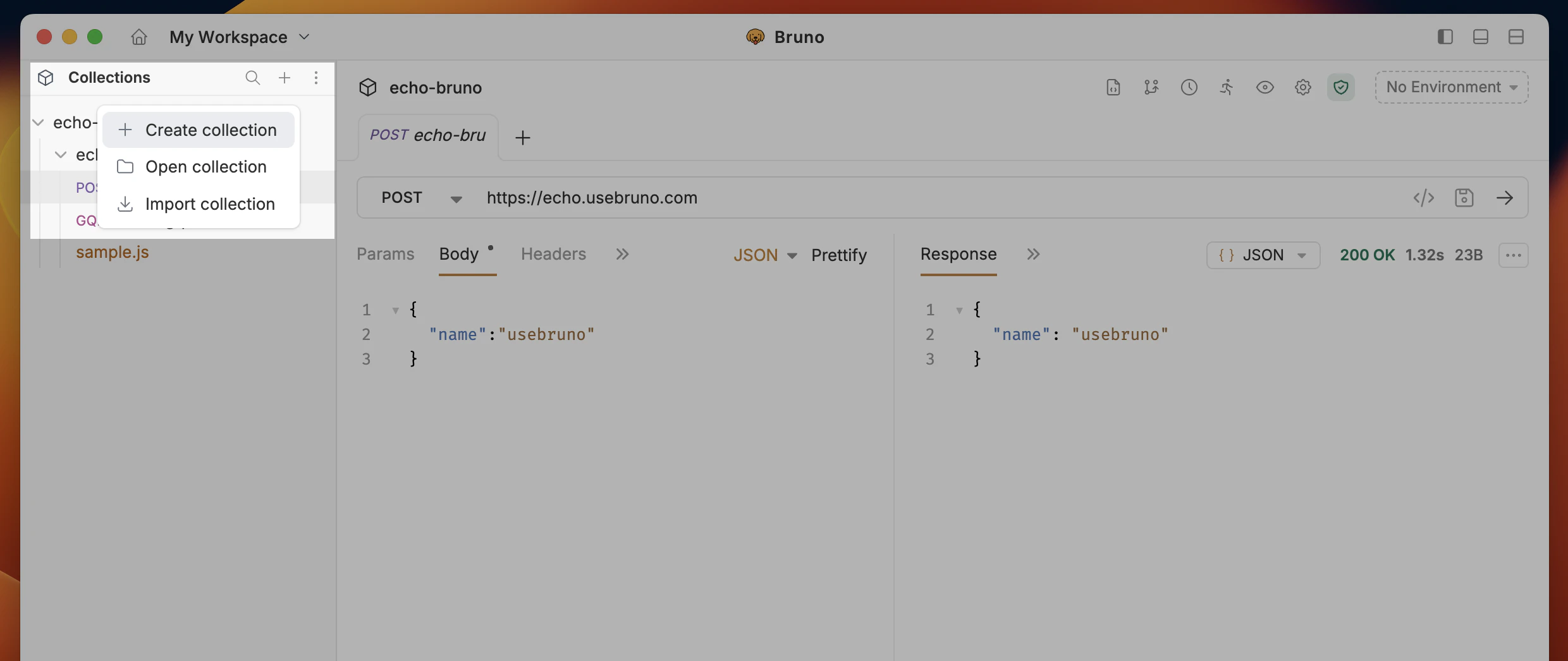
2. Click on the `+` button and select **Create Collection** from the dropdown.
 3. Enter a name for your collection.
4. **(Optional)**:
* To store the collection at a custom location: click the **settings icon** (advanced options) and choose the desired folder on your system.
* Click on **Options** dropdown and select **YAML** to change the file format to YAML or BRU -> YAML recommended.
3. Enter a name for your collection.
4. **(Optional)**:
* To store the collection at a custom location: click the **settings icon** (advanced options) and choose the desired folder on your system.
* Click on **Options** dropdown and select **YAML** to change the file format to YAML or BRU -> YAML recommended.
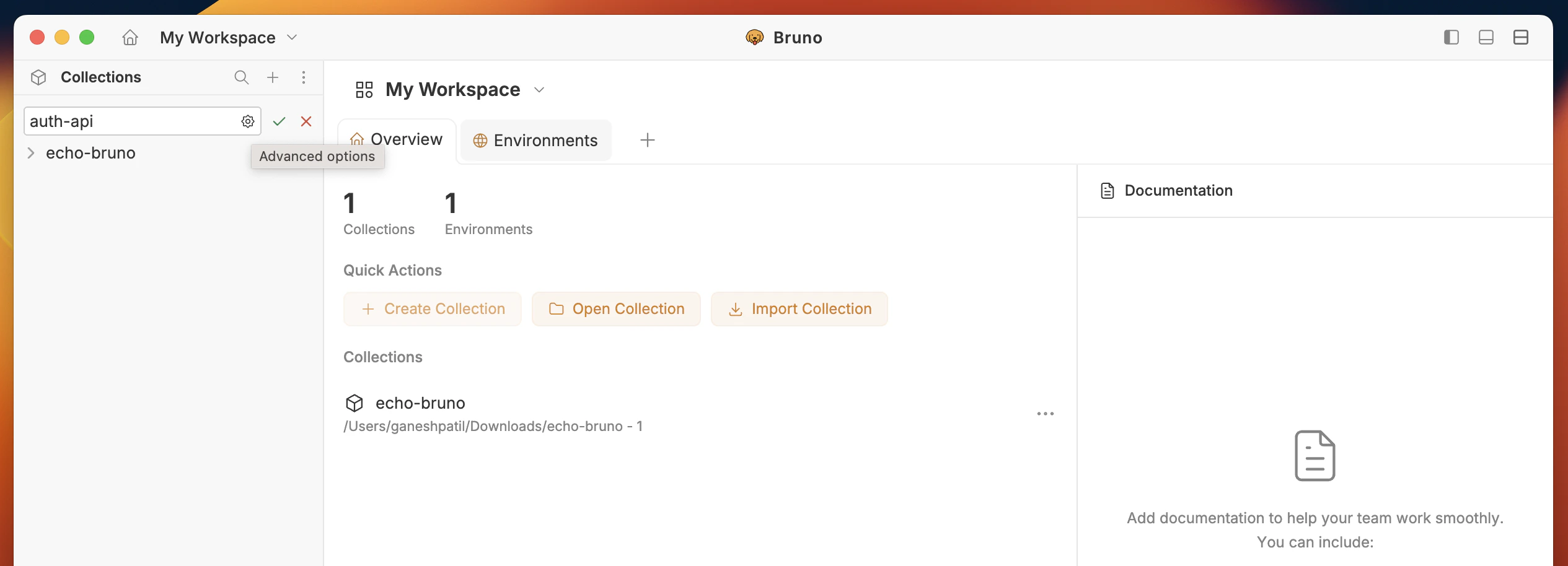 If you skip this, the collection is stored at the default location: `~/Documents/bruno` (e.g. `/Users/username/Documents/bruno`). You can view or change the default location in **Preferences** → **General** tab. See [Settings](/get-started/configure/settings#general).
 5. Choose or confirm the location on your filesystem for the collection.
6. Click **Create**
Starting with Bruno v3.1.0, YAML (OpenCollection format) is the default file format when creating new collections. Learn more about [OpenCollection YAML](/opencollection-yaml/overview).
## Automatic Git Configuration
When you create a new collection or workspace, Bruno automatically generates a `.gitignore` file with recommended settings to ensure proper Git hygiene out of the box.
**What's Included in `.gitignore`:**
* Temporary files and caches
* Environment variable files with sensitive data
* Generated metadata
* System-specific files
The automatically generated `.gitignore` file helps prevent accidentally committing sensitive information (like API keys in environment variables) or unnecessary files to version control.
## Custom Collection Names
You can use any characters in your collection names, including special characters like `/`, `[`, `]`, `*`, etc. Bruno automatically handles filesystem compatibility by replacing unsupported characters with `-` in the filenames while preserving your original collection name.
[Add a request ↗](https://docs.usebruno.com/get-started/bruno-basics/create-a-request) to your collection as a next step!
If you're looking to collaborate and share with your team, please see [Collaboration in Bruno ↗](https://docs.usebruno.com/git-integration/overview).
5. Choose or confirm the location on your filesystem for the collection.
6. Click **Create**
Starting with Bruno v3.1.0, YAML (OpenCollection format) is the default file format when creating new collections. Learn more about [OpenCollection YAML](/opencollection-yaml/overview).
## Automatic Git Configuration
When you create a new collection or workspace, Bruno automatically generates a `.gitignore` file with recommended settings to ensure proper Git hygiene out of the box.
**What's Included in `.gitignore`:**
* Temporary files and caches
* Environment variable files with sensitive data
* Generated metadata
* System-specific files
The automatically generated `.gitignore` file helps prevent accidentally committing sensitive information (like API keys in environment variables) or unnecessary files to version control.
## Custom Collection Names
You can use any characters in your collection names, including special characters like `/`, `[`, `]`, `*`, etc. Bruno automatically handles filesystem compatibility by replacing unsupported characters with `-` in the filenames while preserving your original collection name.
[Add a request ↗](https://docs.usebruno.com/get-started/bruno-basics/create-a-request) to your collection as a next step!
If you're looking to collaborate and share with your team, please see [Collaboration in Bruno ↗](https://docs.usebruno.com/git-integration/overview).