> ## Documentation Index
> Fetch the complete documentation index at: https://docs.usebruno.com/llms.txt
> Use this file to discover all available pages before exploring further.
# Akamai EdgeGrid
Akamai EdgeGrid authentication is available in **Beta** from **v4.0.0** and higher.
## What is Akamai EdgeGrid?
Akamai EdgeGrid is a proprietary authentication scheme used by the [Akamai APIs](https://techdocs.akamai.com/developer/docs/authenticate-with-edgegrid). It signs each request with a set of credentials such as Access Token, Client Token, and Client Secret to verify the caller's identity and protect against tampering.
## How to Configure
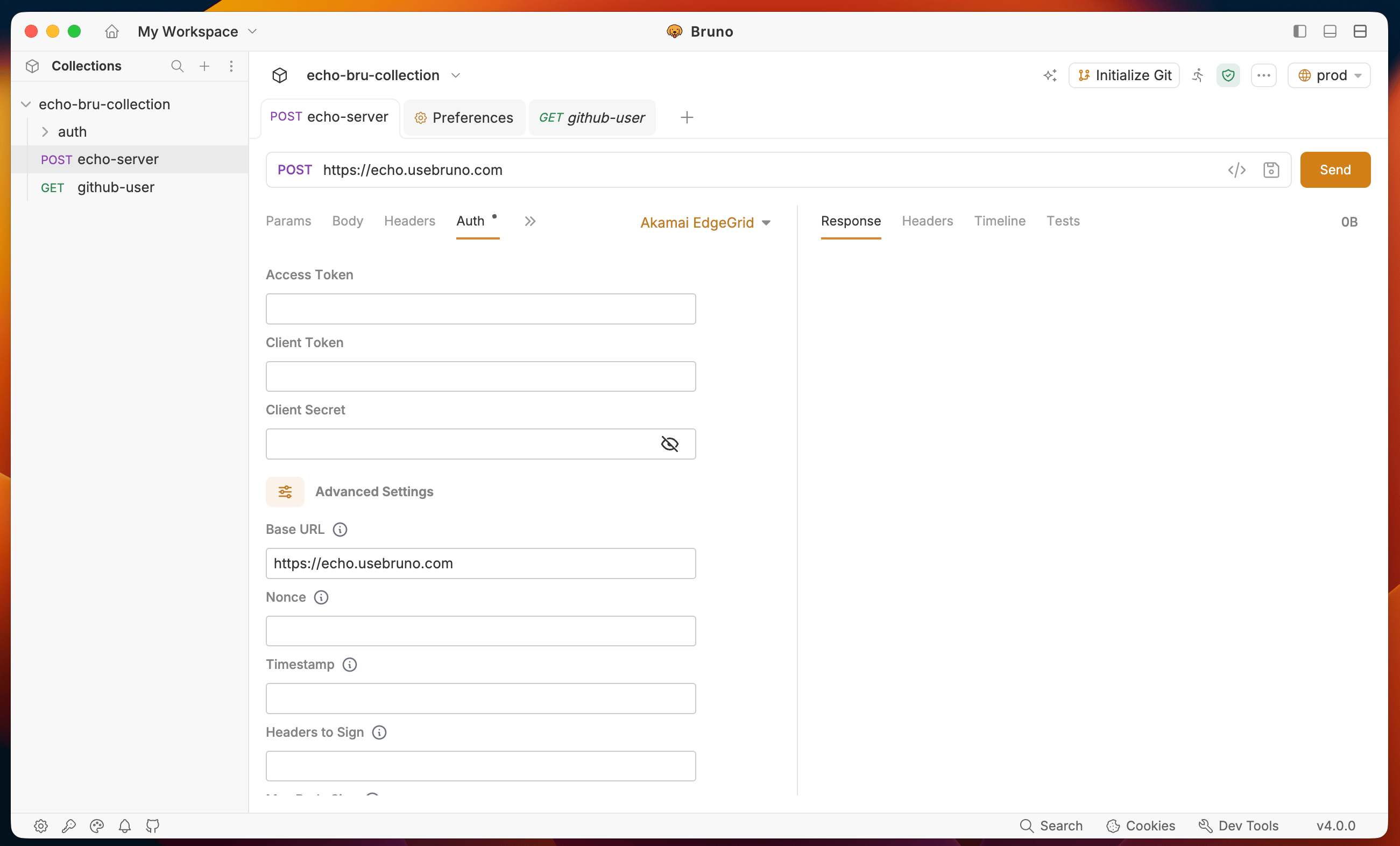
1. Open a request in Bruno and go to the **Auth** tab.
2. Select **Akamai EdgeGrid** from the authentication type dropdown.
3. Fill in the required fields:
 | Field | Description |
| ----------------- | ------------------------------------------------------------ |
| **Access Token** | The access token from your Akamai `.edgerc` credentials file |
| **Client Token** | The client token from your Akamai `.edgerc` credentials file |
| **Client Secret** | The client secret used to sign requests |
4. Send your request. Bruno generates the EdgeGrid signature and attaches the required `Authorization` header automatically.
You can also set EdgeGrid authentication at the collection level so all requests in the collection inherit it. Open **Collection Settings** and go to the **Auth** tab.
## Advanced Settings
For most requests the three required fields above are all you need. Click **Advanced Settings** to configure optional signing parameters.
| Field | Default | Description |
| ------------------- | ---------------------- | ------------------------------------------------------------------------------------------------- |
| **Base URL** | Request URL | The base URL used when constructing the signature. Defaults to the request URL if left blank. |
| **Nonce** | Auto-generated UUID v4 | A unique value required per request. Bruno generates one automatically if left blank. |
| **Timestamp** | Current UTC time | The signing timestamp in `yyyyMMddTHH:mm:ss+0000` format. Defaults to current time if left blank. |
| **Headers to Sign** | — | Comma-separated list of request headers to include in the signature. |
| **Max Body Size** | `131072` bytes | Maximum request body size to include in the signature. |
Hover over the **ⓘ** icon next to any advanced field in the UI for a tooltip describing the field and its default behavior.
## Postman import and export
When you import a Postman collection that uses EdgeGrid authentication, Bruno brings in the supported credentials and settings automatically. When you export a Bruno collection with EdgeGrid auth to Postman format, the exported collection works without requiring manual changes.
## Related
* [Authentication Overview](/auth/overview)
* [AWS Signature](/auth/aws-signature)
* [Add and Manage Certificates](/auth/add-and-manage-certs)
| Field | Description |
| ----------------- | ------------------------------------------------------------ |
| **Access Token** | The access token from your Akamai `.edgerc` credentials file |
| **Client Token** | The client token from your Akamai `.edgerc` credentials file |
| **Client Secret** | The client secret used to sign requests |
4. Send your request. Bruno generates the EdgeGrid signature and attaches the required `Authorization` header automatically.
You can also set EdgeGrid authentication at the collection level so all requests in the collection inherit it. Open **Collection Settings** and go to the **Auth** tab.
## Advanced Settings
For most requests the three required fields above are all you need. Click **Advanced Settings** to configure optional signing parameters.
| Field | Default | Description |
| ------------------- | ---------------------- | ------------------------------------------------------------------------------------------------- |
| **Base URL** | Request URL | The base URL used when constructing the signature. Defaults to the request URL if left blank. |
| **Nonce** | Auto-generated UUID v4 | A unique value required per request. Bruno generates one automatically if left blank. |
| **Timestamp** | Current UTC time | The signing timestamp in `yyyyMMddTHH:mm:ss+0000` format. Defaults to current time if left blank. |
| **Headers to Sign** | — | Comma-separated list of request headers to include in the signature. |
| **Max Body Size** | `131072` bytes | Maximum request body size to include in the signature. |
Hover over the **ⓘ** icon next to any advanced field in the UI for a tooltip describing the field and its default behavior.
## Postman import and export
When you import a Postman collection that uses EdgeGrid authentication, Bruno brings in the supported credentials and settings automatically. When you export a Bruno collection with EdgeGrid auth to Postman format, the exported collection works without requiring manual changes.
## Related
* [Authentication Overview](/auth/overview)
* [AWS Signature](/auth/aws-signature)
* [Add and Manage Certificates](/auth/add-and-manage-certs)